Pricing your food products accurately is essential for profitability, whether you’re running a small restaurant, a catering business, or selling homemade treats online. A food costing calculator helps you determine the true cost of each dish, set competitive prices, and ensure a healthy profit margin.
If you’re looking for a free, easy-to-use food costing calculator template, you’ve come to the right place. In this post, we’ll introduce a Google Sheets-based food costing template designed to streamline your pricing process. You’ll learn how it works, why it’s useful, and how to customize it for your business.
Overview of the Template
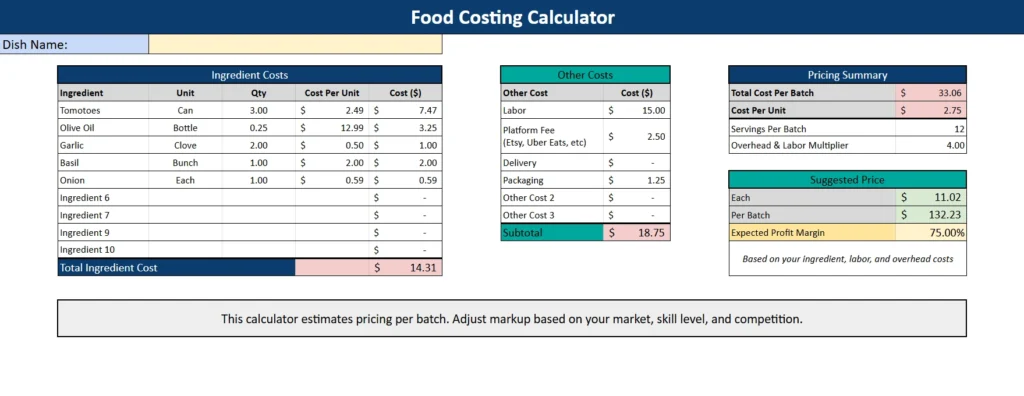
A food costing calculator is a spreadsheet tool that helps you calculate the cost of ingredients, labor, and overhead for each dish or batch. By inputting your ingredient costs, quantities, and other expenses, the template automatically computes the total cost per batch, cost per serving, and suggested selling price.
This template is built for Google Sheets, making it accessible from any device and easy to share with your team. It’s ideal for:
- Small restaurant owners who want to price dishes accurately.
- Home-based food businesses (bakers, caterers, meal prep services).
- Food entrepreneurs selling on platforms like Etsy or Uber Eats.
The template includes four key sections:
- Ingredients Sheet: Track ingredient names, units, quantities, and costs.
- Labor and Overhead Sheet: Add labor, platform fees, delivery, packaging, and other expenses.
- Calculations Sheet: Automatically computes total costs and multipliers.
- Pricing Summary Sheet: Displays cost per unit, suggested price, and profit margin.
Key Features and Sections
Ingredients Sheet
This is where you list all the ingredients for your dish. For example, if you’re making a pasta sauce, you might include tomatoes, olive oil, garlic, and basil.
- Columns:
- Ingredient: Name of the ingredient (e.g., “Tomatoes”).
- Unit: How the ingredient is measured (e.g., “Can,” “Bottle,” “Clove”).
- Qty: Quantity used (e.g., 3 cans, 0.25 bottles).
- Cost Per Unit: Price per unit (e.g., $2.49 per can).
- Cost ($): Automatically calculates the total cost for each ingredient by multiplying quantity by cost per unit.
Example:
If you use 3 cans of tomatoes at $2.49 each, the template will automatically show a cost of $7.47 for tomatoes.
Labor and Overhead Sheet
Labor and overhead costs are often overlooked but critical for accurate pricing. This sheet lets you input:
- Labor: Hourly wages or salaries for your team.
- Platform Fee: Fees from delivery platforms like Uber Eats or Etsy.
- Delivery: Costs for delivery services or gas.
- Packaging: Costs for containers, labels, or bags.
- Other Costs: Any additional expenses (e.g., kitchen rent, utilities).
Example:
If your labor cost is $15.00 and your platform fee is $2.50, the template will sum these to give you a subtotal of $17.50.
Calculations Sheet
This sheet uses formulas to compute:
- Total Cost Per Batch: Sum of ingredient costs, labor, and overhead.
- Servings Per Batch: How many servings your recipe yields.
- Overhead & Labor Multiplier: A factor to account for indirect costs (e.g., kitchen rent, marketing).
Example:
If your total ingredient cost is $14.31 and labor/overhead is $17.50, the total cost per batch is $31.81. If your recipe yields 12 servings, the cost per serving is $2.65.
Pricing Summary Sheet
This sheet provides actionable insights:
- Cost Per Unit: Cost of one serving.
- Suggested Price: Recommended selling price based on your markup (e.g., 4x cost).
- Per Batch: Total suggested price for the entire batch.
- Expected Profit Margin: Projected profit as a percentage of the selling price.
Example:
If your cost per serving is $2.65 and you apply a 4x multiplier, the suggested price is $10.60 per serving. The expected profit margin would be 75%.
How to Use the Template
Step 1: Input Your Ingredients
Start by listing all ingredients in the Ingredients Sheet. For each ingredient, add the name, unit, quantity, and cost per unit. The template will automatically calculate the total cost for each ingredient and the grand total.
Tip: Use real-time prices from your local grocery store or supplier for accuracy.
Step 2: Add Labor and Overhead Costs
Move to the Labor and Overhead Sheet and input your labor costs, platform fees, delivery charges, and packaging costs. The template will sum these to give you a subtotal.
Example:
If you pay $20/hour for a chef who works 0.75 hours per batch, your labor cost is $15.00.
Step 3: Review Calculations
The Calculations Sheet will automatically populate based on your inputs. Check the total cost per batch and cost per serving to ensure everything is accurate.
Step 4: Set Your Pricing
In the Pricing Summary Sheet, adjust the markup multiplier to reflect your business goals. A higher multiplier means higher profit margins but potentially less competitive pricing.
Tip: Research competitors’ prices in your area to find a balance between profitability and market appeal.
Step 5: Customize and Repeat
Once you’ve set up the template for one dish, save it as a master file and create copies for other recipes. Update ingredient prices and quantities as needed to keep your calculations current.
Why Choose This Template
Built for Google Sheets
Unlike Excel, Google Sheets is cloud-based, allowing you to access and edit your template from anywhere. It’s also free, making it ideal for small businesses and startups.
Real-Time Updates and Sharing
Invite your team or accountant to collaborate on the spreadsheet in real time. Share updates instantly, and everyone stays on the same page.
Download Your Free Food Costing Calculator Spreadsheet
- Free Template
- Fully Editable
- Instant Access
- Organize your information
How to Access Your Copy
- Enter your email for instant access
- Open the link we send you
- Start using the spreadsheet right away