AVERAGEIF is an Excel function that calculates the average of a range of numbers only when specific criteria are met. Instead of averaging every value in a list, it lets you filter data logically—such as averaging sales for one product, expenses from a certain category, or scores above a threshold—without creating helper columns or manually filtering your data. This makes AVERAGEIF especially useful for real-world spreadsheets where data sets are large, messy, or constantly changing. If you’ve ever thought “I only want the average of some of these numbers,” AVERAGEIF is designed for that exact problem.
How Does the AVERAGEIF Function Work Conceptually?
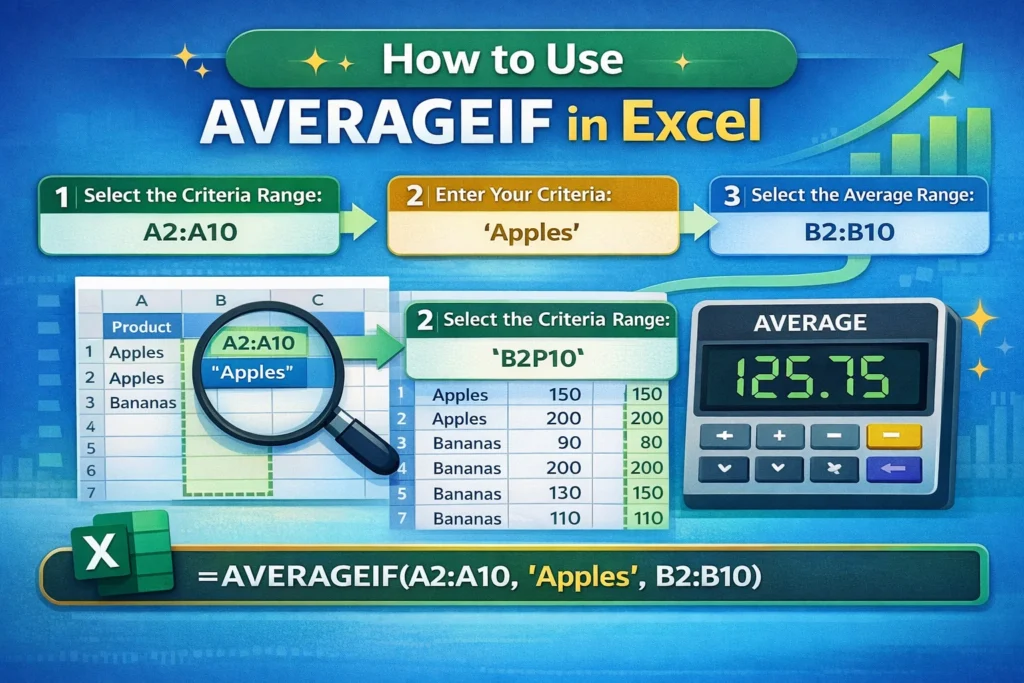
At a high level, AVERAGEIF evaluates each row of data against a condition you define. When the condition is true, Excel includes the corresponding value in the average calculation. When it’s false, that row is ignored entirely. Importantly, the values being tested against the condition don’t have to be the same values being averaged. For example, you can check whether a row’s category equals “Marketing” but average the dollar amounts from a separate column. This separation between “criteria range” and “average range” is what makes the function so flexible.
What Is the Syntax of AVERAGEIF in Excel?
The basic structure of the function looks like this:
=AVERAGEIF(range, criteria, [average_range])
The range is where Excel checks your condition. The criteria defines what must be true for a row to be included. The optional average_range is the set of numbers you want Excel to average. If you omit average_range, Excel will average the same cells used for the criteria check. Understanding this distinction prevents one of the most common beginner mistakes—averaging the wrong column.
AVERAGEIF Formula Examples
Basic Single-Condition Example
=AVERAGEIF(A2:A20,”Apples”,B2:B20)
This formula checks column A for the text “Apples” and averages the corresponding values in column B. It’s a common pattern for sales, inventory, or category-based reporting.
Using Comparison Operators
=AVERAGEIF(B2:B20,”>100″)
Here, Excel averages only the values in B2:B20 that are greater than 100. This is useful for performance metrics, test scores, or filtering out low or zero values.
Averaging Dates with AVERAGEIF
=AVERAGEIF(A2:A50,”>=1/1/2025″,B2:B50)
AVERAGEIF can evaluate dates as criteria, which allows you to average values within a time window. This is especially helpful for monthly or quarterly reporting without creating extra date columns.
Referencing Criteria from a Cell
=AVERAGEIF(A2:A20,E1,B2:B20)
Instead of hardcoding the condition, you can reference a cell. This enables dropdown-driven dashboards where users select a category and the average updates automatically.
What Are Common Mistakes When Using AVERAGEIF?
One frequent issue is mismatched range sizes. The criteria range and average range must be the same size, or Excel will return an error. Another common mistake is using text criteria without quotation marks, which causes Excel to misinterpret the condition. Users also often forget that AVERAGEIF ignores blank cells but includes zeros, which can significantly affect results in financial or performance data. Finally, applying wildcards incorrectly—such as forgetting the asterisk when doing partial text matches—can lead to unexpected averages.
When Should You Use AVERAGEIF vs AVERAGEIFS?
AVERAGEIF supports only one condition. If you need to average values based on multiple criteria—such as a specific product and a specific region—you should use AVERAGEIFS instead. AVERAGEIFS follows a different argument order, starting with the average range first, which can confuse users switching between the two functions. A practical rule is simple: one condition equals AVERAGEIF; more than one equals AVERAGEIFS.
Are There Limitations or Platform Differences to Know About?
In Excel, AVERAGEIF works consistently across Windows, Mac, and Excel Online. However, it is not case-sensitive, meaning “Sales” and “sales” are treated as the same text. If you need case-sensitive averages, you’ll need a more advanced formula using array logic. Another limitation is that AVERAGEIF does not handle logical OR conditions directly. For example, averaging values for “Apples” or “Oranges” requires either multiple formulas or a helper column. Understanding these constraints helps you choose the right approach before your spreadsheet grows more complex.
How Can AVERAGEIF Be Used in Real-World Spreadsheets?
AVERAGEIF is commonly used in budgeting templates to calculate average monthly expenses by category, in sales trackers to find average deal size by salesperson, and in habit or fitness logs to average metrics like steps or calories only on active days. One underused application is quality control: averaging defect rates only when production volume exceeds a minimum threshold. Another powerful use is excluding outliers by averaging only values within a realistic range, which improves the accuracy of summary dashboards without deleting raw data.
What Are Some Advanced Tips Most Guides Don’t Mention?
First, AVERAGEIF treats errors in the average range as fatal—if even one included cell contains an error, the entire formula returns an error. Wrapping your data in IFERROR before aggregation can prevent this. Second, you can pair AVERAGEIF with structured tables so your averages automatically expand as new rows are added, eliminating the need to update ranges manually. Third, using named ranges with AVERAGEIF dramatically improves formula readability in large workbooks. Finally, AVERAGEIF recalculates quickly compared to array formulas, making it a performance-friendly choice for large datasets.
Why Is AVERAGEIF Essential for Clean, Dynamic Reports?
AVERAGEIF bridges the gap between raw data and meaningful insights. It allows you to summarize only what matters without restructuring your spreadsheet or filtering data manually. For anyone building dashboards, financial trackers, or reusable templates, mastering AVERAGEIF leads to cleaner formulas, faster updates, and more reliable results. If you frequently work with categorized data and want your averages to respond intelligently to conditions, AVERAGEIF should be a core part of your Excel toolkit.