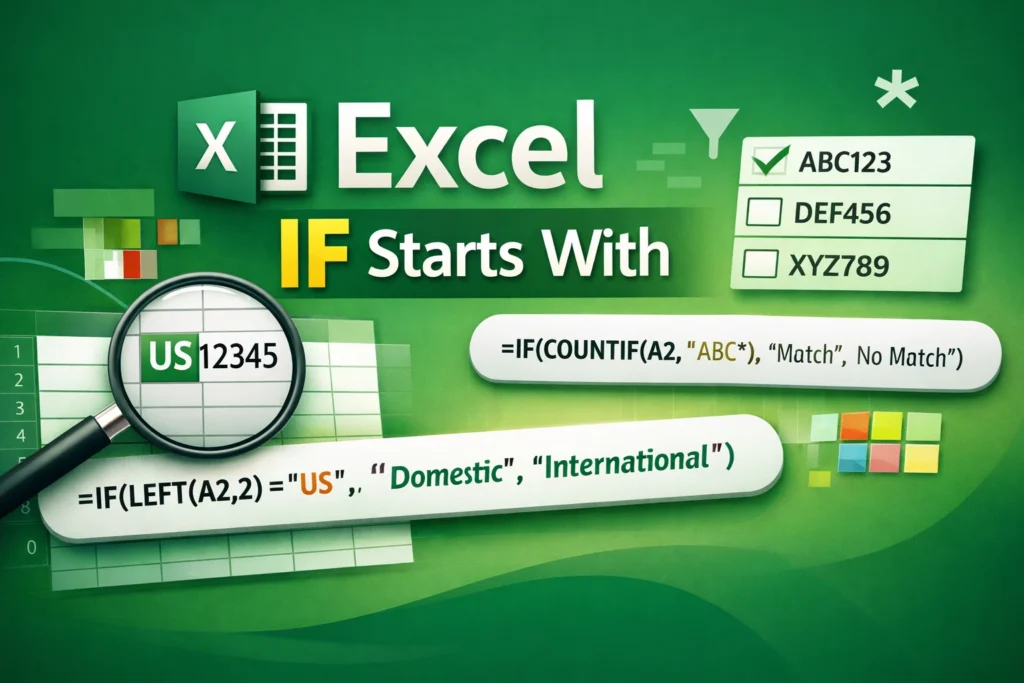
At its core, “Excel IF starts with” means testing whether the beginning of a text string matches a specific value, and then returning one result if it does and another if it doesn’t. For example, you might want to check whether an order ID starts with “US,” whether a product code starts with a certain prefix, or whether a name starts with a specific letter. Excel handles this by comparing part of the text, usually the leftmost characters, rather than the entire cell value.
How can you check if text starts with specific characters in Excel?
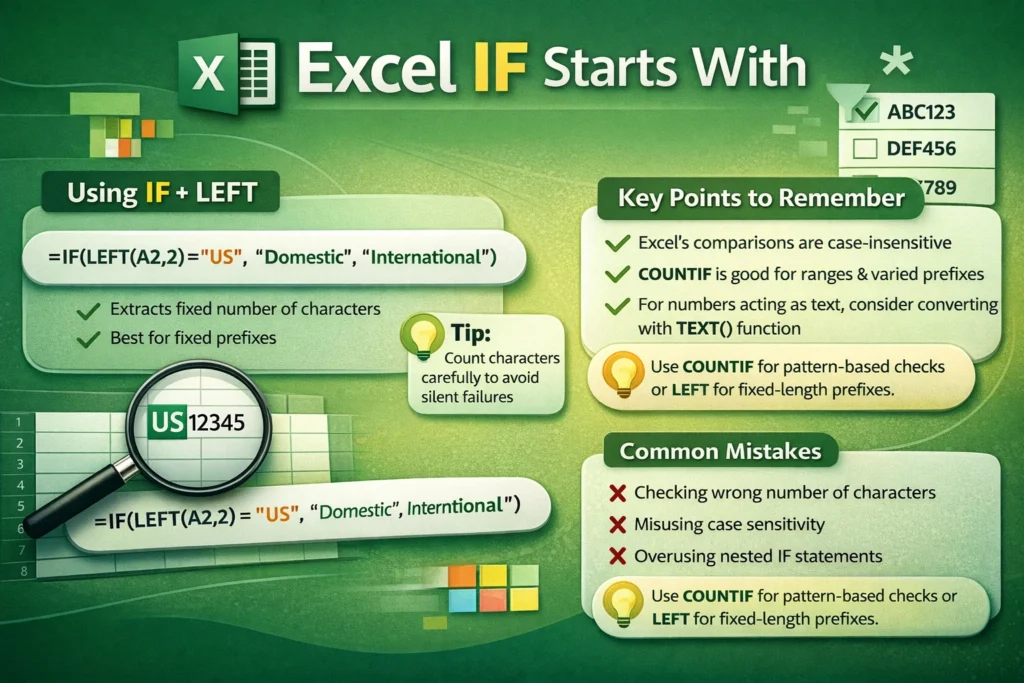
Since Excel lacks a native STARTSWITH function, the most common approach is to use IF together with text functions like LEFT or comparison tools like COUNTIF. These methods are flexible, easy to read, and widely supported across Excel versions, making them ideal for most use cases.
IF + LEFT Formula Examples
Using LEFT is the most straightforward way to test the beginning of a string. LEFT extracts a specified number of characters from the start of a cell, which you can then compare inside an IF statement.
Example:
=IF(LEFT(A2,2)="US","Domestic","International")This formula checks whether the value in A2 starts with “US.” If it does, Excel returns “Domestic.” Otherwise, it returns “International.” This approach works well when the prefix length is fixed and known in advance.
A key advantage of IF + LEFT is clarity. Anyone reviewing your spreadsheet can quickly understand what the formula is doing. The main limitation is that you must manually specify the number of characters to extract, which can be less flexible if prefixes vary in length.
How does COUNTIF work for “starts with” conditions?
Another popular method uses COUNTIF with wildcard characters. The asterisk (*) wildcard represents any number of characters, allowing you to check whether a cell starts with certain text without extracting characters explicitly.
IF + COUNTIF Formula Examples
Example:
=IF(COUNTIF(A2,"ABC*"),"Match","No Match")Here, Excel checks whether the value in A2 begins with “ABC.” If it does, COUNTIF returns 1, which IF interprets as TRUE. If not, it returns 0.
This method is especially useful when working with ranges or when you want a more pattern-based approach. It’s also case-insensitive by default, which can be either a benefit or a drawback depending on your needs.
Should you worry about case sensitivity?
By default, Excel’s text comparisons are not case-sensitive. That means “abc” and “ABC” are treated as the same. If case sensitivity matters, you’ll need a slightly different approach using functions like EXACT in combination with LEFT.
Example:
=IF(EXACT(LEFT(A2,3),"ABC"),"Match","No Match")This ensures that only text starting with uppercase “ABC” qualifies as a match. While this adds complexity, it’s important in scenarios like SKU codes or system identifiers where letter case carries meaning.
What are common mistakes when using IF starts with formulas?
One frequent mistake is forgetting to match the correct number of characters when using LEFT. If you compare too many or too few characters, your formula may fail silently. Another issue is applying formulas to numbers that only look like text. Excel may treat them as numeric values, causing text functions to behave unexpectedly. In such cases, converting the value to text using TEXT or adding an apostrophe can help.
Users also sometimes overcomplicate solutions by nesting multiple IF statements when a single COUNTIF or LEFT comparison would be clearer and easier to maintain.
When should you use COUNTIF instead of LEFT?
COUNTIF shines when you’re already working with ranges or need flexible pattern matching using wildcards. LEFT is often better for single-cell logic where readability and simplicity matter most. Neither approach is universally better; the right choice depends on your data structure and long-term maintenance needs.
Can these methods scale to large spreadsheets?
Yes. Both LEFT-based and COUNTIF-based formulas perform well even in large datasets. However, for very large spreadsheets with thousands of rows, minimizing unnecessary complexity is key. Clear, simple formulas recalculate faster and are easier to audit.
How can “Excel IF starts with” improve real-world workflows?
In practice, these formulas are invaluable for tasks like categorizing transactions, routing records based on ID prefixes, validating imported data, or triggering conditional formatting rules. Once you understand the concept, you can adapt it to countless scenarios without relying on complex macros or add-ins.
Final thoughts on using IF starts with in Excel
Mastering the “Excel IF starts with” concept gives you more control over text-based logic in your spreadsheets. By combining IF with functions like LEFT, COUNTIF, or EXACT, you can handle prefix-based conditions cleanly and confidently. These techniques are simple enough for beginners yet powerful enough for advanced workflows, making them a must-know skill for anyone serious about Excel efficiency.