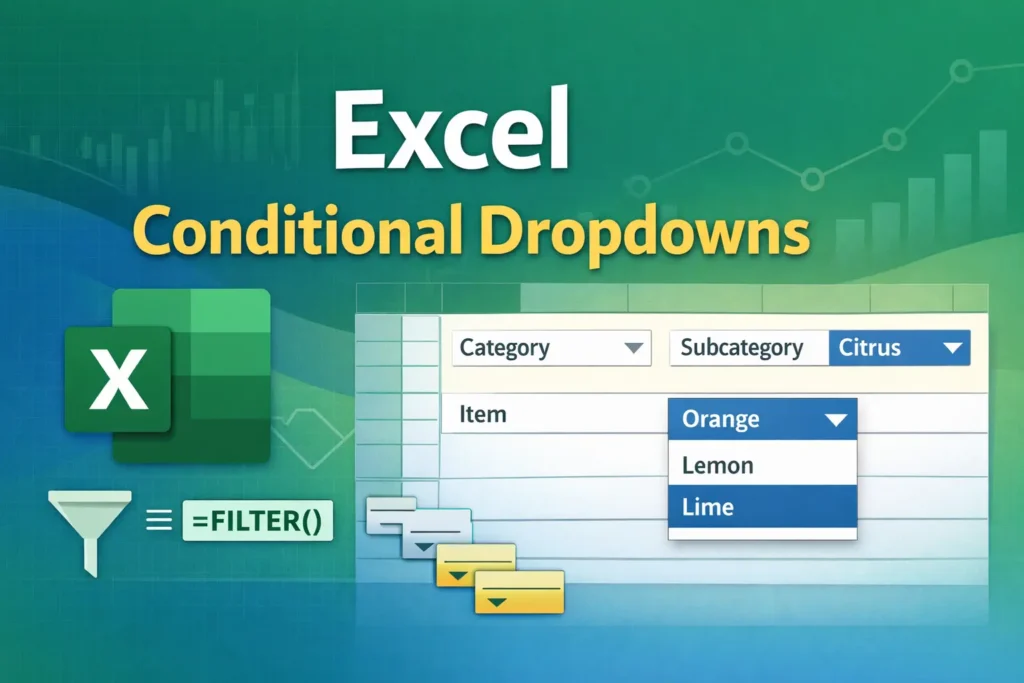
An Excel conditional dropdown is a data validation dropdown list that changes based on another cell’s value. Instead of showing the same static list every time, the available options update dynamically according to a previous selection. This is especially useful when data has a logical hierarchy, such as categories and subcategories, regions and cities, or departments and job roles.
In real-world spreadsheets, conditional dropdowns reduce errors, speed up data entry, and make templates feel more intuitive. For example, selecting “Marketing” in one cell can automatically limit the next dropdown to roles like SEO, Content, and PPC instead of showing irrelevant options from other departments. This kind of guided input is a big reason professional templates feel easier to use.
How Do Conditional Dropdowns Work in Excel?
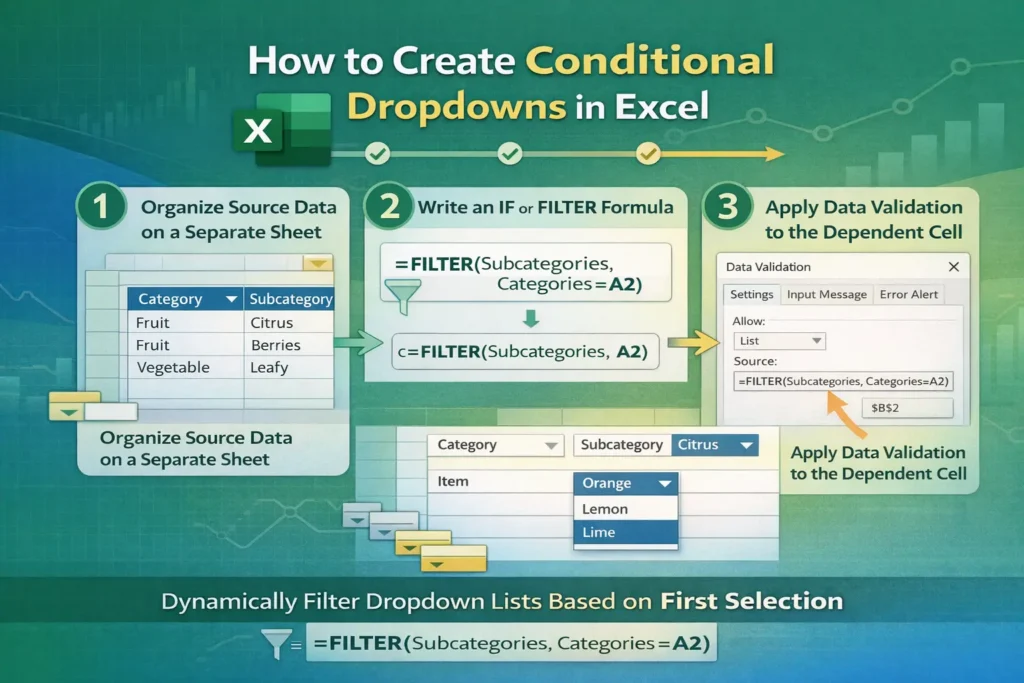
At a high level, conditional dropdowns rely on three core features working together. First is Data Validation, which creates the dropdown itself. Second is a structured source list, usually stored on a separate sheet. Third is a formula that dynamically returns the correct list based on the first selection.
Excel does not have a built-in “conditional dropdown” button. Instead, the behavior is created by combining functions like IF, FILTER, INDIRECT, or named ranges. Which approach you choose depends on your Excel version and how flexible the dropdown needs to be. Newer Excel versions offer simpler, more reliable methods that avoid common pitfalls.
What Is the Simplest Way to Create a Conditional Dropdown in Modern Excel?
If you are using Excel 365 or Excel 2021, the FILTER function is the cleanest and most flexible option. It allows you to dynamically return a list without complex workarounds.
Start by organizing your data in a table format. For example, one column might contain Categories and another column Subcategories. The user selects a category in cell A2. The dependent dropdown in B2 should only show matching subcategories.
FILTER Formula Example
=FILTER(Subcategories, Categories=A2)This formula returns a spill range containing only the relevant options. You then reference that spill range in Data Validation by selecting “List” and pointing to the formula output. This approach is easier to maintain, works with expanding lists, and avoids fragile references.
One useful tip that many guides miss is that FILTER automatically removes blank results. This makes your dropdowns cleaner without extra helper formulas.
How Do You Create Conditional Dropdowns in Older Versions of Excel?
If you are using Excel 2019 or earlier, FILTER is not available. The most common workaround uses named ranges with INDIRECT. In this method, each category has its own named range that matches the category name exactly.
For example, if you have categories called Fruits and Vegetables, you create named ranges called Fruits and Vegetables containing their respective items. The dependent dropdown references the first selection using INDIRECT.
INDIRECT Formula Example
=INDIRECT(A2)While this works, it comes with limitations. INDIRECT is volatile, meaning it recalculates frequently and can slow down large spreadsheets. It also breaks if category names contain spaces or change over time unless carefully managed. For small templates it is acceptable, but for scalable tools it is often not ideal.
What Are Common Mistakes When Building Excel Conditional Dropdowns?
One frequent issue is inconsistent source data. Extra spaces, mismatched capitalization, or duplicate labels can cause dropdowns to fail silently. Keeping source lists clean and standardized prevents most issues.
Another mistake is referencing entire columns in Data Validation formulas. This can lead to performance problems and unexpected behavior. Using structured tables or defined ranges keeps formulas efficient.
A less obvious problem is error handling. If the first dropdown is blank, the second dropdown may show an error or an empty list. Wrapping formulas in IF or using default values improves the user experience and makes templates feel more polished.
Can You Create Multi-Level Conditional Dropdowns?
Yes, and this is where conditional dropdowns become especially powerful. A multi-level setup might include Category, Subcategory, and Item dropdowns. Each level depends on the previous selection.
With FILTER, you can chain conditions without creating dozens of named ranges. For example, the third dropdown can filter based on both Category and Subcategory. This approach scales far better than older methods and is ideal for inventory systems, CRM templates, and advanced planners.
A practical insight is to place each dropdown’s formula output on a helper sheet and hide it. This keeps the main sheet clean while still allowing dynamic behavior behind the scenes.
How Do Conditional Dropdowns Differ Between Excel and Google Sheets?
The concept is similar, but the implementation differs. Google Sheets relies heavily on FILTER and QUERY and allows Data Validation to directly reference formulas more easily. Excel requires a spill range or named range in most cases.
Another difference is error visibility. Google Sheets tends to fail loudly with errors, while Excel often fails quietly by showing empty dropdowns. Testing edge cases is more important in Excel to ensure users understand what is happening.
If you plan to offer templates that work on both platforms, it is usually best to design separate versions rather than forcing one approach to fit both.
When Should You Use Conditional Dropdowns Instead of Other Validation Methods?
Conditional dropdowns are ideal when user choices follow a clear hierarchy. They are less useful when options change based on complex calculations or multiple independent factors. In those cases, helper columns or lookup tables may be easier to maintain.
For dashboards, forms, and shared templates, conditional dropdowns improve usability and reduce support questions. This is one reason they appear so often in professional spreadsheet tools and downloadable templates.
Why Do Conditional Dropdowns Matter for Real-World Templates?
From budgets to inventory trackers, conditional dropdowns guide users toward valid inputs without training or documentation. They also reduce cleanup work later by preventing invalid combinations at the point of entry.
At Sheetrix, conditional dropdowns are often paired with automated summaries and charts. When dropdown logic is done correctly, the rest of the spreadsheet becomes more reliable and easier to extend. This small feature has an outsized impact on how professional a spreadsheet feels.
If you want to build templates that scale, conditional dropdowns are not just a nice touch. They are a foundational skill that separates basic spreadsheets from truly usable tools.