Counting duplicate values is a common task in Excel, especially when working with lists, reports, or imported data that may contain repeated entries. Whether you are cleaning up customer records, reviewing transactions, or validating survey responses, being able to count only duplicate values helps you understand data quality and spot potential issues quickly. Excel does not include a single built-in function dedicated to counting duplicates, but with the right combination of formulas, you can get precise and reliable results. This guide walks through the most practical ways to count duplicates only, explains what each method is actually counting, and helps you choose the right approach for real-world spreadsheets.
Why doesn’t Excel have a direct duplicate-count function?
In Microsoft Excel, counting duplicates is considered a conditional counting task rather than a standalone operation. Excel provides flexible tools that can be combined to handle many scenarios instead of locking users into one rigid function. While this adds a small learning curve, it also means you can count duplicates across rows, columns, text values, numbers, or even dates with the same core logic.
When should you count duplicates instead of unique values?
Counting duplicates is especially useful when auditing data quality, reviewing form submissions, tracking repeated customer IDs, or validating imported data. If you are trying to clean a mailing list, reconcile inventory SKUs, or identify double entries in expense reports, knowing how many duplicates exist can be more useful than simply knowing how many unique values remain.
How can you count duplicate occurrences beyond the first entry?
This is the most common interpretation of “count duplicates only.” You want to ignore the first appearance of each value and count every additional repeat.
COUNTIF formula example: counting extra duplicates
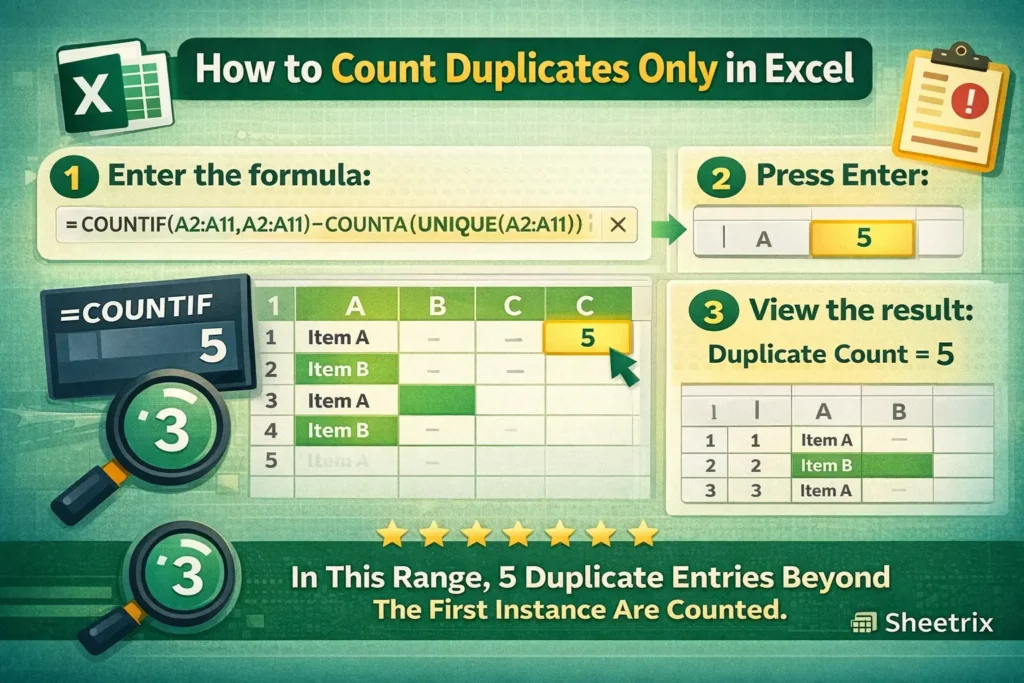
Assume your data is in cells A2:A11.
COUNTIF Formula Examples=COUNTIF(A2:A11,A2:A11)-COUNTA(UNIQUE(A2:A11))
This formula works by counting all occurrences and then subtracting the number of unique values. The result tells you how many duplicate entries exist beyond the first instance of each value. This approach is especially helpful when you want a single total duplicate count rather than row-by-row flags.
How do you count how many values appear more than once?
Sometimes you do not care how many extra entries exist. You only want to know how many distinct values are duplicated at least once.
Helper column method for clarity
This approach is beginner-friendly and very transparent.
COUNTIF Formula Examples
In B2, enter:=COUNTIF($A$2:$A$11,A2)
Then copy the formula down. Any value greater than 1 indicates that the item is duplicated. To count how many values are duplicated at least once, use:
COUNTIF Formula Examples=COUNTIF(B2:B11,">1")
This counts all rows that are part of a duplicate group. If you want to count each duplicated value only once, pair this with a UNIQUE or advanced filtering step.
Can you count duplicates using COUNTIFS?
COUNTIFS is useful when duplicates depend on multiple conditions, such as counting repeated customer IDs within the same month or region.
COUNTIFS Formula Examples=COUNTIFS(A:A,A2,B:B,B2)
This counts duplicates only when both columns match. While COUNTIF handles single-condition duplicates, COUNTIFS is better when context matters. A common mistake is using COUNTIF when COUNTIFS is needed, which can lead to inflated counts.
What are common mistakes when counting duplicates?
One frequent issue is forgetting to lock ranges with dollar signs, which causes formulas to shift incorrectly when copied. Another mistake is counting blanks as duplicates, especially when data ranges include empty cells. Using COUNTA or filtering out blanks before counting prevents misleading results. Many users also confuse counting duplicate rows with counting duplicate values, which are not always the same thing.
How does counting duplicates differ between Excel and Google Sheets?
The logic is nearly identical, but Google Sheets includes built-in functions like UNIQUE that are more commonly used in beginner examples. Excel users sometimes rely more heavily on helper columns for clarity. Newer Excel versions support dynamic arrays, which makes duplicate counting more efficient and easier to audit visually.
When should you use conditional formatting instead?
If your goal is to visually identify duplicates rather than calculate totals, conditional formatting is often the better tool. Highlighting duplicates helps you spot issues quickly without adding extra formulas. However, formatting alone does not provide numeric insight, which is why formulas are still essential for reporting and dashboards.
What are advanced use cases for counting duplicates?
Counting duplicates can support more advanced workflows like identifying repeat purchases, detecting fraud patterns, or validating survey responses. In large datasets, duplicate counts can feed dashboards, trigger alerts, or flag rows for review. Combining duplicate counts with filters or pivot tables adds even more analytical power.
How can counting duplicates support templates and automation?
Many spreadsheet templates rely on duplicate detection behind the scenes. CRM trackers, inventory logs, and expense sheets often use duplicate counts to prevent errors or warn users before data is submitted. Understanding these formulas helps you customize templates instead of treating them as black boxes.
Final thoughts on counting duplicates in Excel
Counting duplicates only is not about memorizing one formula. It is about understanding what kind of duplication you want to measure and choosing the right approach. Once you grasp the logic behind COUNTIF and COUNTIFS, you can adapt the technique to almost any real-world spreadsheet scenario. This skill pairs naturally with data cleanup, reporting, and automation, making it a core Excel concept worth mastering.