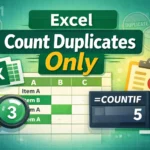
If you’ve ever needed to count how many times a value appears in a spreadsheet, COUNTIF in Excel is one of the most useful functions you can learn. It allows you to count cells based on a condition—such as numbers greater than a value, text that matches a word, or dates within a range—without writing complex formulas.
This guide explains how COUNTIF works in plain language, shows when and why to use it, and walks through practical examples you’ll actually encounter at work. It’s written for beginners, but it also includes tips and edge cases that intermediate Excel users often overlook.
What Is COUNTIF in Excel and What Does It Do?
COUNTIF is an Excel function that counts the number of cells in a range that meet one specific condition.
Instead of manually filtering data or scanning rows, COUNTIF lets Excel do the counting for you automatically. When your data changes, the count updates instantly.
At its core, COUNTIF answers questions like:
- How many sales were over $500?
- How many times does “Completed” appear in a status column?
- How many employees are in the “Marketing” department?
- How many dates fall in a specific month?
COUNTIF only evaluates one condition at a time, which is important to understand before choosing it over related functions.
How Does the COUNTIF Function Work in Excel?
COUNTIF evaluates each cell in a range and checks whether it meets your condition, also called a criteria. If the condition is true, Excel adds 1 to the count. If it’s false, Excel moves on to the next cell.
The function has two required arguments:
- The range of cells you want to evaluate
- The condition that determines whether a cell should be counted
COUNTIF does not return the matching values—it only returns a number representing how many cells met the condition.
COUNTIF Excel Syntax Explained Simply
The syntax for COUNTIF looks like this:
=COUNTIF(range, criteria)
- range is the group of cells Excel will evaluate
- criteria is the rule a cell must meet to be counted
The criteria can be:
- A number (like 10)
- Text (like “Yes”)
- A logical condition (like “>100”)
- A cell reference (like A1)
- A text pattern using wildcards
Understanding how criteria are written is the key to mastering COUNTIF.
COUNTIF Formula Examples
Below are the most common and useful COUNTIF examples, grouped by real-world use cases.
Counting Numbers That Meet a Condition
To count values greater than 50 in cells A1 through A10:
=COUNTIF(A1:A10,">50")
To count values less than or equal to 100:
=COUNTIF(A1:A10,"<=100")
Notice that logical operators like >, <, >=, and <= must be enclosed in quotes.
Counting Cells That Match Specific Text
To count how many times “Completed” appears in column B:
=COUNTIF(B:B,"Completed")
COUNTIF is not case-sensitive, so “completed” and “Completed” are treated the same.
Counting Blank and Non-Blank Cells
To count blank cells in a range:
=COUNTIF(A1:A20,"")
To count cells that are not blank:
=COUNTIF(A1:A20,"<>")
This is especially useful when auditing incomplete data or checking form submissions.
Counting Dates with COUNTIF
Excel stores dates as numbers, which means COUNTIF can evaluate them using logical operators.
To count dates after January 1, 2024:
=COUNTIF(A1:A20,">1/1/2024")
To count dates before today:
=COUNTIF(A1:A20,"<"&TODAY())
Combining COUNTIF with TODAY makes your formulas dynamic and self-updating.
Using Cell References as Criteria
Instead of typing a value directly, you can reference another cell.
If cell D1 contains the value 100:
=COUNTIF(A1:A20,">"&D1)
This technique makes your formulas more flexible and easier to maintain.
Counting Text with Wildcards
Wildcards let you count partial matches.
- Asterisk (*) matches any number of characters
- Question mark (?) matches exactly one character
To count cells that contain the word “apple” anywhere in the text:
=COUNTIF(A1:A20,"*apple*")
To count text that starts with “INV”:
=COUNTIF(A1:A20,"INV*")
Wildcards are one of the most powerful but underused features of COUNTIF.
What Are the Limitations of COUNTIF in Excel?
COUNTIF is simple by design, which means it has limitations you should be aware of.
First, COUNTIF can only evaluate one condition. If you need to count rows that meet multiple criteria—such as “Sales over $500 in the West region”—you’ll need a different function.
Second, COUNTIF cannot evaluate conditions across multiple ranges. The range you count must be the same range being evaluated.
Third, COUNTIF treats numbers stored as text differently. If your dataset contains numbers formatted as text, COUNTIF may return unexpected results.
Finally, COUNTIF does not support array-based logical tests in the way newer Excel functions do.
COUNTIF vs COUNTIFS: When Should You Use Each?
This is one of the most common points of confusion for Excel users.
COUNTIF is used when:
- You only need one condition
- Your logic is simple
- You want a clean, easy-to-read formula
COUNTIFS is used when:
- You need multiple conditions
- Conditions apply to different columns
- You’re analyzing structured datasets
For example, counting sales over $500 in the West region requires COUNTIFS, not COUNTIF.
If you find yourself stacking helper columns just to make COUNTIF work, that’s usually a sign COUNTIFS is the better choice.
Common COUNTIF Mistakes (and How to Avoid Them)
Many COUNTIF issues come from small syntax errors rather than flawed logic.
One common mistake is forgetting quotation marks around criteria. Excel requires quotes around text and logical operators.
Another issue is counting numbers stored as text. You can often fix this by converting the column to numbers or using VALUE().
Users also frequently forget that COUNTIF is not case-sensitive. If you need case-sensitive counting, COUNTIF alone won’t work.
Finally, COUNTIF cannot evaluate multiple conditions—even if they’re combined with AND logic inside the criteria. That’s simply not how the function works.
Practical Use Cases for COUNTIF in Real Spreadsheets
COUNTIF shows up constantly in real-world Excel models.
It’s commonly used to:
- Track task statuses in project management sheets
- Count survey responses
- Monitor inventory levels
- Validate data entry
- Build dashboards with summary metrics
In financial models, COUNTIF often supports higher-level calculations by feeding counts into percentages, ratios, and KPIs.
Advanced COUNTIF Tips Most Guides Don’t Mention
Here are several practical insights that aren’t commonly covered but can save time and frustration.
First, COUNTIF can evaluate entire columns (like A:A), but doing so repeatedly in large workbooks can slow performance. Limiting ranges improves efficiency.
Second, COUNTIF ignores errors by default. If your range contains errors like #DIV/0!, those cells are not counted, which can affect results silently.
Third, COUNTIF works well inside larger formulas. You can nest it inside IF, divide by totals for percentages, or use it as a condition in dashboards.
Fourth, COUNTIF recalculates whenever dependent cells change. In volatile workbooks, this can impact performance more than expected.
Finally, COUNTIF does not recognize filtered rows differently—hidden rows are still counted unless you use more advanced techniques.
When COUNTIF Is Not the Right Tool
Despite its usefulness, COUNTIF isn’t always the best option.
You should avoid COUNTIF when:
- You need multiple conditions
- You need case-sensitive logic
- You need to count unique values
- You’re working with complex arrays
In those cases, functions like COUNTIFS, SUMPRODUCT, or dynamic array formulas may be more appropriate.
Final Thoughts on Using COUNTIF in Excel
COUNTIF is one of those Excel functions that delivers enormous value for very little complexity. Once you understand how criteria work and where the function’s limits are, you can solve a wide range of counting problems cleanly and efficiently.
Whether you’re cleaning data, analyzing results, or building templates, COUNTIF is a foundational tool worth mastering. It pairs especially well with dashboards, trackers, and downloadable spreadsheet templates—exactly the kind of use cases many Sheetrix resources are built around.
If you’re building reusable spreadsheets, learning COUNTIF thoroughly will pay off every time you open Excel.