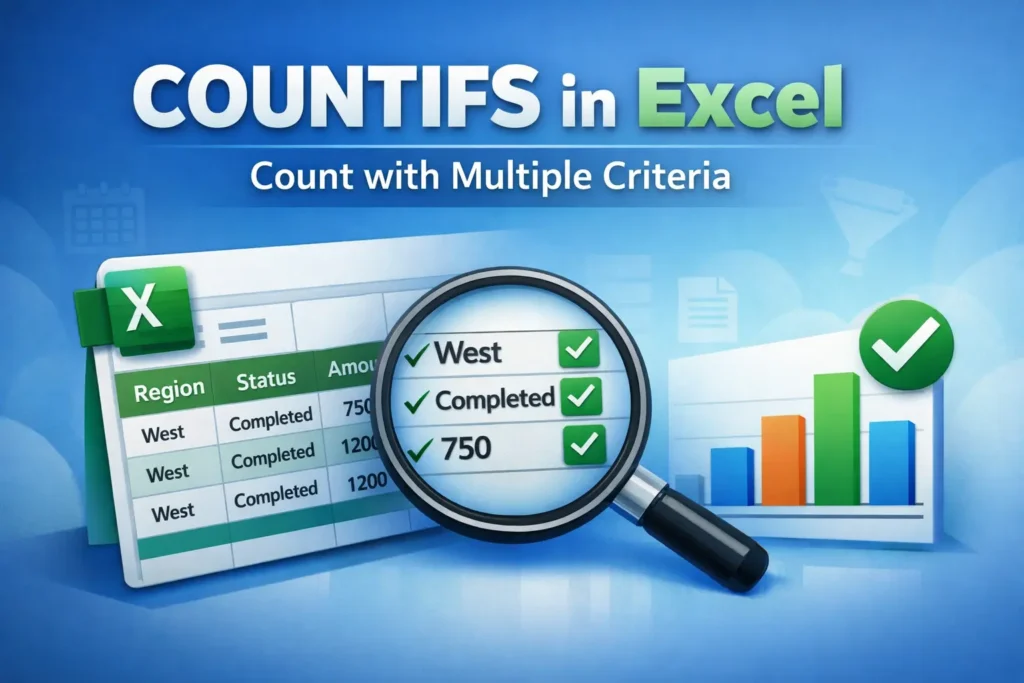
If you’ve ever needed to count how many rows in Excel meet more than one condition, the COUNTIFS Excel function is the tool you’re looking for. While COUNTIF handles a single condition, COUNTIFS lets you apply multiple criteria across one or more columns—making it essential for real-world spreadsheets like sales reports, attendance logs, budgets, and dashboards.
In this guide, you’ll learn exactly how COUNTIFS works in Excel, when to use it, how it compares to COUNTIF, and how to avoid the most common mistakes. We’ll focus on clear explanations and practical use cases so you can confidently apply COUNTIFS in your own spreadsheets.
What Is COUNTIFS in Excel and What Does It Do?
COUNTIFS is an Excel function that counts the number of cells that meet multiple criteria at the same time. Each condition is applied to a specific range, and only rows that satisfy all criteria are included in the count.
Think of COUNTIFS as asking Excel a question like:
“How many rows meet condition A and condition B and condition C?”
This makes COUNTIFS ideal when filtering data logically without using helper columns or pivot tables.
How Does the COUNTIFS Function Work in Excel?
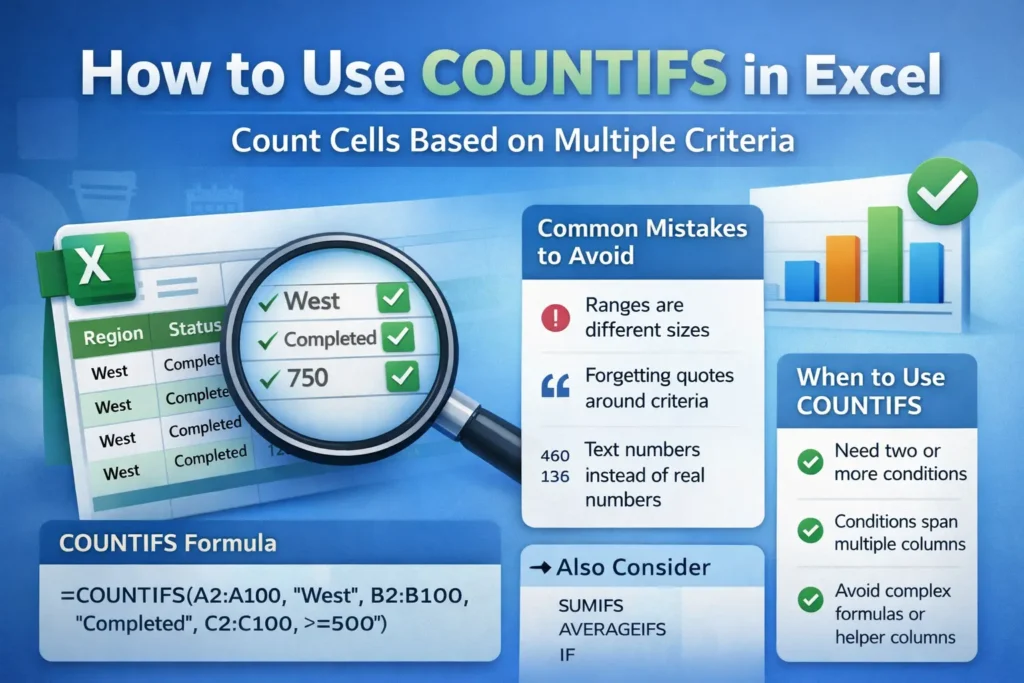
The COUNTIFS function evaluates criteria in pairs: one range, followed by the condition that range must meet. Excel checks each row across all criteria ranges simultaneously.
Only rows where every condition evaluates to TRUE are counted.
COUNTIFS Syntax Explained
COUNTIFS(range1, criteria1, [range2, criteria2], …)
- range1 – The first range to evaluate
- criteria1 – The condition applied to range1
- range2, criteria2 – Additional range-criteria pairs
- You can include up to 127 criteria pairs in Excel
All ranges must be the same size and shape. Excel compares values row-by-row, not independently.
When Should You Use COUNTIFS Instead of COUNTIF?
COUNTIFS should be your default choice whenever more than one condition is required.
Use COUNTIF when:
- You only need one condition
- You’re counting simple values like duplicates or blanks
Use COUNTIFS when:
- You need to apply two or more conditions
- Conditions span multiple columns
- You want to avoid complex formulas or helper columns
A common beginner mistake is nesting COUNTIF formulas instead of using COUNTIFS. COUNTIFS is cleaner, faster, and easier to maintain.
COUNTIFS Excel Formula Examples
The examples below show practical, real-world uses of COUNTIFS. Each formula is grouped here for clarity so you can copy and adapt them easily.
Count Rows That Meet Two Text Criteria
Count how many orders are from the “West” region and have a status of “Completed”.
Formula:
=COUNTIFS(A2:A100,"West",B2:B100,"Completed")This checks both columns row-by-row and only counts rows where both conditions are met.
Count Values Between Two Numbers
Count how many sales amounts are greater than or equal to 500 and less than or equal to 1000.
Formula:
=COUNTIFS(C2:C100,">=500",C2:C100,"<=1000")Using the same range twice allows you to apply multiple numeric conditions to one column.
Count Dates Within a Date Range
Count how many orders were placed in January 2025.
Formula:
=COUNTIFS(A2:A100,">=1/1/2025",A2:A100,"<=1/31/2025")Excel stores dates as numbers, so comparison operators work naturally as long as the cells contain real date values.
Count Text with Wildcards
Count customers whose names start with “A” and are located in New York.
Formula:
=COUNTIFS(A2:A100,"A*",B2:B100,"New York")Wildcards like * (any characters) and ? (single character) work seamlessly inside COUNTIFS.
Count Non-Blank Cells with Another Condition
Count how many rows have a value entered in column C and a category of “Marketing”.
Formula:
=COUNTIFS(B2:B100,"Marketing",C2:C100,"<>")The "<>" criterion means “not empty” and is useful when validating data completeness.
How COUNTIFS Handles Logical Operators and Criteria
COUNTIFS supports the same comparison operators used throughout Excel:
=equal to<>not equal to>greater than<less than>=greater than or equal to<=less than or equal to
For text comparisons, Excel is not case-sensitive, which means “Sales” and “sales” are treated as the same value.
Common COUNTIFS Mistakes (and How to Avoid Them)
Even experienced Excel users run into issues with COUNTIFS. Here are the most common problems and how to fix them.
Using Ranges of Different Sizes
All criteria ranges must have the exact same number of rows and columns. If one range is shorter or longer, Excel will return an error or incorrect results.
Best practice: Select full columns or ensure all ranges align perfectly.
Forgetting Quotes Around Criteria
Text criteria and operators must be enclosed in quotation marks.
Incorrect:
=COUNTIFS(A2:A100,>=500)Correct:
=COUNTIFS(A2:A100,">=500")Counting Text Numbers Instead of Real Numbers
If numbers are stored as text, COUNTIFS won’t evaluate them correctly with numeric operators.
Fix: Convert text numbers using VALUE(), Text to Columns, or by multiplying by 1.
Expecting OR Logic Instead of AND
COUNTIFS uses AND logic only. All criteria must be true for a row to be counted.
If you need OR logic, you’ll need:
- Multiple COUNTIFS formulas added together, or
- A helper column, or
- A more advanced solution using SUMPRODUCT
COUNTIFS vs COUNTIF: What’s the Real Difference?
COUNTIF and COUNTIFS perform similar tasks, but they’re designed for different levels of complexity.
- COUNTIF supports only one condition
- COUNTIFS supports multiple conditions
- COUNTIFS is newer and more flexible
- COUNTIF can’t be expanded without rewriting formulas
If there’s any chance you’ll add more conditions later, start with COUNTIFS.
Performance Tips for Large Excel Files
COUNTIFS is efficient, but on very large datasets it can still slow down calculations.
Helpful optimization tips:
- Avoid using entire columns if possible (A:A) in extremely large workbooks
- Keep criteria ranges static instead of volatile formulas
- Consider converting datasets into Excel Tables for cleaner references
- Minimize unnecessary COUNTIFS formulas recalculating repeatedly
Limitations of COUNTIFS in Excel
While COUNTIFS is powerful, it does have limits:
- No native OR logic in a single formula
- Cannot evaluate arrays without helper formulas
- Not case-sensitive
- Criteria must reference actual ranges, not calculated arrays
Understanding these limits helps you choose the right approach from the start.
Real-World Use Cases for COUNTIFS
COUNTIFS is commonly used in:
- Sales dashboards (count deals by region and status)
- Attendance tracking (count present days by employee and month)
- Budget reviews (count expenses by category and threshold)
- Quality control logs (count failures by type and date range)
- Marketing reports (count leads by source and conversion status)
For many of these scenarios, COUNTIFS can replace pivot tables when you only need a simple count.
When to Combine COUNTIFS with Other Excel Functions
COUNTIFS becomes even more powerful when paired with other functions:
- SUMIFS for conditional totals
- AVERAGEIFS for conditional averages
- IF for conditional labeling
- FILTER (Excel 365) for dynamic data views
Using these together helps you build flexible, formula-driven reports without manual filtering.
Final Thoughts: Mastering COUNTIFS in Excel
The COUNTIFS Excel function is one of the most important tools for analyzing structured data with multiple conditions. Once you understand how criteria pairs work and how Excel evaluates rows, you’ll find COUNTIFS faster, cleaner, and more reliable than many alternatives.
Whether you’re counting sales, tracking performance, or validating data, COUNTIFS gives you precise answers without unnecessary complexity.
If you frequently work with multi-criteria data, mastering COUNTIFS is a skill that will pay off in every spreadsheet you build.