
If you’ve searched for “countunique excel,” you’re not alone. It’s one of the most common spreadsheet questions because Excel does not have a built-in function literally named COUNTUNIQUE. Instead, users are usually trying to answer a simple but important question: how many distinct values exist in a range of cells? This comes up constantly in real-world spreadsheets—counting unique customers, tracking distinct product SKUs, identifying how many employees logged hours, or summarizing survey responses without double-counting duplicates.
In Google Sheets, COUNTUNIQUE exists as a native function, which adds to the confusion for Excel users switching platforms. In Excel, the solution depends on your version and whether your data includes blanks, text, or numbers. Once you understand the available approaches, counting unique values becomes straightforward and reliable.
Why Doesn’t Excel Have a COUNTUNIQUE Function?
Excel’s function library evolved long before dynamic arrays and modern data analysis features existed. For many years, Excel users relied on helper columns, array formulas, or combinations of older functions like COUNTIF and SUMPRODUCT to simulate unique counts. While newer versions of Excel now include the UNIQUE function, Microsoft still hasn’t introduced a dedicated COUNTUNIQUE function by name.
This design choice means Excel gives you flexibility, but it also means beginners often feel stuck. The good news is that Excel’s methods are powerful and customizable, especially when working with conditions, blanks, or mixed data types.
How Do You Count Unique Values in Modern Excel Versions?
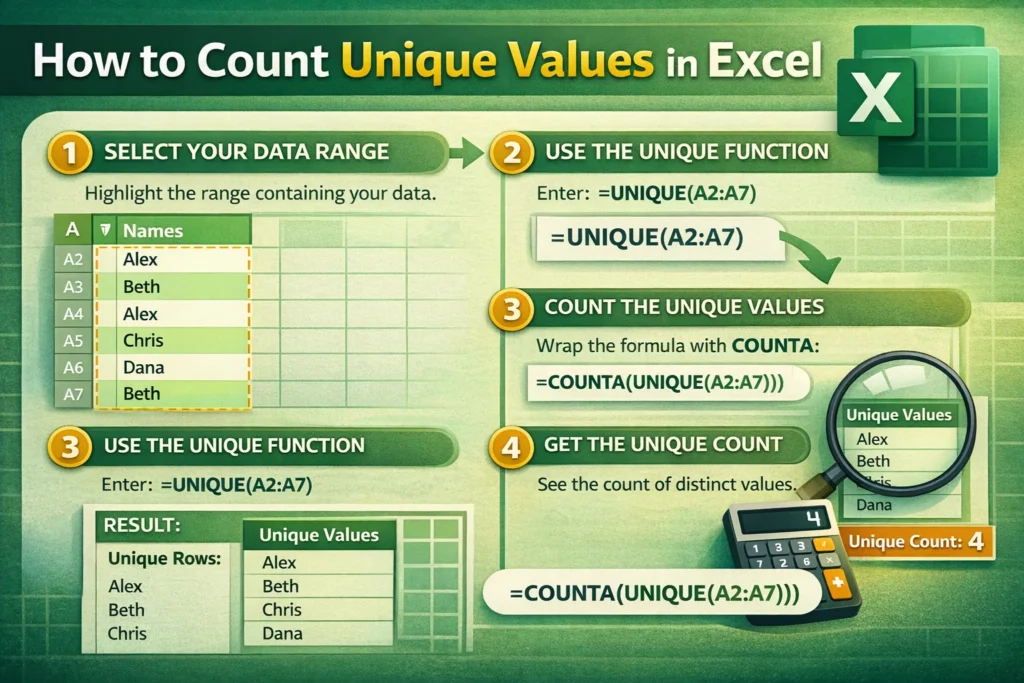
If you’re using Excel 365 or Excel 2021 or later, counting unique values is simpler than ever thanks to dynamic arrays.
Using UNIQUE with COUNTA
The most readable approach is to extract unique values first, then count them.
COUNTUNIQUE Formula Example (Excel 365+):
=COUNTA(UNIQUE(A2:A100))
This formula works by generating a dynamic list of distinct values from the range, then counting how many items appear in that list. It automatically updates when data changes and handles text, numbers, and dates cleanly.
One useful but lesser-known detail is that UNIQUE includes blanks only once. If you want to exclude blanks entirely, wrap the range in a FILTER function before applying UNIQUE.
How Can You Count Unique Values in Older Excel Versions?
If you’re using Excel 2019 or earlier, UNIQUE isn’t available. In those cases, Excel users rely on formula combinations that replicate the same logic.
COUNTIF-Based Method
This method divides 1 by the number of times each value appears, then sums the result.
COUNTUNIQUE Formula Example (Legacy Excel):
=SUMPRODUCT(1/COUNTIF(A2:A100, A2:A100))
This works because each unique value contributes a total of 1 to the sum, regardless of how many times it appears. While powerful, this formula can be slower on very large datasets, which is something many tutorials fail to mention.
A practical optimization is limiting the range to only populated rows rather than entire columns, which can significantly improve performance in workbooks with thousands of rows.
How Do You Count Unique Values While Ignoring Blanks?
Blank cells often distort results if you’re not careful. In Excel 365+, the cleanest solution is filtering blanks out before counting.
COUNTUNIQUE Without Blanks Example:
=COUNTA(UNIQUE(FILTER(A2:A100, A2:A100<>””)))
In older Excel versions, blanks must be excluded using logical conditions inside SUMPRODUCT. Many users accidentally count a blank as a unique value because they don’t realize empty cells are treated as data points in array calculations.
A lesser-known trick is to replace blanks with an impossible value (like a long random string) in a helper column, then count unique values safely without rewriting complex formulas.
How Is COUNTUNIQUE Different Between Excel and Google Sheets?
In Google Sheets, COUNTUNIQUE is a native function:
=COUNTUNIQUE(A2:A100)
This simplicity is why many users search for the same behavior in Excel. However, Excel’s approach is actually more flexible. Excel allows conditional uniqueness, filtered uniqueness, and dynamic array chaining without needing separate helper columns.
One important platform difference is recalculation behavior. Google Sheets recalculates COUNTUNIQUE in real time across shared users, while Excel recalculates locally, which can improve performance in large financial or operational models.
When Should You Use COUNTIFS or Pivot Tables Instead?
Sometimes, counting unique values with formulas isn’t the best solution. If you need to count distinct values by category, date range, or multiple conditions, pivot tables can be faster and easier to maintain.
COUNTIFS counts rows, not unique values, which is a common misunderstanding. However, pairing COUNTIFS logic with UNIQUE can solve advanced scenarios in Excel 365:
=COUNTA(UNIQUE(FILTER(A2:A100, B2:B100=”East”)))
This approach is especially useful for dashboards, CRM trackers, and inventory spreadsheets where uniqueness depends on a condition.
What Are Common Mistakes When Counting Unique Values in Excel?
One frequent mistake is using COUNT or COUNTA directly, which counts total entries, not distinct ones. Another is referencing entire columns in array formulas, which can cause slow performance or calculation errors. Users also forget that text values with trailing spaces are considered unique, leading to inflated counts.
A practical tip not often mentioned is to clean data using TRIM or CLEAN before counting unique values. This ensures visually identical entries aren’t treated as different values due to hidden characters.
How Can COUNTUNIQUE Support Real-World Spreadsheet Templates?
Unique counts are foundational in templates like expense trackers, lead lists, attendance logs, and inventory systems. On Sheetrix, many downloadable templates rely on unique counts to summarize dashboards accurately without double-counting entries.
For example, a CRM template might count unique clients contacted in a month, while an inventory sheet tracks how many distinct products are in stock. Understanding how COUNTUNIQUE logic works in Excel ensures these summaries remain accurate as data grows.
What’s the Best Way to Choose the Right COUNTUNIQUE Method?
If you’re on Excel 365 or newer, UNIQUE with COUNTA is the most readable and future-proof solution. For older Excel versions, SUMPRODUCT with COUNTIF remains reliable when used carefully. Always consider dataset size, blank handling, and performance needs before choosing a method.
Once you understand the concept behind COUNTUNIQUE in Excel, you’ll be able to adapt it to almost any spreadsheet scenario with confidence—and build cleaner, more accurate models that scale as your data grows.