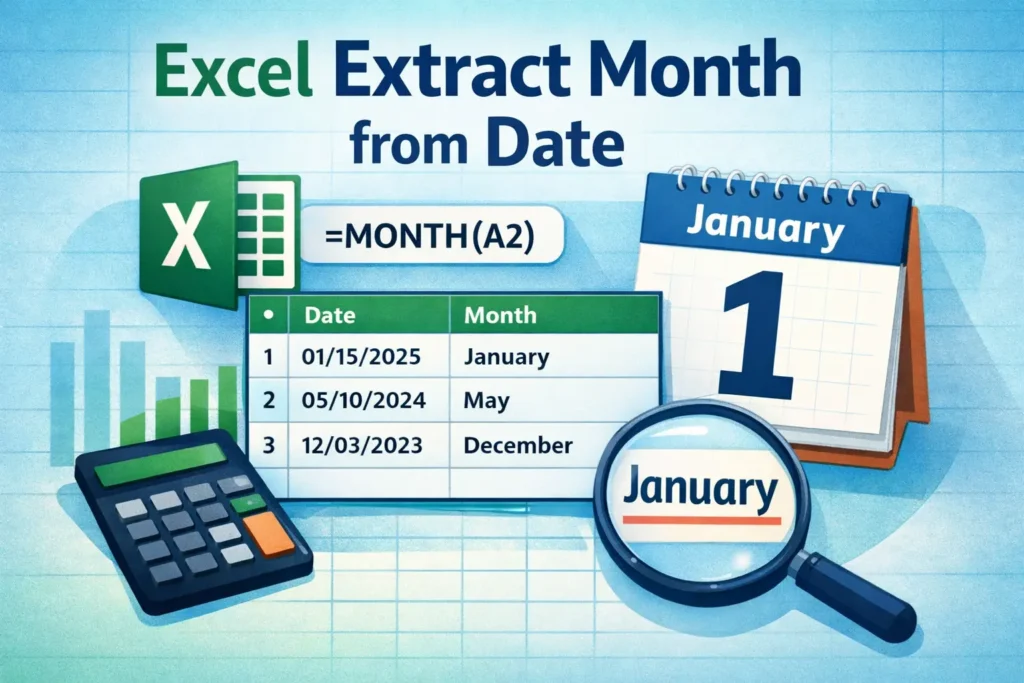
Extracting the month from a date in Excel is a surprisingly common task. It shows up in budgets, sales reports, attendance logs, project timelines, and almost any spreadsheet that works with time-based data. While it sounds simple, there are several ways to extract the month depending on what you need, whether that’s a number, a name, or something you can use for grouping and analysis. This guide walks through the most reliable methods, explains when each one makes sense, and highlights common mistakes that trip people up.
What does it mean to extract the month from a date in Excel?
When Excel stores a date, it is not saved as text like “January 15, 2025.” Instead, it stores a serial number representing the number of days since a fixed starting point. The date format you see is just a display layer. Extracting the month means pulling out the month portion of that underlying date value so you can analyze, sort, or summarize data by month.
This distinction matters because many issues come from dates that look correct but are actually stored as text. All of the methods in this article assume you are working with real Excel dates, not text strings that only resemble dates.
What is the simplest way to extract the month number from a date?
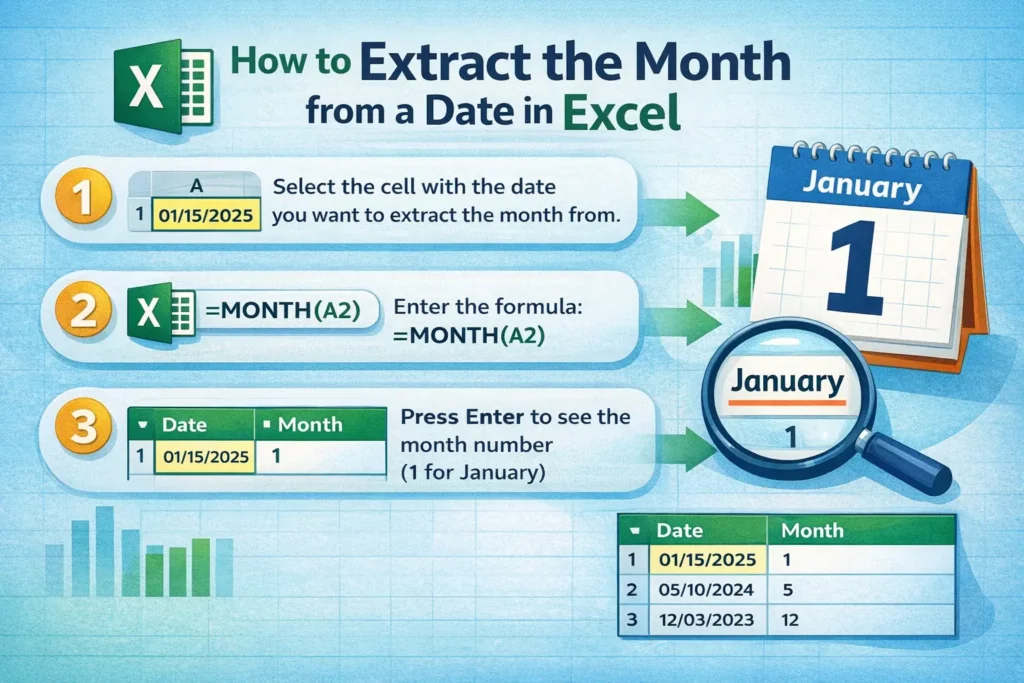
If your goal is to get a numeric month value like 1 for January or 12 for December, the built-in MONTH function is the most straightforward and reliable option.
MONTH Formula Examples
=MONTH(A2)If cell A2 contains a valid date, this formula returns a number from 1 through 12. This approach is ideal when you plan to use the result in calculations, filters, pivot tables, or conditional logic.
One useful trick is that MONTH always returns a number, regardless of how the date is formatted. Even if the cell displays “Jan 2025” or “01/15/25,” the result is consistent.
How can you extract the full month name or abbreviated month?
Sometimes you want “January” instead of 1, especially for reports or dashboards meant for people rather than formulas. In that case, the TEXT function gives you control over how the month appears.
TEXT Formula Examples
=TEXT(A2,"mmmm")This returns the full month name, such as January or February.
=TEXT(A2,"mmm")This returns the abbreviated month name, such as Jan or Feb.
This method is best for presentation. One important limitation is that the result is text, not a number. That means you should avoid using it for calculations or sorting unless you understand the implications.
Why does extracting the month sometimes give the wrong result?
One of the most common problems is that the cell contains a text string instead of a real date. This often happens when data is imported from CSV files, copied from websites, or generated by external systems.
A quick test is to change the cell format to Number. If the value changes to a large number, Excel recognizes it as a date. If it stays the same, it is likely text.
Another issue comes from regional date formats. A value like 03/04/2025 can be interpreted as March 4 or April 3 depending on system settings. Excel does not guess correctly in every case, so consistency matters.
How do you extract the month when the date is stored as text?
When dates are stored as text, functions like MONTH will not work correctly. In those cases, you need to convert the text into a real date first.
DATEVALUE Formula Example
=MONTH(DATEVALUE(A2))This works when the text date follows a recognizable pattern like “1/15/2025” or “January 15, 2025.” Once converted, Excel treats it like a normal date.
A lesser-known detail is that DATEVALUE uses your system’s regional settings. A formula that works on one computer may fail on another if the date format differs. For shared spreadsheets, it is safer to standardize date formats at the source.
How can you extract the month for grouping and reporting?
If you plan to group data by month in pivot tables or charts, extracting the month manually is not always the best approach. Excel can group dates automatically by month, quarter, and year in pivot tables without helper columns.
However, there are cases where a helper column is useful, especially when combining data across multiple years. In those situations, extracting both the month and the year avoids confusion.
A practical pattern is to extract the month number for calculations and use a custom format like “mmmm” for display. This keeps the data flexible and avoids sorting issues where April comes before February alphabetically.
What are common mistakes to avoid when extracting months?
One frequent mistake is using TEXT for analysis instead of presentation. Since TEXT returns a string, sorting or filtering can behave unexpectedly.
Another mistake is assuming all visible dates are real dates. Formatting alone does not convert text into a date value.
It is also easy to forget about year context. Extracting only the month from a multi-year dataset can lead to misleading summaries if January 2024 and January 2025 are treated as the same period.
When should you use related date functions instead?
Sometimes extracting the month is not the best solution. If you are calculating month-to-month changes, functions like EOMONTH or EDATE may be more appropriate because they preserve full date values.
If you need to count or sum data by month, pairing extracted months with conditional functions can work, but pivot tables or date-based grouping often produce cleaner and more scalable results.
Why does this matter in real-world spreadsheets?
In budgeting templates, extracting the month allows you to summarize expenses by period. In sales trackers, it helps reveal seasonal patterns. In project management sheets, it supports timeline analysis and milestone reporting.
One underused technique is storing the extracted month as a number but applying a custom number format like “mmmm.” This keeps the data numeric while displaying readable month names, giving you the best of both worlds.
Another practical tip is to create a dedicated date helper sheet in complex workbooks. Centralizing date logic reduces errors and makes future changes easier.
Final thoughts on extracting months from dates in Excel
Extracting the month from a date is simple once you understand how Excel handles dates behind the scenes. The key is choosing the right approach for your goal, whether that’s calculation, analysis, or presentation.
For most use cases, MONTH is the safest option. TEXT works well for display. DATEVALUE helps clean messy imports. Knowing the differences saves time and prevents subtle errors that can quietly distort your results.
If you frequently work with dates, this is one of those small skills that pays off everywhere, especially when paired with well-designed templates and consistent data practices.