When you need to locate specific text inside a cell—especially when accuracy matters—the FIND Excel function is one of the most reliable tools available. Unlike broader search features, FIND gives you precise, formula-driven control over how text is identified, making it ideal for data cleaning, validation, and advanced analysis.
In this guide, you’ll learn exactly how the FIND function works, when to use it instead of similar functions, and how to apply it to real-world spreadsheet tasks in both Microsoft Excel and Google Sheets. We’ll focus on clarity, practical use cases, and common mistakes—so you can confidently use FIND in everyday work.
What Does the FIND Function Do in Excel?
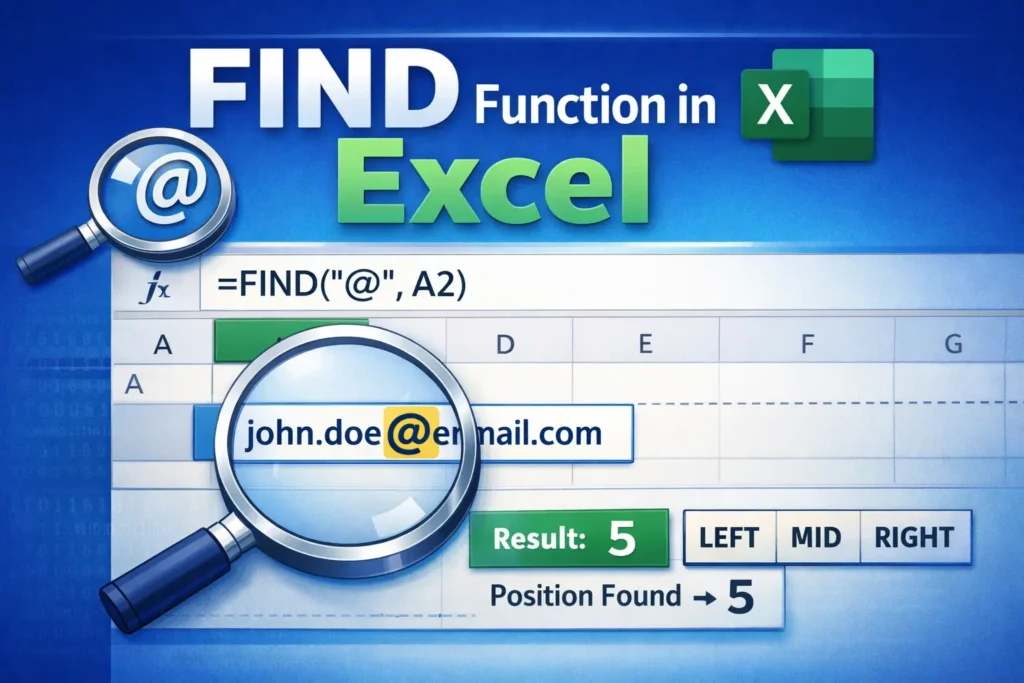
The FIND function locates the position of a specific character or text string within another text string. Instead of returning the text itself, FIND returns a number representing the starting position of the match.
This makes FIND especially useful when you need to:
- Extract part of a text string
- Validate whether text follows a required format
- Identify delimiters like commas, dashes, or spaces
- Build more advanced formulas using LEFT, MID, or RIGHT
Unlike Excel’s visual Find & Replace tool, the FIND function is dynamic. If the underlying text changes, the result updates automatically—making it far more powerful in formulas and templates.
How Does the FIND Function Work?
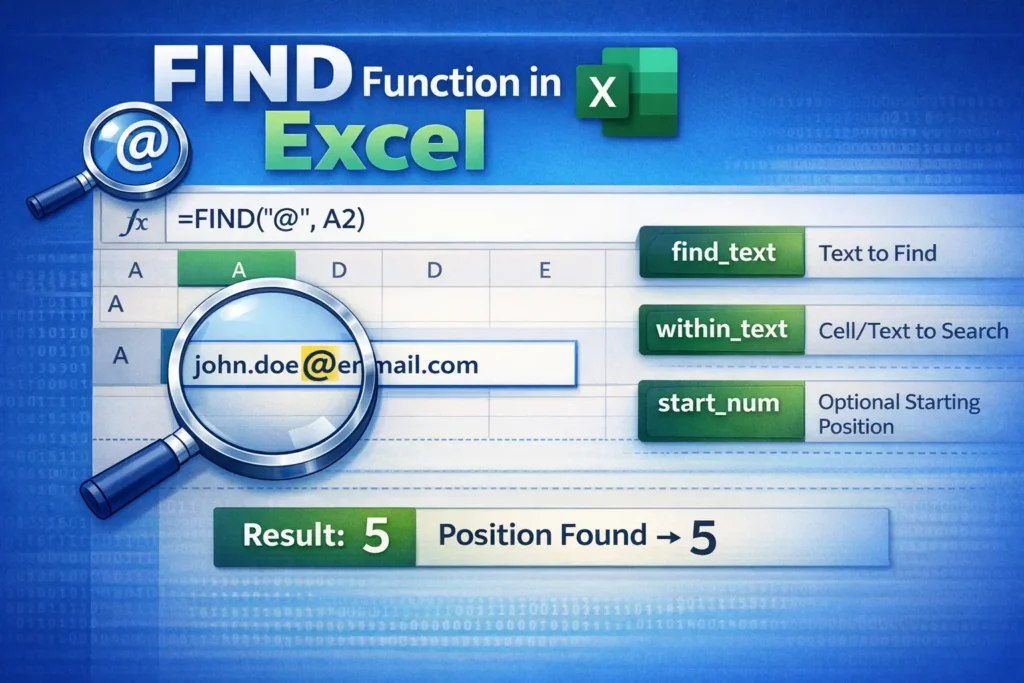
At its core, FIND searches for one text value inside another and reports where that value begins.
FIND Syntax Explained
FIND(find_text, within_text, [start_num])- find_text – The text you want to locate
- within_text – The cell or text string to search in
- start_num (optional) – The position where Excel should begin searching
If FIND cannot locate the text, it returns a #VALUE! error.
Why Is FIND Case-Sensitive in Excel?
One of the defining traits of the FIND Excel function is that it is case-sensitive. This means it treats uppercase and lowercase letters as different characters.
For example:
- Searching for
"A"is not the same as searching for"a" "Code"and"code"are considered different values
This behavior is intentional and useful when working with:
- Product codes
- Usernames
- Case-sensitive identifiers
- Validation rules that require exact matches
If you don’t need case sensitivity, Excel offers an alternative function we’ll discuss later.
FIND Formula Examples
This section focuses exclusively on practical FIND formulas so you can see how the function behaves in real situations.
Basic FIND Example
=FIND("x", "Excel")Result: 2
The letter “x” appears as the second character in “Excel”.
FIND Text Within a Cell
If cell A1 contains Invoice-2025-04:
=FIND("-", A1)Result: 8
This tells you where the first dash appears, which is often the starting point for text extraction.
FIND with a Starting Position
If a cell contains multiple instances of the same character, you can control where FIND begins searching.
=FIND("-", A1, 9)This skips the first dash and finds the next one instead.
Handling Errors with FIND
Since FIND returns an error when text isn’t found, it’s often paired with error-handling logic.
=IFERROR(FIND("@", A1), "Not an email")This prevents formulas from breaking when the searched text doesn’t exist.
How Can You Use FIND to Extract Text?
FIND becomes especially powerful when combined with text functions like LEFT, MID, and RIGHT.
Extract Text Before a Character
If A1 contains john.doe@email.com and you want the username:
=LEFT(A1, FIND("@", A1) - 1)FIND identifies the “@” symbol, and LEFT extracts everything before it.
Extract Text Between Two Characters
If A1 contains Order[4582]Complete:
=MID(A1, FIND("[", A1) + 1, FIND("]", A1) - FIND("[", A1) - 1)This approach uses FIND twice to define exact boundaries—something that’s difficult to achieve with basic text tools alone.
When Should You Use FIND Instead of SEARCH?
Excel provides both FIND and SEARCH, and while they look similar, they serve different purposes.
Key Differences Between FIND and SEARCH
- FIND is case-sensitive
- SEARCH is not case-sensitive
- FIND does not support wildcards
- SEARCH supports wildcards like
*and?
When FIND Is the Better Choice
Use FIND when:
- Case matters
- You need strict text validation
- You’re working with standardized codes or IDs
- You want predictable, exact behavior in templates
Use SEARCH when:
- You don’t care about capitalization
- You need flexible pattern matching
- You’re scanning user-generated text
What Are Common Mistakes When Using FIND?
Many issues with the FIND Excel function come from small misunderstandings rather than complex logic.
Forgetting Case Sensitivity
A formula may appear broken simply because the capitalization doesn’t match. Always double-check the exact text you’re searching for.
Not Accounting for Errors
FIND does not return zero when text isn’t found—it returns an error. If your formula depends on FIND, wrap it in IFERROR or IF to avoid broken calculations.
Hardcoding Text Instead of Referencing Cells
Instead of writing "@" or "-" directly into formulas every time, consider referencing helper cells. This makes templates easier to update and reuse.
How Does FIND Work in Google Sheets?
The FIND function works almost identically in Google Sheets, including:
- Case sensitivity
- Syntax structure
- Error behavior
However, one important difference is performance. In very large Sheets with thousands of FIND formulas, recalculation can feel slower compared to Excel. In those cases, limiting FIND usage to helper columns can improve responsiveness.
Can FIND Be Used for Data Validation?
Yes—and this is one of the most underused applications of FIND.
You can use FIND inside logical tests to check whether text follows a required structure.
Example: Ensure a value contains a dash
=ISNUMBER(FIND("-", A1))This returns TRUE if a dash exists and FALSE if it doesn’t, making it perfect for validation rules or conditional formatting.
Advanced Tip: FIND for Format Detection (New Insight)
A lesser-known use of FIND is format detection in semi-structured text. For example, you can test whether an ID follows a required pattern by checking the positions of multiple characters.
If an ID must follow AAA-1234:
- Dash must be in position 4
- Numbers must follow afterward
=FIND("-", A1)=4This approach is faster and more transparent than regex-based solutions for many business use cases.
Advanced Tip: FIND Is Volatile in Nested Text Logic (New Insight)
While FIND itself is not volatile, using it repeatedly inside deeply nested formulas can significantly increase recalculation time in large spreadsheets. A best practice is to calculate FIND once in a helper column and reference the result elsewhere.
This improves performance and makes debugging far easier.
Advanced Tip: FIND for Localization-Safe Templates (New Insight)
Unlike SEARCH with wildcards, FIND behaves consistently across regional Excel settings and languages. This makes it safer for templates that will be shared internationally, especially when searching for symbols like /, -, or : that don’t change across locales.
When Should You Avoid Using FIND?
Despite its usefulness, FIND isn’t always the right tool.
Avoid FIND when:
- You need flexible matching with wildcards
- Case sensitivity creates unnecessary complexity
- You only need a one-time, manual search
In those cases, SEARCH or Excel’s built-in Find & Replace may be a better fit.
How FIND Fits Into Real-World Spreadsheet Workflows
In practical spreadsheet workflows, FIND often acts as a supporting function rather than a standalone solution. It helps define boundaries, validate structure, and power more advanced formulas.
On Sheetrix.com, FIND pairs especially well with downloadable templates for:
- Data cleanup
- Email validation
- Import normalization
- Reporting dashboards
Once you understand how FIND behaves, you’ll start spotting opportunities to replace manual cleanup steps with clean, reliable formulas.
Final Thoughts on FIND Excel
The FIND Excel function is a precision tool. It doesn’t try to guess what you mean—it tells you exactly where text appears, based on exact rules. That makes it invaluable for professionals who care about accuracy, structure, and scalability.
If you’re building reusable spreadsheets, cleaning imported data, or enforcing strict formats, FIND is a function worth mastering. Used thoughtfully, it can eliminate entire classes of manual errors and make your spreadsheets far more robust.
For more advanced Excel and Google Sheets techniques, explore other text functions and downloadable resources here on Sheetrix.com.