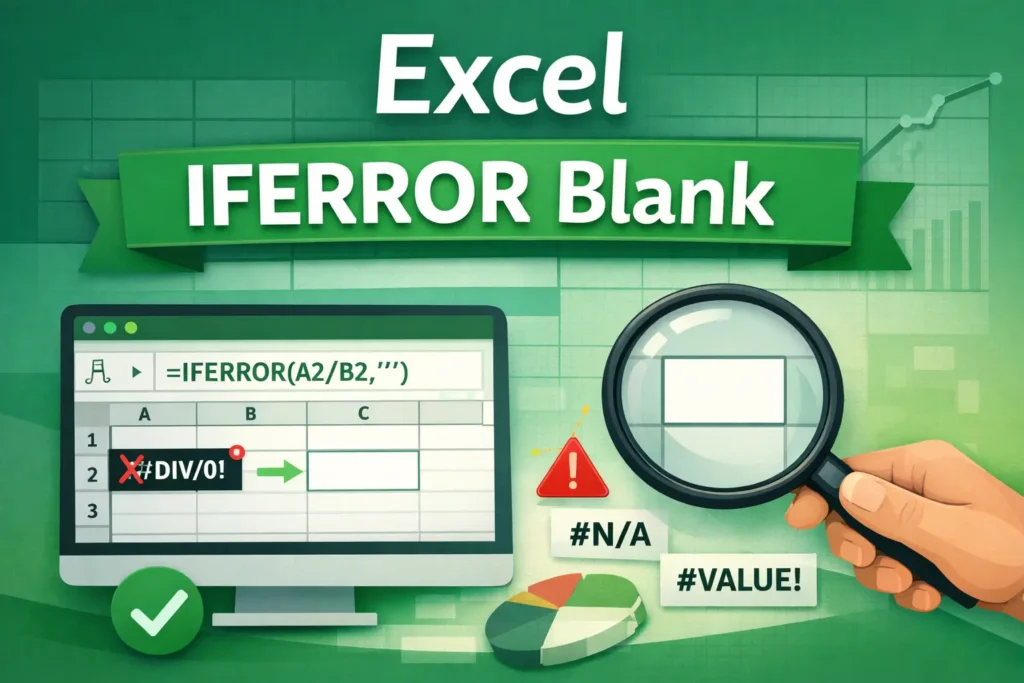
The phrase excel iferror blank usually refers to a very common spreadsheet need: show nothing instead of an error. By default, Excel displays errors like #DIV/0!, #N/A, or #VALUE! when a formula can’t calculate a result. While those errors are technically useful, they often make dashboards, reports, and templates look messy or confusing—especially for non-technical users.
The IFERROR function solves this by letting you define what should appear when an error occurs. When people say “IFERROR blank,” they almost always mean returning an empty cell ("") instead of an error message. This is extremely useful in financial models, lookup tables, trackers, and any spreadsheet meant to be shared or reused.
At its core, IFERROR acts like a safety net. If a formula works, Excel shows the result. If something goes wrong, Excel shows whatever fallback value you choose—including a blank cell.
How does the IFERROR function work in Excel?
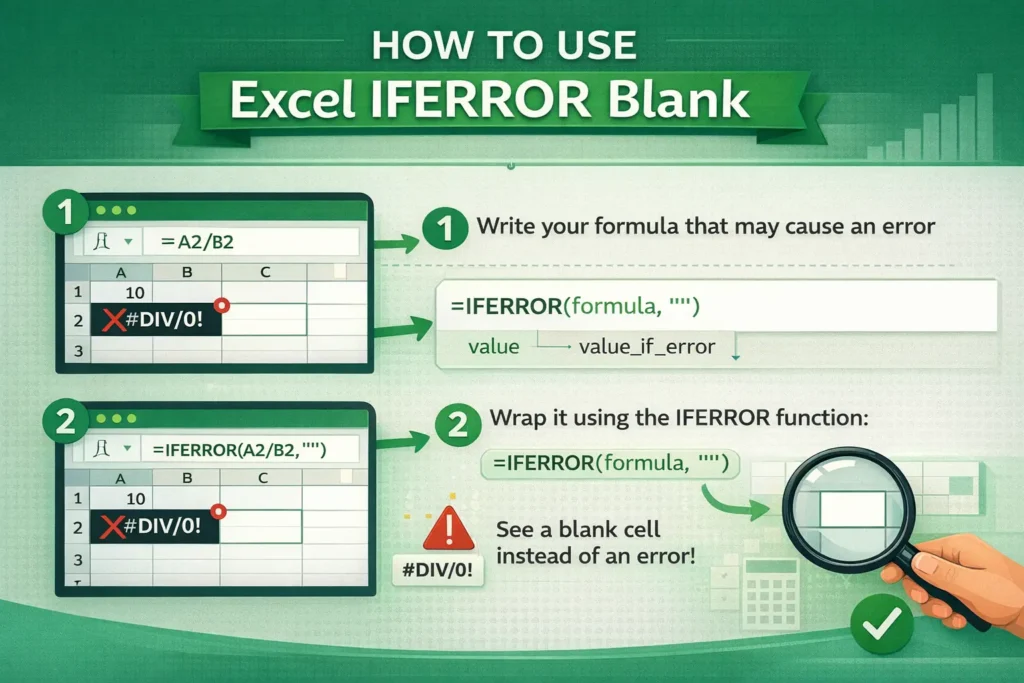
IFERROR evaluates a formula and checks whether it produces an error. If it does, Excel substitutes a value you define. If it doesn’t, Excel simply returns the original result.
The structure is straightforward:IFERROR(value, value_if_error)
The key thing to understand is that IFERROR catches all Excel error types, not just one specific error. That includes #DIV/0!, #N/A, #NAME?, #VALUE!, and others. This makes it simpler than building nested IF statements that check for individual errors.
When your goal is to return a blank cell, the value_if_error argument is usually an empty string (""). Excel interprets this as “display nothing,” even though the formula is still there behind the scenes.
How do you use IFERROR to return a blank cell?
IFERROR formula examples
Below are the most common and practical ways people use IFERROR to show blanks instead of errors.
Basic division example=IFERROR(A2/B2,"")
If B2 is zero or empty, Excel would normally return #DIV/0!. With IFERROR, the cell stays visually blank instead.
VLOOKUP with blank instead of #N/A=IFERROR(VLOOKUP(E2,A:B,2,FALSE),"")
This is one of the most popular IFERROR use cases. When a lookup value doesn’t exist, Excel usually returns #N/A. Wrapping the lookup in IFERROR keeps the sheet clean and avoids confusion.
XLOOKUP with blank output=IFERROR(XLOOKUP(E2,A:A,B:B),"")
Even though XLOOKUP is more flexible than older lookup functions, it can still return errors. IFERROR ensures a consistent blank result when no match is found.
Calculated fields in dashboards=IFERROR(SUM(C2:C10)/D2,"")
This is common in KPI dashboards where you don’t want error messages showing before all inputs are filled in.
When should you use IFERROR instead of leaving errors visible?
Using IFERROR to return blanks is ideal when:
- You’re building templates for others to use
- The data will be incomplete at first
- Errors would confuse the end user
- The sheet feeds charts or dashboards
However, hiding errors isn’t always the best choice. During development or auditing, visible errors can help you spot problems quickly. A good practice is to build and test formulas without IFERROR first, then wrap them once you’re confident the logic is correct.
One advanced approach used in professional models is to keep a “debug” version of a sheet with raw formulas and a “presentation” version that uses IFERROR to hide errors cleanly.
Are there downsides to using IFERROR with blanks?
Yes, and this is often glossed over in basic tutorials. While IFERROR makes spreadsheets look nicer, it can also hide legitimate issues.
For example, a blank cell produced by IFERROR is not the same as a truly empty cell. The formula is still there, which can affect:
COUNTAresults- Logical tests like
IF(A1="") - Certain pivot table behaviors
Another subtle downside is performance. IFERROR forces Excel to evaluate the formula even if it errors out. In very large spreadsheets with thousands of complex formulas, excessive IFERROR usage can slightly slow recalculation.
A more targeted alternative in some cases is checking conditions before the risky calculation, such as testing whether a denominator is zero.
How does IFERROR compare to IF(ISERROR())?
Before IFERROR existed, users relied on combinations like:=IF(ISERROR(A2/B2),"",A2/B2)
This still works, but it’s harder to read and maintain. IFERROR is cleaner, shorter, and less error-prone. Unless you specifically need to handle different error types differently, IFERROR is almost always the better choice.
That said, IFERROR handles all errors the same way. If you only want to suppress one type of error—like #N/A from lookups—IFNA can be a more precise option.
Does IFERROR behave differently in Excel vs Google Sheets?
The core behavior of IFERROR is the same in Excel and Google Sheets. Both platforms support returning a blank using "", and both catch all error types.
One small difference is how blanks interact with charts and conditional formatting. Google Sheets tends to treat "" more like empty cells visually, while Excel is slightly more literal. In Excel dashboards, it’s sometimes better to return NA() instead of "" when feeding charts, since Excel automatically ignores #N/A values in many chart types.
This is a useful trick when you want clean visuals without breaking calculations elsewhere.
What are common mistakes people make with “excel iferror blank”?
A frequent mistake is wrapping every formula in IFERROR without understanding why errors are occurring. This can mask broken references, missing data, or logic mistakes that should be fixed instead of hidden.
Another common issue is forgetting that "" is text. This can cause problems in formulas that expect numbers, such as averages or comparisons. In those cases, returning 0 or NA() may be more appropriate than returning a blank.
Finally, many users don’t realize they can nest IFERROR inside larger formulas strategically, instead of wrapping the entire calculation. This gives you more control and avoids suppressing useful error signals.
When should you use IFERROR with blanks in real-world spreadsheets?
IFERROR with blanks shines in real, practical scenarios: budget trackers that aren’t fully filled out yet, inventory sheets with optional fields, dashboards that update dynamically, and client-facing reports where clarity matters more than technical detail.
On Sheetrix, this pattern is especially useful in downloadable templates. It keeps spreadsheets beginner-friendly while still allowing advanced users to inspect and modify the formulas if needed.
If you think of IFERROR as a presentation tool—not just an error-hiding trick—you’ll use it more intentionally and get better results.
Final thoughts on using IFERROR to return blanks
Understanding excel iferror blank isn’t just about memorizing a formula. It’s about knowing when to hide errors, when to surface them, and how blank results affect the rest of your spreadsheet.
Used correctly, IFERROR makes spreadsheets cleaner, more professional, and easier to use. Used carelessly, it can hide problems that matter. The key is balance: build accurate formulas first, then use IFERROR to improve usability where it makes sense.
If you regularly work with templates, dashboards, or shared spreadsheets, mastering this small function will have an outsized impact on how polished your work feels.