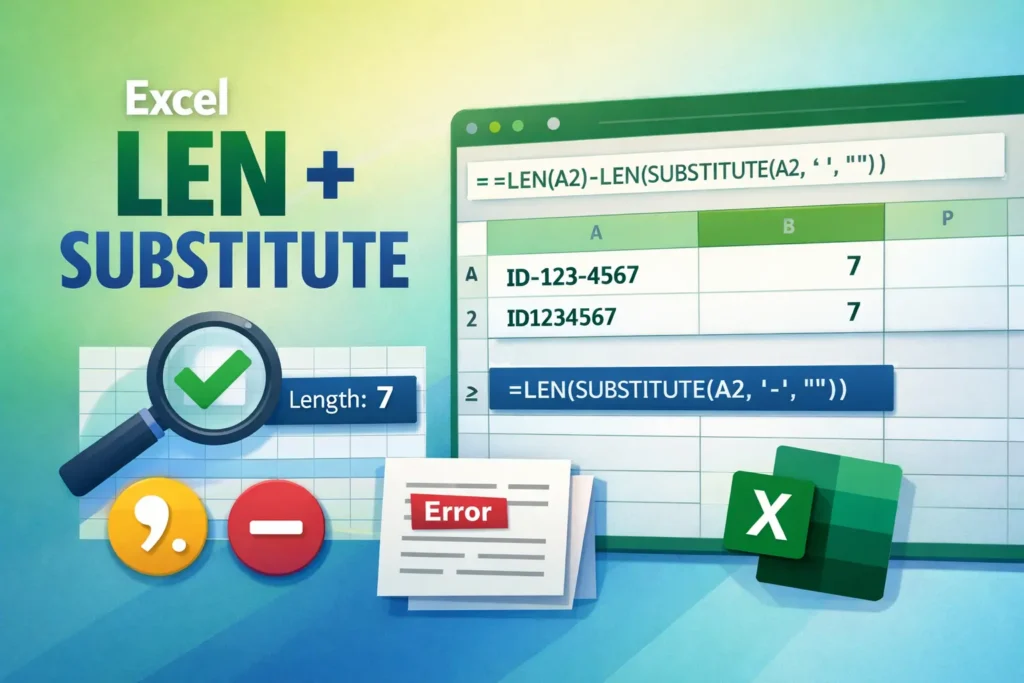
Excel users often need to measure text length after certain characters have been removed or replaced. This comes up frequently when cleaning data, validating inputs, or working with inconsistent text formats pulled from other systems. While Excel doesn’t offer a single built-in function that directly returns character counts after a replacement, combining the LEN and SUBSTITUTE functions provides a clean and reliable solution. In this guide, you’ll learn how these two functions work together, why the approach is so effective, common pitfalls to watch for, and how to apply it confidently in real-world spreadsheet scenarios.
What does the Excel LEN and SUBSTITUTE combination do?
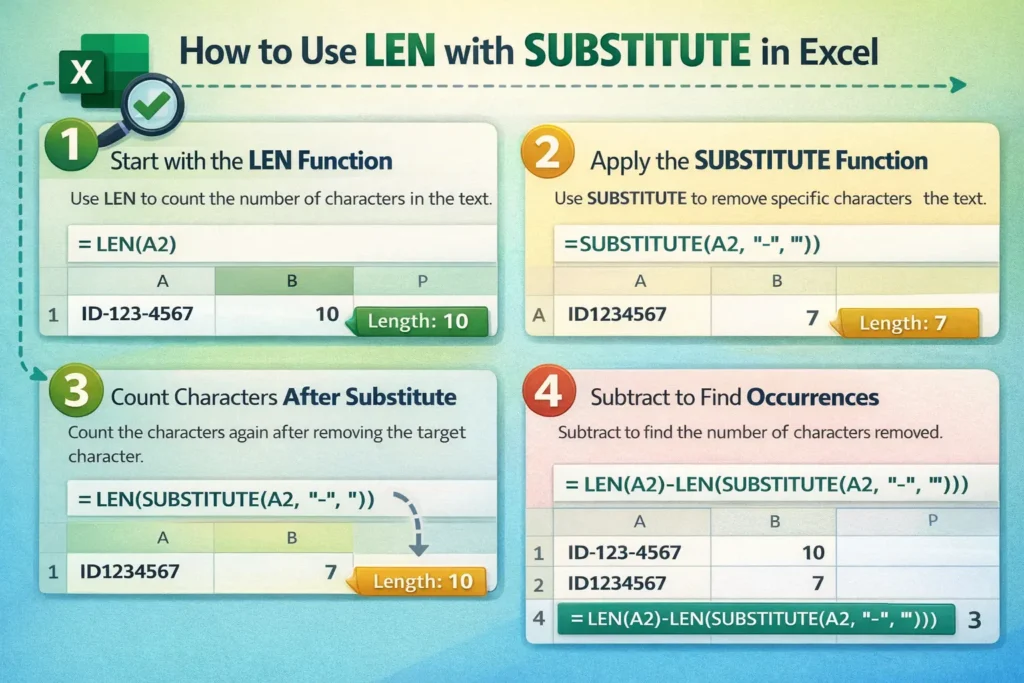
At its core, the LEN function counts the number of characters in a text string, while SUBSTITUTE replaces specific characters or text within that string. When you combine them, you can measure how many characters were removed or remain after substitution. This technique is widely used to count occurrences of a character, ignore spaces or punctuation, or validate structured inputs like IDs and phone numbers.
Instead of manually editing text or using helper columns, this approach lets Excel do the work dynamically. As your data changes, the character counts update automatically, which is especially useful for large datasets.
How does the LEN function work in Excel?
LEN returns the total number of characters in a cell, including spaces and punctuation. It counts everything you see, even trailing spaces that aren’t visually obvious. This makes LEN extremely accurate but also means it can reveal hidden formatting issues in imported data.
LEN is text-only. If you apply it to a number, Excel automatically converts that number to text before counting characters. This behavior is helpful but can surprise users who expect numeric precision instead of character length.
How does the SUBSTITUTE function work in Excel?
SUBSTITUTE replaces occurrences of a specific text string with another string. Unlike REPLACE, which works based on character position, SUBSTITUTE targets exact matches. This makes it ideal for removing known characters like commas, hyphens, or spaces.
SUBSTITUTE is case-sensitive, which is important when working with mixed-case data. If you need case-insensitive behavior, you’ll need to normalize text first using functions like LOWER or UPPER.
Why combine LEN and SUBSTITUTE instead of using a single function?
Excel does not include a native “count after replace” function. Combining LEN and SUBSTITUTE fills that gap without using macros or Power Query. By comparing the length of the original text with the length after substitution, you can infer how many characters were removed or remain.
This method is fast, flexible, and compatible with all modern versions of Excel. It also works seamlessly in Google Sheets with identical syntax, making it a cross-platform solution.
LEN + SUBSTITUTE formula examples
The formulas below are grouped intentionally so you can quickly scan and apply them without hunting through paragraphs.
Count how many times a character appears in a cell
This is the most common use of the excel len substitute pattern.
=LEN(A1)-LEN(SUBSTITUTE(A1,",",""))This formula counts how many commas appear in cell A1. It works by removing all commas and comparing the character length before and after removal.
Count spaces to determine word count
While Excel doesn’t have a true word count function, this approach gets you close.
=LEN(A1)-LEN(SUBSTITUTE(A1," ",""))+1
This counts spaces and adds one, assuming words are separated by single spaces. It’s effective for clean text but not ideal for inconsistent spacing.
Measure text length after removing specific characters
If you want the length of text after removing hyphens, formatting characters, or symbols:
=LEN(SUBSTITUTE(A1,"-",""))This is useful for validating serial numbers or account codes where formatting varies but underlying length must be consistent.
Count specific words or substrings
You can also count full words or multi-character strings:
=(LEN(A1)-LEN(SUBSTITUTE(A1,"error","")))/LEN("error")This formula counts how many times the word “error” appears in a cell by dividing the character difference by the length of the target word.
What are common mistakes when using LEN and SUBSTITUTE?
One frequent issue is forgetting that SUBSTITUTE is case-sensitive. If your data includes “Error” and “error,” the formula will miss matches unless you normalize the text first.
Another common mistake is counting spaces without trimming extra ones. Leading or trailing spaces can inflate results, so using TRIM before LEN often improves accuracy.
Users also sometimes forget that SUBSTITUTE replaces all matches by default. If you only want to remove or replace the first instance, SUBSTITUTE supports an optional instance number argument.
When should you use LEN and SUBSTITUTE instead of other functions?
Use this combination when you care about character-level precision. COUNTIF and COUNTIFS work at the cell level, not inside text. TEXT functions like FIND and SEARCH locate positions, not quantities. LEN plus SUBSTITUTE is ideal when your question is “how many characters or occurrences are inside this cell?”
If your task involves complex transformations across many columns, Power Query may be a better fit. But for in-cell logic and lightweight validation, LEN and SUBSTITUTE are faster and easier to maintain.
Are there differences between Excel and Google Sheets?
The formulas work the same in both platforms, but performance can differ on very large datasets. Google Sheets recalculates more aggressively, which can slow down sheets with thousands of LEN + SUBSTITUTE formulas. Excel generally handles large volumes more efficiently in this specific use case.
Another subtle difference is how each platform handles Unicode characters. Some emojis or special symbols may count as more than one character depending on encoding, so test carefully if your data includes non-standard characters.
Advanced and lesser-known tips for using LEN with SUBSTITUTE
First, you can nest SUBSTITUTE functions to remove multiple characters at once, such as spaces and commas together, without helper columns. Second, combining LEN with CLEAN can remove non-printable characters that often appear in copied data. Third, LEN + SUBSTITUTE is a reliable way to validate formatted IDs by stripping formatting and checking raw length. Fourth, this approach can be embedded inside IF formulas to create dynamic data quality checks. Finally, when paired with conditional formatting, it can visually flag cells where character counts don’t meet expected rules.
Why mastering LEN & SUBSTITUTE matters for real-world spreadsheets
Understanding how LEN and SUBSTITUTE work together gives you fine-grained control over text data. Whether you’re cleaning exports, validating inputs, or building professional templates, this technique helps you solve problems Excel doesn’t address directly.
If you regularly work with structured text or want ready-to-use templates that already apply these techniques, Sheetrix offers downloadable spreadsheets designed for real workflows—not just textbook examples. Mastering this pattern will make your spreadsheets cleaner, more reliable, and easier to scale as your data grows.