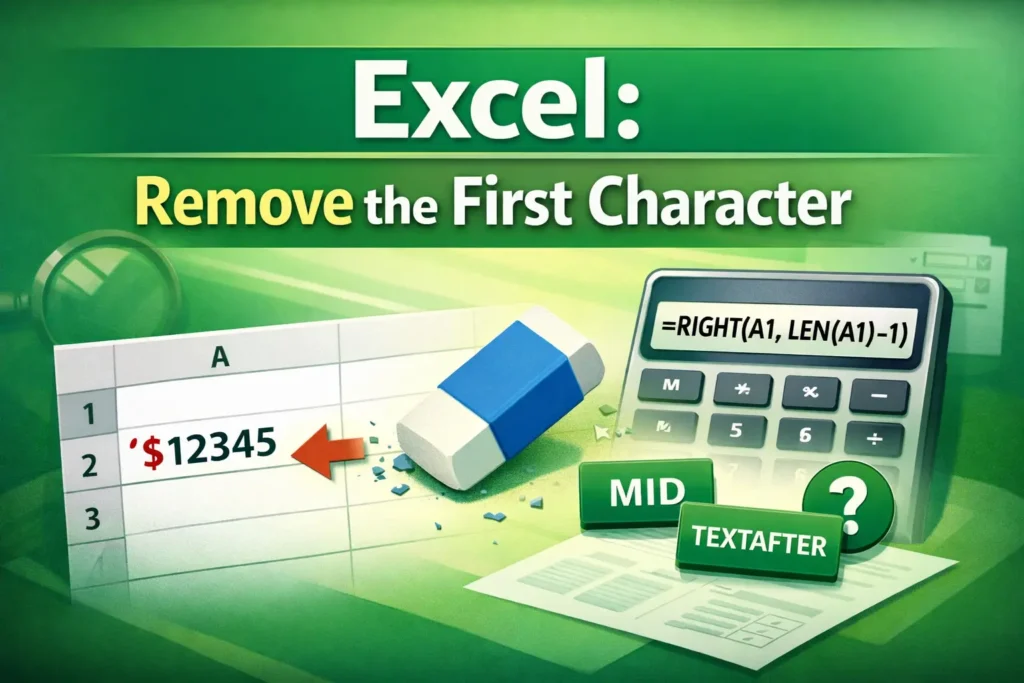
Removing the first character in Excel is a common task when working with messy or imported text data. This often comes up when a value includes an extra symbol at the beginning—such as an apostrophe added during import, a currency sign like $, a leading dash, or an unwanted prefix in an ID or product code. Excel doesn’t offer a single “remove first character” button, but it does provide several reliable text functions that handle this cleanly. Knowing which method to use—and when—helps keep your formulas accurate, your data intact, and your spreadsheets easy to maintain as values change over time.
What is the easiest way to remove the first character in Excel?
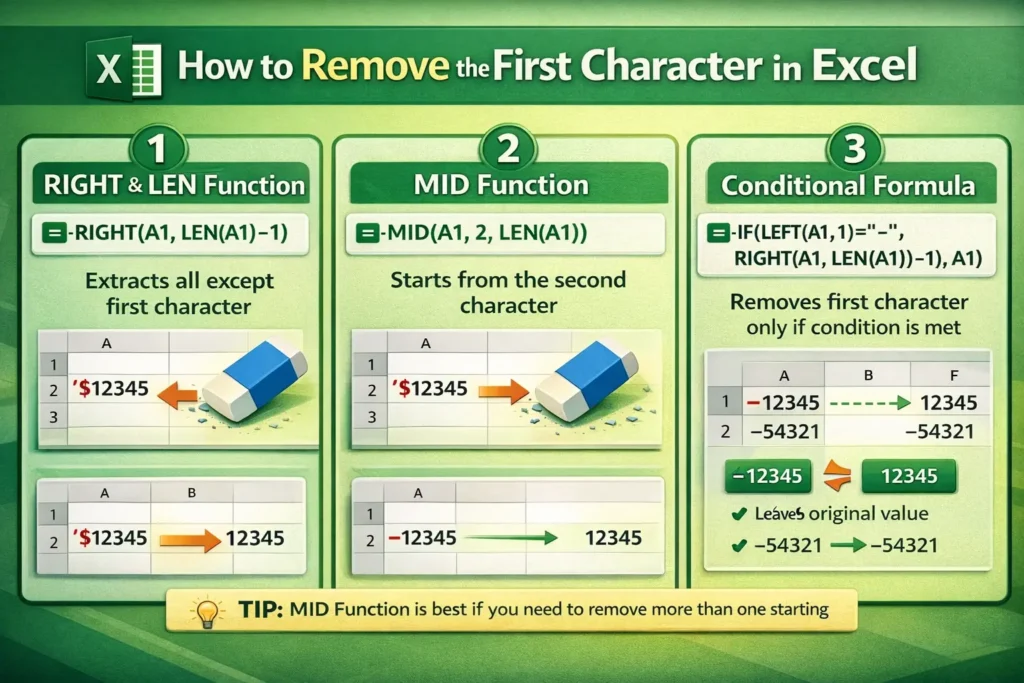
The simplest and most commonly recommended method is using the RIGHT and LEN functions together. This approach works well when you want to remove exactly one character from the start of a cell, regardless of what that character is.
RIGHT and LEN formula example
=RIGHT(A1, LEN(A1)-1)This formula tells Excel to return all characters in the cell except the first one. LEN counts how many characters exist in the text, and RIGHT extracts everything except the first character. This method is dynamic, meaning if the text in A1 changes, the result updates automatically.
This approach is ideal for beginners because it’s predictable and works across most Excel versions. However, it assumes that the first character should always be removed, even if that character is sometimes valid. That’s an important limitation to keep in mind.
How can you remove the first character using the MID function?
The MID function offers a more readable alternative for many users, especially those who prefer explicit logic over nested functions. MID extracts text starting from a specific position for a specified number of characters.
MID formula example
=MID(A1, 2, LEN(A1))This formula starts extracting text from the second character onward, effectively skipping the first character. Functionally, this produces the same result as the RIGHT/LEN method, but some users find it easier to understand at a glance.
MID is especially useful if you later decide to remove more than one character. For example, changing the starting position from 2 to 3 would remove the first two characters without rewriting the entire formula structure.
Can Excel remove the first character only if it matches a condition?
Yes, and this is where many online tutorials fall short. Real-world data is messy, and you often want to remove the first character only if it’s a specific value, such as a dash, space, or letter.
Conditional removal formula example
=IF(LEFT(A1,1)="-", RIGHT(A1, LEN(A1)-1), A1)This formula checks whether the first character is a dash. If it is, Excel removes it. If not, the original value remains unchanged. This prevents accidental data corruption when some cells don’t need modification.
This conditional approach is especially useful for imported CSV files, accounting exports, or systems that inconsistently apply prefixes.
What’s the difference between formulas and Find & Replace for removing the first character?
Excel’s Find & Replace tool can remove characters quickly, but it’s destructive and non-dynamic. Once you replace or delete characters using Find & Replace, the original data is permanently altered unless you undo immediately.
Formulas, on the other hand, create a clean, reversible workflow. You keep the original data intact and generate cleaned output in a separate column. This is the preferred approach for dashboards, templates, and any spreadsheet that updates regularly.
A useful hybrid approach is to use formulas first, validate the results, then paste values if you truly need static data.
How do Excel versions affect removing the first character?
Most traditional methods work across Excel versions, but newer versions of Excel offer additional flexibility.
TEXTAFTER for modern Excel users
If you’re using Excel 365 or Excel 2021+, you can sometimes use TEXTAFTER when the first character is a known delimiter.
=TEXTAFTER(A1,"-",1)
This removes everything up to and including the first dash. While powerful, TEXTAFTER is not available in older Excel versions, which makes it risky for shared templates. For maximum compatibility, MID and RIGHT/LEN remain the safest options.
What are common mistakes when removing the first character in Excel?
One frequent mistake is applying a formula to numeric data without realizing Excel treats numbers differently from text. If a cell contains a number, Excel may automatically convert it, causing unexpected results or errors. Converting numbers to text first using TEXT or adding an apostrophe can help in these cases.
Another mistake is forgetting to handle blank cells. Formulas like RIGHT(A1, LEN(A1)-1) will return errors if A1 is empty. Wrapping your logic in IF(A1<>””, … , “”) avoids unnecessary errors and keeps your sheet clean.
When should you remove the first character versus using another cleanup method?
Removing the first character is appropriate when that character has no analytical value, such as formatting symbols or system-generated prefixes. If the first character conveys meaning—like region codes or category identifiers—you may be better off splitting the data into separate columns instead of deleting it.
In some cases, using TRIM, CLEAN, or SUBSTITUTE may solve the underlying issue more effectively. For example, if the “first character” is actually a hidden non-printable space, CLEAN will fix the problem without removing visible characters.
Why does this matter for real-world spreadsheet workflows?
Text cleanup is one of the most common preparation steps in budgeting templates, inventory trackers, CRM sheets, and financial reports. Removing the first character correctly ensures formulas match properly, lookups work as expected, and exported reports don’t break downstream processes.
At Sheetrix, this exact technique is frequently used in templates where users import raw data from banks, POS systems, or third-party tools. Understanding how and when to remove the first character helps you adapt templates to your own data instead of forcing your data to fit the template.
Final thoughts on removing the first character in Excel
Learning how to remove the first character in Excel isn’t about memorizing one formula—it’s about choosing the right approach for your data. Whether you use RIGHT and LEN for simplicity, MID for readability, or conditional logic for precision, the key is understanding why the formula works and when it should be applied.
Once you master this small but powerful technique, you’ll find it easier to clean datasets, build reliable spreadsheets, and avoid subtle errors that cost time later. If you regularly work with imported or inconsistent text data, this is one Excel skill that pays off immediately.