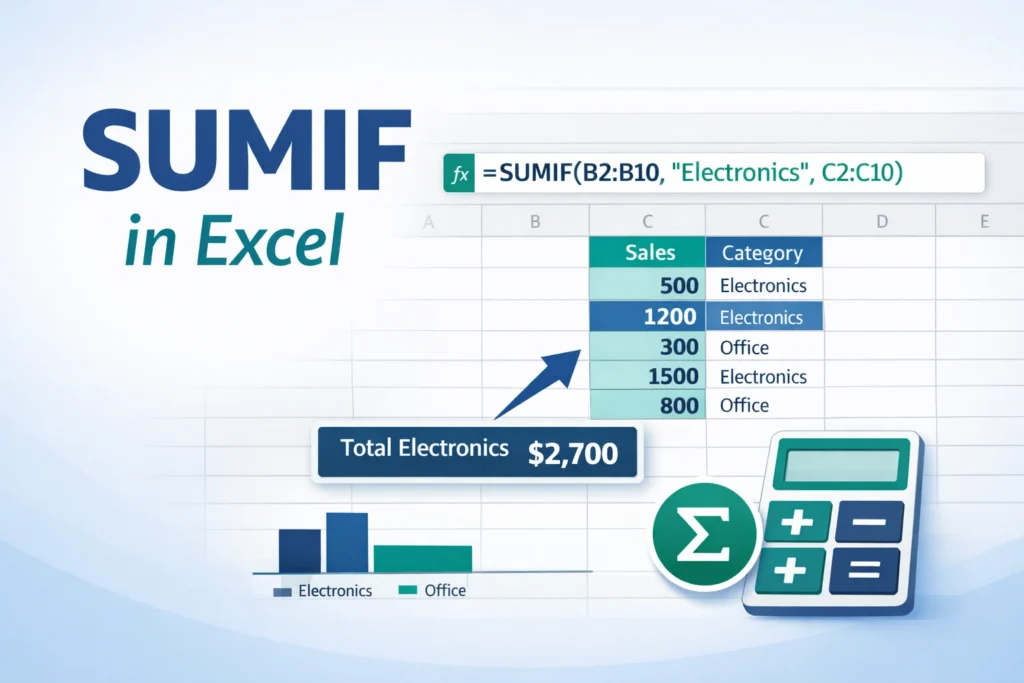
If you work with spreadsheets regularly, you’ve probably faced this situation: you don’t want to sum everything—you only want to add values that meet a specific condition. That’s exactly where SUMIF in Excel shines.
The SUMIF function allows you to add numbers based on criteria like dates, text labels, ranges, or numeric thresholds. It’s one of the most practical Excel functions for financial tracking, reporting, budgeting, and data analysis.
This guide walks you through how SUMIF works in Excel, when to use it, common mistakes to avoid, and how it compares to related functions. Whether you’re brand new to Excel or trying to clean up inefficient formulas, this article is designed to give you real, usable clarity.
What Is the SUMIF Function in Excel?
SUMIF is a conditional summing function. Instead of adding all numbers in a range, it adds only the values that meet a single condition you define.
At a high level, SUMIF answers questions like:
- What are my total sales for a specific product?
- How much did I spend in a certain category?
- What is the sum of values above or below a threshold?
- How much revenue came from a specific client?
SUMIF evaluates each cell in a range, checks whether it meets your criteria, and adds up the corresponding values.
How Does the SUMIF Formula Work?
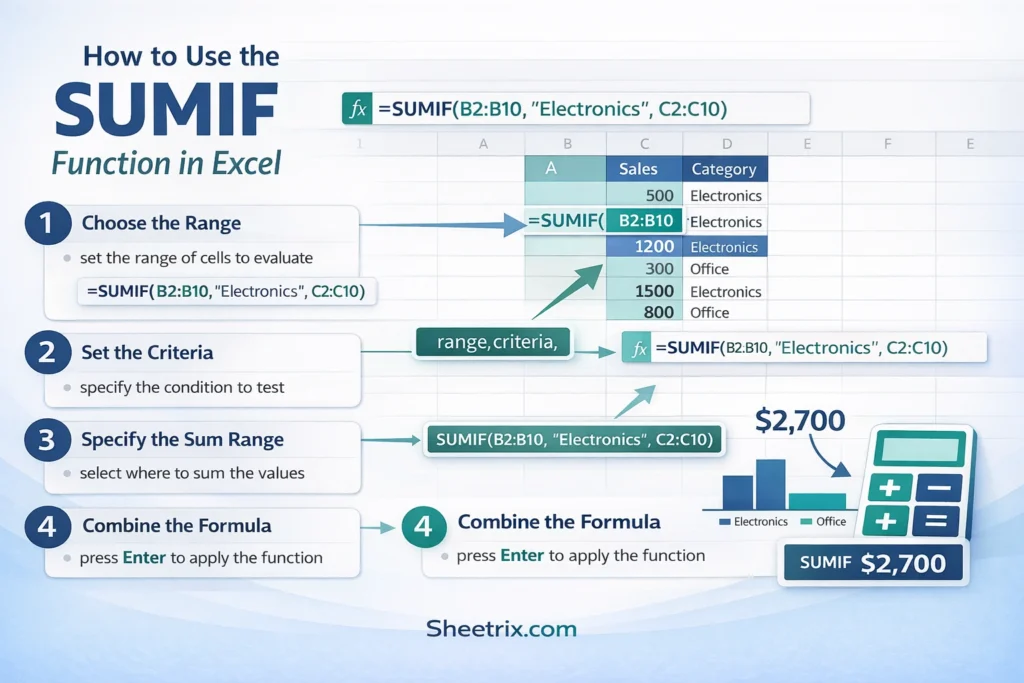
SUMIF Formula Syntax
SUMIF Formula Examples
=SUMIF(range, criteria, [sum_range])Each part plays a specific role:
- range: The cells Excel checks against your condition.
- criteria: The condition that must be met.
- sum_range (optional): The cells to actually add. If omitted, Excel sums the
range.
A key detail many users miss: the range and sum_range do not have to be the same, but they must be the same size.
When Should You Use SUMIF Instead of SUM?
Use SUMIF when:
- You only want to add numbers that meet one condition
- Your data includes categories, labels, or thresholds
- You want dynamic totals that update when data changes
Use regular SUM when:
- You want to add all numbers without filtering
- Conditions are unnecessary
SUMIF is especially useful in dashboards, expense trackers, sales reports, and any scenario where totals depend on labels or rules.
How Do You Use SUMIF With Text Criteria?
Text-based conditions are one of the most common uses of SUMIF.
SUMIF With Text Labels
SUMIF Formula Examples
=SUMIF(A2:A20, "Marketing", B2:B20)This formula:
- Checks column A for the word “Marketing”
- Adds the corresponding values from column B
Important tips for text criteria:
- Text is not case-sensitive in Excel
- Extra spaces can break results
- Wildcards can expand matching flexibility
Using Wildcards in SUMIF
Wildcards let you match partial text:
*matches any number of characters?matches a single character
SUMIF Formula Examples
=SUMIF(A2:A20, "Mark*", B2:B20)This sums values for any entry that starts with “Mark” (Marketing, Market Research, etc.).
How Do You Use SUMIF With Numbers?
Numeric conditions allow you to sum values above, below, or equal to a certain number.
SUMIF With Numeric Criteria
SUMIF Formula Examples
=SUMIF(B2:B20, ">1000")This adds values greater than 1000 in the same range.
You can also reference a cell for flexibility:
=SUMIF(B2:B20, ">" & D1)This makes your formula dynamic and easier to update without editing the formula itself.
How Do You Use SUMIF With Dates?
Dates in Excel are stored as numbers, which means SUMIF can filter them just like numeric values.
SUMIF With Date Conditions
SUMIF Formula Examples
=SUMIF(A2:A20, ">=1/1/2025", B2:B20)This sums values from January 1, 2025 onward.
For better reliability, especially across regions, use DATE():
=SUMIF(A2:A20, ">=" & DATE(2025,1,1), B2:B20)This avoids formatting issues caused by regional date settings.
Can SUMIF Reference Another Cell as Criteria?
Yes—and this is one of the most underused features of SUMIF.
SUMIF With Cell-Based Criteria
SUMIF Formula Examples
=SUMIF(A2:A20, E1, B2:B20)If E1 contains “Marketing,” the formula adapts automatically when the value in E1 changes.
This approach is ideal for:
- Dashboards
- Drop-down-driven reports
- Interactive spreadsheets
What Are the Most Common SUMIF Mistakes?
Even experienced Excel users run into these issues.
Mismatched Ranges
The range and sum_range must be the same size. If they aren’t, Excel may return incorrect totals without warning.
Forgetting Quotation Marks
Text and operators like ">100" must be in quotes. Without quotes, Excel can’t interpret the criteria correctly.
Including Headers
Including header rows in your ranges can skew results or cause errors. Always start from the first row of actual data.
Using SUMIF for Multiple Conditions
SUMIF only supports one condition. If you need more, use SUMIFS instead.
What Are the Limitations of SUMIF in Excel?
Understanding SUMIF’s limits helps you know when to switch tools.
- Only supports one condition
- Cannot natively handle OR logic
- Does not work well with non-uniform data layouts
- Can become inefficient in extremely large datasets
For more complex scenarios, SUMIFS, FILTER, or PivotTables are often better choices.
When Should You Use SUMIFS Instead of SUMIF?
SUMIFS is designed for multiple conditions.
Key Differences Between SUMIF and SUMIFS
- SUMIF: one condition
- SUMIFS: multiple conditions
- SUMIFS requires the sum range first
- SUMIFS is often easier to read in structured formulas
SUMIFS Example
=SUMIFS(C2:C20, A2:A20, "Marketing", B2:B20, ">1000")
This sums values where the department is Marketing and the amount is greater than 1000.
How Does SUMIF Behave With Blank Cells and Errors?
This is rarely explained clearly, but it matters.
- Blank cells in the sum range are treated as zero
- Text values in the sum range are ignored
- Errors in the sum range can cause the entire formula to return an error
To protect against errors, consider wrapping SUMIF with IFERROR:
=IFERROR(SUMIF(A2:A20, "Marketing", B2:B20), 0)How Can You Use SUMIF With Tables?
When working with Excel Tables, SUMIF becomes easier to maintain.
SUMIF Formula Examples
=SUMIF(Table1[Category], "Marketing", Table1[Amount])Benefits of using tables:
- Automatic range expansion
- Better readability
- Fewer broken formulas when data grows
This is a best practice for any long-term spreadsheet.
What Are Advanced, Less-Known SUMIF Tips?
Here are a few useful insights not commonly covered in basic tutorials:
- SUMIF ignores hidden rows, but not filtered-out rows—this matters in reports
- SUMIF recalculates faster than SUMIFS in large models with simple conditions
- Using helper columns can outperform complex criteria logic
- SUMIF works reliably with named ranges, improving formula clarity
- You can use SUMIF inside larger formulas, including division for weighted averages
Is SUMIF Available Outside Excel?
SUMIF works similarly in Google Sheets, but there are subtle differences in how criteria strings are interpreted. Excel remains the most predictable environment for complex conditional summing, especially with large datasets or financial models.
Final Thoughts: Is SUMIF Worth Learning?
Absolutely. SUMIF is one of those Excel functions that delivers immediate value once you understand it. It’s simple enough for beginners, yet powerful enough to support real-world reporting, budgeting, and analysis.
If you frequently group, filter, or summarize data, mastering SUMIF will save you time and reduce errors. Combined with structured tables and clean data, it becomes a foundation for more advanced spreadsheet work.
For practical applications, SUMIF pairs especially well with expense trackers, sales dashboards, and downloadable templates—exactly the kind of tools Sheetrix is built to support.
Once you’re comfortable with SUMIF, the transition to SUMIFS and more advanced analysis becomes much easier.