If you work with spreadsheets regularly, looking up values across tables is unavoidable. For years, Excel users relied on older functions like VLOOKUP, HLOOKUP, and INDEX/MATCH to solve these problems. While powerful, those methods often felt rigid, error-prone, or unnecessarily complex. XLOOKUP changes that. Introduced in modern versions of Microsoft Excel, XLOOKUP is designed to be a single, flexible replacement for legacy lookup formulas.
This guide explains how XLOOKUP in Excel works, when to use it, and how to avoid common mistakes. Whether you are upgrading from VLOOKUP or learning lookup formulas for the first time, you’ll come away with a clear understanding of how to apply XLOOKUP confidently in real-world spreadsheets.
What Is XLOOKUP in Excel and Why Was It Introduced?
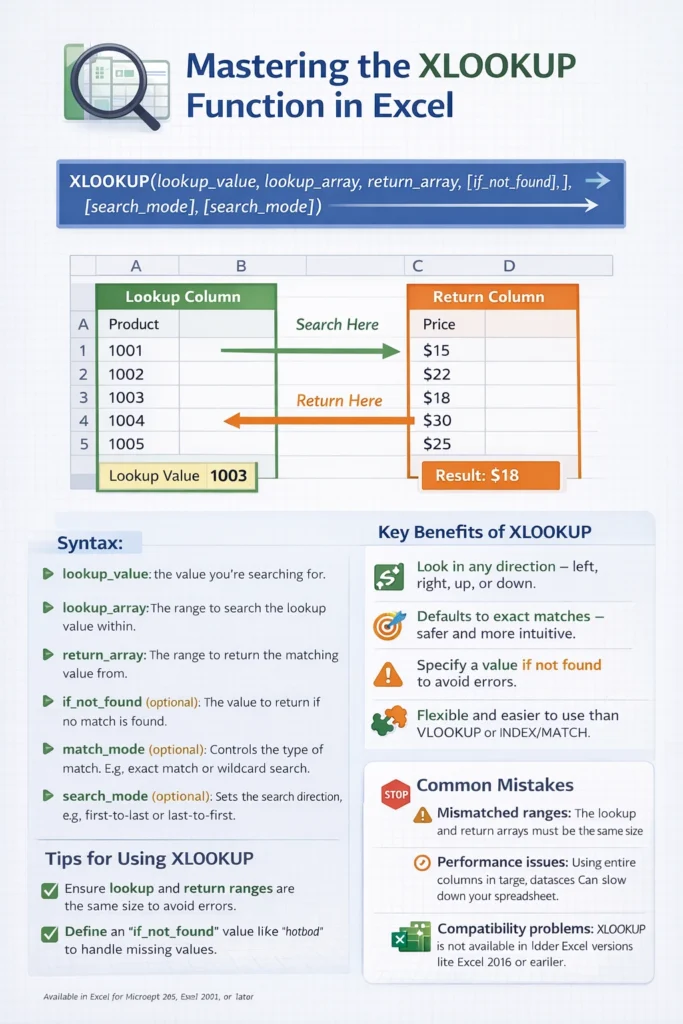
XLOOKUP is a modern lookup function that searches for a value in one range and returns a corresponding result from another range. Unlike older lookup functions, it is not restricted to left-to-right searches, fixed column numbers, or sorted data.
Microsoft introduced XLOOKUP to solve long-standing usability issues. VLOOKUP and HLOOKUP required users to count columns manually, which often caused broken formulas when columns were inserted or removed. INDEX and MATCH offered more flexibility but required combining two functions, making formulas harder to read and maintain.
XLOOKUP simplifies all of this into a single, readable function that adapts better to changing spreadsheets.
How Does XLOOKUP Work Compared to VLOOKUP and INDEX/MATCH?
At its core, XLOOKUP performs the same job as older lookup formulas: find one value and return another. The difference lies in how much control and clarity you gain.
With XLOOKUP, you explicitly define:
- The value you are searching for
- The range to search within
- The range to return results from
This eliminates the need to specify column numbers or worry about whether your lookup column is on the left or right. XLOOKUP also defaults to exact matching, which reduces lookup errors that were common with VLOOKUP’s approximate match behavior.
For users coming from INDEX/MATCH, XLOOKUP provides similar flexibility but with fewer arguments and more intuitive structure.
What Is the Syntax of the XLOOKUP Function?
Understanding the syntax is key to using XLOOKUP effectively. The full structure looks like this:
XLOOKUP(lookup_value, lookup_array, return_array, [if_not_found], [match_mode], [search_mode])Only the first three arguments are required. The optional arguments allow you to control error handling, matching behavior, and search direction.
This design makes XLOOKUP beginner-friendly while still powerful enough for advanced use cases.
How Do You Use XLOOKUP for Basic Lookups in Excel?
Most people use XLOOKUP to replace VLOOKUP in common scenarios such as pricing tables, employee directories, or product lists. The key advantage is that the formula remains stable even when the worksheet structure changes.
Instead of referencing a column number, you reference the actual return range. This makes the formula easier to read and far more resilient.
XLOOKUP Basic Formula Example
=XLOOKUP(A2, A:A, B:B)This formula looks up the value in cell A2, searches for it in column A, and returns the matching value from column B.
Because the lookup and return ranges are clearly defined, the formula does not break if columns are rearranged.
How Can XLOOKUP Look Left, Right, Up, or Down?
One of the biggest limitations of VLOOKUP was its inability to look left. XLOOKUP has no such restriction. The lookup range and return range can be anywhere on the sheet.
This makes XLOOKUP ideal for:
- Looking up values from columns to the left
- Returning data from rows above the lookup value
- Building more flexible spreadsheet layouts
You no longer need to restructure your data just to satisfy a formula.
How Does XLOOKUP Handle Missing Values and Errors?
Handling missing data is essential in professional spreadsheets. XLOOKUP includes built-in error handling through the optional if_not_found argument.
Instead of wrapping your formula in IFERROR, you can define a fallback result directly inside XLOOKUP.
XLOOKUP Error Handling Example
=XLOOKUP(A2, A:A, B:B, "Not found")
If the lookup value does not exist, Excel returns the text “Not found” instead of an error.
This improves readability and makes formulas easier to audit, especially in shared workbooks.
What Match Types Can You Use with XLOOKUP?
XLOOKUP supports multiple matching behaviors through the match_mode argument. This allows you to perform exact matches, approximate matches, or wildcard searches.
The most common option is exact match, which is the default. This is safer than older lookup functions and reduces unexpected results.
XLOOKUP Match Mode Examples
Exact match (default):
=XLOOKUP(A2, A:A, B:B)Wildcard match:
=XLOOKUP("*"&A2&"*", A:A, B:B, , 2)Approximate match (next smaller value):
=XLOOKUP(A2, A:A, B:B, , -1)These options make XLOOKUP useful for everything from text searches to graded scoring tables.
How Does Search Direction Work in XLOOKUP?
Another feature that sets XLOOKUP apart is control over search direction. By default, XLOOKUP searches from top to bottom or left to right. You can reverse this behavior using the search_mode argument.
This is particularly useful when working with logs, transaction histories, or time-based data where you want the most recent match.
XLOOKUP Search Direction Example
=XLOOKUP(A2, A:A, B:B, , , -1)This formula searches from the bottom of the lookup range upward, returning the last matching value instead of the first.
This capability previously required complex formulas or helper columns.
Can XLOOKUP Replace INDEX and MATCH Completely?
In most cases, yes. XLOOKUP can handle nearly all scenarios where INDEX and MATCH were traditionally used, including two-way lookups when combined logically.
However, INDEX still has a place when you need to return entire ranges or build array-based calculations. For standard lookup tasks, XLOOKUP is usually simpler and more readable.
A good rule of thumb is:
- Use XLOOKUP for value retrieval
- Use INDEX for structural array manipulation
Understanding both gives you maximum flexibility.
What Are Common Mistakes When Using XLOOKUP?
Despite its simplicity, users still make a few common mistakes when learning XLOOKUP.
One issue is mismatched ranges. The lookup array and return array must be the same size, or Excel will return an error. Another common problem is overusing entire columns in very large datasets, which can impact performance.
It’s also important to remember that XLOOKUP is not available in older versions of Excel. If you are sharing files with users on legacy versions, compatibility becomes a concern.
What Are the Limitations of XLOOKUP in Excel?
While powerful, XLOOKUP does have limitations. It is only available in modern Excel versions, including Excel for Microsoft 365 and Excel 2021 and later. Workbooks using XLOOKUP will not function correctly in Excel 2016 or earlier.
Additionally, XLOOKUP does not replace all use cases for lookup tables involving multiple criteria. In those situations, combining XLOOKUP with helper columns or using alternative approaches may be necessary.
Understanding these limitations helps you choose the right tool for each scenario.
When Should You Use XLOOKUP Instead of Other Lookup Functions?
XLOOKUP is ideal when you want:
- Clear, readable formulas
- Protection against broken column references
- Built-in error handling
- Flexible search direction and match types
Older functions still exist mainly for backward compatibility. For new spreadsheets and templates, XLOOKUP is usually the best default choice.
Why Learning XLOOKUP Makes Your Excel Skills More Future-Proof
Excel continues to evolve, and XLOOKUP reflects a broader shift toward more intuitive, robust functions. Learning it now not only simplifies your current work but also prepares you for future spreadsheet features built around dynamic arrays and smarter formulas.
If you create templates, dashboards, or shared workbooks, adopting XLOOKUP can significantly reduce maintenance time and formula errors.
At Sheetrix, we recommend using XLOOKUP as your primary lookup function whenever compatibility allows. It aligns with modern Excel best practices and supports cleaner, more reliable spreadsheet design.