The COUNTIF function answers one of the most common spreadsheet questions: how many cells meet a specific condition. It scans a range of cells and counts only those that match a single rule, called a criteria. That criteria can be a number, text value, comparison, date, or text pattern. Because COUNTIF recalculates automatically when data changes, it’s far more reliable than manual counting and is widely used in dashboards, trackers, reports, and summaries. COUNTIF works the same way in Excel and Google Sheets, which makes it easy to reuse formulas across platforms.
What Is the COUNTIF Syntax and How Does It Work?
Understanding the COUNTIF Formula Structure
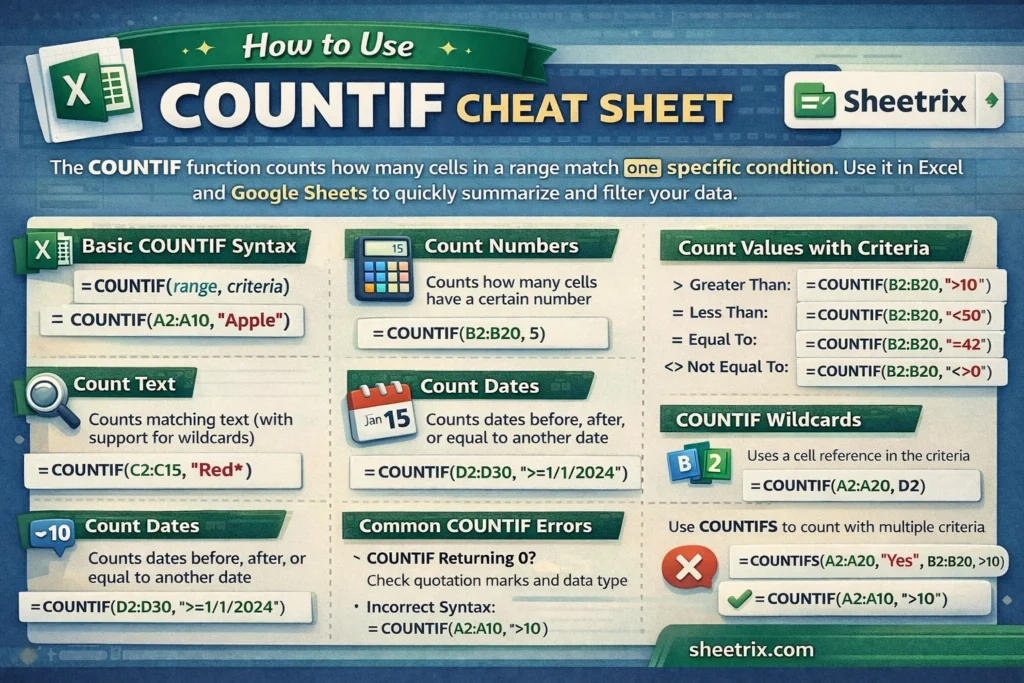
COUNTIF uses a simple two-argument structure: a range to evaluate and a criteria to test against. While the structure is straightforward, most errors come from incorrectly written criteria, especially when comparison operators or cell references are involved. Understanding how criteria are interpreted is essential for using COUNTIF correctly and confidently.
COUNTIF Syntax and Basic Formula Examples
=COUNTIF(range, criteria)
=COUNTIF(A2:A50, "Completed")
=COUNTIF(B2:B100, ">50")
How Do You Use COUNTIF to Count Numbers and Text?
Counting Exact Values in a Range
COUNTIF can count both numbers and text. When counting text values, quotation marks are required. When counting numbers, values can be written directly or combined with operators. COUNTIF is not case-sensitive, so text capitalization does not affect results. This makes it especially useful for tracking statuses, responses, or repeated values in a list.
COUNTIF Examples for Numbers and Text
=COUNTIF(A1:A20, 10)
=COUNTIF(B1:B20, "Pending")
=COUNTIF(C1:C20, TRUE)
How Can COUNTIF Match Partial Text?
Using Wildcards with COUNTIF
Wildcards allow COUNTIF to match patterns instead of exact text, which is helpful when working with inconsistent naming or longer descriptions. The asterisk (*) matches any number of characters, while the question mark (?) matches exactly one character. Wildcards are one of the most practical COUNTIF features and are frequently used in real-world spreadsheets.
COUNTIF Wildcard Formula Examples
=COUNTIF(A2:A50, "*Sales*")
=COUNTIF(B2:B50, "A?1")
How Can COUNTIF Count Values Based on Conditions?
Using Comparison Operators
COUNTIF supports logical comparisons such as greater than, less than, equal to, and not equal to. These operators must always be enclosed in quotation marks. This makes COUNTIF useful for evaluating thresholds, filtering numeric data, and performing simple data checks.
COUNTIF Comparison Formula Examples
=COUNTIF(A1:A100, ">100")
=COUNTIF(A1:A100, "<=50")
=COUNTIF(A1:A100, "<>0")
How Do You Use Cell References as Criteria?
Making COUNTIF Dynamic
Instead of hardcoding a value, COUNTIF can reference another cell as the criteria. This allows users to change the criteria without editing the formula itself, which is especially useful in dashboards and interactive spreadsheets.
COUNTIF with Cell Reference Examples
=COUNTIF(A1:A50, D1)
=COUNTIF(A1:A50, ">" & D1)
How Does COUNTIF Work with Dates?
Counting Dates Correctly
Dates are stored as numbers in spreadsheets, so COUNTIF evaluates them using the same comparison logic as numeric values. Proper date formatting is critical, as dates stored as text will not be counted correctly.
COUNTIF Date Formula Examples
=COUNTIF(A2:A50, ">=1/1/2025")
=COUNTIF(A2:A50, "<1/1/2024")
What Are the Most Common COUNTIF Mistakes?
Why COUNTIF Returns 0 Unexpectedly
COUNTIF returning zero often indicates a syntax or formatting issue rather than a lack of matching data. Common causes include missing quotation marks, mismatched data types, or incorrect operators. Understanding these pitfalls helps prevent silent errors in reports.
Correct vs Incorrect COUNTIF Examples
=COUNTIF(A1:A20, ">10")   ✔
=COUNTIF(A1:A20, >10)    ✘
What Are the Limitations of COUNTIF?
Understanding the Single-Criteria Restriction
COUNTIF can only evaluate one condition at a time. If you need to count rows that meet multiple criteria, COUNTIF becomes inefficient or requires workarounds. This limitation is by design and is addressed by COUNTIFS.
When Should You Use COUNTIFS Instead of COUNTIF?
COUNTIF vs COUNTIFS Explained
COUNTIFS allows multiple conditions across multiple ranges, making it better suited for more complex logic. When your formulas start feeling forced or overly complex, switching to COUNTIFS usually results in cleaner and more readable formulas.
COUNTIFS Example Formula
=COUNTIFS(A:A, "Completed", B:B, ">100")How Does COUNTIF Compare to Other Counting Functions?
COUNT, COUNTA, and COUNTIF Compared
Each counting function serves a different purpose. COUNT counts numeric values only, COUNTA counts non-empty cells, and COUNTIF counts cells that meet a specific condition. Choosing the right function improves clarity and avoids misleading results in summaries and dashboards.
Counting Function Examples
=COUNT(A1:A50)
=COUNTA(A1:A50)
=COUNTIF(A1:A50, "Yes")
When Is COUNTIF the Right Tool to Use?
Practical Use Cases for COUNTIF
COUNTIF is ideal for quick summaries, simple dashboards, task tracking, threshold checks, and basic data analysis where only one condition is needed. It is often one of the first spreadsheet formulas users master and remains useful even as skills advance.
Final Thoughts on Using COUNTIF Effectively
COUNTIF is a foundational spreadsheet function that balances simplicity and power. While it has clear limitations, it excels at fast, readable, single-condition counts that update automatically as data changes. Mastering COUNTIF builds a strong foundation for learning more advanced functions like COUNTIFS, SUMIF, FILTER, and pivot tables, all of which rely on the same core concepts.