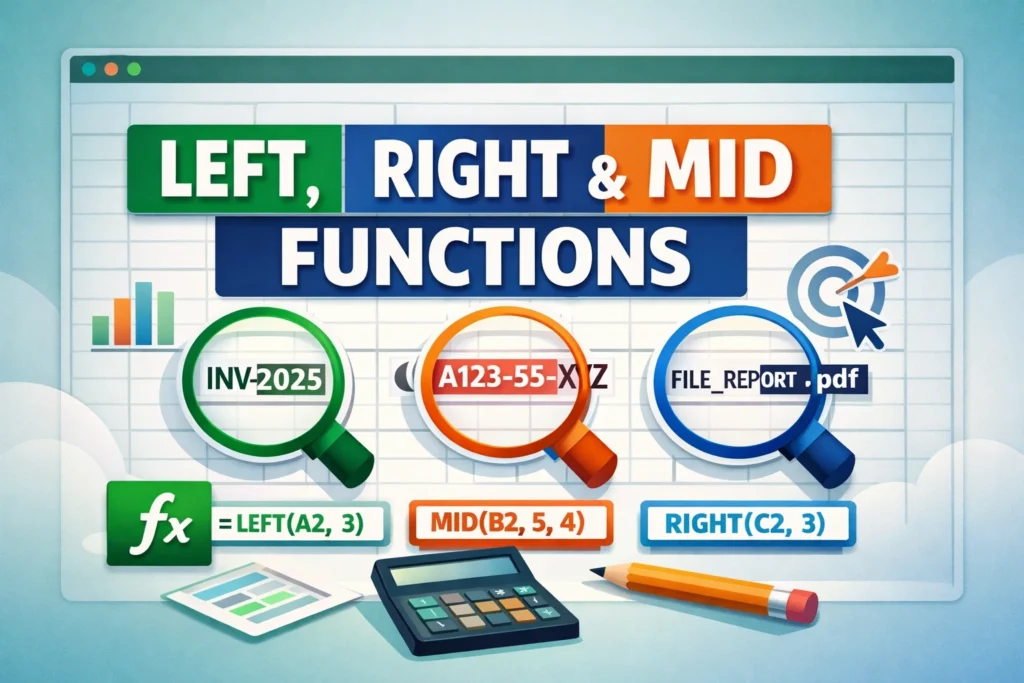
When working with spreadsheets, text data often arrives in messy, inconsistent formats. Names may include extra characters, product codes might bundle multiple pieces of information together, and imported data frequently needs cleaning before it’s usable. This is where the LEFT, RIGHT, and MID functions shine. Together, they form the foundation of text extraction in Excel and Google Sheets, letting you pull exactly the characters you need from any text string.
This guide explains how LEFT, RIGHT, and MID work, when to use each one, and how to combine them with other functions for real-world data cleanup. Whether you’re a beginner learning text formulas for the first time or an intermediate user looking to work more efficiently, you’ll find clear explanations, practical examples, and common pitfalls to avoid.
What are the LEFT, RIGHT, and MID functions used for?
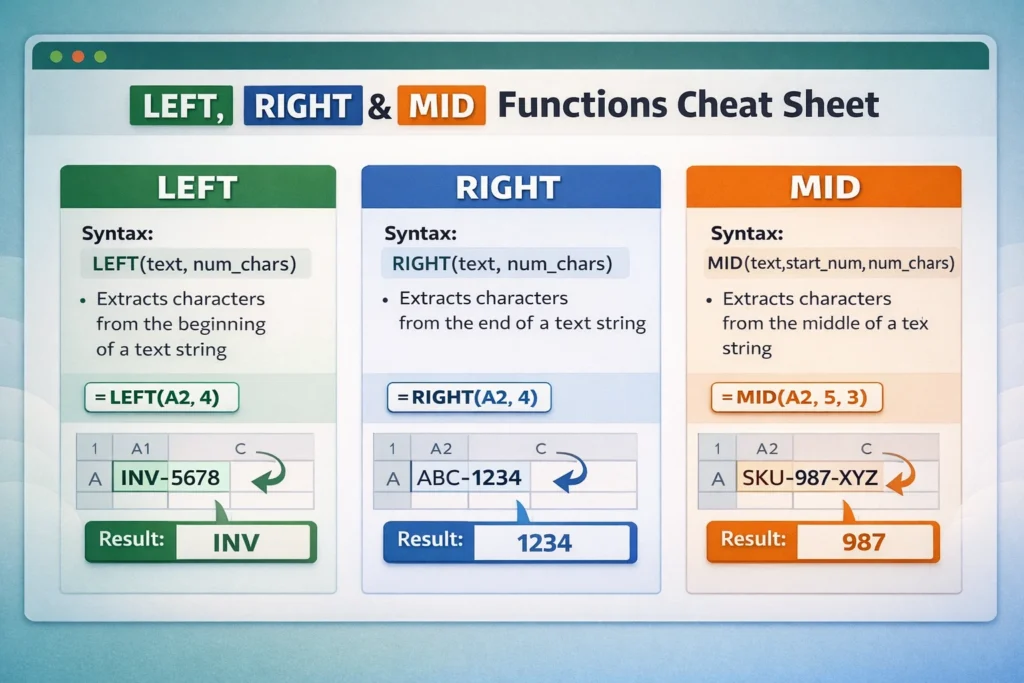
LEFT, RIGHT, and MID are text functions designed to extract specific characters from a cell. Each one focuses on a different position within a text string.
LEFT extracts characters starting from the beginning of the text. RIGHT extracts characters from the end of the text. MID extracts characters from the middle, based on a starting position and length you define.
These functions are commonly used for tasks like separating first and last names, pulling area codes from phone numbers, extracting years from dates stored as text, or isolating product identifiers from longer codes. Because they work purely on text, they’re especially useful when your data isn’t formatted in a clean, structured way.
How does the LEFT function work?
The LEFT function returns a specified number of characters from the start of a text string.
LEFT Function Syntax
LEFT(text, num_chars)- text is the cell or text value you want to extract from.
- num_chars is the number of characters to return from the left side.
LEFT Formula Examples
=LEFT(A2, 4)Returns the first four characters from the value in cell A2.
=LEFT("Invoice-2025", 7)Returns Invoice.
LEFT is ideal when the information you need always appears at the beginning of a value, such as country codes, prefixes, or fixed-length IDs.
How does the RIGHT function work?
The RIGHT function mirrors LEFT, but it extracts characters from the end of a text string.
RIGHT Function Syntax
RIGHT(text, num_chars)RIGHT Formula Examples
=RIGHT(A2, 2)Returns the last two characters from cell A2.
=RIGHT("Order-4589", 4)Returns 4589.
RIGHT is commonly used for pulling suffixes, file extensions, last digits of account numbers, or codes that appear consistently at the end of a value.
How does the MID function work?
MID is the most flexible of the three because it extracts text from the middle of a string. Instead of assuming a position, you explicitly tell it where to start and how many characters to return.
MID Function Syntax
MID(text, start_num, num_chars)- start_num is the position of the first character you want to extract (starting at 1).
- num_chars is how many characters to return.
MID Formula Examples
=MID(A2, 2, 5)Extracts five characters starting from the second character in A2.
=MID("SKU-12345-Blue", 5, 5)Returns 12345.
MID is especially useful when the data you need is embedded within longer strings and doesn’t sit neatly at the beginning or end.
When should you use LEFT vs RIGHT vs MID?
Choosing the right function depends on where the text you want appears.
Use LEFT when the target text is always at the beginning of the value.
Use RIGHT when it’s always at the end.
Use MID when it’s somewhere in the middle or when you need more precise control.
In practice, many real-world scenarios require combining MID with other functions to dynamically determine where the extraction should start. That’s where these functions become much more powerful.
How can LEFT, RIGHT, and MID be combined with other functions?
On their own, LEFT, RIGHT, and MID work best when text positions are consistent. When data varies, combining them with other functions unlocks far more flexibility.
Combining with LEN
LEN counts the number of characters in a text string. This is useful when extracting everything except a known prefix or suffix.
Example
=RIGHT(A2, LEN(A2) - 3)Removes the first three characters from the text in A2.
Combining with FIND or SEARCH
FIND and SEARCH locate the position of a specific character or word. This makes MID dynamic instead of fixed.
Example
=MID(A2, FIND("-", A2) + 1, 4)Extracts characters after a hyphen, assuming a known length.
This approach is extremely common for splitting codes, emails, or delimited text values.
LEFT, RIGHT, and MID Formula Examples (Practical Scenarios)
Extracting First Names from Full Names
If cell A2 contains John Smith:
=LEFT(A2, FIND(" ", A2) - 1)Extracting Last Names
=RIGHT(A2, LEN(A2) - FIND(" ", A2))Extracting Area Codes from Phone Numbers
For (415) 555-1234:
=MID(A2, 2, 3)Extracting File Extensions
For report_final.pdf:
=RIGHT(A2, 3)These examples highlight how often these functions work best alongside LEN and FIND rather than in isolation.
What are common mistakes when using LEFT, RIGHT, and MID?
One of the most common mistakes is assuming all text values follow the same structure. If one value is slightly different, a formula that relies on fixed positions can return incorrect results.
Another frequent issue is forgetting that text positions start at 1, not 0. This often causes MID formulas to return unexpected characters.
Users also sometimes apply these functions to numeric values without realizing Excel or Google Sheets may automatically convert numbers to text differently. When in doubt, wrapping values with TEXT can help ensure consistent behavior.
Are there differences between Excel and Google Sheets?
LEFT, RIGHT, and MID behave almost identically in Excel and Google Sheets. The syntax and results are the same, which makes formulas portable between platforms.
The main difference appears when combining these functions with newer alternatives. Google Sheets users often pair them with SPLIT or REGEXEXTRACT, while Excel users may rely more on TEXTBEFORE, TEXTAFTER, or TEXTSPLIT in newer versions.
Despite these newer options, LEFT, RIGHT, and MID remain essential because they’re available in virtually all spreadsheet versions and work reliably across platforms.
How do LEFT, RIGHT, and MID compare to newer text functions?
Modern spreadsheet tools include functions like TEXTBEFORE and TEXTAFTER that simplify certain tasks. However, LEFT, RIGHT, and MID offer greater control when dealing with fixed-length text or legacy files.
They’re also easier to audit. Because you explicitly define character positions and lengths, it’s often clearer why a formula returns a specific result. This transparency can be valuable in shared workbooks or templates designed for long-term use.
Can LEFT, RIGHT, and MID improve spreadsheet performance?
One overlooked benefit is performance. Compared to more complex formulas involving multiple nested functions or regex patterns, LEFT, RIGHT, and MID are lightweight. In large datasets, especially in Google Sheets, using simple text extraction functions can noticeably improve calculation speed.
This makes them a good choice for dashboards, import templates, and models that need to stay responsive as data grows.
Real-world use cases beyond basic text extraction
Beyond obvious tasks like splitting names, these functions are widely used in accounting, operations, and analytics workflows.
They’re commonly used to standardize imported data, extract fiscal years from text-based dates, parse transaction IDs, and normalize SKU formats across systems. Many Sheetrix templates rely on these functions behind the scenes to keep user inputs flexible while still producing clean, structured outputs.
A lesser-known use case is validation. By extracting and checking specific characters, you can quickly flag values that don’t match expected patterns without complex formulas.
When should you avoid LEFT, RIGHT, and MID?
If your data structure is highly inconsistent or delimiter-based, functions like SPLIT or REGEXEXTRACT may be more efficient. LEFT, RIGHT, and MID are best when you know where text should appear or can reliably calculate its position.
That said, they’re often easier to debug and teach, making them ideal for shared templates and beginner-friendly spreadsheets.
Why mastering LEFT, RIGHT, and MID matters
LEFT, RIGHT, and MID are more than basic text functions. They’re building blocks that help you understand how spreadsheets interpret and manipulate text. Once you’re comfortable with them, learning more advanced functions becomes much easier.
For anyone working with real-world data, these functions are essential tools. They help turn messy inputs into structured, usable information and make your spreadsheets more reliable, readable, and efficient.
If you’re building templates, dashboards, or automated workflows, mastering LEFT, RIGHT, and MID is a skill that pays off again and again—especially when combined thoughtfully with other text functions.