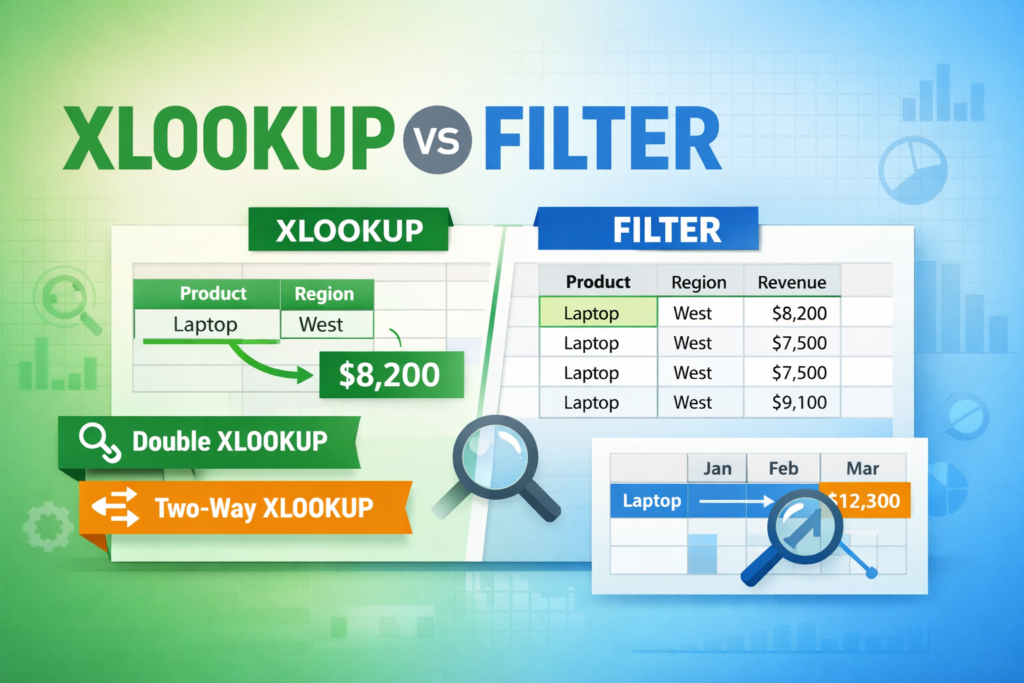
If you work with Excel or Google Sheets, you’ve probably seen debates around XLOOKUP vs FILTER. Both functions are powerful, modern alternatives to older formulas like VLOOKUP and INDEX/MATCH, but they solve different problems.
This guide breaks down:
- The core differences between XLOOKUP and FILTER
- When XLOOKUP is still the better choice
- How to use double XLOOKUP (multiple criteria)
- How to build a two-way XLOOKUP to return values based on both rows and columns
By the end, you’ll know exactly which function to use—and how to push XLOOKUP further than most people realize.
What Is XLOOKUP?
XLOOKUP is a lookup function designed to replace VLOOKUP, HLOOKUP, and many INDEX/MATCH combinations. It searches for a value in one range and returns a corresponding value from another range.
Basic syntax:
=XLOOKUP(lookup_value, lookup_array, return_array)Common use cases include:
- Finding prices by product name
- Looking up employee details by ID
- Returning a single matching value from a table
XLOOKUP is optimized for single-result lookups, where you expect one clear match.
What Is FILTER?
FILTER returns multiple rows or values that meet a condition. Instead of finding one match, it extracts an entire subset of data.
Basic syntax:
=FILTER(array, include)FILTER is ideal when:
- You need to return multiple matching records
- You want dynamic lists that expand or shrink
- You’re building dashboards or reports that show grouped results
This difference is the core of the XLOOKUP vs FILTER debate.
XLOOKUP vs FILTER: Key Differences

Here’s the simplest way to think about it:
- XLOOKUP → Returns one result
- FILTER → Returns many results
Use XLOOKUP when:
- You expect exactly one match
- You want a single value (price, status, total)
- Your spreadsheet logic depends on one cell output
Use FILTER when:
- You need multiple rows
- You’re creating lists or tables
- The result set can vary in size
Despite what some articles suggest, XLOOKUP is not “obsolete” just because FILTER exists. Instead, XLOOKUP shines when combined creatively—especially with multiple criteria or two-way lookups.
Using XLOOKUP with Multiple Criteria (Double XLOOKUP Logic)
One common argument in the xlookup vs filter discussion is that FILTER handles multiple conditions more naturally. That’s true—but XLOOKUP can still handle complex logic when you only need one result.
Example Scenario
You have a sales table with:
- Product Name
- Region
- Revenue
You want to return the revenue for:
- Product = “Laptop”
- Region = “West”
Double-criteria XLOOKUP formula
=XLOOKUP(1,
 (A2:A100="Laptop")*(B2:B100="West"),
 C2:C100)
How this works
- Each condition creates TRUE/FALSE values
- TRUE becomes 1, FALSE becomes 0
- Only the row where both conditions are TRUE equals 1
- XLOOKUP finds that row and returns the result
This is often called a double XLOOKUP, even though it’s technically one function using multiple logical tests.
When FILTER Is Better Than Double XLOOKUP
If that same scenario could return multiple rows (for example, several Laptop sales in the West), FILTER is the better tool:
=FILTER(C2:C100, (A2:A100="Laptop")*(B2:B100="West"))This will spill all matching values instead of forcing a single answer.
This distinction matters when deciding XLOOKUP vs FILTER:
- One result needed? XLOOKUP
- Many results needed? FILTER
Two-Way XLOOKUP Explained
A two-way XLOOKUP lets you return a value based on:
- A row match and
- A column match
This replaces older INDEX/MATCH/MATCH formulas and is one of the most powerful XLOOKUP techniques.
Example Scenario
You have:
- Products listed vertically
- Months listed horizontally
- Sales data in the grid
You want to return:
- Sales for “Laptop” in “March”
Two-way XLOOKUP formula
=XLOOKUP(
 "Laptop",
 A2:A10,
 XLOOKUP("March", B1:M1, B2:M10)
)
What’s happening
- The inner XLOOKUP finds the correct column (March)
- It returns that entire column of data
- The outer XLOOKUP finds the correct row (Laptop)
- The final result is the intersecting value
This technique is cleaner, easier to read, and more flexible than legacy formulas.
XLOOKUP vs FILTER for Dashboards
In dashboards, both functions often work together:
- FILTER creates dynamic tables
- XLOOKUP pulls summary values from those tables
For example:
- FILTER generates a list of orders for a selected customer
- XLOOKUP retrieves the customer’s total spend or status
Rather than choosing one over the other, advanced spreadsheets combine both strategically.
Performance and Readability Considerations
When comparing xlookup vs filter, also consider:
- Readability: XLOOKUP formulas are often easier for non-technical users to understand
- Performance: FILTER can be heavier on large datasets because it spills arrays
- Control: XLOOKUP gives precise, single-cell outputs ideal for KPIs
If your spreadsheet will be shared or reused, clarity often matters more than cleverness.
Final Thoughts: XLOOKUP vs FILTER Isn’t a Competition
XLOOKUP and FILTER are complementary, not competitors.
Use:
- XLOOKUP for precise, single-value lookups
- Double XLOOKUP for multiple criteria
- Two-way XLOOKUP for matrix-style data
- FILTER for dynamic lists and multiple results
Understanding when—and how—to apply each is what separates basic spreadsheet users from advanced ones.
If you’re building templates, dashboards, or automated sheets, mastering both functions will make your work faster, cleaner, and far more powerful.