
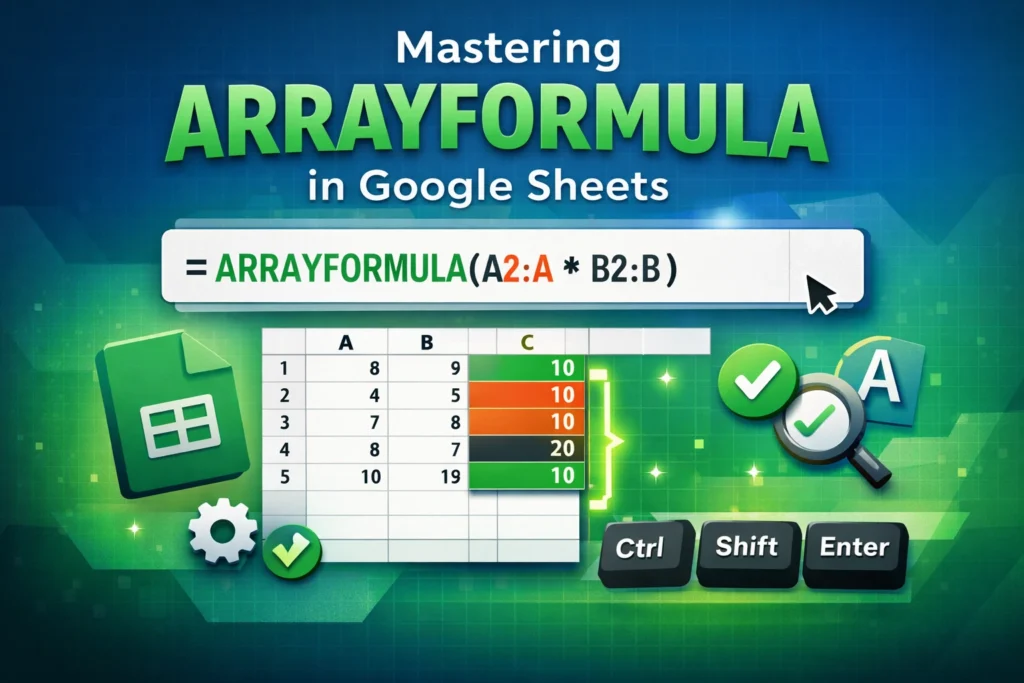
If you work in Google Sheets long enough, you’ll eventually hit a point where copying formulas down hundreds (or thousands) of rows feels inefficient—or outright fragile. This is exactly the problem ARRAYFORMULA was designed to solve. In this guide, you’ll learn what ARRAYFORMULA does, how it works, when to use it, and how to avoid the most common mistakes that trip people up.
ARRAYFORMULA isn’t just a “power user” feature. When used correctly, it makes spreadsheets cleaner, faster, and easier to maintain—especially in templates, dashboards, and shared files.
What is ARRAYFORMULA in Google Sheets and why does it exist?
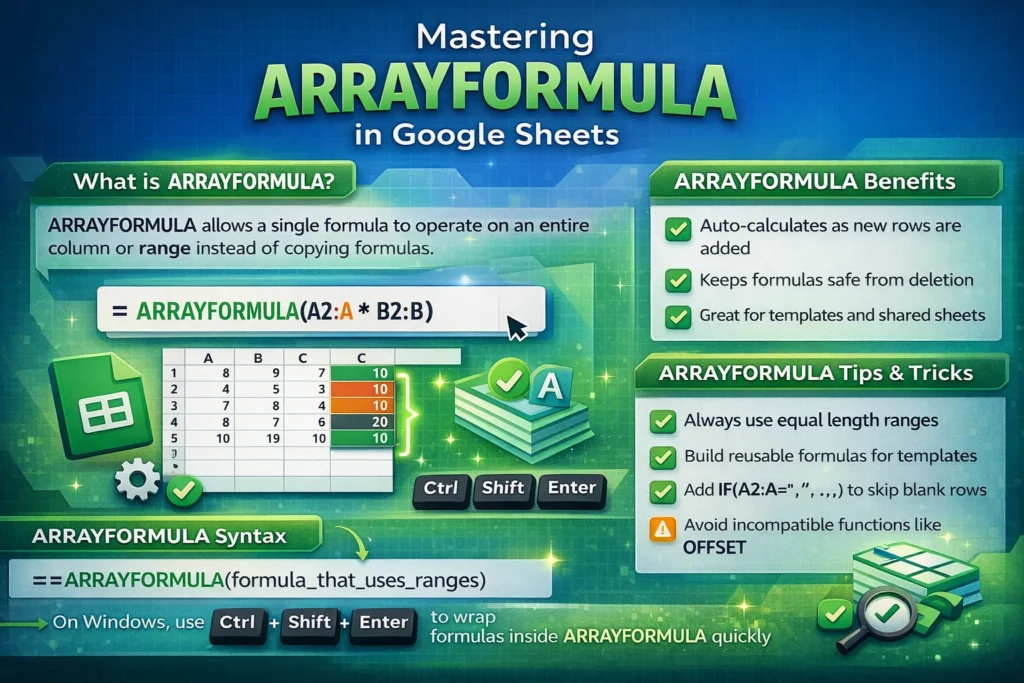
ARRAYFORMULA is a wrapper function that allows a single formula to operate on an entire range of cells instead of one cell at a time. Rather than writing a formula in row 2 and dragging it down, ARRAYFORMULA evaluates the logic across all rows automatically.
At a conceptual level, ARRAYFORMULA changes how Google Sheets thinks about calculations:
- A normal formula works on one row
- An array formula works on a column or range
This shift is what enables scalable, self-updating spreadsheets.
How does ARRAYFORMULA actually work behind the scenes?
ARRAYFORMULA converts a row-based formula into a vectorized calculation. Instead of evaluating cell by cell, Google Sheets processes the entire range as a single operation and returns multiple results at once.
This has three important consequences:
- The formula must return the same number of rows as the input range
- The output range must be completely empty
- Not all functions behave the same way inside arrays
Understanding these mechanics explains most ARRAYFORMULA errors users run into.
When should you use ARRAYFORMULA instead of copying formulas down?
ARRAYFORMULA is ideal when:
- New rows are added frequently
- You’re building reusable templates
- Multiple people edit the same sheet
- You want to prevent formulas from being overwritten
It’s especially valuable in trackers, logs, dashboards, and any spreadsheet that grows over time.
That said, ARRAYFORMULA isn’t always the best choice. If a calculation truly applies to only one row and won’t scale, a regular formula may be clearer.
How do you create an ARRAYFORMULA (including the keyboard shortcut)?
There are two ways to create an ARRAYFORMULA in Google Sheets.
Method 1: Type ARRAYFORMULA manually
This is the most common and explicit approach.
=ARRAYFORMULA(A2:A * B2:B)You wrap your formula in ARRAYFORMULA() and replace single-cell references with ranges.
Method 2: Use the keyboard shortcut (Windows)
On Windows, you can wrap a formula in ARRAYFORMULA using:
Ctrl + Shift + Enter
When your cursor is inside the formula bar, this shortcut automatically converts the formula into an array-capable formula.
Important notes about the shortcut:
- It works best on formulas that already reference ranges
- It does not add curly braces like Excel
- Google Sheets still displays
ARRAYFORMULA()explicitly
This shortcut is especially useful when converting existing formulas into array formulas without rewriting them from scratch.
ARRAYFORMULA Formula Examples: Auto-calculating columns
Multiply two columns automatically
=ARRAYFORMULA(A2:A * B2:B)This calculates values for every row without dragging.
Add a constant value to an entire column
=ARRAYFORMULA(A2:A + 10)Each value in column A is increased by 10 across all rows.
How do you use ARRAYFORMULA with text and concatenation?
ARRAYFORMULA works extremely well with text functions, as long as the logic is consistent row by row.
Combine text from two columns
=ARRAYFORMULA(A2:A & " - " & B2:B)Convert text to uppercase across a column
=ARRAYFORMULA(UPPER(A2:A))Text-based functions are naturally array-friendly, which makes them one of the easiest places to start.
ARRAYFORMULA Formula Examples: Conditional logic with IF
Conditional logic is one of the most common and most useful ARRAYFORMULA patterns.
IF applied across a full column
=ARRAYFORMULA(IF(A2:A="", "", A2:A * 0.1))This prevents calculations from appearing in blank rows and keeps your sheet clean.
Why this pattern matters
Without the empty check, ARRAYFORMULA will continue calculating indefinitely down the sheet, often producing unwanted zeros or errors.
How does ARRAYFORMULA work with lookup functions?
Some lookup functions behave well inside ARRAYFORMULA, while others require careful setup.
Functions that generally work
- VLOOKUP
- XLOOKUP
- MATCH
- INDEX
ARRAYFORMULA with VLOOKUP
=ARRAYFORMULA(IF(A2:A="", "", VLOOKUP(A2:A, E:F, 2, FALSE)))This performs multiple lookups at once, provided the lookup range is fixed and consistent.
What are the most common ARRAYFORMULA mistakes?
Mixing array and non-array references
Using a range with a single cell (for example A2:A + B2) will cause errors.
Overwriting part of the output range
ARRAYFORMULA requires a completely empty output area to expand properly.
Using unsupported or volatile functions
Functions like OFFSET and some conditional aggregations behave poorly or inconsistently inside arrays.
ARRAYFORMULA vs QUERY: when should you use each?
ARRAYFORMULA and QUERY are often confused, but they serve different purposes.
Use ARRAYFORMULA when:
- You want row-by-row calculations
- You’re building templates
- Sheet structure matters
Use QUERY when:
- You’re reshaping data
- Aggregation is required
- SQL-style logic is clearer
Many advanced spreadsheets use QUERY to prepare data and ARRAYFORMULA to compute derived columns afterward.
How does ARRAYFORMULA affect spreadsheet performance?
ARRAYFORMULA can improve performance by reducing duplicated formulas, but it can also slow things down if misused.
Best practices:
- Avoid full-column references when possible
- Limit ranges if working with large datasets
- Avoid volatile functions inside arrays
A well-designed ARRAYFORMULA often recalculates faster than hundreds of individual formulas.
Advanced ARRAYFORMULA techniques most guides don’t mention
Self-healing formulas in templates
ARRAYFORMULA automatically applies calculations to new rows without manual intervention.
Reducing accidental edits in shared files
Users can’t overwrite part of an array output, which protects logic in collaborative spreadsheets.
Replacing helper columns
In many cases, a single ARRAYFORMULA can replace multiple intermediate calculations, keeping sheets cleaner.
When should you avoid ARRAYFORMULA?
Avoid ARRAYFORMULA when:
- Calculations depend on previous output cells
- Logic varies row by row
- The formula becomes difficult to read or debug
Clarity and maintainability should always come first.
How does ARRAYFORMULA compare to Excel?
ARRAYFORMULA is unique to Google Sheets. While Excel supports dynamic arrays, the syntax and behavior differ enough that formulas are not directly portable.
If you build templates for both platforms, test carefully.
Final thoughts: Is ARRAYFORMULA worth learning?
Absolutely. ARRAYFORMULA is one of the highest-leverage tools in Google Sheets. It reduces repetition, protects formulas, and enables scalable spreadsheet design.
If you create trackers, dashboards, or downloadable templates, mastering ARRAYFORMULA isn’t optional—it’s foundational.





