
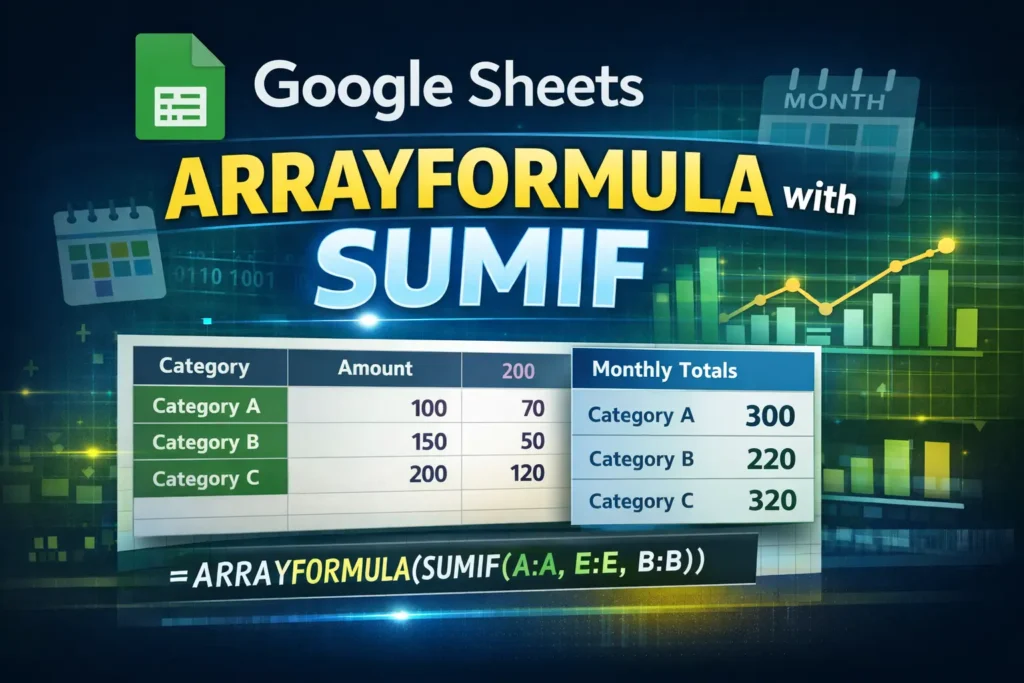
ARRAYFORMULA is one of the most powerful tools in Google Sheets because it allows a single formula to work across an entire range instead of being copied down row by row. When combined with SUMIF, it unlocks dynamic calculations that automatically expand as new data is added, making spreadsheets easier to maintain and far less error-prone.
On its own, SUMIF evaluates a range and returns a single total based on one condition. ARRAYFORMULA changes how that logic behaves by allowing SUMIF-style calculations to operate across multiple rows or criteria inputs at once. This is especially useful for dashboards, category summaries, and templates where users will continuously add new rows.
Understanding how these two functions interact helps you avoid common pitfalls like formulas breaking when rows are added or totals needing manual updates. When used correctly, ARRAYFORMULA with SUMIF creates future-proof spreadsheets that scale automatically.
Why doesn’t SUMIF always work the way you expect with ARRAYFORMULA?
Many users assume that wrapping SUMIF inside ARRAYFORMULA will instantly make it return multiple results. In reality, SUMIF is not natively “array-aware” in the way functions like IF or VLOOKUP are. SUMIF is designed to return a single aggregated value, which means ARRAYFORMULA does not automatically force it to output multiple rows.
This limitation often leads to confusion when users expect one SUMIF formula to generate a list of totals by category or date. Google Sheets will usually return only the first result or an error if the ranges do not align properly. Understanding this behavior is key to using ARRAYFORMULA with SUMIF correctly.
The workaround is not to force SUMIF to behave like an array function, but to structure your data and criteria so that ARRAYFORMULA feeds multiple conditions into separate SUMIF calculations at once. This subtle shift in mindset is what separates beginner spreadsheets from robust, reusable systems.
How do ARRAYFORMULA and SUMIF work together in real spreadsheets?
In practical use, ARRAYFORMULA is often applied to the criteria range rather than the sum range. This allows you to generate multiple SUMIF outputs in parallel. For example, you might calculate totals per category, per employee, or per month without writing separate formulas for each row.
This approach is common in summary tables where column A contains unique labels and column B should automatically display totals. By combining ARRAYFORMULA with carefully structured SUMIF logic, the summary updates instantly as new data appears in the source table.
Another real-world advantage is performance. Instead of dozens or hundreds of copied SUMIF formulas recalculating independently, a single ARRAYFORMULA-driven setup keeps the sheet lighter and easier to audit.
ARRAYFORMULA + SUMIF formula examples
Basic ARRAYFORMULA with SUMIF by category
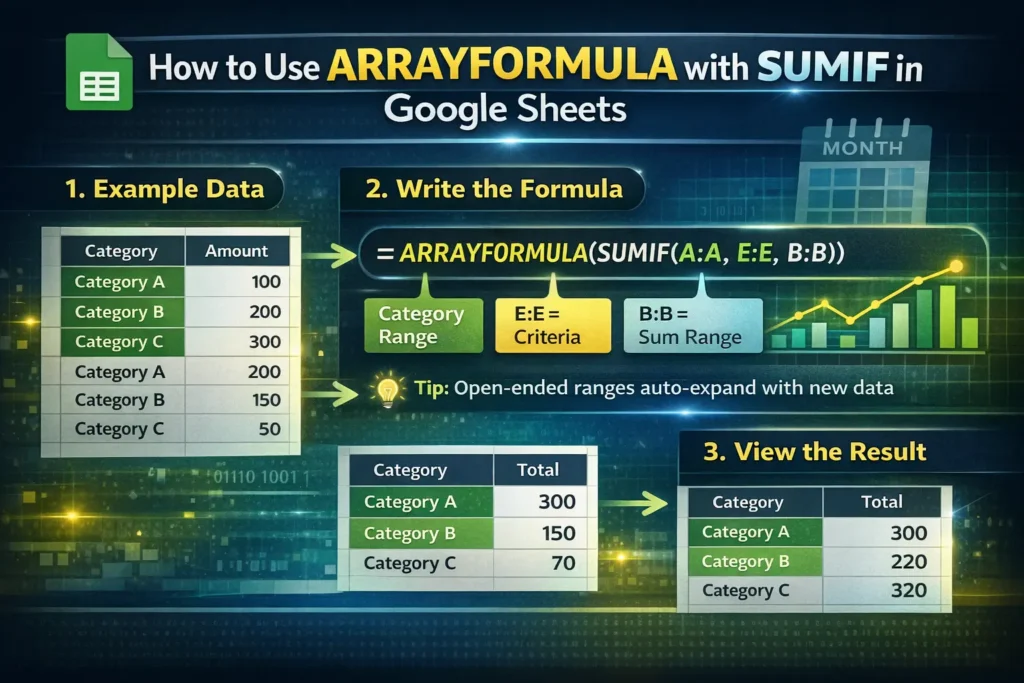
This example calculates totals for multiple categories listed in column E, based on data in columns A and B.
=ARRAYFORMULA(SUMIF(A:A,E:E,B:B))Here’s what’s happening:
- Column A contains categories in the source data
- Column B contains values to sum
- Column E contains a list of categories you want totals for
ARRAYFORMULA allows SUMIF to evaluate each category in column E and return a matching total for each row automatically.
ARRAYFORMULA with SUMIF using an expanding range
One powerful but lesser-known technique is using open-ended ranges to future-proof your formulas:
=ARRAYFORMULA(SUMIF(A2:A,E2:E,B2:B))By starting ranges at row 2 and leaving them open-ended, new rows added to the data table are automatically included without updating the formula. This is ideal for templates and shared spreadsheets.
ARRAYFORMULA with SUMIF and calculated criteria
You can also use ARRAYFORMULA to apply transformations to the criteria itself. For example, summing values by month extracted from a date column:
=ARRAYFORMULA(SUMIF(TEXT(A:A,"yyyy-mm"),E:E,B:B))This technique avoids helper columns and keeps your dataset clean. It’s especially useful in reporting sheets where raw data should remain untouched.
What are common mistakes when using ARRAYFORMULA with SUMIF?
One frequent mistake is mismatched range sizes. All ranges inside SUMIF must align logically, even when wrapped in ARRAYFORMULA. If your criteria range and sum range don’t match, the formula may return incorrect totals or fail silently.
Another issue is overusing ARRAYFORMULA when it’s not needed. If you only need a single total, a standard SUMIF is clearer and faster. ARRAYFORMULA shines when you need multiple outputs or dynamic expansion.
Users also sometimes expect ARRAYFORMULA + SUMIF to handle multiple criteria automatically. SUMIF only supports one condition. Trying to force multiple conditions into SUMIF often results in complex, brittle formulas.
When should you use SUMIFS instead of SUMIF with ARRAYFORMULA?
If your calculation requires more than one condition, SUMIFS is usually the better option. While ARRAYFORMULA can still be involved, SUMIFS is designed for multi-criteria logic and behaves more predictably.
For example, summing sales by category and date range is far cleaner with SUMIFS than stacking conditions inside SUMIF. ARRAYFORMULA can still help generate multiple outputs, but SUMIFS provides the filtering strength.
A practical rule: use ARRAYFORMULA + SUMIF for single-condition summaries that need to auto-expand, and switch to SUMIFS when logic becomes more complex.
Are there performance or maintenance considerations?
ARRAYFORMULA can improve maintainability but may impact performance on very large datasets. One advanced tip is to limit ranges to realistic bounds instead of entire columns when working with tens of thousands of rows.
Another lesser-known optimization is placing ARRAYFORMULA-driven summaries on separate sheets from raw data. This reduces recalculation overhead and keeps complex logic isolated.
Finally, naming your ranges or using structured layouts makes ARRAYFORMULA + SUMIF formulas easier to understand for anyone who downloads or reuses your spreadsheet.
How does this apply to templates and dashboards on Sheetrix?
Many Sheetrix templates rely on dynamic summaries that must update automatically as users enter data. ARRAYFORMULA with SUMIF is ideal for budget trackers, expense summaries, habit logs, and category-based reports.
By using open-ended ranges and array-driven summaries, templates remain beginner-friendly while still powerful under the hood. Users don’t need to understand the formula—they just add data and see results.
If you’re building your own spreadsheet systems, mastering google sheets arrayformula sumif is one of the fastest ways to make your sheets feel professional, scalable, and reliable without unnecessary complexity.





