
If you work with data in Google Sheets, you’ll eventually need to calculate an average based on conditions. That’s where AVERAGEIF and AVERAGEIFS come in. These two functions look similar, but they solve slightly different problems. Understanding when to use each one will help you build cleaner spreadsheets, avoid errors, and get accurate results faster.
This guide breaks down Google Sheets AVERAGEIF vs AVERAGEIFS in plain language, with practical examples, common mistakes, and real-world use cases.
What does AVERAGEIF do in Google Sheets?
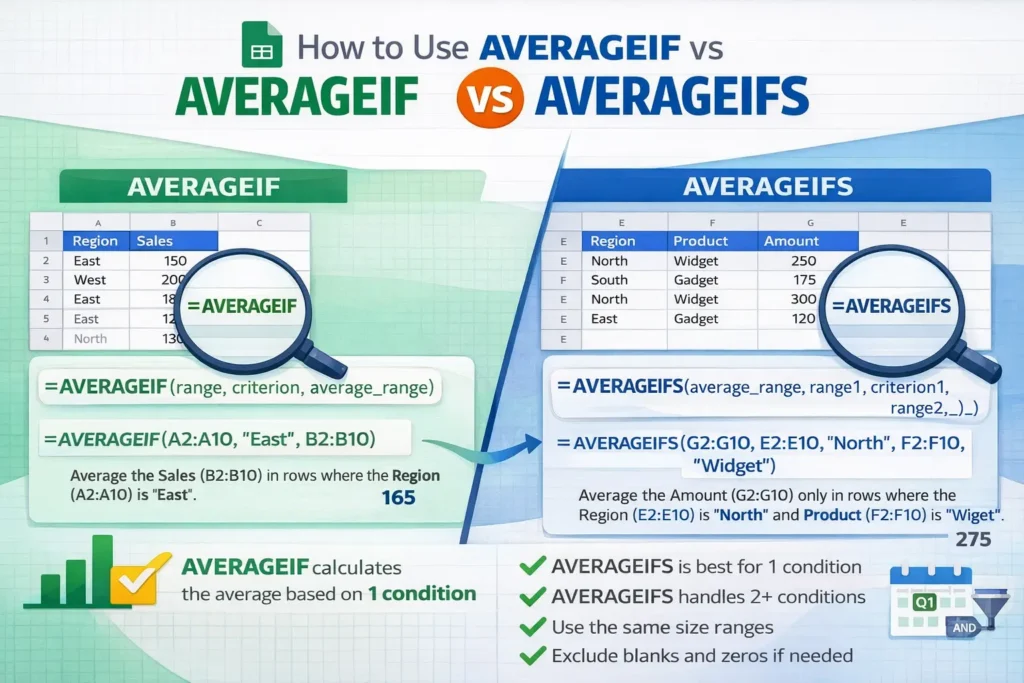
AVERAGEIF calculates the average of a range based on a single condition. It’s ideal when you want a conditional average and your logic is simple.
Think of AVERAGEIF as answering this question:
“What is the average of these numbers, but only when one condition is true?”
For example, you might want the average sales amount for just one region, or the average score for students who passed.
AVERAGEIF works best when:
- You only need one condition
- Your condition applies to one column
- You want a simple, readable formula
What does AVERAGEIFS do differently?
AVERAGEIFS calculates the average using multiple conditions. Each condition can apply to a different column, making it much more flexible for real-world data.
AVERAGEIFS answers this question:
“What is the average of these numbers, but only when several conditions are all true?”
This is useful when filtering by things like:
- Date range and category
- Region and product type
- Status and minimum threshold
If your analysis needs more than one rule, AVERAGEIFS is the correct tool.
How is AVERAGEIF different from AVERAGEIFS?
The core difference comes down to how many conditions you can apply.
AVERAGEIF supports one condition.
AVERAGEIFS supports two or more conditions.
There’s also a subtle structural difference:
- AVERAGEIF places the condition range before the average range.
- AVERAGEIFS requires the average range first, followed by condition pairs.
This difference trips up many users when switching between the two functions.
AVERAGEIF formula examples
Use AVERAGEIF when your logic is simple and focused on one condition.
Average values based on one condition
=AVERAGEIF(A2:A20, "Completed", B2:B20)This formula averages values in column B only for rows where column A equals “Completed”.
Average numbers greater than a threshold
=AVERAGEIF(B2:B50, ">100")Here, Google Sheets averages only the values greater than 100 within the same range.
Average with text-based conditions
=AVERAGEIF(C2:C30, "North", D2:D30)This averages column D for rows where column C contains “North”.
AVERAGEIFS formula examples
Use AVERAGEIFS when your data requires multiple filters.
Average with two conditions
=AVERAGEIFS(C2:C50, A2:A50, "West", B2:B50, "Q1")This calculates the average of column C only for rows where:
- Column A is “West”
- Column B is “Q1”
Average values within a date range
=AVERAGEIFS(B2:B100, A2:A100, ">=1/1/2025", A2:A100, "<=3/31/2025")This averages values in column B only for dates in Q1 2025.
Average excluding blanks or zeros
=AVERAGEIFS(D2:D200, D2:D200, "<>0", D2:D200, "<>")This ensures empty cells and zero values don’t skew your results.
When should you use AVERAGEIF vs AVERAGEIFS?
Use AVERAGEIF when:
- You only need one condition
- You want a simpler, more readable formula
- You’re working with smaller or cleaner datasets
Use AVERAGEIFS when:
- You need two or more conditions
- Conditions apply to different columns
- Your spreadsheet models real-world scenarios like reporting, forecasting, or dashboards
A useful rule of thumb: if you’re already thinking about adding “just one more condition,” start with AVERAGEIFS.
Common mistakes to avoid with AVERAGEIF and AVERAGEIFS
One of the most frequent errors is misplacing the average range in AVERAGEIFS. Unlike AVERAGEIF, the average range always comes first.
Another common issue is mismatched ranges. All ranges in both functions must be the same size, or Google Sheets will return an error.
Text conditions are also case-insensitive, which surprises some users. If you need case-sensitive averages, you’ll need a more advanced approach using helper columns or array formulas.
Limitations you should know about
AVERAGEIF and AVERAGEIFS both ignore:
- Blank cells
- Text values in the average range
However, they do include zero values, which can significantly affect results. If zeros represent missing data in your sheet, you should explicitly exclude them using criteria like "<>" or "<>0".
Another limitation is that you cannot use OR logic directly inside AVERAGEIFS. For example, averaging values where a category is “A” or “B” requires either multiple formulas or a helper column.
How AVERAGEIF compares to related functions
AVERAGEIF and AVERAGEIFS are closely related to COUNTIF and COUNTIFS. The key difference is output:
- COUNTIF(S) counts matching rows
- AVERAGEIF(S) averages matching values
If you find yourself calculating totals first and dividing manually, switching to AVERAGEIF(S) will simplify your formulas and reduce errors.
Practical tips for cleaner spreadsheets
For complex reports, consider using helper columns that flag rows meeting your criteria. This can make AVERAGEIFS formulas easier to read and debug.
Another advanced tip is combining AVERAGEIFS with dynamic dropdowns. When paired with data validation, your averages can update automatically based on user selections, perfect for dashboards and templates.
Finally, label your formulas clearly. Conditional averages are powerful, but only if future you (or someone else) understands what the logic is doing.
Final thoughts: which function should you choose?
The choice between Google Sheets AVERAGEIF vs AVERAGEIFS isn’t about which function is better, it’s about which one fits your scenario.
AVERAGEIF is simple, fast, and ideal for single-condition logic.
AVERAGEIFS is more powerful and essential for real-world data analysis.
Once you understand how they differ, you’ll spend less time troubleshooting formulas and more time getting insights from your data, exactly what a well-built spreadsheet should do.





