
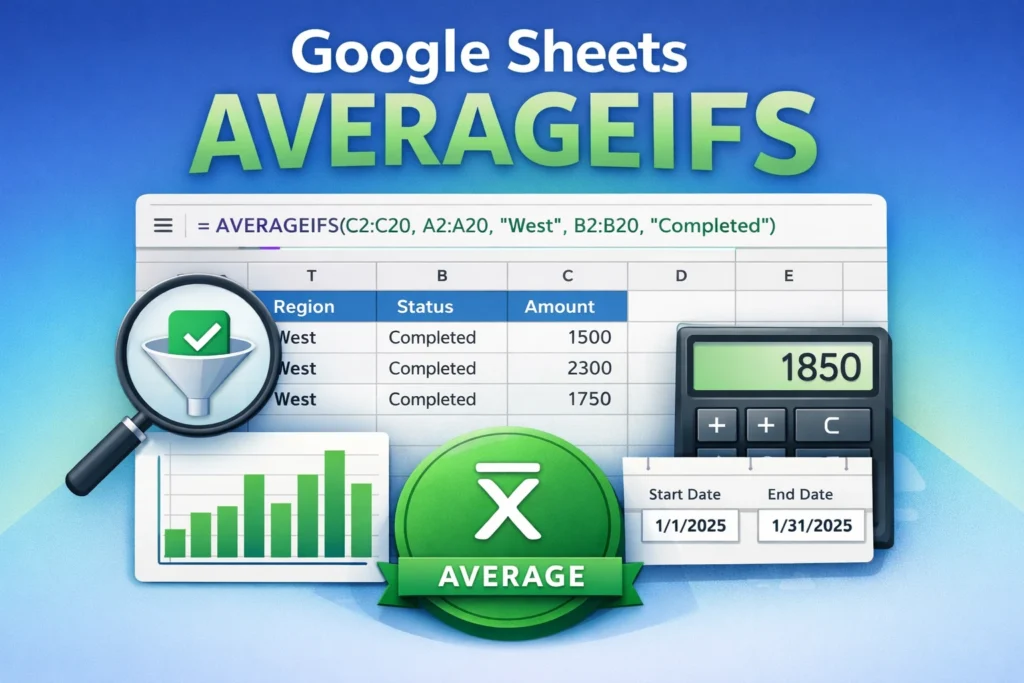
When you’re working with real-world spreadsheets, you rarely want a simple average of everything. More often, you want the average of values that meet specific criteria—sales from one region, scores above a threshold, or expenses from a certain category during a given month. That’s exactly what Google Sheets AVERAGEIFS is designed for. In this guide, you’ll learn what AVERAGEIFS does, how it works, when to use it, and how to avoid common mistakes so your averages stay accurate and meaningful.
What Is Google Sheets AVERAGEIFS and Why Would You Use It?
The AVERAGEIFS function calculates the average (mean) of a range of numbers only when multiple conditions are met. Instead of averaging everything, you filter the data logically using criteria like text values, numbers, dates, or even comparison operators.
This makes AVERAGEIFS ideal for dashboards, reports, and templates where users need insights rather than raw totals. For example, you might want the average order value for completed orders, the average test score for a specific class, or the average expense amount for one category within a certain date range.
In short, AVERAGEIFS answers the question: “What is the average of these values, but only when these conditions are true?”
How Is AVERAGEIFS Different From AVERAGEIF?
Google Sheets offers both AVERAGEIF and AVERAGEIFS, and the difference is subtle but important. AVERAGEIF supports only one condition, while AVERAGEIFS supports multiple conditions at the same time.
If you only need to filter by a single rule—such as averaging sales for one salesperson—AVERAGEIF is simpler. But once you need two or more rules—such as salesperson and region, or date range and category—AVERAGEIFS becomes the right tool.
As a rule of thumb: if you find yourself stacking logic in your head, you probably need AVERAGEIFS.
How Does the AVERAGEIFS Syntax Work in Google Sheets?
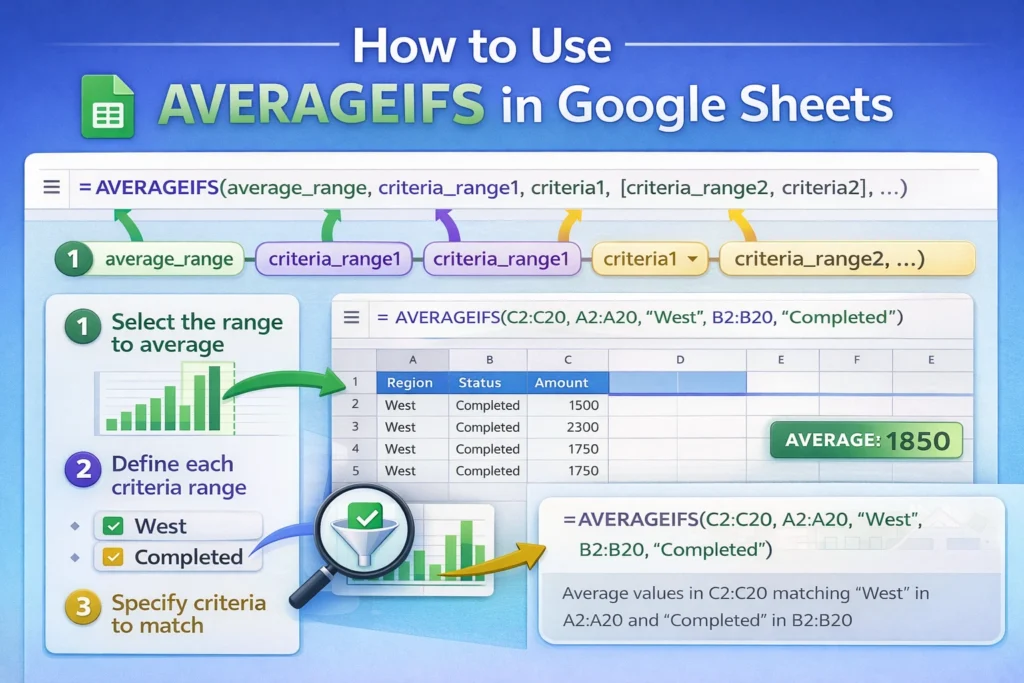
Understanding the structure of the function makes everything else easier. AVERAGEIFS always starts with the range you want to average, followed by pairs of criteria ranges and criteria.
The logic works like this: Google Sheets checks each row across all criteria ranges. If every condition is true, the corresponding value from the average range is included in the calculation.
Each criteria range must be the same size as the average range. If they don’t line up row-for-row, your results may be incorrect or trigger errors.
AVERAGEIFS Formula Examples
Below are clean, practical examples that show how AVERAGEIFS is typically used.
Basic AVERAGEIFS Example With Two Conditions
=AVERAGEIFS(C2:C20, A2:A20, "West", B2:B20, "Completed")This formula averages values in column C, but only for rows where column A equals “West” and column B equals “Completed”.
Using Numbers and Comparison Operators
=AVERAGEIFS(D2:D50, B2:B50, ">1000", C2:C50, "<=5000")Here, only values in column D are averaged when column B is greater than 1000 and column C is less than or equal to 5000.
Averaging Values Between Two Dates
=AVERAGEIFS(C2:C100, A2:A100, ">=1/1/2025", A2:A100, "<=1/31/2025")This averages values from January 2025 by applying two date-based conditions to the same criteria range.
Using Cell References Instead of Hard-Coded Criteria
=AVERAGEIFS(C2:C50, A2:A50, F1, B2:B50, G1)Using cell references for criteria makes your spreadsheets more flexible and user-friendly, especially in templates or dashboards.
When Should You Use AVERAGEIFS Instead of Other Functions?
AVERAGEIFS shines when you need conditional analysis, not just summary statistics. It’s particularly useful when combined with structured data, dropdowns, or filters that change dynamically.
You should consider AVERAGEIFS instead of:
- AVERAGE when you don’t want to include every value.
- AVERAGEIF when more than one condition matters.
- SUMIFS divided by COUNTIFS when you want a cleaner, easier-to-read formula.
In most cases, AVERAGEIFS is clearer and less error-prone than building your own conditional averages from multiple functions.
What Are Common Mistakes With AVERAGEIFS?
One of the most common issues is mismatched ranges. Every criteria range must match the size of the average range exactly. Even being off by one row can produce incorrect results.
Another frequent mistake is forgetting to use quotes around text criteria or comparison operators. For example, ">100" must be wrapped in quotes, while a cell reference containing 100 should not.
Users also sometimes expect AVERAGEIFS to ignore blank or non-numeric cells automatically. While non-numeric cells are ignored in the average range, blank criteria cells can still affect whether a row qualifies, depending on your conditions.
Finally, AVERAGEIFS does not support OR logic directly. All criteria are treated as AND conditions. If you need OR logic, you’ll need multiple formulas or a more advanced approach using FILTER or QUERY.
How Does AVERAGEIFS Compare to COUNTIFS and SUMIFS?
AVERAGEIFS belongs to the same family as COUNTIFS and SUMIFS, and they all follow similar rules. COUNTIFS counts rows that meet conditions, SUMIFS adds their values, and AVERAGEIFS calculates the average of those values.
Understanding one makes the others easier to learn. In fact, many spreadsheet workflows involve using all three together—for example, counting qualifying entries, summing their totals, and averaging their values for reporting.
Are There Any Limitations in Google Sheets?
AVERAGEIFS works well for most use cases, but it does have limitations. It cannot handle array-based OR logic natively, and it requires consistent data structures. If your data is messy or highly dynamic, functions like FILTER or QUERY may be more flexible.
That said, AVERAGEIFS is faster to understand, easier to maintain, and more beginner-friendly than advanced alternatives, making it a strong default choice for conditional averages.
How Can You Use AVERAGEIFS in Real Templates and Dashboards?
In real-world spreadsheets, AVERAGEIFS is often paired with dropdown selectors, date pickers, or category filters. For example, a budget template might use AVERAGEIFS to show the average monthly expense for a selected category, or a sales tracker might display average deal size by region and status.
Because the logic is built into the formula, users can interact with the sheet without touching the formulas themselves—exactly the kind of experience Sheetrix templates aim to provide.
Why Is AVERAGEIFS Worth Learning?
AVERAGEIFS helps turn raw data into insights. Instead of scanning rows manually or exporting data to another tool, you can answer focused questions directly inside Google Sheets.
Once you understand how it works, you’ll find yourself using it in reports, trackers, and dashboards whenever averages need context. It’s one of those functions that feels optional at first but quickly becomes essential as your spreadsheets grow more sophisticated.
If you’re building reusable templates or dashboards for others, mastering AVERAGEIFS will help you deliver cleaner, smarter, and more professional results—right where your data already lives.





