
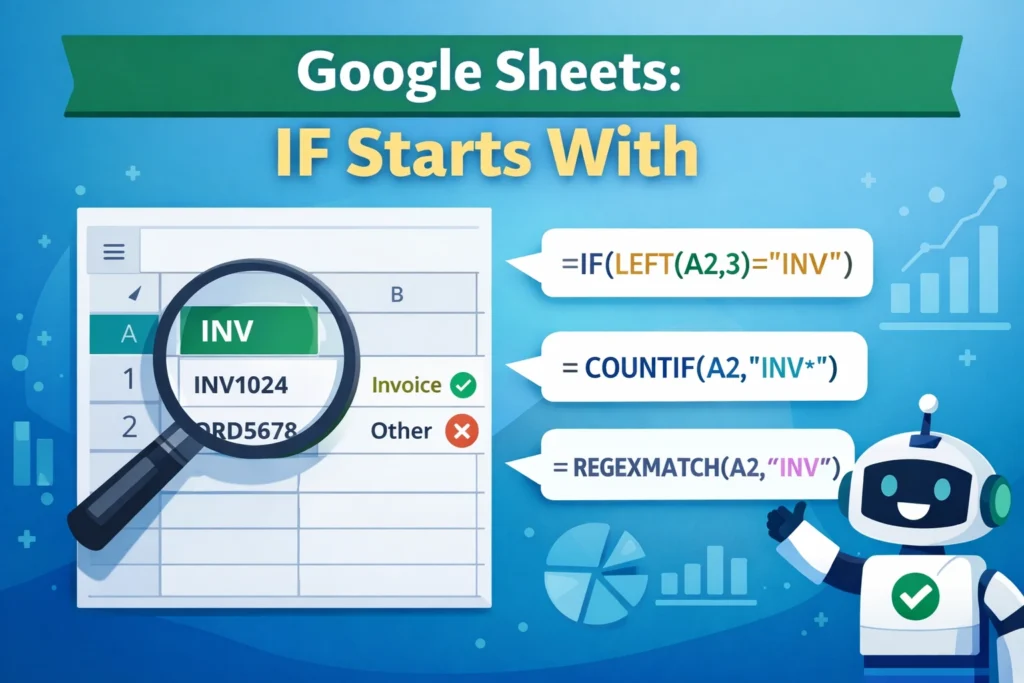
When people search for google sheets if starts with, they’re usually trying to answer a simple question: How can I make a formula react when text begins with certain characters? This comes up constantly in real spreadsheets—sorting product codes, categorizing emails, flagging IDs, or cleaning imported data.
Google Sheets doesn’t have a built-in STARTSWITH() function like some programming languages, but it offers flexible tools that accomplish the same thing. Once you understand the patterns, you can build reliable formulas that scale across hundreds or thousands of rows.
In this guide, you’ll learn the most practical ways to check if a cell starts with specific text, when to use each approach, and how to avoid common mistakes.
What Does “Starts With” Mean in Google Sheets?
“Starts with” simply means that the first characters in a cell match a specific value. For example:
- An order number that starts with
INV - An email that starts with
support - A SKU that starts with
A-
This is different from checking whether text appears anywhere in a cell. Position matters. Google Sheets evaluates text from left to right, and the techniques below focus on matching characters at the beginning of the string.
Which Functions Are Commonly Used for “If Starts With” Logic?
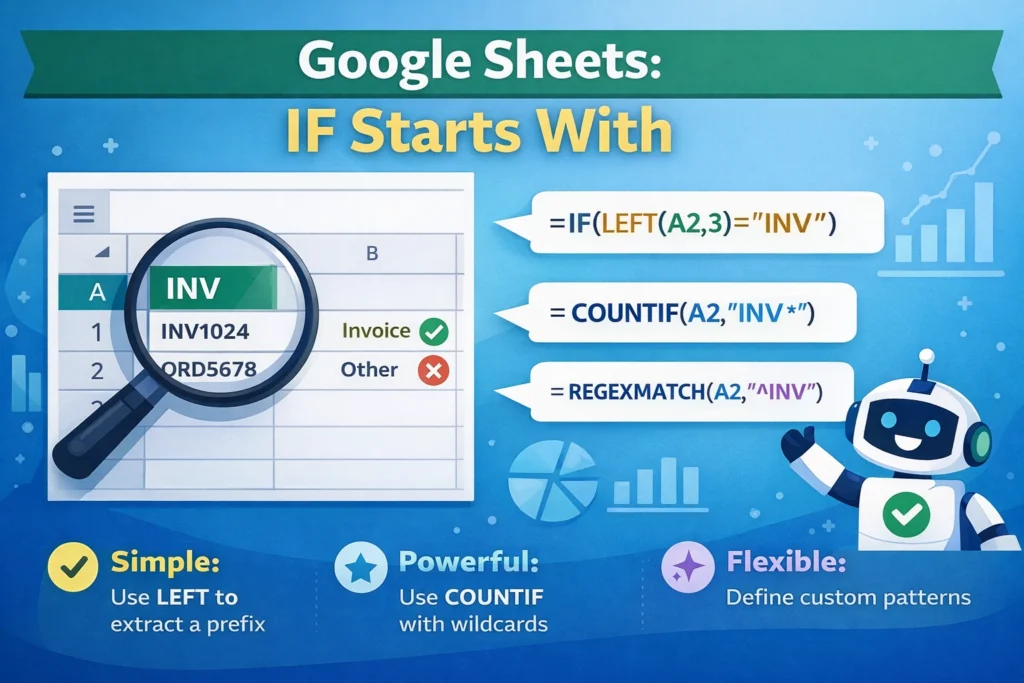
Google Sheets solves “starts with” conditions by combining existing functions rather than relying on a single dedicated one. The most commonly used tools are:
IFfor logical decisionsLEFTfor extracting starting charactersCOUNTIFandCOUNTIFSwith wildcardsREGEXMATCHfor advanced pattern matching
Each option has strengths depending on whether you’re working with simple text, large datasets, or complex patterns.
How Do You Use IF and LEFT to Check If Text Starts With Something?
This is the most beginner-friendly and transparent method. It works by comparing the first few characters of a cell to your target text.
IF + LEFT Formula Examples
=IF(LEFT(A2,3)="INV","Invoice","Other")This formula checks whether the first three characters of cell A2 are INV. If they are, it returns “Invoice”; otherwise, it returns “Other”.
This approach is ideal when:
- The prefix length is fixed
- You want formulas that are easy to read and audit
- Performance matters on large sheets
One limitation is that you must manually match the number of characters inLEFT()to the length of your prefix.
Can COUNTIF Be Used to Check If a Cell Starts With Text?
Yes, and it’s one of the most underrated techniques. COUNTIF supports wildcards, which makes it excellent for “starts with” logic—especially when working with ranges.
COUNTIF Formula Examples
=IF(COUNTIF(A2,"INV*"),"Invoice","Other")The asterisk (*) wildcard means “anything after this text.” If the cell starts with INV, the condition evaluates as TRUE.
This method is especially useful when:
- You want a concise formula
- You’re already using COUNTIF or COUNTIFS elsewhere
- You need compatibility with conditional formatting rules
Be aware thatCOUNTIFis not case-sensitive, which may or may not matter depending on your data.
How Do You Handle Multiple Conditions That Start With Different Text?
When you need to test more than one prefix, COUNTIFS or nested logic becomes useful.
COUNTIFS Formula Examples
=IF(COUNTIFS(A2,"INV*",B2,"Paid"),"Paid Invoice","Other")This checks whether column A starts with INV and column B contains “Paid”. It’s ideal for classification, dashboards, and reporting.
Use this approach when:
- You’re evaluating multiple columns
- You need cleaner logic than nested IF statements
- You’re preparing data for summaries or pivot tables
When Should You Use REGEXMATCH Instead?
REGEXMATCH is the most flexible option and shines when prefixes vary in length or follow patterns rather than exact text.
REGEXMATCH Formula Examples
=IF(REGEXMATCH(A2,"^INV"),"Invoice","Other")The caret (^) means “start of the string.” This formula checks whether the cell begins with INV, regardless of what comes next.
REGEXMATCH is best when:
- Prefix rules are complex
- You need pattern-based matching
- You’re cleaning or validating messy data
The tradeoff is readability. Regex formulas are powerful but harder for beginners to maintain.
What Are Common Mistakes When Checking If Text Starts With Something?
One common mistake is using SEARCH or FIND without anchoring the position. These functions check anywhere in the text, not just the beginning.
Another issue is mismatched character counts when using LEFT. If your prefix length changes, the formula can silently break.
Also, remember that most text-matching functions in Google Sheets are not case-sensitive unless you deliberately enforce case logic.
How Does This Differ From Excel?
Most “starts with” logic works similarly in Excel and Google Sheets, but Google Sheets leans more heavily on REGEXMATCH. Excel users often rely on LEFT and COUNTIF, while regex-based solutions feel more natural in Sheets.
If you’re migrating templates from Excel, test formulas carefully—especially those involving wildcards and text functions.
When Should You Use Each Method?
Use IF + LEFT when clarity matters most. Use COUNTIF or COUNTIFS for scalable logic across ranges. Use REGEXMATCH when patterns matter more than exact text.
There’s no single “best” formula—only the one that fits your data and workflow.
How Can “If Starts With” Logic Improve Real-World Spreadsheets?
This concept is foundational for automation. It helps with categorizing transactions, validating inputs, routing records, and building cleaner dashboards.
If you use Google Sheets regularly, mastering google sheets if starts with logic will save time and reduce manual sorting. It’s also a core technique behind many professional templates and systems.
If you want ready-to-use examples, Sheetrix templates often include prefix-based logic built in—so you can apply these concepts instantly without rebuilding formulas from scratch.





