
If you’ve ever needed to answer a simple question like “How many numbers are in this column?” or “How many rows actually contain numeric data?”, the Google Sheets COUNT function is one of the first tools you should reach for. While it sounds basic, COUNT behaves very differently from other counting functions, and misunderstanding it is one of the most common spreadsheet mistakes beginners make.
In this guide, you’ll learn exactly how COUNT works in Google Sheets, when to use it, when not to use it, and how it compares to related functions like COUNTA, COUNTIF, and COUNTIFS. By the end, you’ll know how to choose the right counting function for real-world spreadsheet tasks—not just textbook examples.
What does the COUNT function do in Google Sheets?
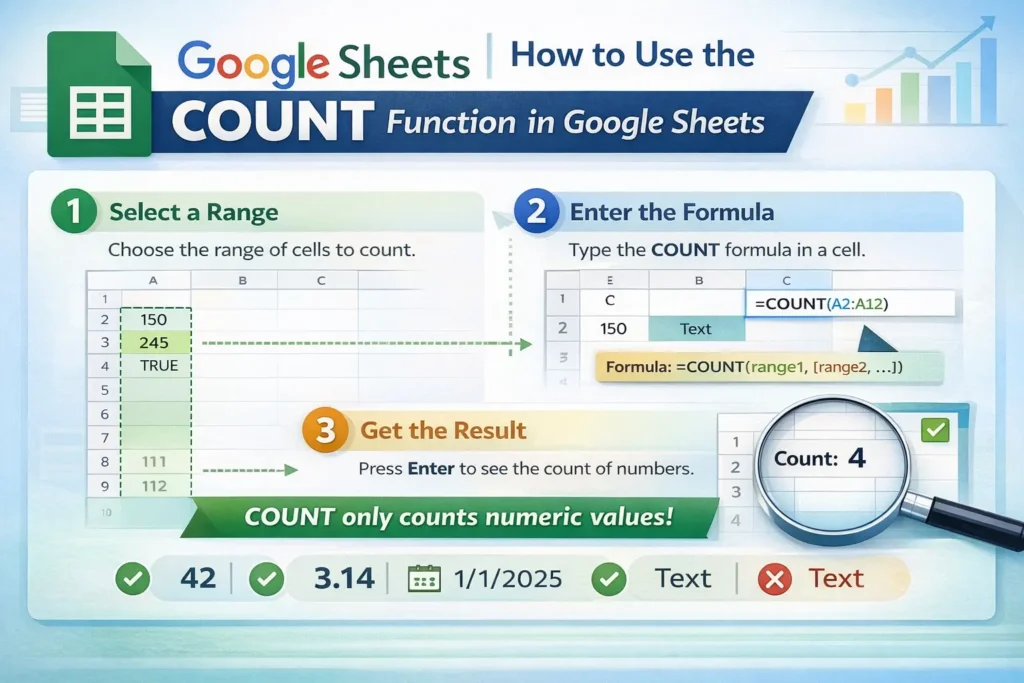
The COUNT function in Google Sheets counts only numeric values within a range. That’s the key idea to remember. It does not count text, empty cells, logical values like TRUE or FALSE, or numbers stored as text.
In practical terms, COUNT answers this question: “How many cells in this range contain actual numbers?”
This makes COUNT especially useful for financial data, measurements, scores, timestamps, and any dataset where numbers—not labels—are what matter.
COUNT is built into Google Sheets and works the same across desktop and mobile versions, with no platform-specific limitations.
When should you use COUNT instead of other counting functions?
COUNT is ideal when your data range includes headers, notes, or mixed content, and you want to count only numeric entries without filtering anything manually.
For example, COUNT works well when:
- You’re counting prices, quantities, or totals
- Your column includes a header row you don’t want included
- Some cells may contain text notes or comments
- You want to ignore blanks automatically
COUNT is not the right tool if you need to count text values, non-empty cells, or values that meet a condition. In those cases, COUNTA, COUNTIF, or COUNTIFS will give you better results.
Understanding this distinction early will save you hours of confusion later.
How do you use the COUNT function in Google Sheets?
At its simplest, COUNT takes one or more ranges and returns how many numeric cells it finds.
COUNT Formula Syntax
COUNT(value1, [value2, …])
You can reference a single range, multiple ranges, or even individual cells. COUNT will evaluate them all and return one total.
Basic COUNT Formula Example
COUNT(A1:A10)
This formula counts how many cells in A1 through A10 contain numeric values.
If that range includes a header, text labels, or empty rows, COUNT will safely ignore them.
What types of values does COUNT include and exclude?
This is where many users get tripped up.
COUNT includes:
- Whole numbers (10, 42)
- Decimals (3.14, 0.5)
- Negative numbers
- Dates and times (because they’re stored as numbers)
COUNT excludes: - Text values
- Empty cells
- Boolean values (TRUE/FALSE)
- Numbers stored as text (for example, “100”)
If you ever run a COUNT formula and get a result that seems too low, check whether your numbers are actually stored as text. This often happens when data is imported from CSV files or copied from external systems.
How is COUNT different from COUNTA in Google Sheets?
COUNT and COUNTA are often confused, but they solve different problems.
COUNT counts only numeric cells.
COUNTA counts all non-empty cells, including text, numbers, dates, and logical values.
If you want to know how many rows have any data at all, use COUNTA. If you want to know how many rows contain numbers, use COUNT.
COUNT vs COUNTA Example
If a column contains names, notes, and dollar amounts:
- COUNT tells you how many dollar amounts exist
- COUNTA tells you how many rows are filled in total
Choosing the wrong one can lead to misleading reports, especially in dashboards or summaries.
How do COUNTIF and COUNTIFS compare to COUNT?
COUNTIF and COUNTIFS extend counting by adding conditions.
COUNTIF counts cells that meet one condition.
COUNTIFS counts cells that meet multiple conditions.
COUNT, on the other hand, applies no conditions—it simply checks whether a cell contains a number.
COUNTIF Formula Examples
COUNTIF(A1:A20, “>100”)
This counts how many numeric values in A1:A20 are greater than 100.
COUNTIF(A1:A20, “>=1/1/2025”)
This counts how many dates occur on or after January 1, 2025.
If you need logic like “count numbers greater than X” or “count values in a specific category,” COUNTIF or COUNTIFS is the correct upgrade.
What are common mistakes people make with COUNT?
One of the most common mistakes is using COUNT when the data contains text-based numbers. For example, “00123” or values imported with apostrophes won’t be counted.
Another frequent error is using COUNT when the goal is to count filled rows rather than numeric values. This often leads users to think their formula is broken when it’s actually doing exactly what it’s supposed to do.
Finally, some users try to use COUNT for conditional logic. COUNT has no criteria support—if you need conditions, COUNTIF or COUNTIFS is required.
When should you not use the COUNT function?
Avoid COUNT when:
- You need to count text values
- You want to count all non-empty cells
- You need filtering or conditions
- Your data is inconsistent or mixed-format
In those situations, COUNT will silently undercount, which can be dangerous in financial or reporting contexts.
How does COUNT fit into real-world spreadsheets?
In real spreadsheets, COUNT is often used alongside other functions:
- To validate how many numeric entries exist before calculating averages
- To confirm imported datasets contain valid numeric data
- To power KPI dashboards where numeric completeness matters
On Sheetrix, COUNT pairs especially well with templates for budgets, trackers, and analytics sheets where you want automatic validation without manual cleanup.
Final thoughts: Is COUNT simple or powerful?
COUNT is both. It’s simple in syntax, but powerful when used intentionally. Once you understand that COUNT only cares about numbers—and nothing else—you’ll stop misusing it and start trusting your results.
If you’re building structured spreadsheets, dashboards, or reusable templates, mastering COUNT is a foundational skill that pays off immediately.





