
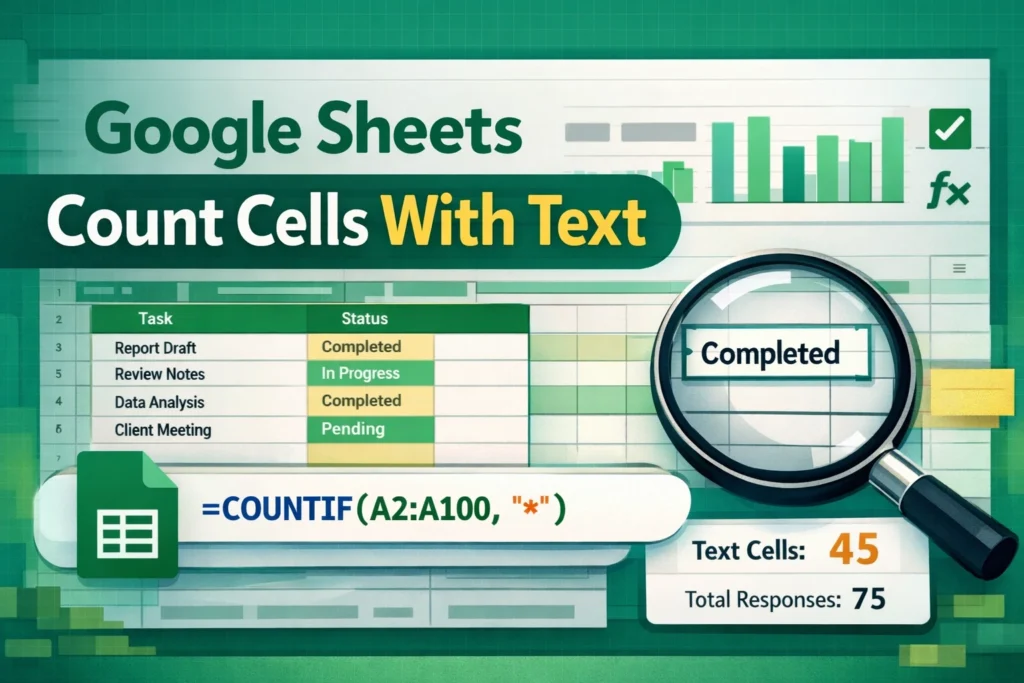
If you work with spreadsheets regularly, you’ve probably needed to count how many cells contain text. Whether you’re cleaning up imported data, tracking form responses, or analyzing user inputs, knowing how to count cells with text in Google Sheets is a foundational skill. This guide walks you through the most reliable methods, explains when to use each one, and highlights common mistakes—so you can choose the right approach with confidence.
Throughout this article, all examples apply to Google Sheets, with notes on limitations and alternatives where relevant.
What Does “Count Cells With Text” Mean in Google Sheets?
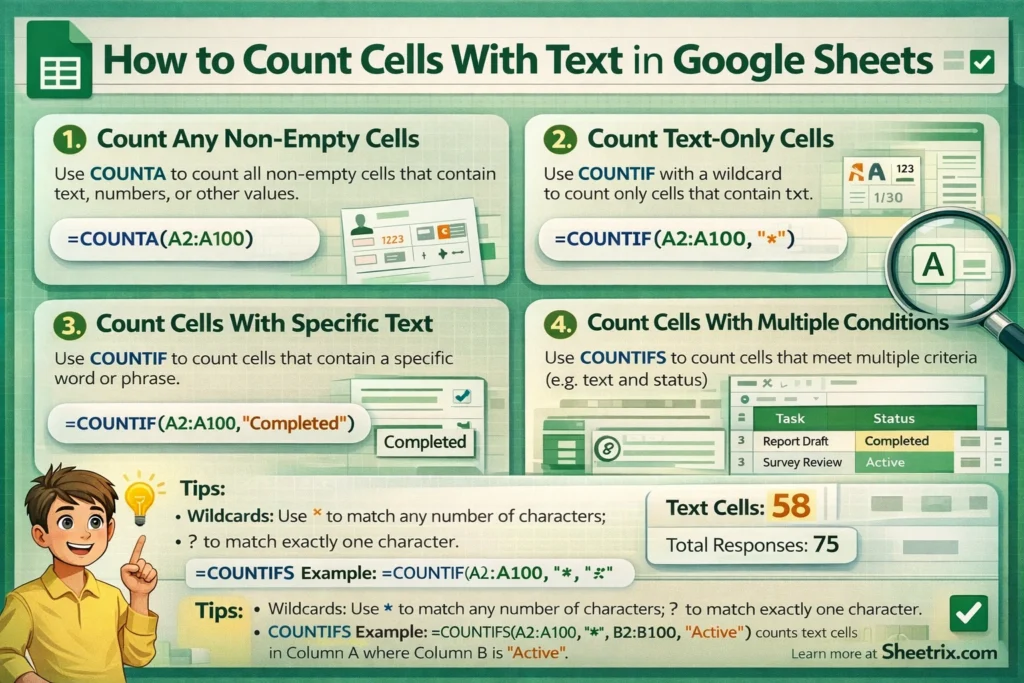
At first glance, counting text sounds simple: you want to know how many cells contain words instead of numbers or blanks. In practice, it’s a bit more nuanced. A “text cell” can include plain words, text mixed with numbers, values returned by formulas, or even text that looks empty but isn’t.
Before choosing a formula, it helps to clarify what you want to count:
- Cells that contain any text at all
- Cells that contain specific words or phrases
- Cells that contain text returned by a formula
- Cells that contain only text (no numbers)
Google Sheets doesn’t have a single “count text” button, but it does provide flexible functions that handle each of these cases when used correctly.
How Do You Count Cells That Contain Any Text?
The most common scenario is counting cells that are not empty and contain text of any kind. The simplest and most reliable tool for this is COUNTA.
COUNTA Formula Example
=COUNTA(A1:A100)This formula counts all non-empty cells in the range. That includes:
- Text
- Numbers
- Dates
- Boolean values (TRUE/FALSE)
- Formula results that are not blank
Because of this, COUNTA works well only if your range contains text and blanks—but no numbers. If numbers are present, they will be counted too, which can lead to inflated results.
How Can You Count Only Text (Not Numbers or Dates)?
If your data includes a mix of text and numeric values, you’ll want a more precise approach. This is where COUNTIF becomes essential.
COUNTIF Formula Examples
=COUNTIF(A1:A100,"*")This formula counts cells that contain text using a wildcard. The asterisk (*) matches any number of characters, so any cell with at least one text character will be included.
However, it’s important to understand what this does and does not count:
- It includes text strings
- It excludes numbers
- It excludes truly blank cells
This makes COUNTIF with a wildcard one of the most accurate ways to count text-only cells in Google Sheets.
How Do You Count Cells That Contain Specific Text?
Often, you don’t just want to count any text—you want to count cells that contain a specific word or phrase. COUNTIF is designed for exactly this use case.
COUNTIF With Specific Text
=COUNTIF(A1:A100,"Completed")This counts cells that exactly match the word “Completed.” If you want to count cells that contain the word anywhere within the text, you can use wildcards.
=COUNTIF(A1:A100,"*Completed*")This version counts:
- “Task Completed”
- “Completed on Friday”
- “Not Completed Yet”
Using wildcards makes COUNTIF especially powerful for surveys, status columns, and imported text data.
Can You Count Text While Ignoring Blanks and Errors?
Yes—but you need to be intentional. Blank-looking cells can sometimes contain formulas that return empty strings (""), and those can interfere with basic counts.
If you need to exclude formula-generated blanks, combining COUNTIF with a wildcard is usually safer than COUNTA.
=COUNTIF(A1:A100,"*?")The question mark (?) matches a single character. This ensures the cell contains at least one visible character, not just an empty string from a formula.
How Do You Count Text Across Multiple Conditions?
When you need to count text and apply additional criteria—such as date ranges, categories, or statuses—you’ll want to use COUNTIFS.
COUNTIFS Formula Example
=COUNTIFS(A1:A100,"*",B1:B100,"Active")This counts rows where:
- Column A contains text
- Column B contains the word “Active”
COUNTIFS is ideal for dashboards and reports where text counts depend on multiple conditions. The main limitation is that all criteria ranges must be the same size.
How Does Google Sheets Treat Text From Formulas?
A subtle but important detail: Google Sheets treats text returned by a formula as text. For example, if a formula outputs "Yes" or "No", it will be counted by COUNTIF("*") and COUNTA.
However, formulas that return an empty string ("") are still considered non-empty by COUNTA. This is one of the most common sources of confusion when counting text.
If your sheet relies heavily on formulas, COUNTIF with wildcards is generally more predictable than COUNTA.
What Are the Most Common Mistakes When Counting Text?
Many counting issues come from small misunderstandings rather than bad formulas. Here are the most common pitfalls to avoid:
- Using COUNTA when numbers are present: This counts more than just text.
- Forgetting about formula-generated blanks: These can inflate counts unexpectedly.
- Not using wildcards when needed: Exact matches behave differently from partial matches.
- Assuming spaces are blank: A cell with a single space is not empty and will be counted.
Being aware of these issues can save you time debugging later.
When Should You Use COUNTIF vs COUNTIFS?
A simple rule of thumb:
- Use
COUNTIFwhen you have one condition - Use
COUNTIFSwhen you have two or more conditions
Both functions are efficient and easy to read, making them ideal for shared spreadsheets and templates.
How Can Counting Text Improve Real-World Spreadsheets?
Counting text isn’t just a technical exercise—it powers real workflows. Examples include:
- Counting completed tasks in a project tracker
- Measuring response rates in form submissions
- Tracking tagged notes or comments
- Auditing imported CSV files for missing values
At Sheetrix, many downloadable templates rely on accurate text counts behind the scenes to generate summaries, progress indicators, and dashboards. Mastering these formulas makes it much easier to customize templates for your own needs.
Final Thoughts: What’s the Best Way to Count Cells With Text?
There’s no single “best” formula—only the right one for your data. For quick counts with clean text-only ranges, COUNTA works fine. For precision and reliability, especially in mixed datasets, COUNTIF with wildcards is usually the safest choice. When conditions stack up, COUNTIFS gives you full control.
Once you understand how Google Sheets interprets text, blanks, and formulas, counting cells with text becomes straightforward—and incredibly useful.





