
When working with lists in Google Sheets, you often don’t want to count all values—you only want to count duplicates. That distinction matters when cleaning data, auditing records, or validating user input. This guide explains exactly how to count duplicates only in Google Sheets, using clear logic and practical formulas that work for real-world spreadsheets.
Instead of dumping formulas, we’ll focus on why each approach works, when to use it, and what mistakes to avoid.
What Does “Count Duplicates Only” Mean in Google Sheets?
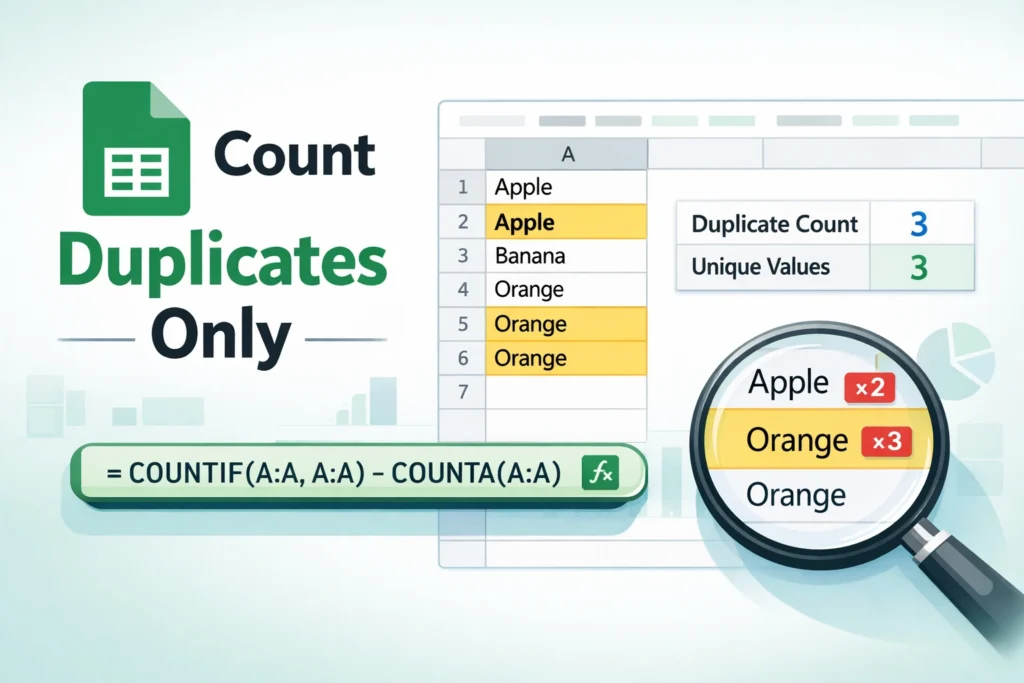
Counting duplicates only means you’re excluding unique values and counting only the repeated occurrences. For example, in the list below:
A
Apple
Apple
Banana
Orange
Orange
Orange
- Apple appears twice → 1 duplicate
- Orange appears three times → 2 duplicates
- Banana appears once → 0 duplicates
The total number of duplicates is 3, not 5 or 6. This is where many users get tripped up—Google Sheets does not have a built-in “count duplicates only” function, so you need to combine logic.
Why COUNTIF Alone Is Not Enough
COUNTIF is usually the first function people try, and it’s a good starting point. However, COUNTIF counts all occurrences, including the first instance. That means it tells you how many times a value appears, not how many times it’s duplicated.
To count duplicates only, you must subtract the first occurrence or apply a condition that excludes it.
How Can You Count Duplicate Values in a Single Column?
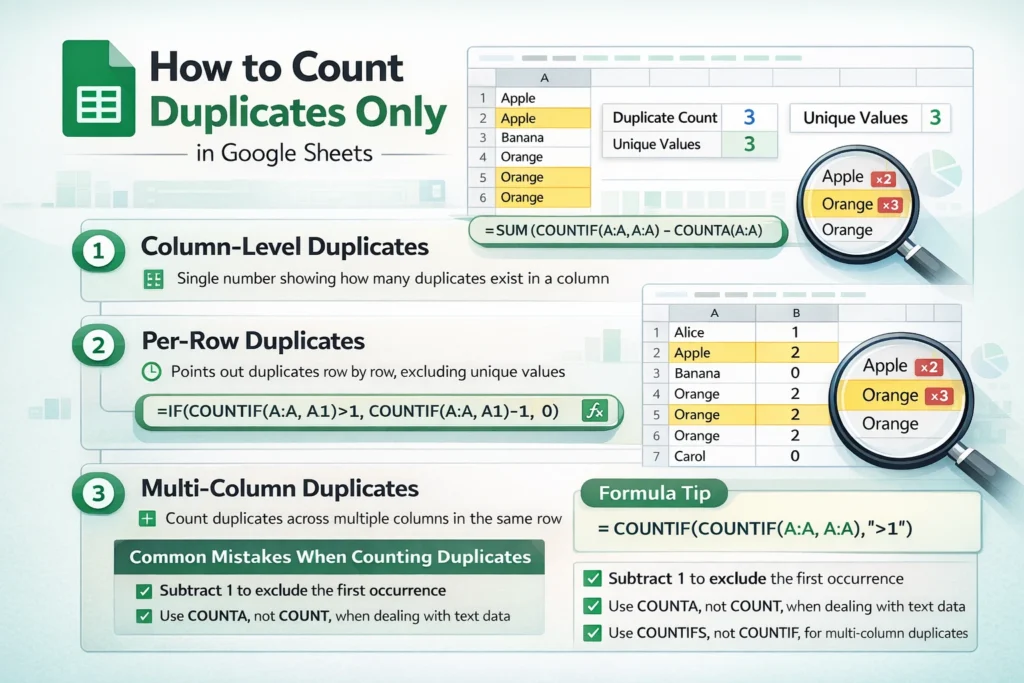
The most reliable approach is to calculate how many values appear more than once, then subtract the number of unique values from the total count.
COUNTIF + SUM Formula (Column-Level)
This method works well when you want a single number that represents how many duplicate entries exist in a column.
COUNTIF Formula Example
=SUM(COUNTIF(A:A,A:A))-COUNTA(A:A)
Why This Works
COUNTIF(A:A, A:A)returns the count of each value for every rowSUM(...)adds them togetherCOUNTA(A:A)removes the first occurrence of each value
The result is the total number of duplicate entries only.
Important Limitation
This formula relies on array behavior. If you’re using very large datasets (50,000+ rows), performance may slow down. In that case, helper columns are more efficient.
How Do You Count Duplicates Only for Each Individual Value?
Sometimes you don’t want a single total—you want to know which rows are duplicates and how many extra times each value appears.
COUNTIF with Conditional Logic
COUNTIF Per-Row Formula Example
=IF(COUNTIF(A:A,A1)>1,COUNTIF(A:A,A1)-1,0)
What This Does
- Checks if the value appears more than once
- Subtracts the first occurrence
- Returns 0 for unique values
This is ideal for audits, reports, or highlighting problem rows.
How Can You Count Only Duplicate Rows (Not Values)?
If your duplicates are based on multiple columns (for example, Name + Date), COUNTIF won’t work correctly by itself.
This is where COUNTIFS becomes essential.
COUNTIFS Formula Example
=COUNTIFS(A:A,A1,B:B,B1)-1
When to Use This
- Duplicate form submissions
- Repeated transactions
- Matching records across multiple fields
COUNTIFS evaluates multiple conditions at once, making it far more reliable for structured data.
Can You Count Duplicates Without Helper Columns?
Yes—but helper columns are often the better choice.
Why Helper Columns Are Underrated (New Insight)
Helper columns improve:
- Readability for collaborators
- Performance on large datasets
- Debugging when formulas break
A clean helper column that flags duplicates with TRUE/FALSE often makes downstream formulas simpler and more reliable.
Common Mistakes When Counting Duplicates in Google Sheets
Forgetting to Subtract the First Instance
This is the #1 mistake. COUNTIF counts occurrences, not duplicates.
Counting Blank Cells
Always use COUNTA instead of COUNT when working with text data to avoid skewed results.
Mixing Absolute and Relative References Incorrectly
If formulas behave inconsistently when dragged, check whether your ranges should be locked (A:A) or relative (A1).
Using COUNTIF Instead of COUNTIFS
If your definition of “duplicate” depends on more than one column, COUNTIF will silently return incorrect results.
When Should You Use COUNTIF vs COUNTIFS?
- Use COUNTIF for single-column duplicate checks
- Use COUNTIFS for multi-column duplicate logic
- Use helper columns for large datasets or shared spreadsheets
Understanding this distinction prevents subtle errors that are hard to spot later.
Bonus: Counting Duplicate Values Only Once (Advanced Insight)
If your goal is to count how many unique values are duplicated (not how many duplicate entries exist), use:
=COUNTIF(COUNTIF(A:A,A:A),">1")
This returns the number of values that appear more than once—useful for data quality reporting.
Final Thoughts
Counting duplicates only in Google Sheets requires combining simple functions with the right logic. Once you understand that duplicates are extra occurrences beyond the first, the formulas become much easier to reason about.
Whether you’re cleaning imports, validating submissions, or building reusable templates, mastering this concept saves time and prevents data errors. For more practical spreadsheet workflows and ready-to-use templates, explore related resources on Sheetrix.com.





