
“How many values in my spreadsheet are above a certain number?” This might be tracking sales over a goal, counting grades above a passing score, or identifying days when metrics exceeded a threshold. Google Sheets makes this easy once you understand the logic behind conditional counting. In this guide, you’ll learn not only how to use COUNTIF to count values greater than a number, but also how to apply it confidently in real-world scenarios, avoid common mistakes, and know when to move on to more advanced functions.
Which function should you use to count values greater than a number?
For most situations, COUNTIF is the correct and simplest choice. It is designed for single-condition counting and works cleanly with comparison operators like greater than (>), greater than or equal to (>=), less than (<), and less than or equal to (<=).
However, there are situations where COUNTIFS is a better option. COUNTIFS allows you to apply multiple conditions at once, such as counting values greater than a number and within a specific date range or category. Knowing when to use COUNTIF versus COUNTIFS will save you time and prevent unnecessary formula rewrites later.
As a rule of thumb:
- Use COUNTIF when you only need one condition.
- Use COUNTIFS when you need two or more conditions applied simultaneously.
How does the COUNTIF function work in Google Sheets?
COUNTIF has a simple structure, which makes it beginner-friendly but still powerful enough for everyday analysis. The function always takes two arguments: the range to evaluate and the condition to apply.
COUNTIF Function Syntax
COUNTIF(range, criterion)
The range is the group of cells you want Google Sheets to evaluate. The criterion is the rule that determines whether a cell should be counted. When using “greater than,” the criterion includes the comparison operator and the value you’re comparing against.
The key thing to understand is that the criterion is usually written as text, even though it includes numbers. This is one of the most common points of confusion for new users.
COUNTIF formula examples for “greater than”
These examples show the most common and useful ways to count values greater than a number. Each one builds on the same idea, so once you understand the first example, the others will feel intuitive.
COUNTIF Formula Examples
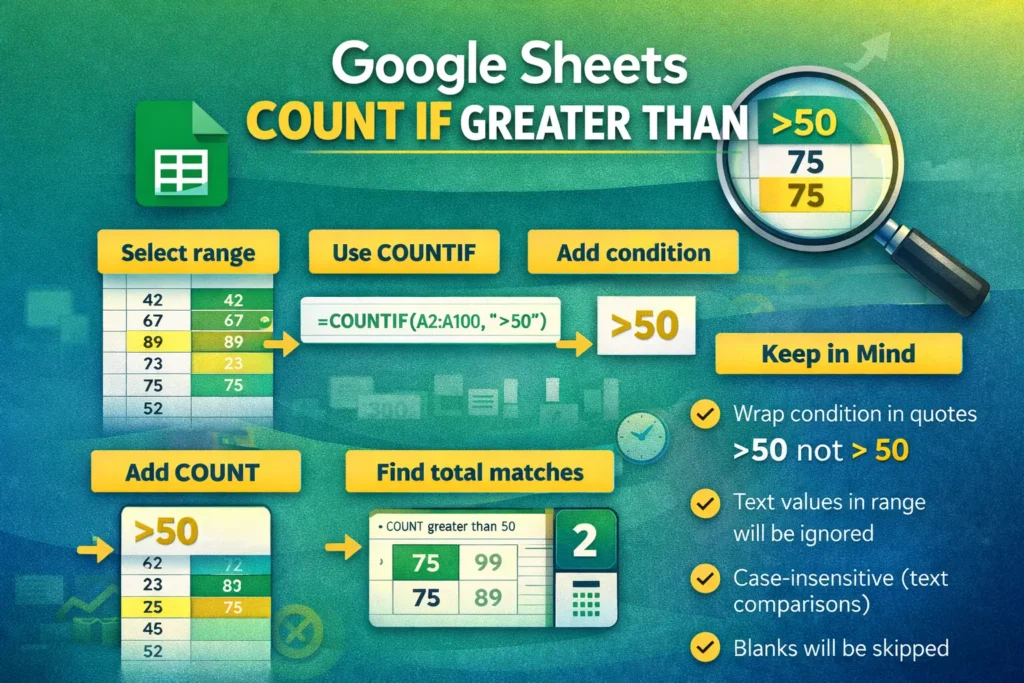
=COUNTIF(A2:A100,”>50″)
This formula counts how many values in cells A2 through A100 are greater than 50. Any number above 50 is included, while 50 itself is not.
=COUNTIF(B:B,”>=1000″)
This variation uses “greater than or equal to.” It counts all values in column B that are 1000 or higher, including exactly 1000.
=COUNTIF(C2:C50,”>0″)
This example is useful for counting positive numbers. It ignores zeros and negative values and counts only cells with values above zero.
=COUNTIF(D2:D,”>”&F1)
Here, the threshold value is stored in cell F1. This makes your formula more flexible, because you can change the number in F1 without editing the formula itself. This approach is especially useful in dashboards and templates.
Why does the greater-than condition need quotes?
One of the most confusing aspects of COUNTIF is how conditions are written. The comparison operator and the number are usually wrapped in quotes because Google Sheets treats the criterion as a text expression.
For example, “>50” is interpreted as a rule, not a mathematical comparison inside the formula. When you want to reference another cell instead of a fixed number, you combine the operator with the cell reference using an ampersand, like “>” & F1.
This design allows COUNTIF to support a wide range of conditions, including text comparisons and wildcard matching, but it does require careful syntax.
How can you count values greater than a number in another cell?
Using a fixed number works well for simple cases, but many real-world spreadsheets need flexibility. Instead of hardcoding a number, you can reference a cell that contains the threshold value.
This approach is common in reporting and template design because it allows non-technical users to adjust the criteria without touching formulas. For example, a sales manager might want to change the target number weekly.
Dynamic Threshold Example
=COUNTIF(A2:A100,”>”&E2)
In this formula, E2 contains the threshold value. If E2 changes from 50 to 75, the count updates automatically. This is one of the most effective ways to make your Google Sheets more interactive and user-friendly.
What are common mistakes when using COUNTIF with greater than?
Even though COUNTIF is simple, a few common mistakes can cause incorrect results or errors. Understanding these pitfalls will help you troubleshoot faster.
One frequent issue is forgetting the quotes around the criterion. Writing >50 instead of “>50” will cause the formula to fail. Another common mistake is applying COUNTIF to a range that contains mixed data types, such as numbers and text. COUNTIF ignores text when applying numeric comparisons, which can lead to unexpected counts if your data isn’t clean.
Another subtle mistake is assuming COUNTIF will evaluate formulas based on their displayed values in all cases. COUNTIF evaluates the result of formulas, not the formula text itself, which is usually what you want. However, formatting (such as currency or percentage) does not change the underlying numeric value, so you must base your comparisons on actual numbers, not how they look.
How does COUNTIF handle blanks, text, and errors?
COUNTIF ignores blank cells automatically, which makes it safe to use on partially filled ranges. Text values are also ignored when using numeric comparisons like greater than or less than.
Errors, however, can interrupt your analysis. Cells containing errors such as #DIV/0! or #N/A are not counted, but if your dataset contains many errors, it’s often a sign that you should clean or validate your data first. In some cases, wrapping your data logic with IFERROR before counting can help stabilize your results.
When should you use COUNTIFS instead of COUNTIF?
COUNTIF is limited to a single condition. As soon as you need to apply more than one rule, COUNTIFS becomes the better choice. For example, you might want to count sales greater than 500 that occurred in a specific month, or scores above 80 for a particular class.
COUNTIFS works similarly to COUNTIF but allows you to define multiple range-and-condition pairs. Each condition must be met for a row to be counted.
COUNTIFS Formula Example
=COUNTIFS(A2:A100,”>50″,B2:B100,”Completed”)
This formula counts rows where the value in column A is greater than 50 and the corresponding value in column B equals “Completed.” This type of logic is essential for real-world reporting.
How does Google Sheets differ from Excel for counting greater than?
Google Sheets and Excel handle COUNTIF in very similar ways, but there are subtle differences worth noting. Google Sheets is more forgiving with full-column references like A:A, even in large spreadsheets. Excel can become slower when entire columns are referenced frequently.
Another difference is collaboration. Because Google Sheets updates in real time, COUNTIF formulas recalculate instantly as multiple users edit data. This makes them ideal for shared tracking sheets, but it also means your counts can change unexpectedly if users aren’t following consistent data-entry rules.
Can you count values greater than a date or time?
Yes, and this is an area that many tutorials overlook. Dates and times in Google Sheets are stored as numbers behind the scenes, which means you can use COUNTIF to compare them just like numeric values.
For example, you can count how many dates occur after a certain date.
Date-Based Example
=COUNTIF(A2:A100,”>”&DATE(2025,1,1))
This formula counts how many dates in column A are later than January 1, 2025. You can also reference a cell containing a date instead of using the DATE function directly.
This technique is especially useful for tracking deadlines, filtering recent activity, or analyzing trends over time.
How can COUNTIF be used in dashboards and templates?
One powerful but underused application of COUNTIF is in summary sections and dashboards. Instead of showing raw data, you can display counts that answer specific questions, such as how many tasks are overdue, how many sales exceeded target, or how many expenses went over budget.
By pairing COUNTIF with dynamic thresholds and dropdowns, you can create interactive templates that feel more like apps than spreadsheets. This approach is ideal for downloadable templates, where usability and clarity matter just as much as accuracy.
What are some advanced tips most guides don’t mention?
First, COUNTIF does not support array operations in the same way some newer functions do. If you need to apply transformations before counting, you may need to use helper columns or switch to functions like FILTER combined with COUNTA.
Second, performance matters in large spreadsheets. Using COUNTIF across multiple full-column ranges can slow down recalculation. Limiting ranges to realistic boundaries, such as A2:A1000 instead of A:A, can noticeably improve responsiveness.
Third, COUNTIF comparisons are not case-sensitive for text. While this doesn’t affect numeric “greater than” logic directly, it matters when you combine numeric and text-based criteria in COUNTIFS.
Finally, when building templates, consider labeling your threshold cells clearly. Users are more likely to trust and correctly use a spreadsheet when they can see and understand the inputs driving the calculations.
How do you decide if COUNTIF is the right tool?
COUNTIF is ideal when your question is straightforward: “How many values meet this one condition?” If your logic becomes more complex, or if you need to transform data before counting, it may be time to explore COUNTIFS, FILTER, or even QUERY.
That said, mastering COUNTIF with greater-than logic gives you a foundation that applies across many other Google Sheets functions. It teaches you how conditions work, how data types interact, and how to design spreadsheets that answer real questions efficiently.
Why learning “google sheets count if greater than” matters
Counting values greater than a number might seem like a small skill, but it shows up everywhere: performance tracking, financial analysis, habit tracking, education, and operations. Once you understand how COUNTIF works, you can build spreadsheets that are more informative, more flexible, and easier to maintain.
If you’re creating reusable spreadsheets or sharing templates with others, mastering this function helps you deliver tools that feel polished and professional. It also sets the stage for more advanced analysis as your needs grow.
By using COUNTIF thoughtfully, avoiding common mistakes, and knowing when to level up to COUNTIFS, you’ll get far more value out of Google Sheets—and make your data work for you instead of the other way around.





