
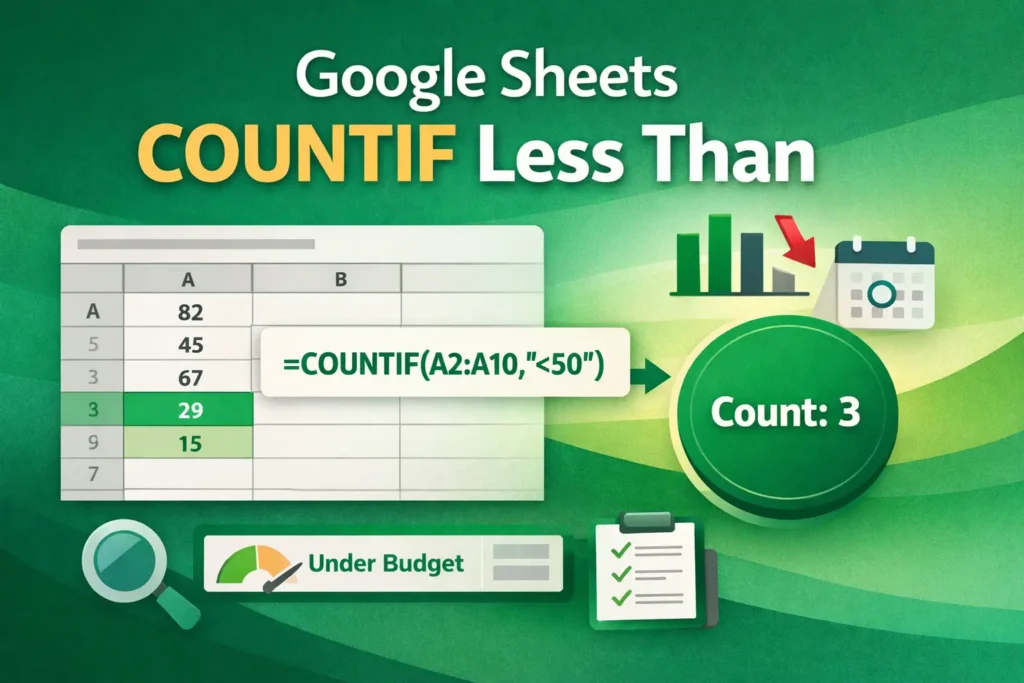
If you’re working with numbers in Google Sheets, one of the most common questions you’ll run into is how to count values that fall below a certain threshold. Whether you’re tracking expenses under budget, test scores below a passing grade, or inventory levels that need attention, knowing how to count if less than is a foundational spreadsheet skill.
This guide explains how Google Sheets handles “less than” conditions, how to use COUNTIF and COUNTIFS correctly, and how to avoid the most common mistakes beginners make. Everything is written with real-world use cases in mind, so you can apply it immediately to your own spreadsheets.
How do you count cells that are less than a number in Google Sheets?
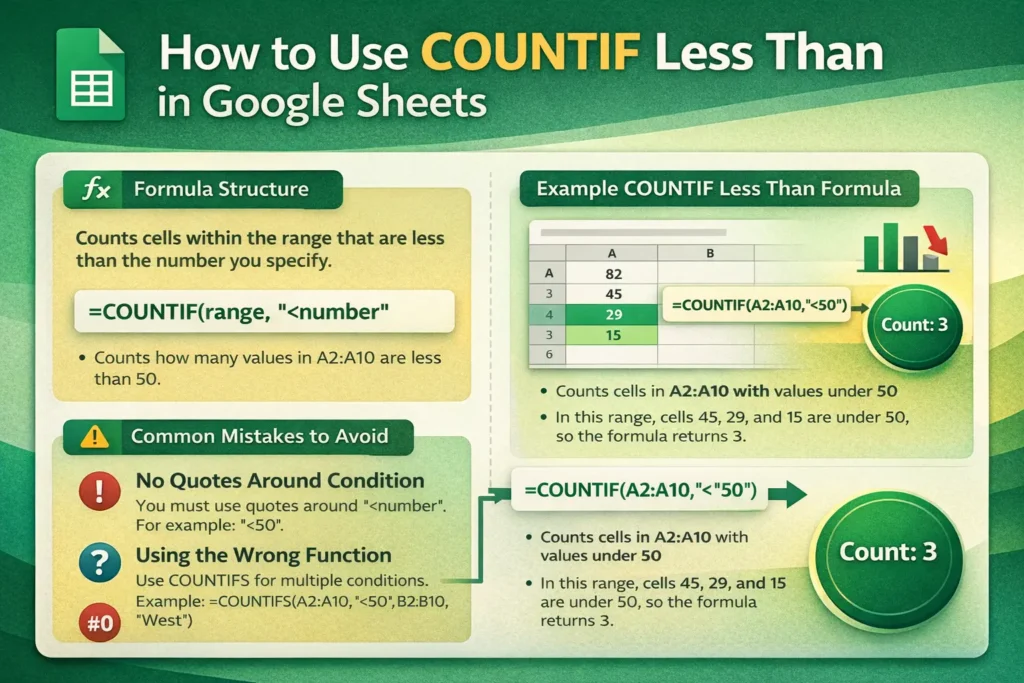
In Google Sheets, counting values that are less than a specific number is done using conditional counting. Instead of counting every non-empty cell, you tell Sheets to count only the cells that meet a rule—in this case, values that are smaller than a chosen number.
The key concept to understand is that the comparison operator (<) must be included as part of the condition. Google Sheets evaluates each cell in a range and checks whether it meets that condition before including it in the count.
This approach is especially useful when analyzing numeric data like expenses, performance metrics, response times, or quantities. You’re not changing the data itself—just summarizing it based on logic.
What function should you use to count values less than something?
For most situations, the correct function is COUNTIF. COUNTIF allows you to count cells in a single range based on one condition, such as “less than 100” or “less than today’s date.”
If you need to apply more than one condition—such as counting values that are less than a number and belong to a certain category—you’ll use COUNTIFS instead. Understanding when to switch from COUNTIF to COUNTIFS will save you time and prevent incorrect results.
COUNTIF Formula Examples
COUNTIF is the simplest and most commonly used function for this task. It works by scanning a range and counting how many cells meet the condition you specify.
Basic structure:
=COUNTIF(range, condition)To count values less than 50:
=COUNTIF(A2:A20,"<50")In this example, Google Sheets checks each cell in A2:A20 and counts only those with numeric values below 50.
To count values less than or equal to 50:
=COUNTIF(A2:A20,"<=50")The quotation marks are required because the condition includes a comparison operator. Forgetting the quotes is one of the most common errors users run into.
How do you count values less than a cell reference?
Often, you won’t want to hardcode a number like 50. Instead, you may want to compare values against another cell—such as a budget limit or target score.
To do that, concatenate the operator with the cell reference:
=COUNTIF(A2:A20,"<"&B1)If cell B1 contains the value 75, this formula counts how many values in A2:A20 are less than 75. This approach makes your spreadsheet more flexible, since changing B1 automatically updates the count.
Can COUNTIF count values less than a date?
Yes. Dates in Google Sheets are stored as numbers behind the scenes, which means you can use comparison operators with them just like numeric values.
To count dates earlier than January 1, 2025:
=COUNTIF(A2:A50,"<DATE(2025,1,1)")To count dates earlier than a date stored in another cell:
=COUNTIF(A2:A50,"<"&B1)This is especially useful for tracking overdue tasks, expired subscriptions, or events that happened before a certain cutoff.
When should you use COUNTIFS instead of COUNTIF?
COUNTIFS is designed for situations where one condition isn’t enough. While COUNTIF handles a single test, COUNTIFS lets you apply multiple conditions across one or more ranges.
For example, imagine a sales sheet where:
- Column A contains sales amounts
- Column B contains regions
If you want to count sales less than 100 that occurred in the “West” region, COUNTIFS is the right tool.
COUNTIFS Formula Example
=COUNTIFS(A2:A100,"<100",B2:B100,"West")This formula counts rows where the sale amount is under 100 and the region is West. Every condition must be met for a row to be counted.
If you ever find yourself stacking multiple COUNTIF formulas together, that’s usually a sign you should switch to COUNTIFS instead.
What are the most common mistakes when counting values less than?
One frequent mistake is forgetting quotation marks around the condition. Google Sheets won’t interpret <50 correctly unless it’s written as "<50".
Another issue is counting text values unintentionally. COUNTIF ignores text unless your condition specifically targets text. If your numbers are stored as text (often due to imports or formatting), the formula may return zero even when it looks like there are valid values.
Users also sometimes apply COUNTIF to mismatched ranges when switching to COUNTIFS. Each range in COUNTIFS must be the same size, or the formula will fail.
Are there any platform limitations to be aware of?
Google Sheets handles COUNTIF and COUNTIFS consistently across desktop and mobile, but complex formulas are easier to audit and debug on desktop. On mobile, formulas work the same way, but editing conditions and checking ranges can be more cumbersome.
Unlike Excel, Google Sheets does not require special array-enter shortcuts for these functions, which makes them more beginner-friendly.
How can counting “less than” support real-world spreadsheets?
Counting values less than a threshold is a core building block for dashboards and summaries. You can use it to monitor expenses under budget, identify low-performing metrics, flag inventory shortages, or track overdue items.
On Sheetrix, this logic often pairs well with downloadable templates—such as budget trackers, habit trackers, or performance dashboards—where conditional counts power charts and alerts behind the scenes.
Once you’re comfortable with COUNTIF and COUNTIFS, you’ll find that many spreadsheet problems boil down to asking the right question and letting the formula do the counting for you.
Mastering how to count if less than in Google Sheets gives you cleaner summaries, more accurate insights, and spreadsheets that respond intelligently as your data changes.





