
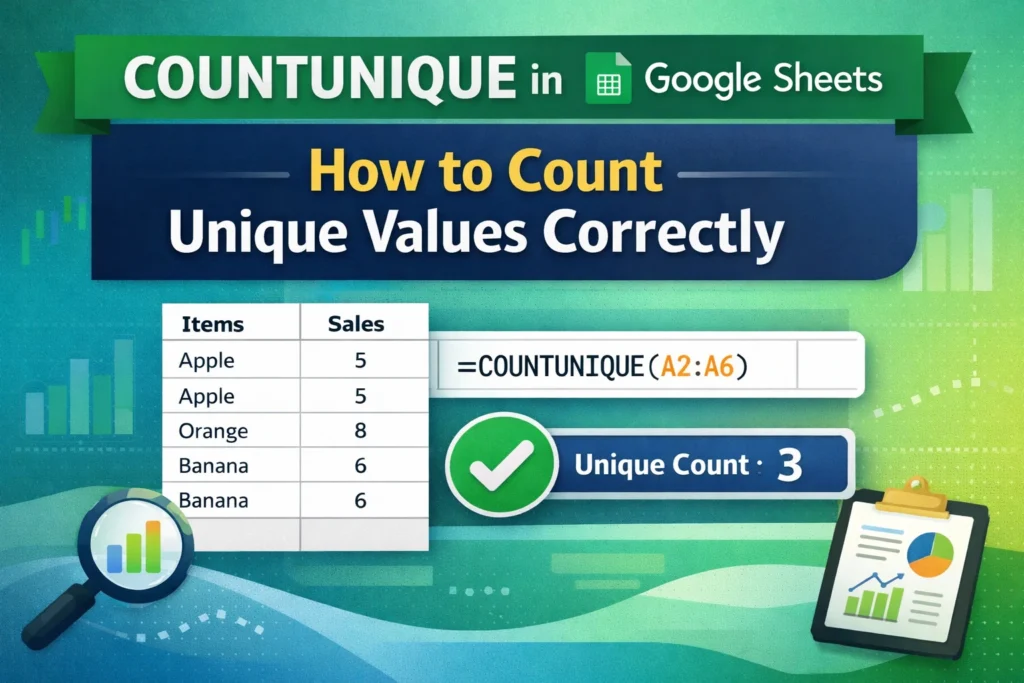
Counting unique values is one of the most common tasks in spreadsheets, and Google Sheets makes it much easier than Excel by offering a dedicated COUNTUNIQUE function. If you’re tracking customers, orders, products, email addresses, or categories, COUNTUNIQUE helps you answer a simple but critical question: how many distinct values are there?
In this guide, you’ll learn exactly how COUNTUNIQUE works in Google Sheets, when to use it, how it differs from similar functions, and how to avoid common mistakes that lead to incorrect results. We’ll also cover advanced use cases that most tutorials skip, including performance tips and real-world reporting scenarios.
What Is COUNTUNIQUE in Google Sheets?
COUNTUNIQUE is a built-in Google Sheets function that counts the number of distinct values in a range. Each value is counted only once, no matter how many times it appears.
For example, if a column contains:
Apple
Apple
Orange
Banana
Banana
COUNTUNIQUE returns 3, because there are three unique values.
Unlike Excel, Google Sheets provides COUNTUNIQUE as a native function, which makes unique counting faster, clearer, and easier to maintain.
How Does COUNTUNIQUE Work?
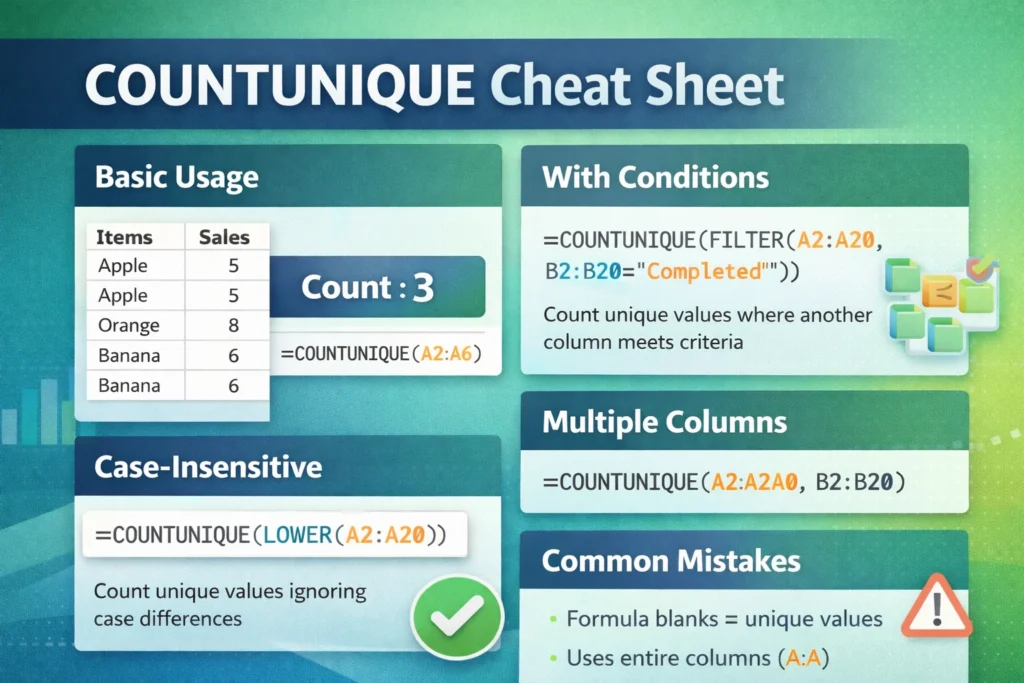
COUNTUNIQUE scans a range of cells and counts how many unique values exist based on exact matches.
Key behaviors to understand:
- Duplicate values are counted once
- Text, numbers, and dates are supported
- Blank cells are ignored
- Text values are case-sensitive by default
- “123” (text) and 123 (number) are treated as different values
Understanding these behaviors is essential for avoiding subtle counting errors in real-world data.
How Do You Use COUNTUNIQUE in Google Sheets?
The basic syntax is straightforward.
Basic COUNTUNIQUE Formula
COUNTUNIQUE Formula Example:
=COUNTUNIQUE(A2:A20)This formula counts how many distinct values appear in cells A2 through A20.
This is ideal for:
- Customer lists
- Product names
- Email addresses
- Categories or tags
- IDs with duplicates
Because COUNTUNIQUE is dynamic, the result updates automatically when data changes.
Does COUNTUNIQUE Count Blank Cells?
No. COUNTUNIQUE automatically ignores empty cells, which makes it safer than many manual alternatives.
However, cells that appear blank but contain formulas returning empty strings ("") are counted as unique values. This is a common source of confusion.
COUNTUNIQUE Without Formula-Generated Blanks
COUNTUNIQUE Formula Example:
=COUNTUNIQUE(FILTER(A2:A20, A2:A20<>""))This version explicitly removes empty strings before counting, ensuring your results stay accurate even when formulas are involved.
Is COUNTUNIQUE Case-Sensitive?
Yes. COUNTUNIQUE treats uppercase and lowercase text as different values.
For example:
Apple
apple
COUNTUNIQUE returns 2, not 1.
If you want a case-insensitive unique count, normalize the text first.
Case-Insensitive COUNTUNIQUE
COUNTUNIQUE Formula Example:
=COUNTUNIQUE(LOWER(A2:A20))This forces all values to lowercase before counting, ensuring “Apple” and “apple” are treated as the same entry.
How Do You Count Unique Values Across Multiple Columns?
COUNTUNIQUE can accept multiple ranges at once.
COUNTUNIQUE Across Multiple Ranges
COUNTUNIQUE Formula Example:
=COUNTUNIQUE(A2:A20, B2:B20)This counts unique values across both columns combined, not separately.
This is useful when:
- Data is split across columns
- You’re merging lists
- You want a global unique count
Be aware that duplicates appearing in both ranges are only counted once.
How Do You Count Unique Values Based on a Condition?
COUNTUNIQUE alone does not support conditions, but you can combine it with FILTER to create powerful conditional logic.
COUNTUNIQUE With a Single Condition
COUNTUNIQUE Formula Example:
=COUNTUNIQUE(FILTER(A2:A20, B2:B20="Completed"))This counts unique values in column A only for rows where column B equals “Completed.”
This approach effectively replaces a COUNTUNIQUEIFS function, which does not exist in Google Sheets.
How Do You Use COUNTUNIQUE With Multiple Conditions?
You can stack conditions inside FILTER using logical operators.
COUNTUNIQUE With Multiple Criteria
COUNTUNIQUE Formula Example:
=COUNTUNIQUE(
  FILTER(A2:A20, B2:B20="Completed", C2:C20>=DATE(2024,1,1))
)
This counts unique values where:
- Status is “Completed”
- Date is on or after January 1, 2024
This method is extremely useful for dashboards, KPI tracking, and reporting templates.
COUNTUNIQUE vs UNIQUE: What’s the Difference?
Although they sound similar, COUNTUNIQUE and UNIQUE serve different purposes.
COUNTUNIQUE:
- Returns a number
- Used for summaries and metrics
UNIQUE:
- Returns a list
- Used for extraction and analysis
You’ll often use them together.
COUNTUNIQUE Using UNIQUE
COUNTUNIQUE Formula Example:
=COUNTA(UNIQUE(A2:A20))This produces the same result as COUNTUNIQUE but allows more control when combined with other functions.
COUNTUNIQUE vs COUNTIF and COUNTIFS
COUNTIF and COUNTIFS count matches, not unique values.
Key differences:
- COUNTIF counts how many times a value appears
- COUNTIFS counts rows that meet criteria
- COUNTUNIQUE counts distinct values only once
If you need a unique count with criteria, COUNTUNIQUE + FILTER is the correct approach.
Common COUNTUNIQUE Mistakes to Avoid
Even though COUNTUNIQUE is simple, mistakes still happen.
Counting Formula Blanks
Cells containing "" are not empty and may be counted. Always filter them out if accuracy matters.
Ignoring Text Normalization
Extra spaces, inconsistent casing, and hidden characters create false uniques. Use TRIM, LOWER, or CLEAN when needed.
Counting IDs Stored as Text and Numbers
Mixed data types cause incorrect results. Standardize formats before counting.
Overusing Entire Column Ranges
Using A:A instead of A2:A10000 can slow performance on large sheets.
Performance Tip: COUNTUNIQUE on Large Datasets
COUNTUNIQUE recalculates dynamically, which can impact performance in large files.
Two best practices:
- Avoid entire column references when possible
- Use helper columns to pre-clean data before counting
This improves speed and keeps dashboards responsive.
Advanced Insight: COUNTUNIQUE and Data Validation Lists
One underused feature is combining COUNTUNIQUE with data validation.
You can use COUNTUNIQUE to:
- Detect duplicate entries
- Enforce uniqueness rules
- Trigger warnings when duplicates appear
For example, counting unique email addresses can instantly reveal data integrity issues in shared spreadsheets.
When Should You Use COUNTUNIQUE?
COUNTUNIQUE is ideal when:
- You need distinct counts
- Duplicates should only count once
- You’re summarizing lists, IDs, or categories
- You’re building dashboards or reports
It’s especially powerful when paired with FILTER, making it one of the most versatile functions in Google Sheets.
COUNTUNIQUE Google Sheets Summary
COUNTUNIQUE is one of the biggest advantages Google Sheets has over Excel for everyday data analysis.
Key takeaways:
- COUNTUNIQUE counts distinct values automatically
- Blank cells are ignored, but formula blanks are not
- It’s case-sensitive unless normalized
- FILTER unlocks conditional unique counts
- Performance matters with large datasets
If you regularly work with real-world data—customers, orders, products, or records—COUNTUNIQUE is a foundational function worth mastering. It’s simple on the surface, but incredibly powerful when used correctly.





