
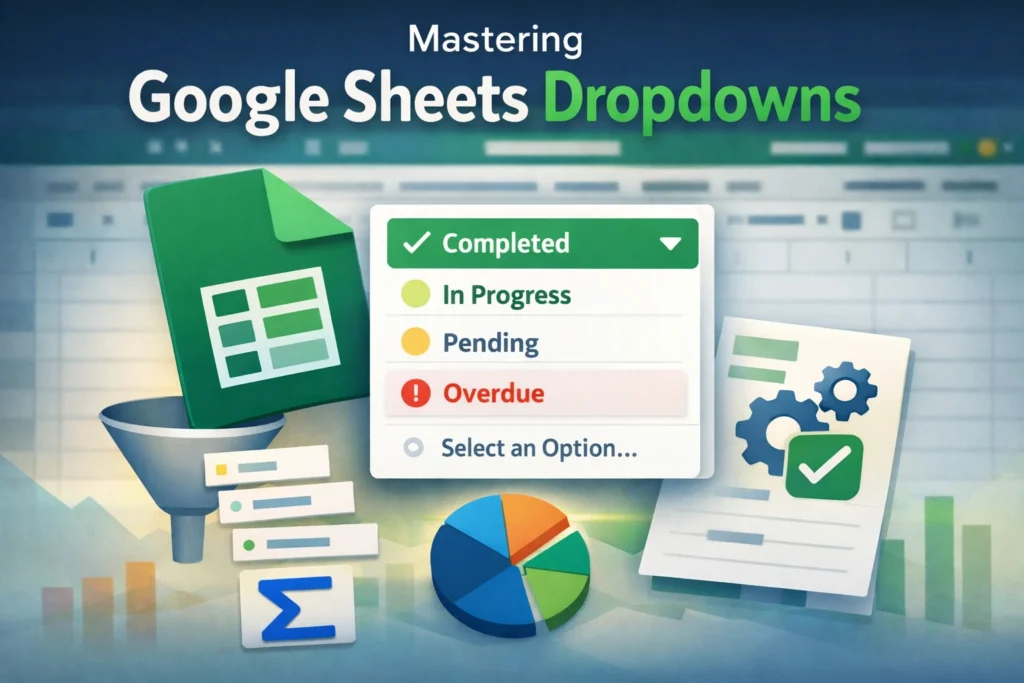
If you’ve ever wanted to control what users can enter into a cell, reduce errors, or make a spreadsheet feel more like an app, Google Sheets dropdowns are one of the most powerful tools you can learn. Dropdowns help guide input, standardize data, and unlock automation across budgets, trackers, dashboards, and templates. In this guide, you’ll learn exactly how Google Sheets dropdowns work, when to use them, and how to avoid the most common mistakes—without overcomplicating things.
What are Google Sheets dropdowns and why should you use them?

Google Sheets dropdowns are created using data validation rules that limit a cell’s input to predefined options. Instead of typing freely, users select from a list. This makes spreadsheets more reliable and easier to use, especially when multiple people are entering data. Dropdowns are ideal for things like categories, statuses, yes/no fields, payment methods, priorities, and workflows. Beyond organization, dropdowns improve formulas because functions like COUNTIF, SUMIF, FILTER, and QUERY work best with clean, consistent values. One overlooked benefit is performance: dropdowns reduce formula recalculation errors caused by typos, which can noticeably improve large-sheet stability.
How do you create a basic dropdown in Google Sheets?
The simplest way to create a dropdown is by using Google Sheets’ built-in dropdown interface. Select a cell, go to Data → Data validation → Dropdown. From there, you can manually enter options or reference a range of cells. Google Sheets now supports colored dropdown chips, which visually communicate meaning without extra conditional formatting. This is especially useful for statuses like “Completed,” “In Progress,” or “Overdue.” A practical tip many guides miss: dropdowns can be copied safely across ranges without breaking references, as long as the source range is absolute or named. This makes them ideal for templates you plan to reuse or sell.
What’s the difference between dropdowns from a list vs dropdowns from a range?
Dropdowns from a list are hard-coded directly into the validation rule. They’re quick to set up but harder to maintain. Dropdowns from a range pull options from cells elsewhere in your sheet, which makes them dynamic. If you update the source list, every dropdown updates automatically. For scalable spreadsheets, dropdowns from a range are almost always the better choice. A best practice is to keep dropdown source lists on a hidden “Settings” or “Lists” sheet. This keeps your main sheet clean and prevents users from accidentally editing allowed values.
How do dependent dropdowns work in Google Sheets?
Dependent dropdowns change their available options based on another cell’s selection. For example, choosing a department in one dropdown can limit the next dropdown to employees from that department. This is done by combining data validation with FILTER or named ranges. While this sounds advanced, the logic is simple: the second dropdown’s source range dynamically filters based on the first dropdown’s value. One unique trick is to use helper columns instead of complex formulas inside validation rules. This improves readability and reduces errors when collaborators duplicate sheets or rename tabs.
Dropdown Formula Examples
Below are clean, practical formulas commonly used with Google Sheets dropdowns. These formulas belong in helper cells or source lists, not directly inside paragraphs.
FILTER-based dependent dropdown
=FILTER(A2:A, B2:B=E1)
This formula filters a list of options based on a selection in cell E1. It’s the most flexible approach for dependent dropdowns and works well with large datasets.
SORT + UNIQUE dropdown list
=SORT(UNIQUE(A2:A))
Use this when you want a dropdown that automatically updates as new values are added, without duplicates and in alphabetical order.
Data validation with named range
=MyCategoryList
Named ranges make dropdowns more readable and portable. They’re especially useful in shared templates where users might rename sheets.
How can dropdowns trigger calculations and automation?
Dropdowns become powerful when combined with formulas. Selecting a value can automatically update totals, apply conditional formatting, or control what data appears elsewhere. For example, a dropdown can drive a SUMIF calculation that updates a dashboard instantly. Another underused technique is using dropdowns as logic switches—choosing “Yes” or “No” can turn calculations on or off using IF statements. This allows you to build interactive spreadsheets without scripts or add-ons.
What are common mistakes people make with Google Sheets dropdowns?
One common mistake is mixing free text with dropdown-controlled data, which defeats the purpose of validation. Another is deleting or moving the source range, which silently breaks dropdowns. A subtle issue many users overlook is blank values—by default, dropdowns allow empty cells, which can cause formulas to behave unexpectedly. You can prevent this by disabling “Allow invalid data” and requiring a selection. Also, colored dropdowns don’t replace conditional formatting entirely; they’re visual aids, not logic rules.
Are there limitations or platform differences to be aware of?
Google Sheets dropdowns work consistently across desktop and mobile, but editing dropdown rules is much easier on desktop. Mobile users can select dropdown values but may struggle to manage complex validation rules. Compared to Excel, Google Sheets dropdowns are more collaborative and update instantly across users, but Excel still offers more advanced form controls in some cases. If you’re building templates for broad audiences, Google Sheets dropdowns strike the best balance between power and accessibility.
When should you use dropdowns instead of free text?
Use dropdowns whenever consistency matters. If a value feeds into formulas, summaries, charts, or automation, it should almost always be a dropdown. Free text is better suited for notes, descriptions, or fields that don’t affect calculations. A good rule of thumb: if you plan to COUNT, FILTER, or SUM by a column, make it a dropdown. This single decision can eliminate hours of cleanup later.
How do dropdowns improve real-world spreadsheets and templates?
In real-world use, dropdowns turn spreadsheets into systems. Budget templates use dropdowns for categories and payment methods. Project trackers use them for status and priority. Business dashboards rely on dropdowns to filter views without exposing formulas. On Sheetrix-style templates, dropdowns reduce user confusion, protect formulas, and make spreadsheets feel professional. They’re one of the highest-impact features you can add with minimal effort.
Final thoughts on mastering Google Sheets dropdowns
Google Sheets dropdowns aren’t just a convenience feature—they’re foundational to building reliable, scalable spreadsheets. When used thoughtfully, they reduce errors, improve usability, and unlock powerful automation without complexity. Whether you’re managing personal finances, running a business, or building templates for others, mastering dropdowns will instantly level up your Sheets skills. If you want to see dropdowns in action, explore Sheetrix templates that combine dropdowns with automated calculations and clean design to save time and avoid mistakes.





