
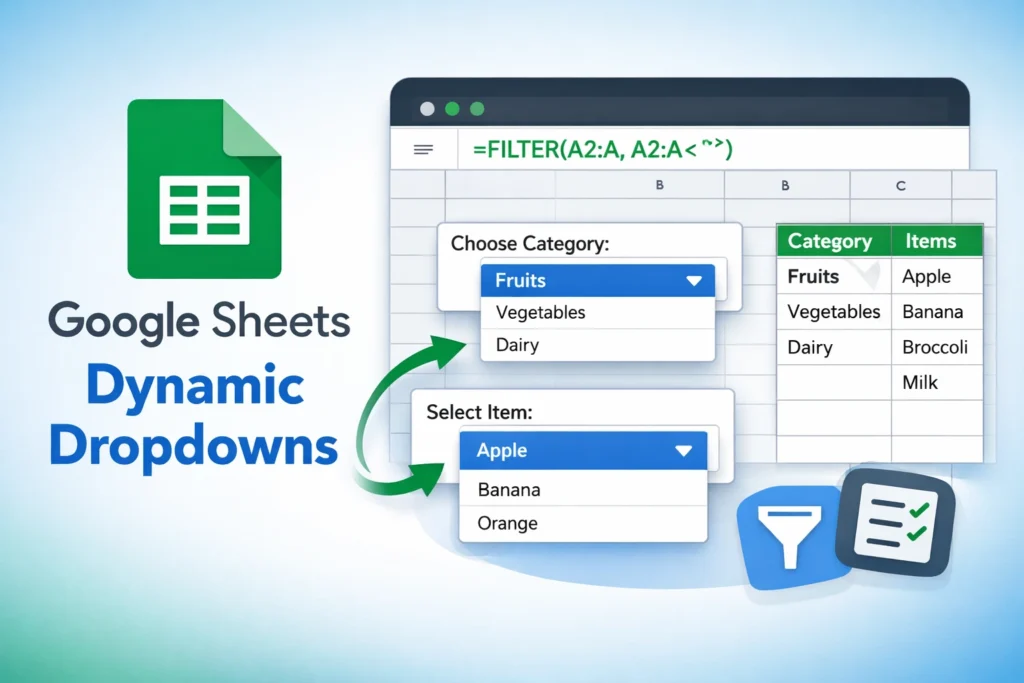
A Google Sheets dynamic dropdown is a data validation dropdown that automatically updates its list of options based on other cells, formulas, or user selections. Unlike static dropdowns where the list is manually typed or fixed to a range, dynamic dropdowns respond to changes in your sheet, making them ideal for dashboards, forms, trackers, and templates that need to stay accurate over time.
For example, instead of manually updating a dropdown every time you add a new category, a dynamic dropdown can pull from a formula-driven list that expands automatically. This reduces maintenance, prevents errors, and makes your spreadsheet feel more like an app than a table.
Dynamic dropdowns are commonly used for dependent dropdowns (where one selection controls another), filtered lists, unique value pickers, and user-friendly data entry systems. They are especially powerful when combined with functions like FILTER, UNIQUE, SORT, and ARRAYFORMULA.
How Do Dynamic Dropdowns Work in Google Sheets?
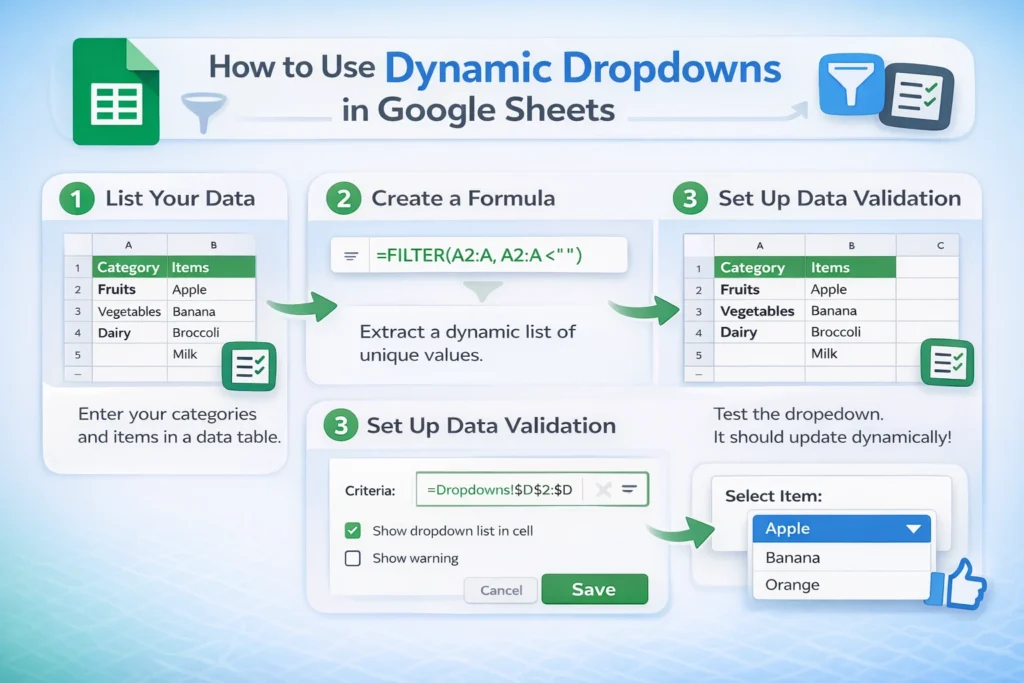
At a high level, dynamic dropdowns work by using a formula to generate a list of values and then pointing data validation to that formula’s output range. When the underlying data changes, the formula recalculates, and the dropdown updates automatically.
The key concept is that data validation doesn’t need a static list. It can reference a range that is populated by a formula. That range can live on the same sheet or, more commonly, on a helper sheet to keep things clean.
Most dynamic dropdown setups follow this pattern: raw data → formula-generated list → data validation dropdown. Once you understand this flow, you can build flexible dropdowns for almost any use case.
How Do You Create a Basic Dynamic Dropdown From a Growing List?
A common beginner-friendly use case is creating a dropdown that automatically includes new items as they’re added to a list. This is useful for things like categories, employee names, vendors, or project titles.
Instead of manually selecting a fixed range like A2:A10, you create a helper column that uses a formula to capture all non-empty values from a column. That helper range then becomes the source for your dropdown.
This approach prevents blank options, scales automatically, and eliminates the need to constantly edit data validation rules. It also works well with imported data or form responses that grow over time.
Dynamic Dropdown Formula Example (Auto-Expanding List)
=FILTER(A2:A, A2:A <> "")
Use this formula in a helper column, then set your dropdown’s data validation source to that helper range.
How Do You Create Dependent Dropdowns in Google Sheets?
Dependent dropdowns are one of the most popular dynamic dropdown use cases. They allow the options in one dropdown to change based on what’s selected in another cell. A classic example is choosing a category in one cell and then seeing only related subcategories in the next dropdown.
This works by filtering a data table based on the value selected in the first dropdown. The filtered results populate a helper range, which then feeds the second dropdown.
This setup is widely used in expense trackers, inventory systems, employee schedules, and order forms because it reduces invalid selections and speeds up data entry.
Dependent Dropdown Formula Example
=FILTER(B2:B, A2:A = E1)
In this example, column A contains categories, column B contains related items, and E1 is the first dropdown selection.
Can You Use UNIQUE and SORT to Improve Dynamic Dropdowns?
Yes, and you almost always should. Real-world data often contains duplicates or inconsistent ordering, which can make dropdowns messy and confusing. By wrapping your filtered lists with UNIQUE and SORT, you ensure users see clean, predictable options.
This is especially useful when your dropdown is fed by transaction data, logs, or form submissions where repeated values are common. Clean dropdowns improve usability and reduce accidental errors during selection.
Clean Dropdown Formula Example (Unique + Sorted)
=SORT(UNIQUE(FILTER(A2:A, A2:A <> "")))
This formula creates a polished dropdown list that updates automatically as new values appear.
What Are Common Mistakes When Building Dynamic Dropdowns?
One common mistake is pointing data validation directly at a volatile formula instead of a helper range. While Google Sheets technically allows formulas inside data validation, this often leads to errors, broken dropdowns, or performance issues. Helper columns are more stable and easier to debug.
Another frequent issue is leaving blank cells in the source range, which creates empty dropdown options. Using FILTER to remove blanks solves this immediately.
Users also often forget that dropdowns do not update retroactively if the data validation range itself doesn’t change. If your helper range is too small or incorrectly referenced, your dropdown may appear “stuck” even though the formula is correct.
Are There Any Platform Limitations or Differences to Know About?
Google Sheets handles dynamic dropdowns more flexibly than Excel, especially when it comes to formula-driven ranges and real-time updates. However, dynamic dropdowns can slow down large spreadsheets if they rely on full-column references combined with complex formulas.
To improve performance, it’s often better to limit ranges to realistic maximums or isolate dropdown logic on a helper sheet. This is especially important in templates meant for long-term use or sharing with others.
Another limitation is that dynamic dropdowns do not currently support multi-select natively. Workarounds exist using scripts, but those are better suited for advanced users and may not be ideal for shared templates.
When Should You Use Dynamic Dropdowns Instead of Static Ones?
Dynamic dropdowns are best when your data changes frequently, when accuracy matters, or when users shouldn’t see irrelevant options. If your list is truly fixed and unlikely to change, a static dropdown may be simpler.
However, for templates, trackers, and dashboards meant to scale or be reused, dynamic dropdowns are almost always the better choice. They reduce maintenance, prevent errors, and make your spreadsheet feel more professional and intuitive.
Advanced Tips to Make Dynamic Dropdowns More Useful
One underused technique is creating context-aware dropdowns that hide options based on dates, statuses, or user roles. For example, you can filter dropdown options to only show active projects or current-year items, keeping selections relevant without manual cleanup.
Another powerful approach is combining dynamic dropdowns with conditional formatting to visually reinforce selections. When users choose an option, related rows or sections can automatically highlight, improving clarity.
Finally, naming your helper ranges using Named Ranges can make complex dropdown systems easier to manage and reuse across sheets. This is especially helpful in large templates or client-facing spreadsheets where clarity matters.
Why Dynamic Dropdowns Are Essential for High-Quality Google Sheets Templates
Dynamic dropdowns are a cornerstone of modern Google Sheets design. They make spreadsheets easier to use, harder to break, and more adaptable to real-world data. Whether you’re building a simple tracker or a full dashboard, mastering dynamic dropdowns will dramatically improve both usability and professionalism.
If you use or download Google Sheets templates from Sheetrix, you’ll notice dynamic dropdowns everywhere—from budget categories to employee selectors—because they reduce friction and scale effortlessly. Once you start using them, static dropdowns quickly feel outdated.
By understanding how dynamic dropdowns work and when to use them, you can build spreadsheets that stay accurate, flexible, and user-friendly without constant manual updates.





