
If you work with dates in Google Sheets, you’ll eventually need to extract just the month from a full date. This comes up constantly in real-world spreadsheets—monthly reports, summaries, dashboards, billing cycles, and trend analysis.
This guide walks you through the most reliable ways to extract the month from a date in Google Sheets, explains when to use each method, and highlights common mistakes that cause confusing results.
What does “extract month from date” mean in Google Sheets?
Dates in Google Sheets are stored as serial numbers, not plain text. For example, 1/15/2025 is actually a number representing days since a base date. When you “extract the month,” you’re asking Google Sheets to return either:
- The month number (1–12)
- The month name (January, Jan, etc.)
- A formatted month useful for grouping, sorting, or labeling data
Understanding this distinction is important because different functions are better suited to different outcomes.
What is the easiest way to extract the month from a date?
For most users, the simplest and most reliable method is the MONTH function. It works directly with date values and avoids formatting issues.
MONTH Formula Examples
Extract the month number (1–12):
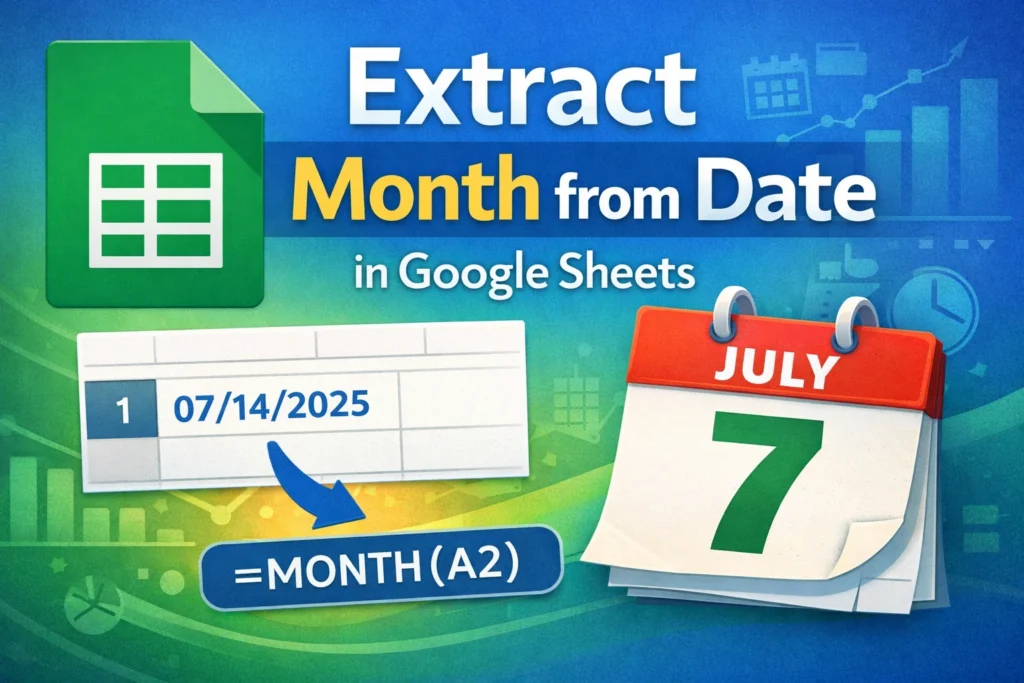
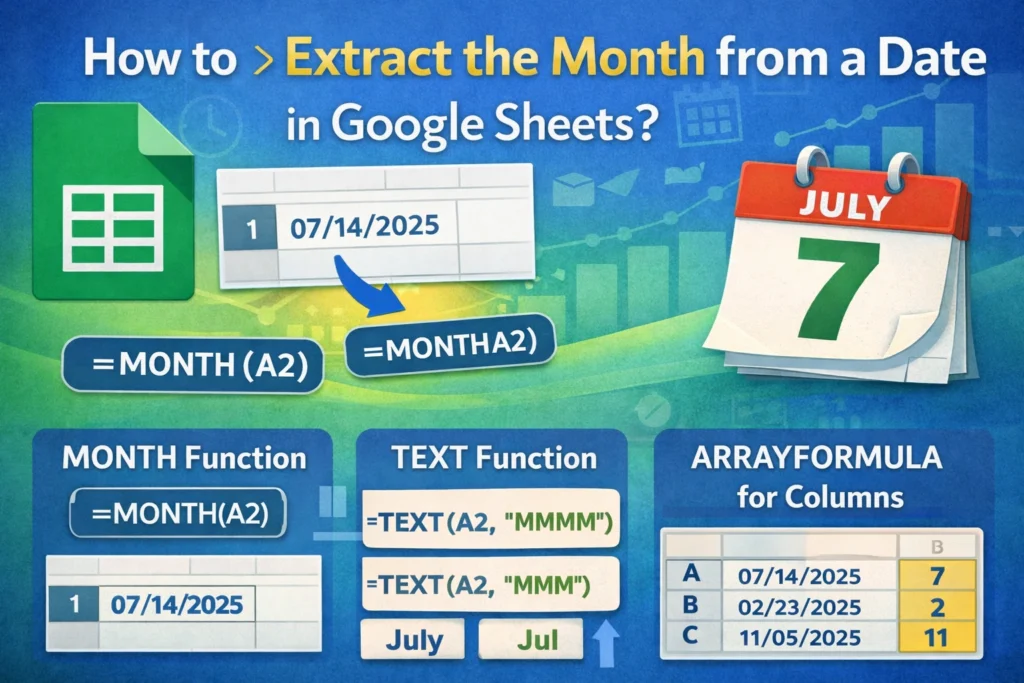
=MONTH(A2)If cell A2 contains 2025-07-14, this formula returns:
7This approach is ideal when:
- You need to group or filter by month
- You’re building pivot tables or summaries
- You plan to use the result in calculations
The MONTH function always returns a number, regardless of how the date is displayed.
How do you extract the month name instead of a number?
If you need the actual month name (like “January” or “Jan”), formatting functions are a better choice.
TEXT Formula Examples
Return the full month name:
=TEXT(A2,"MMMM")Return the abbreviated month name:
=TEXT(A2,"MMM")These formulas are best when:
- You’re creating labels for charts
- You want readable month names in reports
- The result is for display, not calculation
One important limitation: TEXT outputs text, not numbers. This means you can’t reliably sort months chronologically unless you pair them with numeric month values.
Can you extract the month using date formatting instead of formulas?
Yes, but this method only changes how the date is displayed—it does not change the underlying value.
If you:
- Select a date cell
- Go to Format → Number → Custom date and time
- Choose
MMMMorMMM
You’ll see the month name, but Google Sheets still treats the cell as a full date. This works well for visual reports but not for calculations or formulas that depend on the month value alone.
How do you extract the month from text-based dates?
Sometimes dates are imported as text, especially from CSV files or external tools. In these cases, MONTH won’t work until the text is converted into a real date.
DATEVALUE Formula Example
=MONTH(DATEVALUE(A2))This converts a text date like "07/14/2025" into a proper date, then extracts the month.
If DATEVALUE fails, it usually means:
- The date format doesn’t match your spreadsheet’s locale
- The text contains extra spaces or characters
How do you extract the month for an entire column automatically?
When working with large datasets, manually copying formulas isn’t ideal. This is where ARRAYFORMULA helps.
ARRAYFORMULA + MONTH Example
=ARRAYFORMULA(IF(A2:A="","",MONTH(A2:A)))This formula:
- Extracts the month from every date in column A
- Automatically expands as new rows are added
- Prevents errors from empty cells
This is especially useful for dashboards, templates, and ongoing logs.
What are common mistakes when extracting months in Google Sheets?
One of the most common issues is confusing displayed values with actual values. A cell showing “March” might still contain a full date underneath.
Other frequent mistakes include:
- Using
TEXTwhen numeric sorting is required - Forgetting that
MONTHreturns numbers, not names - Applying
MONTHto text dates without converting them first - Sorting month names alphabetically instead of chronologically
To avoid these issues, decide early whether you need the month for calculations or presentation.
When should you use MONTH vs TEXT for extracting months?
Use MONTH when:
- You need numeric values
- You’re grouping, filtering, or calculating
- The data will feed charts or summaries
Use TEXT when:
- The output is purely visual
- You want readable month names
- Sorting accuracy is not critical
In many real-world spreadsheets, the best approach is using both: numeric months for logic and formatted month names for display.
How does extracting months help with real-world reporting?
Extracting months allows you to:
- Summarize sales by month
- Track expenses over time
- Build dynamic charts
- Create reusable templates for monthly reporting
At Sheetrix, this technique is often paired with dashboards, budget trackers, and reporting templates where clean date handling makes the spreadsheet easier to maintain and scale.
Extracting the month from a date in Google Sheets is simple once you understand how dates actually work behind the scenes. Whether you need a number for calculations or a clean month name for reports, choosing the right function ensures your data stays accurate, flexible, and easy to use.





