
If you’ve ever needed to locate the exact position of a word or character inside a cell, the Google Sheets FIND function is built for that job. While it’s often confused with search tools or simpler text functions, FIND is a precise, case-sensitive way to pinpoint where text appears inside a string. In this guide, you’ll learn how Google Sheets FIND works, when to use it, common mistakes to avoid, and how it fits into real-world spreadsheet workflows on Google Sheets.
What does the Google Sheets FIND function do?
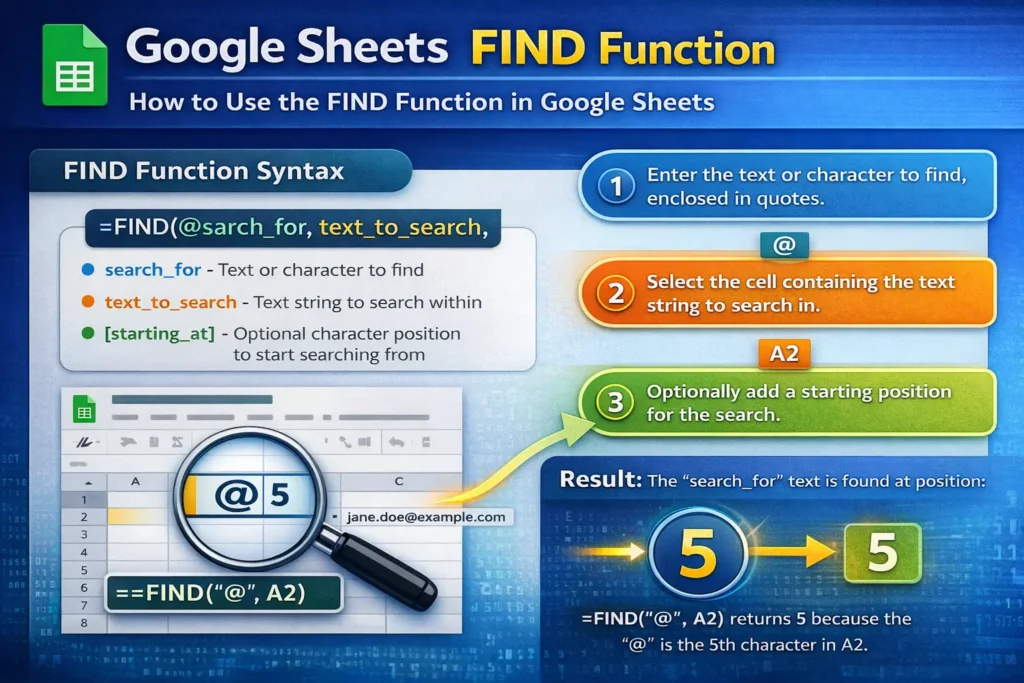
The FIND function returns the numeric position of a specific piece of text inside another text string. Instead of telling you whether something exists, it tells you where it starts. This makes FIND especially useful for text cleanup, parsing imported data, and building more advanced formulas.
For example, if a cell contains an email address, FIND can tell you where the “@” symbol appears so you can extract the username or domain. Because it’s case-sensitive, FIND is best used when letter case matters and consistency is important.
How is FIND different from SEARCH in Google Sheets?
FIND and SEARCH are closely related, but they behave differently in key situations. FIND is case-sensitive and does not support wildcards, while SEARCH ignores case and allows more flexible matching. If you need strict accuracy, FIND is the safer choice. If you’re working with messy or inconsistent text, SEARCH may be more forgiving.
A good rule of thumb is this: use FIND when you know exactly what you’re looking for and SEARCH when the text might vary in capitalization or structure.
What is the syntax of the Google Sheets FIND function?
Before diving into examples, it helps to understand the structure of the function itself.
FIND Function Syntax
=FIND(search_for, text_to_search, [starting_at])
- search_for is the text you want to locate
- text_to_search is the full text string you’re searching within
- starting_at is optional and lets you define where the search should begin
If the text isn’t found, FIND returns an error instead of a blank value, which is important to plan for in larger formulas.
Google Sheets FIND formula examples
Here are a few practical examples that show how FIND is commonly used in real spreadsheets.
Basic FIND example
=FIND("@", A2)
This returns the position of the “@” symbol in an email address stored in cell A2. If the email is name@example.com, the result would be 5.
FIND with a starting position
=FIND("-", A2, 6)
This searches for a dash after the sixth character. This is useful when the same character appears multiple times and you only want the second or third occurrence.
FIND combined with LEFT or RIGHT
=LEFT(A2, FIND(" ", A2) - 1)
This extracts the first word from a cell by locating the first space and returning everything before it. This pattern is extremely common in name cleanup and imported data workflows.
When should you use FIND instead of other text functions?
FIND works best when you need precision. It’s ideal for structured data like IDs, formatted text strings, SKUs, URLs, or email addresses where capitalization and exact characters matter. If your goal is simply to check whether text exists, functions like COUNTIF or REGEXMATCH may be more appropriate. If you need flexibility with case or patterns, SEARCH or REGEXEXTRACT may be a better fit.
What are common mistakes people make with Google Sheets FIND?
One of the most common mistakes is forgetting that FIND is case-sensitive. Searching for “abc” will not match “ABC,” which often surprises new users. Another frequent issue is not handling errors properly. If FIND doesn’t locate the text, it returns a #VALUE! error, which can break dependent formulas.
To prevent this, wrap FIND inside IFERROR when needed:=IFERROR(FIND("@", A2), "")
This keeps your spreadsheet clean and user-friendly, especially in dashboards or shared templates.
Can Google Sheets FIND be used in advanced formulas?
Yes, and this is where FIND really shines. It’s often combined with functions like MID, LEFT, RIGHT, LEN, and SUBSTITUTE to build powerful text transformations. Many professional spreadsheets rely on FIND as a building block rather than a standalone function.
For example, extracting everything after a delimiter usually involves FIND to locate the position and another function to return the desired text. This modular approach keeps formulas readable and easier to debug.
What are the limitations of the FIND function?
FIND does not support wildcards, regular expressions, or partial pattern matching. It also only returns the position of the first match after the starting point. If you need more advanced pattern detection or multiple matches, Google Sheets’ REGEX functions are a better choice.
Another limitation is usability for beginners: because FIND returns a number rather than text, it can feel unintuitive at first. Once you understand how position-based logic works, however, FIND becomes much more powerful.
How does FIND fit into real-world Google Sheets workflows?
In practice, FIND is most valuable in data cleanup, automation, and template design. It’s commonly used in expense trackers, CRM sheets, form responses, and any workflow that imports raw text from external sources. On Sheetrix, FIND pairs well with downloadable templates that require structured data extraction or dynamic text handling.
If you’re building spreadsheets that others will reuse, mastering FIND helps you create cleaner, more resilient formulas that adapt to changing inputs without manual edits.
Final thoughts on Google Sheets FIND
The Google Sheets FIND function may look simple, but it plays a critical role in advanced spreadsheet logic. By understanding when to use it, how it differs from similar functions, and how to combine it with other tools, you can dramatically improve how you work with text-based data. Whether you’re cleaning imports, parsing strings, or building reusable templates, FIND is a function worth mastering.





