

Excluding weekends in Google Sheets is a common requirement for project timelines, due date calculations, attendance tracking, and reporting. Whether you want to count only weekdays, skip Saturdays and Sundays in date ranges, or calculate deadlines based on business days, Google Sheets provides several reliable tools to handle this correctly. This guide explains the concepts behind excluding weekends, walks through the most practical functions, and shows how to avoid common mistakes that cause inaccurate results.
Why would you want to exclude weekends in Google Sheets?
Most real-world schedules operate on business days rather than calendar days. Project plans, SLAs, payroll cycles, and delivery estimates often need to ignore weekends entirely. If you simply subtract dates or count days normally, weekends will be included by default, which can inflate totals and push deadlines earlier than intended. Learning how to exclude weekends allows your spreadsheet to reflect how work actually happens.
Another reason this matters is consistency. Once a sheet grows with multiple formulas and dependencies, correcting weekend-related errors later can be time-consuming. Building weekend exclusion into your formulas from the start helps ensure accuracy across dashboards, templates, and shared reports.
What is the easiest way to exclude weekends between two dates?
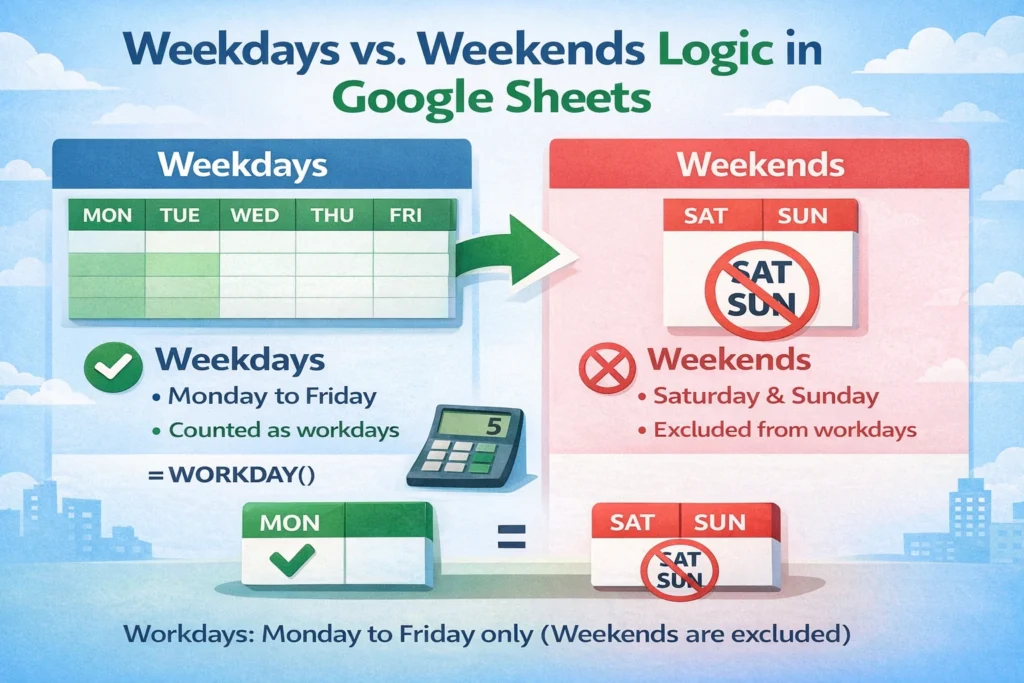
The simplest and most accurate method is using functions designed specifically for business-day calculations. These functions automatically skip Saturdays and Sundays without requiring complex logic.
NETWORKDAYS formula examples
The NETWORKDAYS function counts the number of working days between two dates, excluding weekends by default.
=NETWORKDAYS(A2, B2)
If cell A2 contains a start date and B2 contains an end date, this formula returns the number of weekdays between them. This approach is ideal for tracking how long a task takes or measuring turnaround time.
A lesser-known detail is that NETWORKDAYS includes both the start and end date if they fall on weekdays. This behavior is helpful for deadlines but can surprise users who expect a simple difference calculation. If you need exclusive counting, subtract 1 from the result.
How do you calculate a future date while skipping weekends?
When you need to add or subtract business days rather than count them, WORKDAY is the most reliable option.
WORKDAY formula examples
=WORKDAY(A2, 5)
This formula returns the date that is five business days after the date in A2. Weekends are skipped automatically. This is especially useful for delivery estimates, invoice due dates, or internal deadlines.
You can also move backward in time by using a negative number:
=WORKDAY(A2, -3)
This returns the date three business days before the start date.
A practical tip: WORKDAY adjusts automatically if the start date falls on a weekend, pushing the calculation to the next weekday. This behavior reduces the need for extra error handling.
How can you exclude weekends and custom days off at the same time?
In many workplaces, weekends are not the only non-working days. Holidays and company closures also need to be excluded.
NETWORKDAYS with holidays examples
=NETWORKDAYS(A2, B2, D2:D10)
In this formula, D2:D10 contains a list of holiday dates. NETWORKDAYS excludes both weekends and any dates listed in the holiday range.
One useful but often overlooked trick is keeping holidays in a separate sheet and naming the range. This allows multiple formulas across your workbook to reference the same holiday list without duplication, reducing maintenance errors when dates change.
How do you exclude weekends from a list of dates or timestamps?
When working with raw date lists or timestamps, filtering is often more practical than counting.
WEEKDAY filtering examples
=WEEKDAY(A2, 2)
Using the second parameter returns numbers from 1 (Monday) to 7 (Sunday). You can combine this with FILTER to remove weekends:
=FILTER(A2:A, WEEKDAY(A2:A, 2) <= 5)
This returns only weekday dates. This method is especially helpful for attendance logs, time tracking exports, or calendar-based reports.
A unique advantage of this approach is flexibility. You can redefine what counts as a weekend by adjusting the condition, which is useful in regions with non-standard workweeks.
What are common mistakes when excluding weekends?
One common mistake is subtracting dates directly and assuming weekends will be ignored. Date subtraction always includes all calendar days. Another issue is mixing text-formatted dates with true date values, which causes functions like NETWORKDAYS to return errors or incorrect results.
Another subtle pitfall is forgetting that NETWORKDAYS counts inclusive dates. This can lead to off-by-one errors when calculating task durations. Always test formulas with known date ranges to confirm the behavior matches your expectations.
When should you use COUNTIFS instead of date functions?
COUNTIFS is useful when you are counting records rather than calculating durations. For example, if you want to count how many entries occurred on weekdays only, COUNTIFS combined with WEEKDAY can be effective.
COUNTIFS weekday examples
=COUNTIFS(A2:A, “>=” & start_date, A2:A, “<=” & end_date, WEEKDAY(A2:A, 2), “<=5”)
While this approach works, it is generally less efficient than NETWORKDAYS for date calculations. Use COUNTIFS when you are filtering log data rather than measuring time spans.
How can excluding weekends improve spreadsheet performance and accuracy?
Using built-in business-day functions reduces formula complexity and recalculation overhead compared to nested IF statements or custom logic. It also makes spreadsheets easier to audit and hand off to others.
An advanced tip is to standardize weekend exclusion logic across templates. If all your project trackers use WORKDAY and NETWORKDAYS consistently, reports become easier to compare and maintain. This consistency is particularly valuable when building reusable templates for teams or clients.
Final thoughts on excluding weekends in Google Sheets
Excluding weekends in Google Sheets is not just about cleaner formulas—it’s about aligning your data with real-world workflows. Functions like NETWORKDAYS and WORKDAY provide accurate, readable solutions that scale well as spreadsheets grow. By understanding their behavior, limitations, and best use cases, you can build schedules and reports that users can trust.
If you frequently manage timelines or deadlines, consider pairing these formulas with a shared holiday list or a downloadable business-day template. Small setup steps like this can save hours of manual adjustments later.





