
The Google Sheets IFS function is a logical function designed to evaluate multiple conditions in a single formula and return a corresponding result for the first condition that evaluates to TRUE. Instead of nesting several IF statements inside each other, IFS allows you to test multiple scenarios in a cleaner, more readable way.
This makes IFS especially useful for grading systems, status labels, commission tiers, pricing brackets, performance scores, and any situation where values fall into clearly defined ranges. For beginners, it removes much of the confusion that comes with deeply nested IF formulas. For intermediate users, it improves formula readability and long-term spreadsheet maintenance.
How Does the IFS Function Work in Google Sheets?
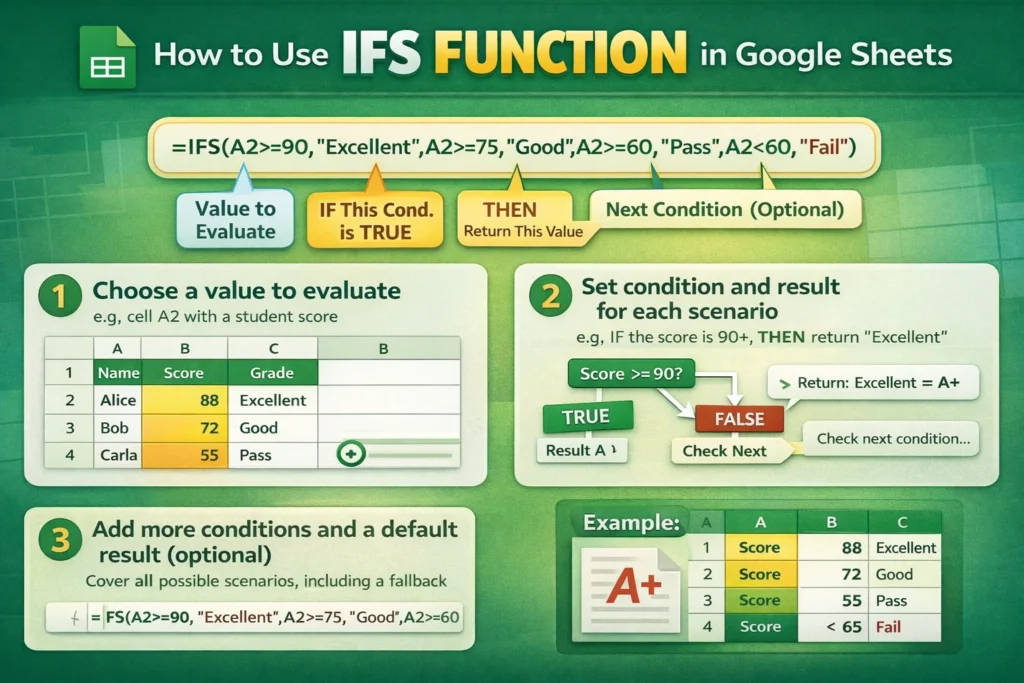
At its core, the IFS function works by evaluating conditions from left to right. Google Sheets checks each condition in order and returns the result tied to the first TRUE condition it encounters. Once a match is found, the formula stops evaluating additional conditions.
This behavior makes the order of conditions extremely important. More specific or restrictive conditions should generally come before broader ones. Unlike nested IFs, you don’t explicitly define what happens “else” at each step—you simply provide a sequence of condition-result pairs.
One key thing to understand is that IFS does not automatically include a default fallback value. If none of the conditions evaluate to TRUE, the formula returns a #N/A error unless you intentionally handle that case.
What Is the Syntax of the Google Sheets IFS Function?
The basic syntax looks like this:
IFS(condition1, value_if_true1, condition2, value_if_true2, …)
Each condition is followed by the value that should be returned if that condition is TRUE. You can include as many condition-value pairs as needed, as long as the formula remains readable and logical.
IFS always requires at least one condition-result pair, and it always evaluates conditions in the order they are written.
Google Sheets IFS Formula Examples
Basic Score or Range Classification Example
This is a common use case when assigning labels based on numeric ranges:
=IFS(A2>=90,”Excellent”,A2>=75,”Good”,A2>=60,”Pass”,A2<60,”Fail”)
In this example, Google Sheets checks the highest threshold first. If the score is 90 or above, it immediately returns “Excellent” and ignores the rest. This ordering prevents incorrect matches and ensures accurate results.
Text-Based Condition Example
IFS also works well with text comparisons:
=IFS(B2=”Completed”,”Done”,B2=”In Progress”,”Working”,B2=”Overdue”,”Action Needed”)
This is useful for dashboards, task trackers, and automated status labels commonly used in Google Sheets templates.
How Is IFS Different From Nested IF Statements?
Nested IF statements can accomplish the same logic as IFS, but they quickly become difficult to read and debug. A nested IF might work fine with two conditions, but with four or five conditions, the formula becomes cluttered and error-prone.
IFS improves clarity by eliminating repeated IF keywords and parentheses. This makes it easier to scan formulas, update conditions later, and collaborate with others who may not be advanced spreadsheet users.
However, nested IF statements still have value when you need complex branching logic or when results depend on previous conditions in more nuanced ways.
Does the IFS Function Have Limitations in Google Sheets?
Yes, and understanding these limitations can save you time.
First, IFS does not include a built-in “else” condition. If none of the conditions are met, the formula returns #N/A. To avoid this, many users include a final condition like TRUE,”Default Value” at the end of the formula.
Second, IFS evaluates conditions strictly in order and stops at the first TRUE result. This means poorly ordered conditions can lead to unexpected outcomes.
Third, IFS cannot replace all logical scenarios. For complex logic involving AND, OR, or multiple dependencies, you may still need to combine IFS with logical functions or use nested IFs instead.
When Should You Use IFS Instead of IF, IFERROR, or SWITCH?
IFS is best when you are comparing a single value against multiple distinct conditions and want a clean, readable formula. It shines in range-based classifications and structured decision rules.
IF is often better when you only have one condition or when logic branches depend on previous outcomes. SWITCH is more efficient when you are matching exact values repeatedly, especially text or fixed numeric codes.
A useful rule of thumb is this: use IFS for ordered conditions, SWITCH for exact matches, and IF for simple true/false logic.
Common Mistakes to Avoid When Using the IFS Function
One of the most common mistakes is placing broad conditions before specific ones. For example, checking A2>0 before checking A2>100 will cause higher values to never reach the later condition.
Another frequent issue is forgetting a fallback condition, which leads to #N/A errors in real-world spreadsheets. This becomes especially problematic in dashboards or templates meant for sharing.
Finally, many users overuse IFS when a simpler function would work. While IFS improves readability, clarity should always come before cleverness.
Practical Tips That Most IFS Tutorials Don’t Mention
One underused technique is pairing IFS with conditional formatting logic. By matching formula logic with formatting rules, you can ensure your visual indicators always align with your calculations.
Another useful approach is combining IFS with lookup tables once your conditions exceed five or six rules. This improves performance and makes your spreadsheet easier to update without editing formulas.
Finally, remember that IFS formulas are easier to audit when each condition follows a consistent pattern. Keeping ranges aligned and readable reduces future errors—especially in templates designed for public use.
How the IFS Function Fits Into Real-World Google Sheets Templates
IFS is commonly used behind the scenes in budget trackers, employee performance dashboards, grading systems, habit trackers, and project management templates. On Sheetrix, it pairs naturally with templates that classify data automatically, assign statuses, or generate summaries without manual input.
By mastering IFS, you gain more than a formula—you gain a structured way to turn raw data into meaningful, automated decisions inside Google Sheets.





