
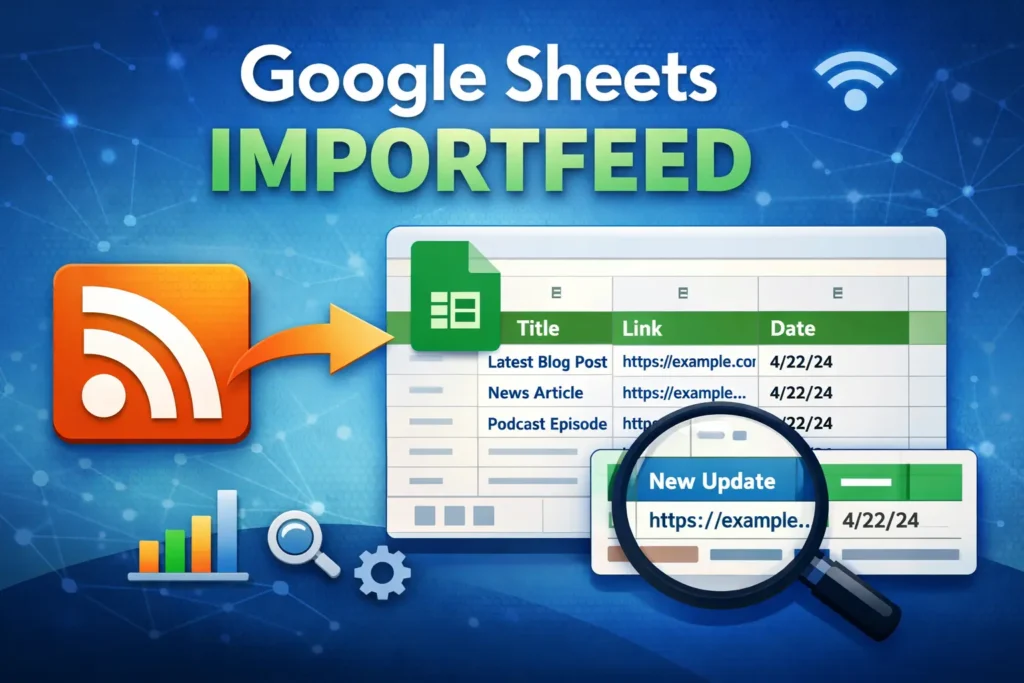
The Google Sheets IMPORTFEED function is a built-in tool that lets you pull data directly from RSS or Atom feeds into a spreadsheet. Instead of manually checking blogs, news sites, podcasts, or update feeds, IMPORTFEED allows your sheet to automatically fetch the latest entries and display them in structured columns. This makes it especially useful for content monitoring, research, SEO tracking, and lightweight automation.
If you work with blogs, newsletters, product updates, or any site that publishes an RSS feed, IMPORTFEED turns that constantly updating stream into a live table you can sort, filter, and analyze inside Google Sheets.
How Does IMPORTFEED Work in Google Sheets?
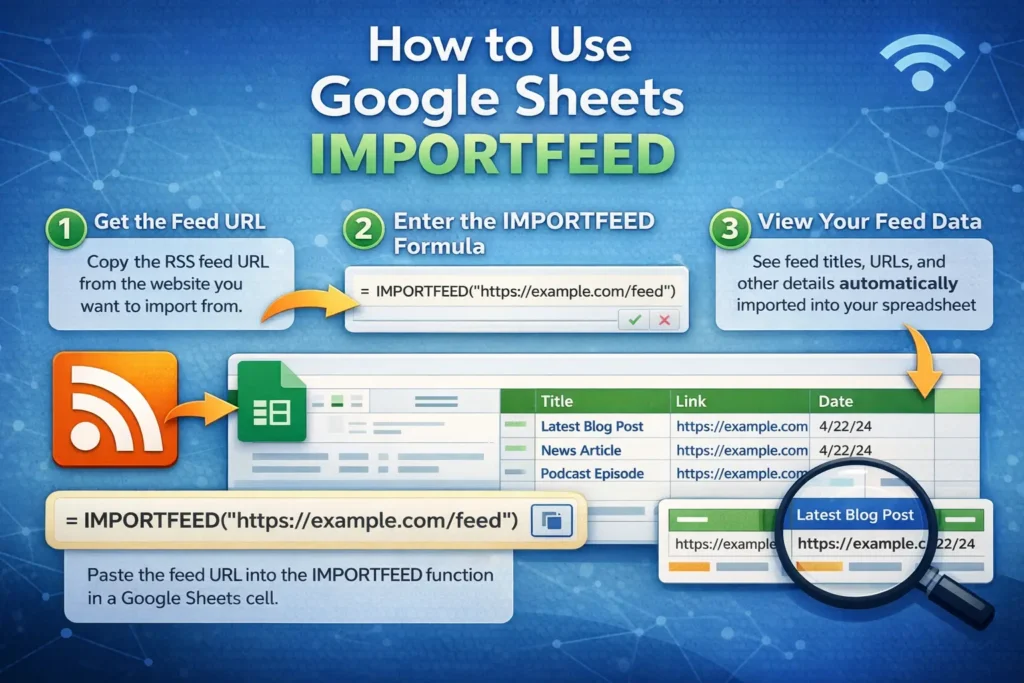
At its core, IMPORTFEED reads a public RSS or Atom feed URL and converts each feed item into rows and columns. Every time the spreadsheet refreshes, Google re-fetches the feed and updates the data automatically.
The function doesn’t scrape full web pages. Instead, it relies on the structured XML format of feeds, which means it’s more reliable than many scraping approaches. However, it also means IMPORTFEED only works if the site actually provides a valid feed.
What Data Can IMPORTFEED Pull From a Feed?
IMPORTFEED can return several types of information depending on how you configure it. Common data includes:
- Post or item titles
- URLs linking to each entry
- Publish dates
- Author names (if available)
- Summaries or descriptions
Not every feed provides all of these fields. The output depends entirely on what the feed exposes, which is why some feeds look more detailed than others when imported.
IMPORTFEED Formula Examples
Below are the most useful and commonly used IMPORTFEED formulas. These examples are intentionally limited and clean so you can understand how the function works without unnecessary complexity.
Basic IMPORTFEED Example
This pulls the default set of feed items, usually titles and links:
=IMPORTFEED("https://example.com/feed")Import Only Titles
If you only want article titles:
=IMPORTFEED("https://example.com/feed","items title")Import Titles and URLs
This is one of the most practical setups for monitoring content:
=IMPORTFEED("https://example.com/feed","items title","items url")Limit the Number of Items Returned
To avoid clutter and improve performance, you can limit how many entries are imported:
=IMPORTFEED("https://example.com/feed","items title","items url",10)This pulls only the 10 most recent items from the feed.
What Are the Most Common Use Cases for IMPORTFEED?
IMPORTFEED is popular because it solves real problems with minimal setup. Some of the most common use cases include content monitoring, where marketers track competitor blogs or industry news in one spreadsheet. It’s also useful for SEO research, letting you monitor new posts from multiple sources and analyze publishing frequency or headline patterns.
Another practical use is internal dashboards. You can feed company blog updates, changelogs, or announcements into a shared sheet so teams always see the latest content without visiting multiple sites. IMPORTFEED also pairs well with templates that track publication dates, topics, or outreach opportunities.
What Are the Limitations of IMPORTFEED?
While IMPORTFEED is convenient, it does have limitations. First, it only works with RSS or Atom feeds. If a site doesn’t provide a feed, IMPORTFEED won’t work. Second, Google enforces refresh limits. Feeds don’t update instantly, and excessive usage across many cells can cause errors or delayed updates.
Another limitation is formatting control. You can’t customize how summaries are truncated or how dates are formatted directly inside IMPORTFEED. That formatting must be handled with additional spreadsheet formulas after the data is imported.
Why Does IMPORTFEED Sometimes Return Errors?
Errors usually happen for a few reasons. The most common is an invalid or blocked feed URL. Some sites restrict automated access, which prevents Google from fetching the feed. Another issue is malformed XML, where the feed technically exists but doesn’t follow proper standards.
You may also encounter errors if you try to load too many feeds at once in a single spreadsheet. In those cases, splitting feeds across multiple sheets or reducing item limits often resolves the issue.
When Should You Use IMPORTFEED vs Other Import Functions?
IMPORTFEED is best when you’re working with structured feed data. If you need content from regular web pages instead, functions like IMPORTXML or IMPORTHTML are more appropriate. IMPORTFEED is also not a replacement for APIs or advanced automation tools, but it excels as a lightweight, no-code solution for monitoring updates.
For example, if you want headlines from a blog, IMPORTFEED is cleaner and more reliable than scraping the page. If you need specific elements from within an article, another function may be a better fit.
How Can You Extend IMPORTFEED With Other Formulas?
Once feed data is inside your sheet, you can combine it with filtering, sorting, and lookup functions to build powerful workflows. Many users pair IMPORTFEED with QUERY to filter items by date, or with TEXT functions to clean up titles and summaries.
This is where IMPORTFEED truly shines. It doesn’t just import data—it becomes the foundation for dashboards, trackers, and templates that update automatically with new content.
Is IMPORTFEED Right for Your Spreadsheet Workflow?
If you rely on frequently updated content and want a simple way to centralize it, IMPORTFEED is one of the most underused functions in Google Sheets. It’s easy to learn, requires no scripting, and integrates naturally with other spreadsheet tools.
On Sheetrix, IMPORTFEED works especially well alongside content tracking templates, research dashboards, and monitoring spreadsheets. Once you understand how it works, it becomes a reliable building block for smarter, more automated sheets.





