
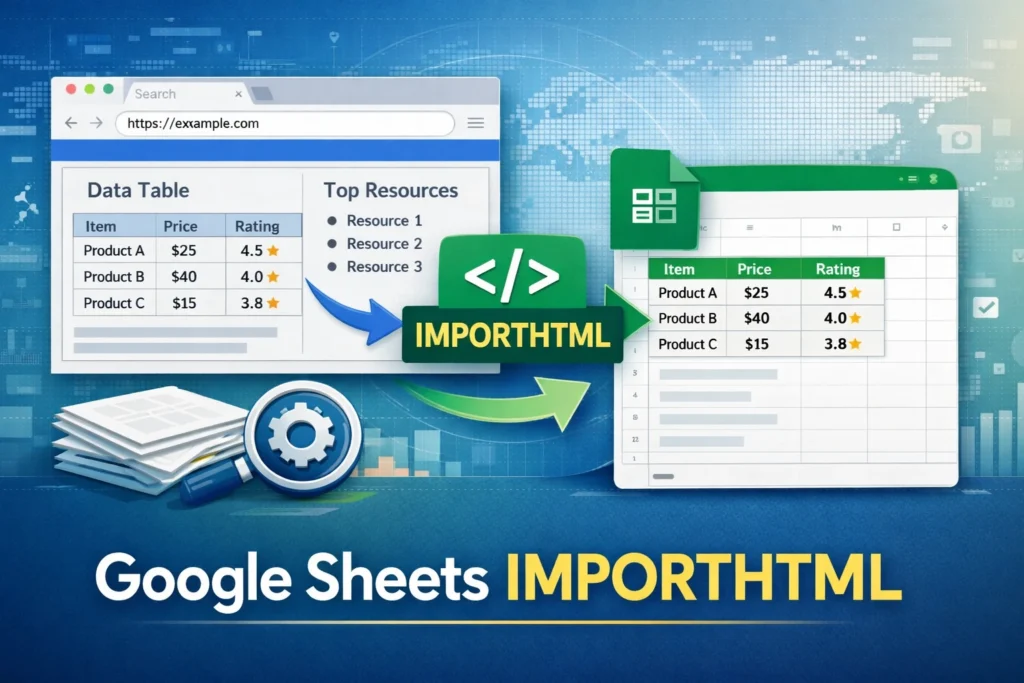
If you’ve ever copied data from a website into a spreadsheet, you know how tedious it can be. Google Sheets IMPORTHTML solves that problem by pulling tables or lists directly from a web page and keeping them updated automatically. In this guide, you’ll learn exactly how the IMPORTHTML function works, when to use it, and how to avoid the most common pitfalls.
What Is Google Sheets IMPORTHTML and When Should You Use It?
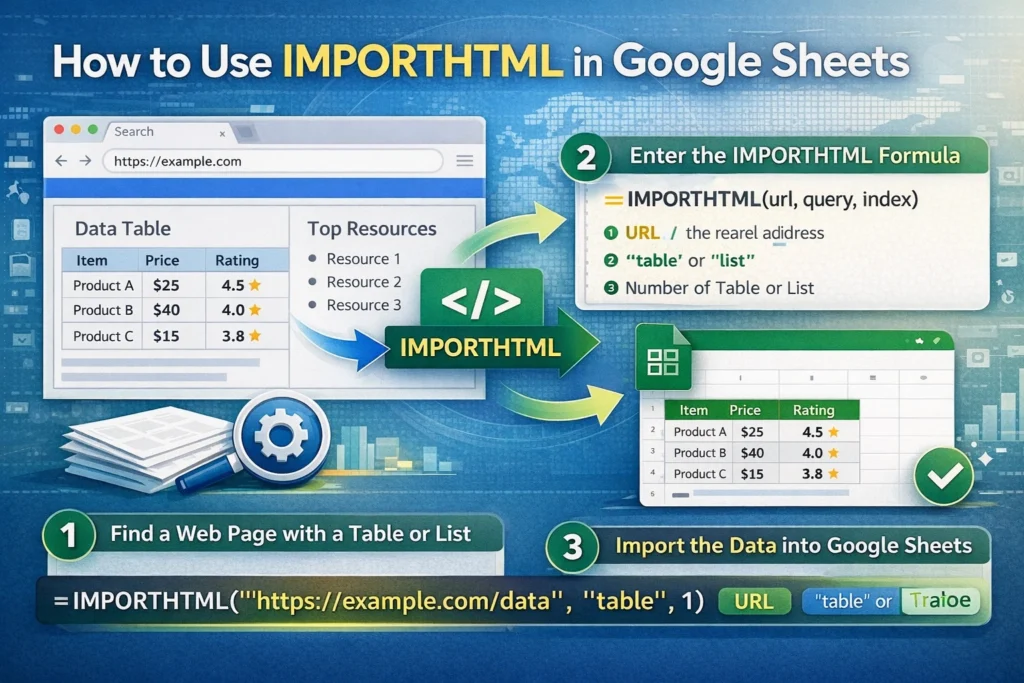
IMPORTHTML is a Google Sheets function that extracts structured data—specifically HTML tables or HTML lists—from a public web page and inserts that data into your spreadsheet. It’s ideal when the data already exists in a clean, visible format on a website and you want to reference it without manual copying.
You should use IMPORTHTML when:
- The data appears in a table or bulleted/numbered list on a webpage
- The page is publicly accessible (no login required)
- You want the data to refresh automatically when the source updates
It’s not a good fit for dashboards rendered with heavy JavaScript, hidden elements, or content behind paywalls.
How Does the IMPORTHTML Function Work?
At a high level, IMPORTHTML scans the raw HTML of a webpage and looks for either <table> or <ul>/<ol> elements. You tell Google Sheets which type to extract and which instance to return.
The function always returns a full range of cells, expanding automatically based on the size of the source table or list. Because of this, the destination area must be empty or you’ll see an error.
IMPORTHTML Syntax Explained Simply
The syntax is straightforward but very specific:
=IMPORTHTML(url, query, index)- url: The full web address of the page you’re importing from
- query: Either
"table"or"list" - index: A number indicating which table or list on the page to import (starting at 1)
If a page contains multiple tables, changing the index value lets you cycle through them until you find the one you need.
IMPORTHTML Formula Examples
Basic Table Import Example
=IMPORTHTML("https://example.com/data", "table", 1)This imports the first table found on the page. If the page has multiple tables, increase the index value until the correct one appears.
Importing a List From a Web Page
=IMPORTHTML("https://example.com/resources", "list", 2)This pulls the second HTML list from the page, such as a bulleted or numbered list.
Finding the Correct Table Index
A practical trick is to temporarily test multiple index values:
=IMPORTHTML("https://example.com/data", "table", 1)
=IMPORTHTML("https://example.com/data", "table", 2)
=IMPORTHTML("https://example.com/data", "table", 3)
Once you see the table you want, keep that index and delete the others.
Why Isn’t IMPORTHTML Working? Common Errors Explained
IMPORTHTML is powerful, but it’s also picky. Here are the most common issues users run into:
#ERROR or #N/A
This usually means Google Sheets can’t access the page or can’t find a matching table or list. Double-check that the URL is public and that the query type matches the actual content.
“Could not fetch URL”
The site may block automated requests, require cookies, or restrict scraping. IMPORTHTML can’t bypass these limitations.
Nothing appears or wrong data shows up
This often means the index number is incorrect. Pages with ads, navigation tables, or hidden layout tables may require trial and error.
What Are the Limitations of Google Sheets IMPORTHTML?
Understanding the limitations helps you avoid frustration:
- IMPORTHTML cannot read JavaScript-rendered content
- It only supports tables and lists, not arbitrary page text
- Some websites intentionally block scraping
- Large or frequently updating imports may slow down your spreadsheet
- Formatting from the original site is not preserved
If the data is dynamic or loaded after the page renders, IMPORTHTML won’t see it.
When Should You Use IMPORTHTML vs IMPORTXML?
IMPORTHTML is best when the data is already neatly packaged in tables or lists. IMPORTXML is more flexible and can target almost any element using XPath, but it’s also more complex.
Use IMPORTHTML when:
- The structure is simple
- You want quick results
- You don’t want to write XPath queries
Use IMPORTXML when:
- The data isn’t in a table or list
- You need more control over what’s extracted
- You’re comfortable working with XPath
For many beginners, IMPORTHTML is the easiest entry point into live web data.
How Can You Combine IMPORTHTML With Other Functions?
IMPORTHTML becomes even more useful when paired with other Google Sheets functions. For example, you can wrap it in QUERY to filter results, or use INDEX to extract specific rows or columns after the data loads.
A common pattern is to import the data on a hidden sheet and reference it elsewhere in your workbook, keeping your main dashboard clean and organized.
Is Google Sheets IMPORTHTML Reliable for Ongoing Use?
For lightweight use cases—such as reference tables, pricing lists, or rankings—IMPORTHTML is reliable and convenient. However, because it depends on the external site’s structure, changes to the page can break your formula without warning.
If the data is business-critical, consider backing it up periodically or using a more stable data source.
Final Thoughts on Google Sheets IMPORTHTML
Google Sheets IMPORTHTML is one of the easiest ways to pull live data from the web into your spreadsheets. When used correctly, it can save hours of manual work and keep your data automatically up to date. By understanding how the function works, its limitations, and when to use alternatives, you can confidently decide whether IMPORTHTML is the right tool for your workflow.
If you regularly work with web-based data, mastering IMPORTHTML is a simple upgrade that pays off quickly—especially when combined with other spreadsheet functions and reusable templates.





