
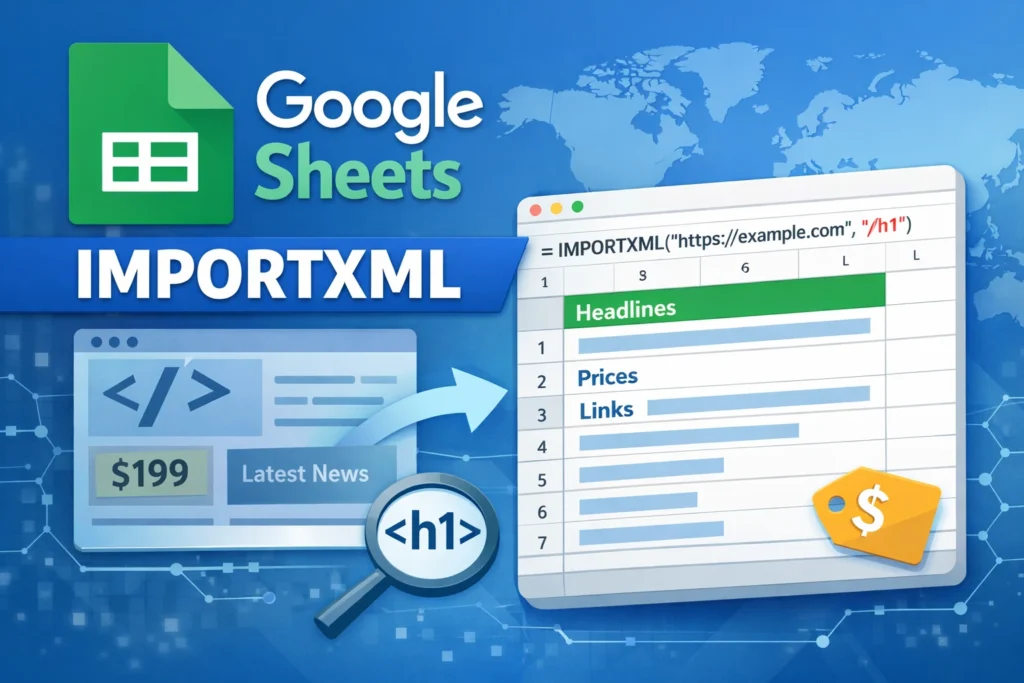
If you’ve ever wanted to pull live data from a website straight into Google Sheets, the IMPORTXML function is one of the most powerful tools you can learn. It allows you to extract specific pieces of information—like prices, headlines, tables, or stats—from webpages and keep them updated automatically inside your spreadsheet.
This guide explains how Google Sheets IMPORTXML works, when to use it, its limitations, and how to avoid the most common mistakes, all in a practical, beginner-friendly way.
What is Google Sheets IMPORTXML and why would you use it?
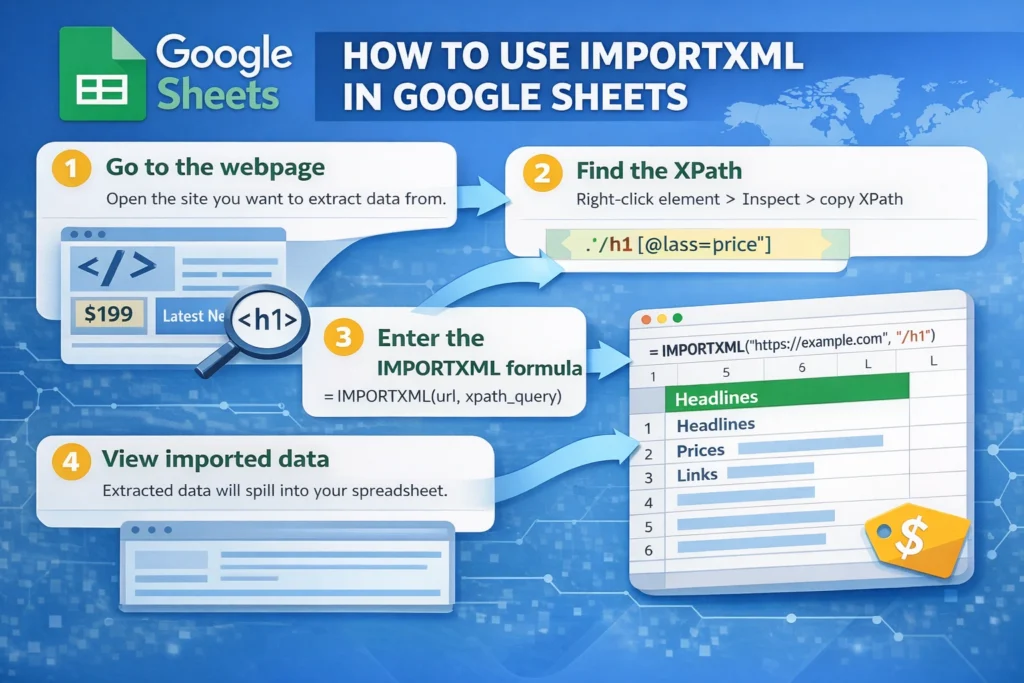
IMPORTXML is a Google Sheets function that fetches structured data from a webpage using XPath queries. XPath is a language used to navigate HTML and XML documents, which makes it possible to target very specific elements on a page.
You would use IMPORTXML when you want to:
- Pull live data from a public website
- Track changing values like prices or rankings
- Extract tables, lists, or headlines for analysis
- Avoid manual copy-and-paste updates
Unlike importing CSV files or APIs, IMPORTXML works directly with webpage content and updates automatically when the source page changes.
How does IMPORTXML work in Google Sheets?
At its core, IMPORTXML has two required inputs: the URL of the webpage and an XPath query that tells Google Sheets what to extract.
The function loads the page in the background, scans its HTML structure, and returns any elements that match your XPath query. If multiple elements match, the results spill into rows or columns automatically.
Because it relies on webpage structure, IMPORTXML works best on static, well-structured pages. Dynamic pages that load content with JavaScript often won’t work.
IMPORTXML syntax explained simply
Before diving into examples, it’s important to understand the basic structure of the function.
IMPORTXML Function Syntax
=IMPORTXML(url, xpath_query)- url: The full webpage URL in quotes or referenced from a cell
- xpath_query: A string that defines which HTML elements to extract
Even though XPath can look intimidating at first, many use cases rely on simple patterns that you can reuse.
What types of data can IMPORTXML extract?
IMPORTXML is surprisingly flexible when used correctly. You can extract:
- Headings (H1, H2, etc.)
- Paragraph text
- Links
- Table rows and columns
- Meta data
- Lists and repeating elements
For example, pulling all headlines from a blog page or extracting rows from a pricing table are common real-world uses.
Common IMPORTXML formula examples
These examples cover the most practical use cases without overwhelming you with unnecessary variations.
IMPORTXML Formula Examples
Extract all H1 headings from a page
=IMPORTXML("https://example.com", "//h1")Extract all links from a page
=IMPORTXML("https://example.com", "//a/@href")Extract text from a specific div class
=IMPORTXML("https://example.com", "//div[@class='price']")Extract table rows
=IMPORTXML("https://example.com", "//table//tr")Each of these queries tells Google Sheets exactly which HTML elements to return. If multiple elements match, they’ll appear in multiple rows.
How do you find the right XPath for IMPORTXML?
Finding the correct XPath is the hardest part for most beginners, but it gets easier with practice.
The simplest method is:
- Open the webpage in Chrome
- Right-click the element you want and select “Inspect”
- Look at the HTML structure and tag names
- Identify unique attributes like class or id values
You don’t need perfect XPaths—simple, broad queries often work better and are more resilient to page changes.
What are the limitations of IMPORTXML?
IMPORTXML is powerful, but it’s not perfect. Understanding its limitations will save you a lot of frustration.
Key limitations include:
- It does not work reliably with JavaScript-loaded content
- Websites can block scraping requests
- Large or complex pages may return errors
- Data refreshes are not instant and can be delayed
- XPath queries can break if the page structure changes
If a site loads data dynamically or behind user interactions, IMPORTXML may return blank results even if the page looks normal in your browser.
Common IMPORTXML errors and how to fix them
Most IMPORTXML issues fall into a few predictable categories.
“Imported content is empty”
This usually means the XPath doesn’t match anything on the page or the content is loaded dynamically.
“Could not fetch URL”
The site may be blocking Google’s request, or the URL may require authentication.
Unexpected blank cells
Try simplifying your XPath or checking if the site structure changed.
When troubleshooting, test your XPath against broader elements first, then narrow it down gradually.
When should you use IMPORTXML vs other import functions?
Google Sheets includes several import functions, and choosing the right one matters.
Use IMPORTXML when:
- You need specific elements from HTML pages
- The site doesn’t offer a CSV or API
- You want flexible scraping rules
Use alternatives like IMPORTDATA or IMPORTHTML when:
- The site provides clean tables or CSV files
- You don’t need complex selectors
- Reliability is more important than flexibility
IMPORTXML offers the most control, but it also requires the most maintenance.
Is IMPORTXML safe and allowed to use?
IMPORTXML simply reads publicly available webpage content, but you should still use it responsibly.
Best practices include:
- Avoid excessive refreshes
- Don’t scrape sensitive or private data
- Respect website terms of service
- Use caching or helper sheets when scaling
For personal analysis, dashboards, and research, IMPORTXML is widely used and accepted.
How can IMPORTXML support real-world spreadsheet workflows?
On Sheetrix, IMPORTXML is especially useful for:
- Tracking competitor prices
- Monitoring blog updates
- Pulling stats into dashboards
- Automating research-heavy workflows
When paired with functions like FILTER, QUERY, and IFERROR, IMPORTXML becomes a foundation for powerful automation without coding.
Final thoughts on using Google Sheets IMPORTXML effectively
Google Sheets IMPORTXML is one of those functions that feels advanced at first but quickly becomes indispensable once you understand it. The key is focusing on practical use cases, keeping XPath queries simple, and knowing when another import method might be a better fit.
If you frequently work with external data or want to automate updates inside your spreadsheets, mastering IMPORTXML is well worth the effort—and it pairs perfectly with the kind of templates and workflows Sheetrix is built for.





