
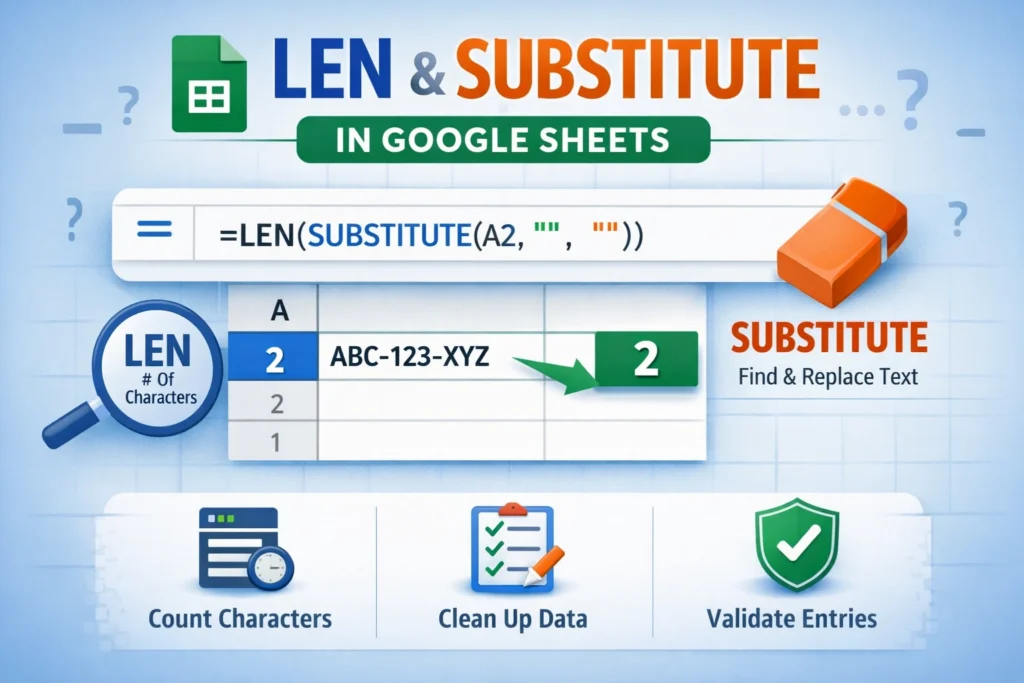
The combination of LEN and SUBSTITUTE is one of the most powerful and underused techniques in Google Sheets, especially for cleaning data, counting specific characters, validating formats, and working around messy imports.
In this guide, you’ll learn exactly how LEN and SUBSTITUTE work together, why this pattern is so effective, and how to apply it confidently in real spreadsheets. We’ll focus on understanding the logic behind the formulas, not just memorizing them, so you can adapt the technique to new situations without guessing.
What do LEN and SUBSTITUTE do individually in Google Sheets?
Before combining them, it’s important to understand what each function does on its own.
LEN returns the total number of characters in a text string. This includes letters, numbers, spaces, and punctuation. It does not care what the characters are—only how many exist.
SUBSTITUTE replaces one piece of text with another inside a string. It can remove characters entirely, replace them with something else, or selectively target specific text patterns.
Individually, these functions are simple. Together, they unlock logic that Google Sheets does not provide as a built-in function.
Why would you use LEN and SUBSTITUTE together?
The reason people combine LEN and SUBSTITUTE is simple: Google Sheets has no native function for counting specific characters.
You can’t directly ask Sheets questions like:
- How many spaces are in this cell?
- How many dashes appear in this ID?
- How many commas separate values?
- How many characters remain after removing symbols?
By removing characters with SUBSTITUTE and comparing lengths before and after, you can answer all of these questions accurately.
This pattern works because LEN measures size, while SUBSTITUTE controls what stays or disappears.
How does the LEN + SUBSTITUTE technique actually work?
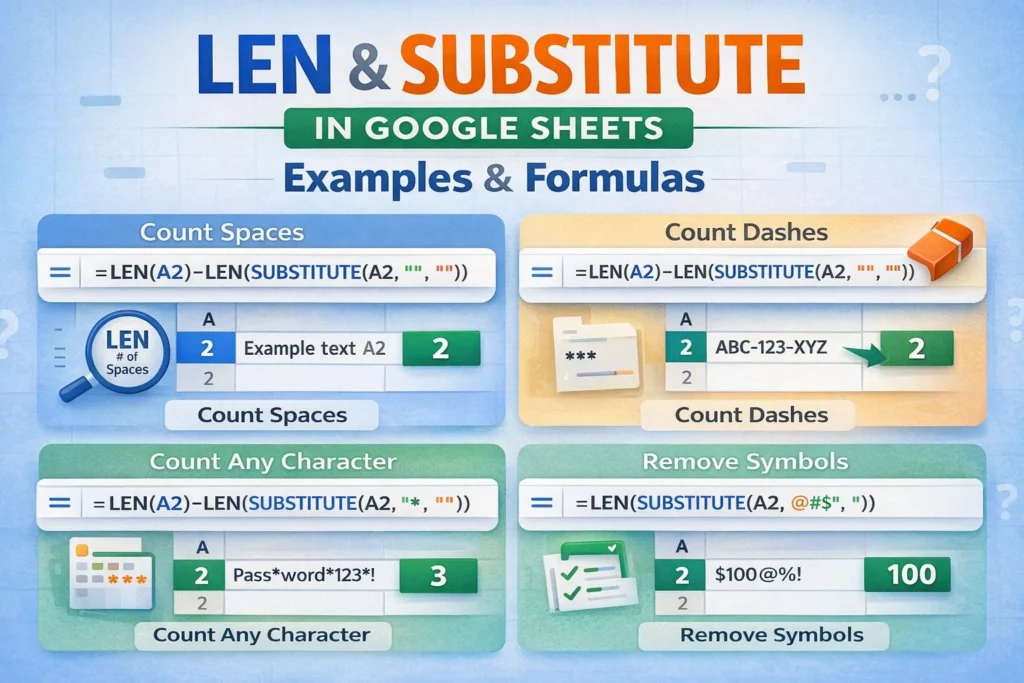
The core idea is comparison.
- Measure the length of the original text
- Remove a specific character using SUBSTITUTE
- Measure the length of the cleaned text
- Subtract the two results
The difference tells you how many characters were removed.
This logic is reliable, fast, and works across large datasets without helper columns.
How do you count spaces using LEN and SUBSTITUTE in Google Sheets?
Counting spaces is the most common use case for this technique and a perfect place to start.
LEN + SUBSTITUTE Space Count Formula
=LEN(A1)-LEN(SUBSTITUTE(A1," ",""))This works because each space removed shortens the text by exactly one character.
Why this matters: counting spaces is often used to estimate word counts, validate formatting, or detect accidental spacing issues in imported data.
New insight: this formula also helps detect double spaces, which are common in copied content and can break downstream logic like lookups and text comparisons.
How can you estimate word count using LEN and SUBSTITUTE?
Google Sheets has no native word count function, but LEN and SUBSTITUTE make it possible.
The logic is simple: the number of words is usually one more than the number of spaces, assuming clean text.
Word Count Formula Using LEN and SUBSTITUTE
=LEN(A1)-LEN(SUBSTITUTE(A1," ",""))+1This works best when:
- Text is trimmed
- There are no extra spaces at the beginning or end
- Words are separated by single spaces
If accuracy matters, pair this with TRIM before counting.
How do you count commas, dashes, or other characters?
The same pattern applies to any character, not just spaces.
For example, to count commas:
Comma Count Formula
=LEN(A1)-LEN(SUBSTITUTE(A1,",",""))To count dashes:
=LEN(A1)-LEN(SUBSTITUTE(A1,"-",""))This is extremely useful when validating structured text like CSV fragments, SKU codes, or account numbers.
Unique insight: counting separators is often more reliable than counting total characters when validating formats. A product code with the correct number of dashes but inconsistent segment lengths can still be flagged correctly.
How do you count characters after removing specific text?
Sometimes you don’t want to count how many characters were removed—you want to count what remains.
In this case, SUBSTITUTE is used first to clean the text, and LEN measures the result.
Count Characters After Removing Symbols
=LEN(SUBSTITUTE(A1,"$",""))This counts all characters except dollar signs.
This pattern is useful when normalizing user input before validation, especially when users include formatting characters that shouldn’t affect length limits.
How do LEN and SUBSTITUTE help with data validation rules?
One of the most practical uses of LEN and SUBSTITUTE is inside data validation.
For example, suppose you require an ID with exactly two dashes.
Validation Logic Example
=LEN(A1)-LEN(SUBSTITUTE(A1,"-",""))=2This formula doesn’t care where the dashes appear—only that the correct number exists.
New insight: this approach is often better than strict pattern matching because it allows flexibility while still enforcing structure.
How do you count line breaks or hidden characters?
Imported data often includes invisible characters like line breaks.
To count line breaks:
=LEN(A1)-LEN(SUBSTITUTE(A1,CHAR(10),""))This is especially important when working with pasted text from PDFs, emails, or form submissions.
Why this matters: line breaks can cause formulas to fail silently, especially when exporting or syncing data between tools.
How do LEN and SUBSTITUTE work with ARRAYFORMULA?
When working with entire columns, combining LEN, SUBSTITUTE, and ARRAYFORMULA keeps spreadsheets clean and efficient.
Column-Wide Example
=ARRAYFORMULA(LEN(A2:A)-LEN(SUBSTITUTE(A2:A," ","")))
This counts spaces for every row without copying formulas down manually.
Unique insight: ARRAYFORMULA versions of LEN + SUBSTITUTE are often faster than using helper columns, especially in large datasets.
What are common mistakes when using LEN and SUBSTITUTE together?
One common mistake is forgetting that SUBSTITUTE is case-sensitive. Replacing “a” will not remove “A” unless you explicitly handle both.
Another issue is assuming all spaces are normal spaces. Non-breaking spaces (CHAR(160)) will not be removed unless specifically targeted.
A third mistake is using this pattern when COUNT or COUNTA would be clearer. LEN + SUBSTITUTE is powerful, but it’s not always the simplest tool.
When should you avoid using LEN and SUBSTITUTE?
Avoid this technique when:
- You only need to know whether a cell is empty
- You’re counting values, not characters
- The text structure is highly irregular and better handled with REGEX functions
LEN and SUBSTITUTE are best for controlled character-level logic, not general text parsing.
How does this differ from Excel?
While Excel supports LEN and SUBSTITUTE, Google Sheets pairs especially well with this pattern because:
- ARRAYFORMULA makes scaling easier
- REGEX functions can be layered on top when needed
- Cloud-based data imports are more common, increasing the need for character cleanup
If you’re building templates meant for Google Sheets users, this combination is far more valuable than it might appear at first glance.
Practical guidance for Sheetrix templates and real workflows
If you’re designing reusable spreadsheets, LEN + SUBSTITUTE should be part of your core toolkit. It allows you to:
- Validate formats without rigid patterns
- Clean user input before calculations
- Detect subtle data issues early
- Reduce helper columns and clutter
When used thoughtfully, this technique makes spreadsheets more resilient to real-world messiness—the kind that tutorials rarely cover.
Final thoughts on using LEN and SUBSTITUTE together in Google Sheets
LEN and SUBSTITUTE aren’t just compatible—they’re complementary. LEN measures size, SUBSTITUTE controls content, and together they let you answer questions Google Sheets doesn’t natively support.
If you understand the logic behind this pairing, you won’t need to search for formulas every time a new problem appears. You’ll be able to adapt the pattern to whatever text-based challenge your spreadsheet throws at you.
That’s the difference between memorizing formulas and actually understanding how spreadsheets work.





