
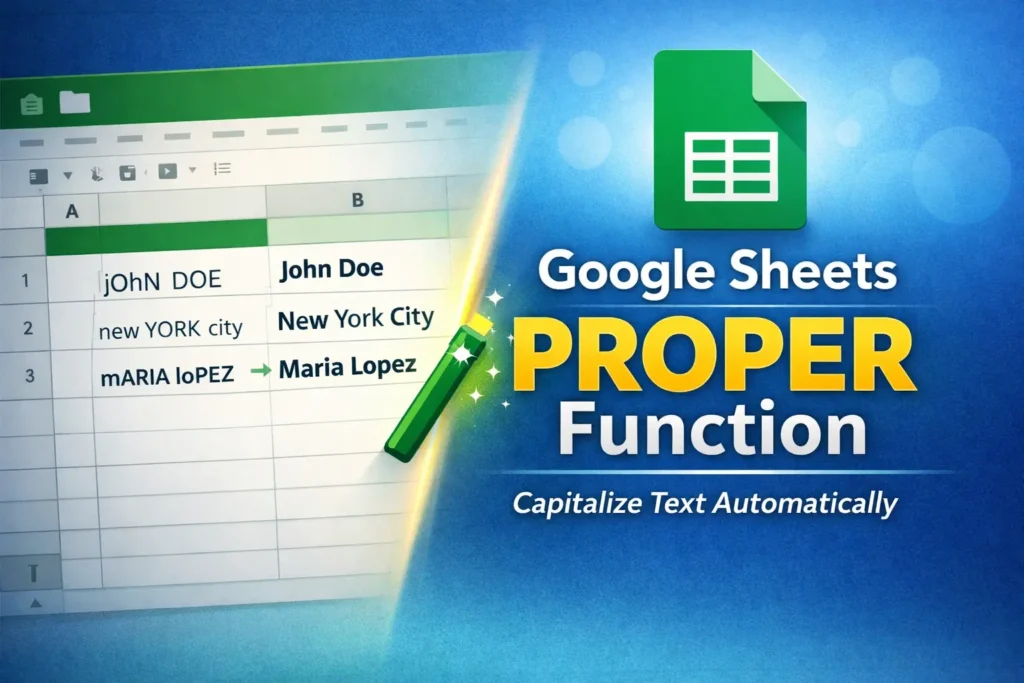
If you work with names, titles, or text imported from messy data sources, formatting capitalization consistently can be surprisingly frustrating. That’s exactly what the Google Sheets PROPER function is designed to solve. In this guide, you’ll learn what PROPER does, when to use it, how it compares to other text functions, and how to avoid common mistakes—so your spreadsheets look clean, professional, and ready to share.
What Is the PROPER Function in Google Sheets?
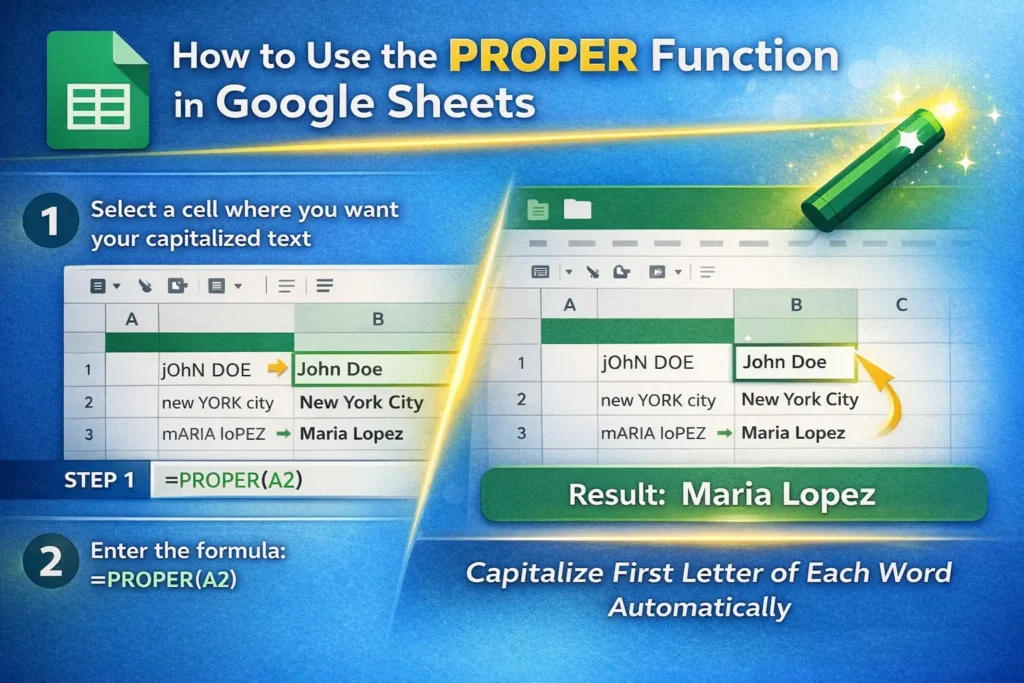
The PROPER function in Google Sheets capitalizes the first letter of each word in a text string while converting the remaining letters to lowercase. It’s most commonly used to clean up names, locations, and titles that were entered in inconsistent formats.
For example, text like jOhN DOE or new YORK city can be instantly converted into properly capitalized text without manual editing. This is especially helpful when you’re working with imported data, form responses, or user-generated content where formatting isn’t controlled.
PROPER doesn’t change the underlying meaning of your data—it simply standardizes how the text looks, making your spreadsheet easier to read and more presentable.
How Does PROPER Work Behind the Scenes?
PROPER treats any character following a space or punctuation mark as the start of a new word. It capitalizes that character and lowercases the rest of the word. This means it works well for most common use cases like full names, business names, and addresses.
However, it’s important to understand that PROPER doesn’t “understand” language rules. It applies a consistent mechanical rule, which can sometimes produce results you may need to adjust, especially with acronyms or special naming conventions.
PROPER Formula Examples
Use PROPER when you want to convert inconsistent capitalization into title case.
=PROPER(A1)
If cell A1 contains mARIA loPEZ, the result will be Maria Lopez.
You can also combine PROPER with other functions for more advanced cleanup. For example, if your data contains extra spaces, wrap it with TRIM first:
=PROPER(TRIM(A1))
This ensures you get clean capitalization without unexpected spacing issues.
When Should You Use PROPER Instead of UPPER or LOWER?
Choosing the right text function depends on the formatting you want.
Use PROPER when you want each word to start with a capital letter, such as names, cities, or book titles. Use UPPER when everything should be capitalized, like product codes or abbreviations. Use LOWER when consistency matters more than presentation, such as email addresses or URLs.
Understanding this distinction helps you avoid unnecessary rework and keeps your data aligned with how it will actually be used.
What Are Common Real-World Uses for PROPER?
PROPER is especially useful in situations where presentation matters. Cleaning up contact lists is one of the most common examples—first names, last names, and company names often arrive in inconsistent formats.
It’s also helpful for preparing reports, dashboards, or printable documents where professional formatting is expected. If you share spreadsheets with clients, coworkers, or external stakeholders, PROPER can dramatically improve readability with minimal effort.
Another practical use is standardizing form responses. When users enter text freely, capitalization varies widely. Applying PROPER allows you to normalize that data before analysis or export.
What Are the Limitations of the PROPER Function?
While PROPER is powerful, it’s not perfect. One common issue is how it handles acronyms and brand names. For example, NASA becomes Nasa, and iPhone becomes Iphone. In these cases, PROPER applies its standard rule without understanding that certain words should remain fully capitalized or follow special casing.
Hyphenated words and names with apostrophes can also produce mixed results. PROPER will capitalize letters after punctuation, which may or may not match your preferred style.
Because of these limitations, PROPER works best as a first-pass cleanup tool. You may still need to manually adjust specific edge cases or apply conditional logic for special terms.
Can You Apply PROPER to an Entire Column?
Yes, and this is where PROPER becomes especially powerful. If you want to format an entire column automatically, you can use an array formula.
=ARRAYFORMULA(PROPER(A2:A))
This applies PROPER to every non-empty cell in the column starting at A2. It’s ideal for dynamic spreadsheets where new data is added regularly and you want formatting applied automatically.
How Does PROPER Compare to Similar Functions in Excel?
Google Sheets PROPER works very similarly to the PROPER function in Excel, which makes it easy to switch between platforms. The main difference lies in how array formulas are handled—Google Sheets natively supports ARRAYFORMULA, while Excel uses different approaches depending on the version.
Functionally, though, the capitalization behavior is nearly identical, so you can rely on consistent results across tools.
What Are Common Mistakes to Avoid When Using PROPER?
One mistake is assuming PROPER will handle every capitalization rule correctly. It’s important to review results when working with acronyms, technical terms, or branded names.
Another common issue is overwriting original data. Best practice is to apply PROPER in a separate column so you can verify results before replacing your source text.
Finally, don’t forget to clean your data first. Extra spaces, hidden characters, or inconsistent punctuation can affect results. Combining PROPER with TRIM often produces much cleaner output.
When Should You Use PROPER as Part of a Larger Workflow?
PROPER works best as one step in a broader data-cleaning process. It pairs naturally with functions like TRIM, CLEAN, and SUBSTITUTE to prepare text for analysis, reporting, or export.
If you frequently format names or titles, consider building PROPER directly into your templates. This ensures consistent results every time and saves you from repetitive manual cleanup.
Final Thoughts on Using PROPER in Google Sheets
The Google Sheets PROPER function is a simple but powerful tool for improving the appearance and consistency of text data. While it doesn’t replace thoughtful formatting in every situation, it dramatically reduces cleanup time for common use cases.
By understanding how PROPER works, when to use it, and where its limitations lie, you can confidently apply it in real-world spreadsheets—and keep your data looking polished and professional.





