
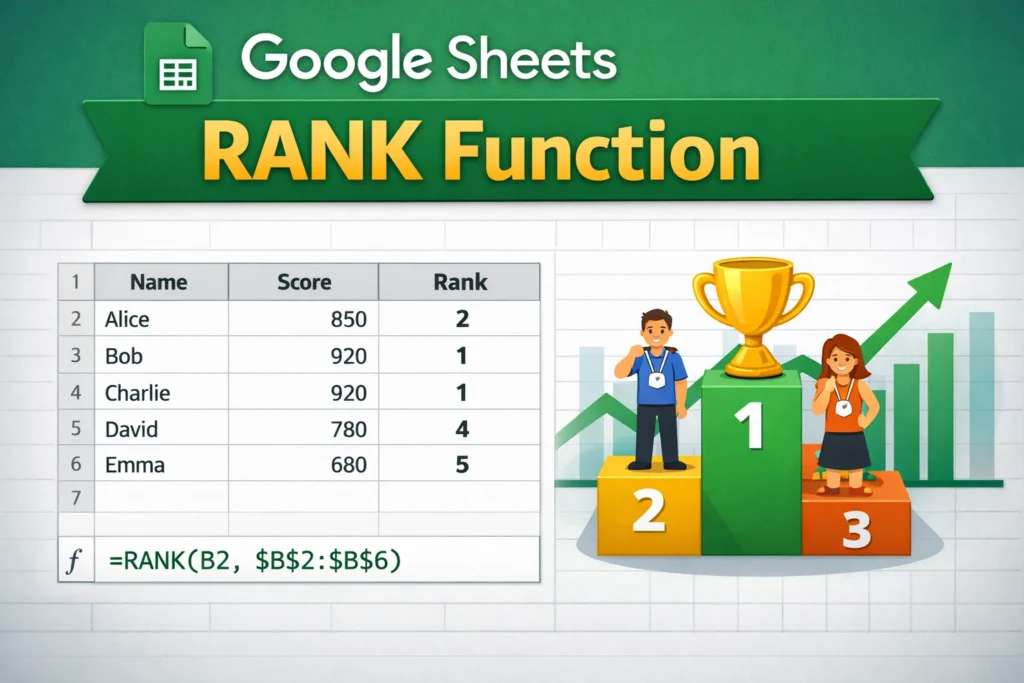
Ranking data is one of the most common spreadsheet tasks—whether you’re building a leaderboard, ordering sales reps by performance, or sorting students by test scores. The Google Sheets RANK function makes this easy, but it also has a few quirks that can trip people up if you don’t understand how it works. This guide explains the RANK function clearly, shows when to use it, and helps you choose the right ranking method for real-world spreadsheets.
What Does the Google Sheets RANK Function Do?
The Google Sheets RANK function returns the position of a number within a list of numbers. In simple terms, it tells you how a value compares to other values in the same dataset.
For example, if you have sales totals for ten employees, RANK can tell you who is 1st, 2nd, 3rd, and so on based on those totals. The function does not rearrange your data—it only calculates a ranking number that you can display in another column.
This makes RANK especially useful for dashboards, reports, and summaries where you want rankings to update automatically as data changes.
How Does the Google Sheets RANK Function Work?
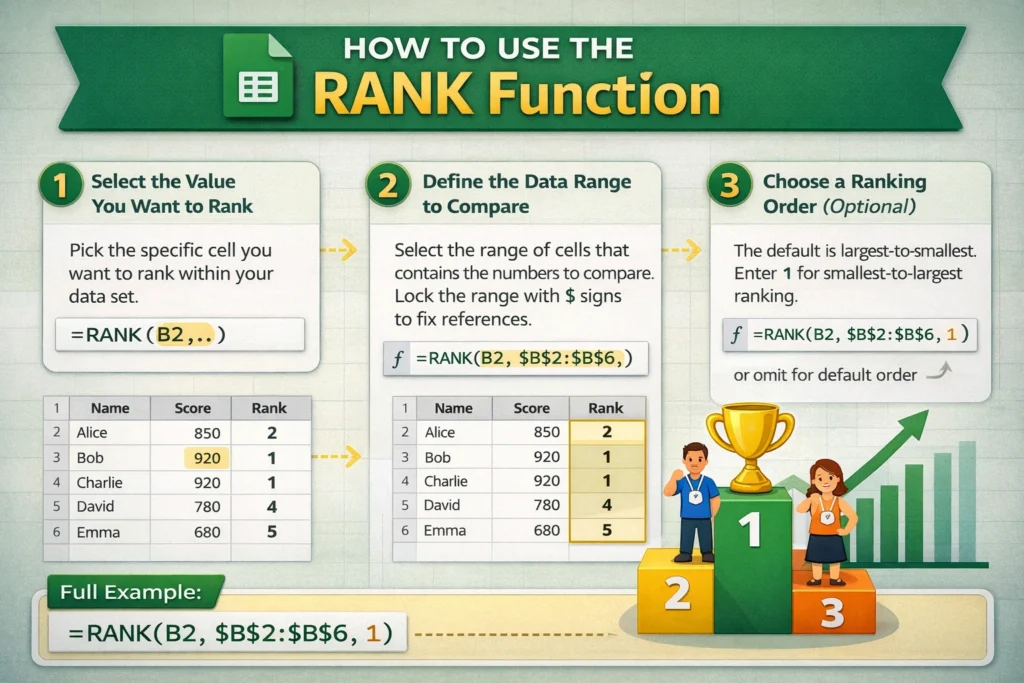
At its core, the RANK function compares one number against a range of numbers and determines its relative position. You can choose whether higher values should rank first or last.
The basic structure looks like this conceptually:
- A value you want to rank
- A list of values to compare it against
- An optional setting that controls ascending or descending order
By default, Google Sheets assumes you want the largest value to be ranked #1, which matches most use cases like scores, revenue, or performance metrics.
Google Sheets RANK Function Syntax
RANK Formula Examples
=RANK(number, data_range)Ranks the number within the data range, with the highest value ranked as 1.
=RANK(number, data_range, 1)Ranks the number in ascending order, meaning the smallest value is ranked as 1.
=RANK(A2, $A$2:$A$11)Ranks the value in cell A2 against all values in A2:A11, locking the range so it can be copied down.
These formulas are usually placed in a separate “Rank” column next to your data.
Should You Rank Largest-to-Smallest or Smallest-to-Largest?
Choosing the ranking order depends on what your numbers represent.
Use descending ranking (default) when:
- Higher numbers are better (sales, scores, revenue)
- You want “#1” to represent the top performer
Use ascending ranking (order = 1) when:
- Lower numbers are better (race times, error counts, response times)
- You want the smallest value to rank first
Being explicit about the order argument can prevent confusion later, especially if someone else uses your spreadsheet.
How Does Google Sheets Handle Ties in Rankings?
One of the most important things to understand about the Google Sheets RANK function is how it handles duplicate values.
If two or more values are the same:
- They receive the same rank
- The next rank is skipped
For example, if two values tie for rank 2, the next rank returned will be 4, not 3. This is called competition ranking, and it’s the default behavior.
This is correct for many scenarios, but it’s not always what people expect—especially if you want continuous rankings with no gaps.
How Can You Create Rankings Without Gaps?
If you want rankings like 1, 2, 2, 3 instead of 1, 2, 2, 4, the standard RANK function alone won’t do it.
In those cases, you’ll need to combine ranking logic with additional functions such as counting unique values or using helper columns. While this takes a bit more setup, it’s often worth it for leaderboards, contest results, or ordered lists where skipped numbers feel confusing.
This is a common reason users move beyond basic RANK and start exploring more advanced ranking approaches in Google Sheets.
What Are Common Mistakes When Using the RANK Function?
Many ranking errors come from small oversights rather than misunderstandings of the function itself.
Common mistakes include:
- Forgetting to lock the data range with dollar signs, causing rankings to shift when formulas are copied
- Ranking text values instead of numbers, which produces errors
- Mixing ascending and descending logic inconsistently across a sheet
- Assuming RANK automatically sorts data (it does not)
Being intentional about range references and order settings avoids most of these problems.
When Should You Use RANK vs Other Ranking Methods?
The Google Sheets RANK function is ideal when:
- You need quick, dynamic rankings
- Ties are acceptable
- You don’t need sequential numbering
You may want a different approach when:
- You need unique ranks with no duplicates
- You want alphabetical or custom-category rankings
- You’re ranking based on multiple criteria (for example, score first, then time)
In those cases, combining ranking logic with sorting, filtering, or helper columns can produce better results.
Are There Any Limitations of the Google Sheets RANK Function?
Yes—while RANK is powerful, it’s intentionally simple.
Limitations to keep in mind:
- It only works with numeric values
- It doesn’t break ties automatically
- It doesn’t consider secondary criteria
- It doesn’t reorder rows on its own
Understanding these limits helps you decide when RANK is the right tool and when you need a more customized solution.
How Can You Use RANK in Real-World Spreadsheets?
In practice, the Google Sheets RANK function is most effective when paired with clean data and clear labels. It works especially well in:
- Sales leaderboards
- Academic grade summaries
- Sports standings
- Performance dashboards
- KPI tracking templates
If you’re building reusable templates or dashboards, RANK is often the simplest way to add instant insights without complex formulas.
Final Thoughts on the Google Sheets RANK Function
The Google Sheets RANK function is a foundational tool for anyone working with performance data, comparisons, or ordered lists. Once you understand how it handles order and ties, it becomes easy to apply confidently in real spreadsheets.
For most ranking tasks, RANK is fast, readable, and reliable. And when your needs go beyond its built-in behavior, knowing its limitations makes it easier to choose the right alternative. If you regularly work with ranked data, mastering this function is a small investment that pays off across countless spreadsheets.





