
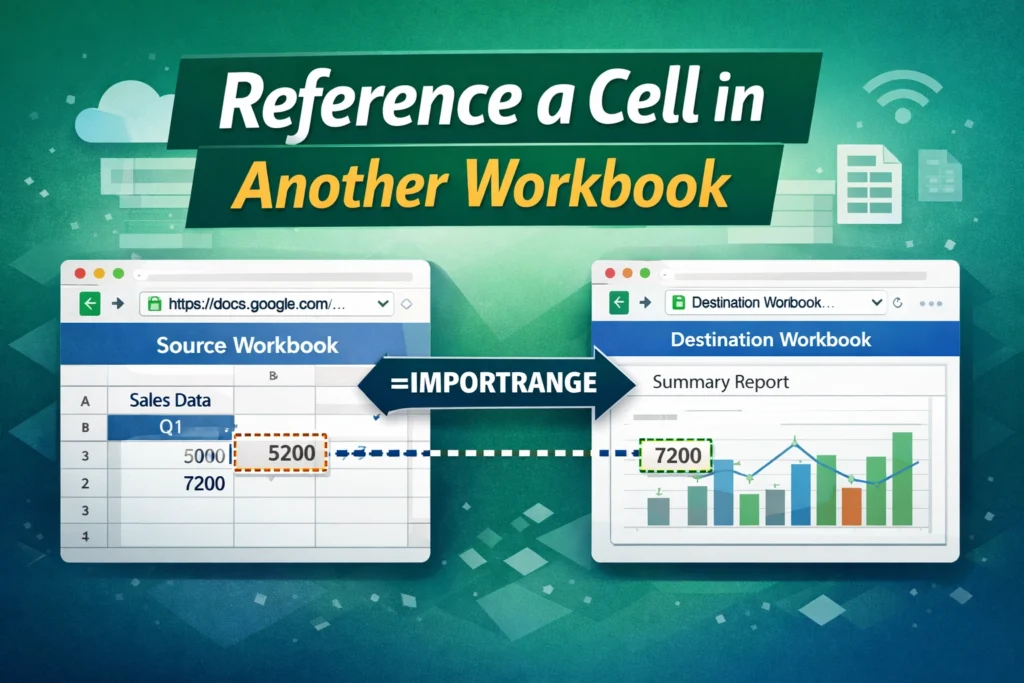
Referencing a cell in another workbook in Google Sheets is one of the most useful skills you can learn once your spreadsheets start to grow. Instead of duplicating data across files, you can pull values from one spreadsheet into another and keep everything automatically updated. This is especially helpful for dashboards, reports, budgets, trackers, and shared templates.
In Google Sheets, referencing cells across workbooks is done using built-in functions that create a live connection between files. Once set up correctly, changes in the source spreadsheet flow through instantly to any connected sheets.
What does “another workbook” mean in Google Sheets?
In Google Sheets, a “workbook” usually refers to an entirely separate spreadsheet file, not just another tab within the same file. Referencing another workbook means pulling data from a different Google Sheets file, often owned by you or shared with you.
This is different from referencing another sheet within the same spreadsheet, which only requires a sheet name. When working across files, Google Sheets requires a function that can access external data safely and reliably.
Which function is used to reference a cell in another workbook?
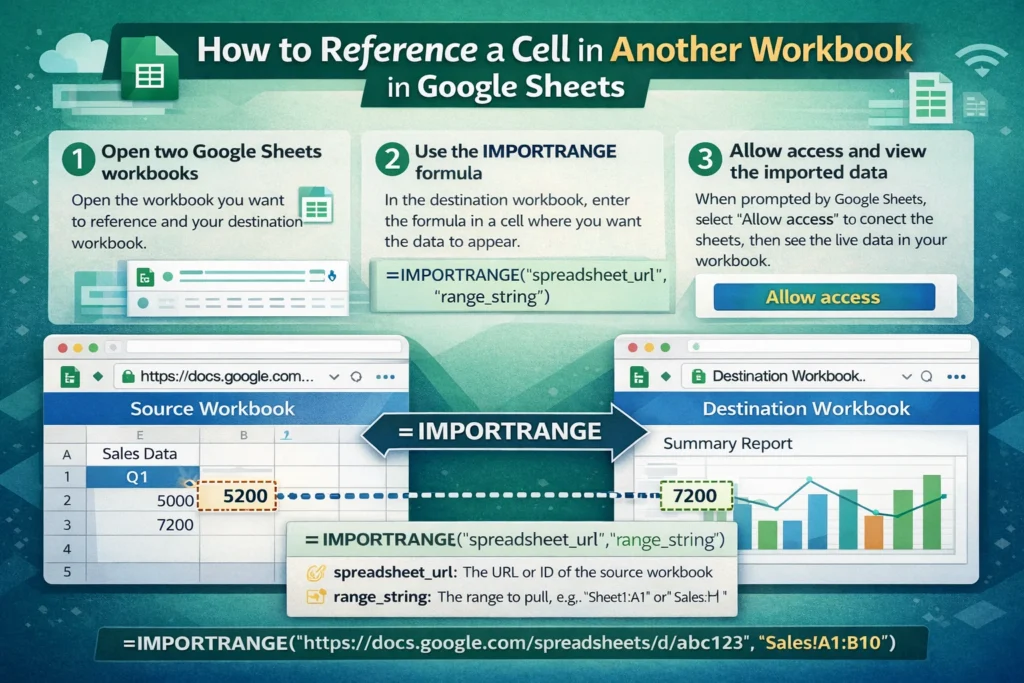
Google Sheets uses the IMPORTRANGE function to reference cells from another workbook. This function allows one spreadsheet to read data from another spreadsheet using its unique file URL or ID.
IMPORTRANGE is designed specifically for cross-file references, making it the standard and most reliable solution for this task.
IMPORTRANGE basics
IMPORTRANGE pulls data from a specified range in another spreadsheet and displays it in your current sheet. The connection is live, meaning updates to the source file are reflected automatically.
Before data appears, Google Sheets asks for permission to connect the two files. Once access is granted, the link remains active unless permissions change.
How does the IMPORTRANGE function work?
IMPORTRANGE requires two arguments: the source spreadsheet and the range you want to pull.
IMPORTRANGE Formula Syntax
=IMPORTRANGE("spreadsheet_url","range_string")The spreadsheet URL can be the full link or just the file ID. The range string includes the sheet name and cell range.
IMPORTRANGE Formula Examples
=IMPORTRANGE("https://docs.google.com/spreadsheets/d/abc123","Sheet1!A1")=IMPORTRANGE("abc123","Sales!B2:D10")In both examples, data from the source workbook appears exactly as it exists in the original file. If the source updates, the imported values update automatically.
What happens the first time you connect two workbooks?
The first time you use IMPORTRANGE between two files, Google Sheets returns a #REF! error with a prompt asking you to allow access. This is normal and expected.
Click Allow access once, and the data will load. This permission applies to the entire spreadsheet, not just one formula, so future IMPORTRANGE formulas using the same source file won’t require reauthorization.
Can you reference a single cell or multiple cells?
IMPORTRANGE works equally well for single cells, ranges, entire columns, or even full sheets. If you reference a single cell, it still behaves like a dynamic link.
For example, referencing one cell:
=IMPORTRANGE("abc123","Settings!B2")Referencing an entire column:
=IMPORTRANGE("abc123","Data!A:A")Pulling entire columns or large ranges is powerful, but it can impact performance if overused. For large workbooks, it’s best to import only what you actually need.
How can you combine IMPORTRANGE with other functions?
One of the biggest advantages of referencing another workbook is that you can immediately use the imported data in calculations, filters, and summaries.
For example, you might combine IMPORTRANGE with SUM, FILTER, or QUERY to build reports without ever opening the source file.
IMPORTRANGE with FILTER Example
=FILTER(
  IMPORTRANGE("abc123","Sales!A2:C"),
  IMPORTRANGE("abc123","Sales!C2:C")>1000
)
This pulls sales data from another workbook and filters it based on a condition, all inside the destination file. This approach is common in dashboards and automated reports.
What are common mistakes when referencing another workbook?
One frequent issue is forgetting to include the sheet name in the range string. Google Sheets requires the exact sheet name followed by an exclamation mark.
Another common mistake is mismatched permissions. If you lose access to the source spreadsheet, the IMPORTRANGE formula will break.
Users also often import entire columns unnecessarily, which can slow down the sheet. Limiting ranges improves performance and keeps spreadsheets responsive.
Are there limitations to referencing another workbook?
While IMPORTRANGE is powerful, it does have limitations. You cannot edit the imported data directly; it is read-only. Any changes must be made in the source workbook.
There can also be short delays when data refreshes, especially in large or complex spreadsheets. Google Sheets manages these connections in the background, so updates may not always appear instantly.
Finally, IMPORTRANGE only works within Google Sheets. It does not connect directly to Excel files unless they are converted to Google Sheets format.
How is this different from referencing another sheet in the same workbook?
When referencing a sheet within the same workbook, you don’t need IMPORTRANGE. You can directly use a standard cell reference with the sheet name.
For example:
=Sheet2!A1This is simpler and faster because everything exists in the same file. IMPORTRANGE is only required when data lives in a completely separate spreadsheet.
When should you use another workbook instead of one large spreadsheet?
Separating data into multiple workbooks makes sense when you want to control access, reuse data across multiple projects, or keep raw data isolated from reports.
For example, you might keep a master data workbook that feeds multiple reporting spreadsheets. Each report can reference the same source without duplicating information, reducing errors and maintenance work.
How can referencing another workbook improve real-world workflows?
Cross-workbook references are especially useful for budget templates, inventory trackers, content calendars, and analytics dashboards. A single source of truth can feed multiple views, ensuring consistency.
For teams, this approach allows collaborators to update data in one place while others work on analysis and presentation separately. This structure scales well as spreadsheets become more complex.
How can you get started faster with prebuilt templates?
If you regularly reference data across spreadsheets, starting with a well-designed template can save time and prevent mistakes. Templates that already separate input data from reporting make IMPORTRANGE easier to implement and maintain.
Sheetrix templates are built with real-world workflows in mind, helping you organize data cleanly and connect spreadsheets without unnecessary complexity.
What’s the key takeaway for referencing a cell in another workbook?
Referencing a cell in another workbook in Google Sheets is best handled with IMPORTRANGE. Once you understand how it works, you can build dynamic, scalable spreadsheets that stay updated automatically.
By using clean ranges, combining functions thoughtfully, and understanding the limitations, you can confidently connect multiple spreadsheets and keep your data accurate, efficient, and easy to manage.





