
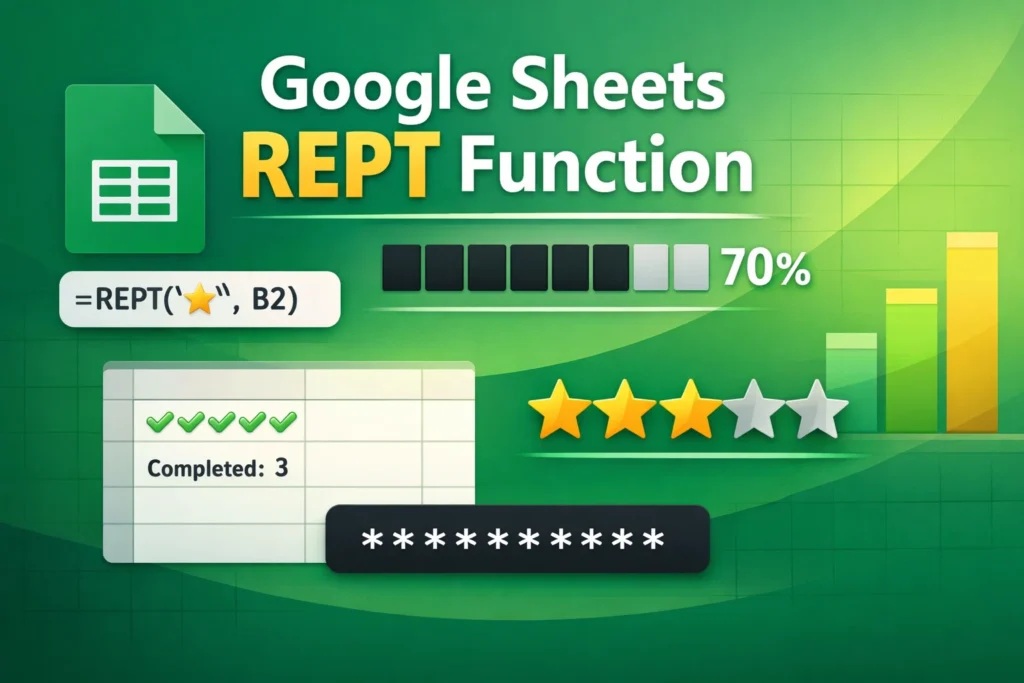
When people search for REPT in Google Sheets, they’re usually trying to figure out how to repeat text inside a cell. Often to create simple visual indicators, spacing, or formatting tricks without complicated formulas. The REPT function is one of those small but powerful tools that can dramatically improve how your spreadsheets look and communicate information.
In this guide, you’ll learn exactly how the Google Sheets REPT function works, when to use it, and how to apply it to real-world scenarios like progress bars, ratings, and dynamic visuals.
What does the Google Sheets REPT function do?
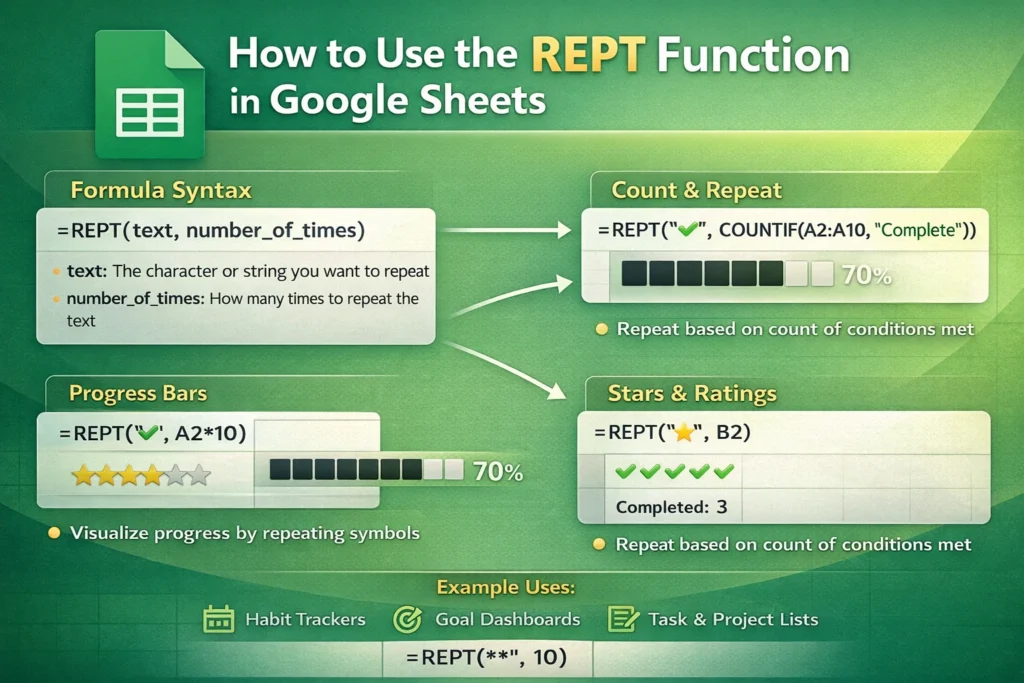
The REPT function repeats a piece of text a specified number of times. At its core, it’s very simple: you give Sheets some text, you tell it how many times to repeat that text, and it returns the combined result in a single cell.
This makes REPT especially useful for:
- Creating text-based progress bars
- Visualizing scores or completion levels
- Repeating symbols (stars, blocks, dashes, emojis)
- Padding or spacing text consistently
Unlike formatting tools, REPT is dynamic. When the underlying number changes, the repeated text updates automatically.
How does the REPT function work in Google Sheets?
The REPT function uses the following structure:
REPT(text, number_of_times)- text: The character or string you want to repeat
- number_of_times: How many times the text should repeat (must be a number)
If the repeat count is zero, the function returns an empty cell. If the number is negative, REPT will return an error.
REPT Formula Examples
Basic text repetition
=REPT("Hi ", 3)Result:
Hi Hi Hi This is the simplest use case and helps illustrate how REPT works before moving into more practical applications.
Repeating symbols instead of words
=REPT("*", 10)This produces a row of ten asterisks, which is often more useful than repeating full words.
How can you use REPT to create progress bars in Google Sheets?
One of the most popular uses of google sheets rept is creating text-based progress bars without charts.
Simple progress bar example
Assume cell A2 contains a percentage value (like 75%).
=REPT("█", A2*10)If A2 is 0.75, this formula displays 7 blocks, visually representing 75% completion.
This works especially well when paired with:
- Monospaced fonts
- Conditional formatting
- Fixed column widths
Progress bar with remaining space
You can also show completed and remaining portions:
=REPT("█", A2*10) & REPT("░", 10 - A2*10)This gives users a clear visual cue of progress versus what’s left.
Can REPT be used for ratings or score visualization?
Yes, and this is another reason REPT is so useful.
Star rating example
If cell B2 contains a rating from 1 to 5:
=REPT("★", B2)This is commonly used in dashboards, reviews, habit trackers, and performance summaries.
You can even pair it with a max value:
=REPT("★", B2) & REPT("☆", 5 - B2)This shows both filled and empty stars, making the rating scale obvious.
How does REPT work with numbers and other formulas?
REPT becomes much more powerful when combined with other functions.
For example, if you want to repeat text based on a calculated value:
=REPT("✔", COUNTIF(A2:A10, "Complete"))
This dynamically updates the repeated symbols based on how many items meet a condition.
REPT works especially well with:
- COUNTIF and COUNTIFS
- ROUND and INT
- IF statements
- Percentage calculations
What are common mistakes when using the REPT function?
Even though REPT is simple, there are a few pitfalls to avoid.
A common mistake is using a decimal value for the repeat count. REPT only works with whole numbers, so percentages often need to be multiplied and rounded.
For example:
=REPT("█", ROUND(A2*10, 0))
Another issue is cell overflow. Repeating text many times can exceed the visible width of a cell, so column sizing matters.
Finally, REPT cannot return styled text. All repeated characters share the same formatting unless conditional formatting is applied to the entire cell.
Are there any limitations to the Google Sheets REPT function?
Yes, but they’re reasonable.
- REPT only repeats text, not formatting
- Very large repeat values can make sheets harder to read
- REPT does not wrap automatically unless text wrapping is enabled
- Emojis work, but spacing can vary by font and device
Despite these limitations, REPT remains one of the easiest ways to add visual meaning to numeric data.
When should you use REPT instead of charts or conditional formatting?
REPT is ideal when:
- You want lightweight visuals without charts
- You need inline indicators inside tables
- You’re building printable or export-friendly sheets
- You want formulas that work consistently across shared templates
Charts are better for trends and comparisons, but REPT excels at quick, glanceable indicators inside rows.
How does REPT fit into real-world spreadsheet workflows?
At Sheetrix, REPT is commonly used in:
- Habit trackers
- Goal completion dashboards
- Budget utilization sheets
- Task and project trackers
- Rating and scoring systems
Because it’s formula-based, REPT works perfectly in templates where users only need to enter numbers and instantly see visual feedback.
Final thoughts on using the Google Sheets REPT function
The Google Sheets REPT function is simple on the surface but incredibly flexible when applied thoughtfully. Whether you’re creating progress bars, star ratings, or dynamic indicators, REPT helps transform plain numbers into information people can understand at a glance.
If you’re building spreadsheets meant to be shared, reused, or downloaded, mastering REPT is a small skill that delivers outsized value—especially when paired with clean design and smart formulas.





