The Google Sheets SPLIT function separates text in a single cell into multiple columns based on a delimiter you choose. A delimiter is the character that tells Sheets where to break the text, such as a comma, space, dash, or custom symbol. SPLIT is most useful when you’re working with imported data, form responses, or copied lists where multiple pieces of information are combined into one cell and need to be separated for analysis, sorting, or formulas.
Unlike manual methods such as “Split text to columns,” the SPLIT function is dynamic. That means if the original text changes, the split results update automatically. This makes SPLIT ideal for dashboards, trackers, and templates where data changes often.
How do you use the SPLIT function in Google Sheets?
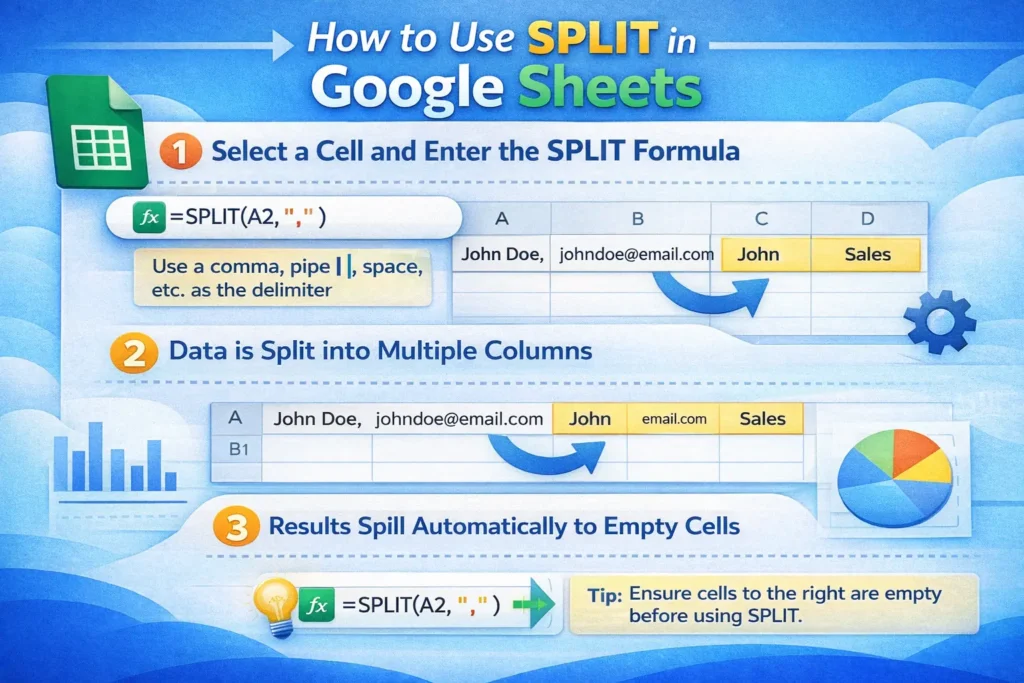
At its core, SPLIT takes text from one cell and breaks it apart using a specified delimiter. The function then spills the results into adjacent columns. This behavior is important to understand because SPLIT needs empty cells to the right in order to work correctly.
SPLIT is especially helpful when cleaning raw data, separating full names into first and last names, breaking product codes into components, or parsing CSV-style strings that were pasted into a sheet without proper formatting.
SPLIT Formula Examples
Below are the most common SPLIT formulas you’ll actually use. These examples cover nearly all real-world scenarios without overwhelming you.
Basic SPLIT by comma:
=SPLIT(A2,",")This separates text like Apple,Orange,Banana into three columns.
Split text by space:
=SPLIT(A2," ")Useful for separating words or basic full names.
Split using a custom character:
=SPLIT(A2,"-")Great for IDs such as INV-2026-004.
Split and remove extra spaces automatically:
=SPLIT(A2,",",TRUE,TRUE)The last two TRUE arguments tell Sheets to ignore empty results and trim extra spaces, which is extremely helpful when working with inconsistent data.
How does SPLIT handle spaces, commas, and multiple delimiters?
One limitation of SPLIT is that it only accepts one delimiter at a time. If your data uses multiple delimiters, such as commas and spaces together, you’ll need a workaround. A common approach is to standardize the text first using SUBSTITUTE, then apply SPLIT.
For example, if values are separated by commas and spaces:
=SPLIT(SUBSTITUTE(A2,", ",","),",")
This replaces comma-space with a single comma so SPLIT behaves predictably. This technique is rarely mentioned in basic guides but is essential when working with exported or user-entered data.
What happens when SPLIT creates more columns than expected?
SPLIT automatically expands to the right, which can overwrite existing data if you’re not careful. Before using SPLIT, always ensure there are enough empty columns available. In templates, it’s best practice to reserve space or place SPLIT formulas on helper sheets.
Another important behavior is that SPLIT recalculates every time the source cell changes. If you need static results, you should copy and paste values after splitting.
How can you split text into rows instead of columns?
By default, SPLIT outputs results horizontally. If you want each split value in its own row, you can wrap SPLIT in TRANSPOSE:
=TRANSPOSE(SPLIT(A2,","))This is particularly useful for turning comma-separated lists into vertical datasets that work better with FILTER, QUERY, and pivot tables. Many users overlook this combination, but it’s incredibly powerful for data normalization.
Can SPLIT work with ARRAYFORMULA for entire columns?
Yes, SPLIT works very well with ARRAYFORMULA, but you need to be careful with column expansion. When used correctly, it can split hundreds of rows automatically without copying formulas.
Example:
=ARRAYFORMULA(SPLIT(A2:A,","))This approach is best used on empty sheets or helper tabs because the expanded output can collide with other content. A lesser-known tip is to limit the source range to only populated rows to reduce recalculation lag in large spreadsheets.
What are common mistakes when using SPLIT?
One of the most common mistakes is using the wrong delimiter. If SPLIT returns everything in one column, the delimiter probably doesn’t match the actual character in the text. Hidden spaces are a frequent culprit.
Another issue is forgetting that SPLIT is case-sensitive for certain special characters. For example, different dash characters (hyphen vs en dash) will not behave the same.
Users also often try to nest SPLIT inside functions that expect a single value, such as IF without ARRAYFORMULA. Since SPLIT returns multiple cells, it must be handled carefully in logical formulas.
When should you use SPLIT vs other text functions?
SPLIT is best when your delimiter is consistent and predictable. If your text structure varies, functions like LEFT, RIGHT, MID, or REGEXEXTRACT may be more reliable.
For advanced patterns, REGEXSPLIT can sometimes replace SPLIT entirely, especially when dealing with multiple delimiters or variable spacing. However, SPLIT remains faster, simpler, and easier to audit for most use cases, which is why it’s commonly used in templates and shared spreadsheets.
Why is SPLIT especially useful in templates and dashboards?
Because SPLIT updates automatically, it’s ideal for reusable templates where users paste raw data and instantly get clean, structured outputs. This is why SPLIT is commonly paired with dropdowns, QUERY functions, and summary dashboards.
A practical but often overlooked tip is to pair SPLIT with data validation or notes that tell users which delimiter to use. This small UX improvement can prevent many downstream errors and makes your spreadsheet feel far more polished.
Final thoughts on using Google Sheets SPLIT effectively
The SPLIT function is simple on the surface but incredibly powerful when used thoughtfully. By understanding how delimiters work, how SPLIT expands across cells, and how to combine it with functions like SUBSTITUTE, TRANSPOSE, and ARRAYFORMULA, you can handle messy data with confidence.
If you regularly work with imported data, form responses, or copy-pasted lists, mastering SPLIT will save you time and reduce errors. It’s one of those foundational Google Sheets functions that quietly makes everything else work better.