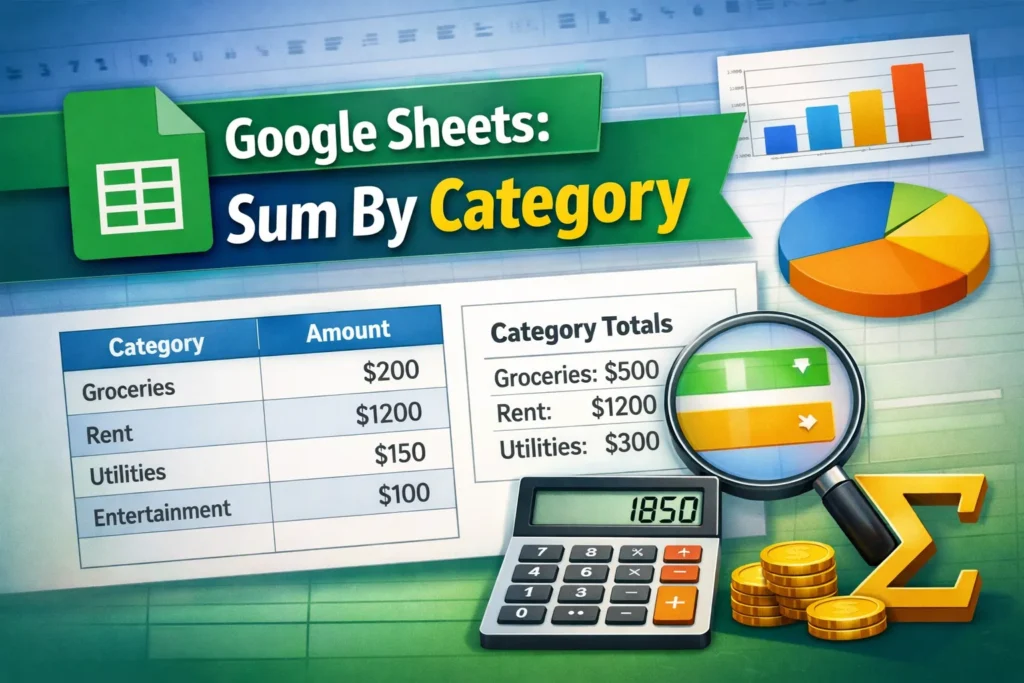
If you track expenses, sales, hours, or inventory in Google Sheets, chances are you’ve asked this exact question: how do you sum values by category? Whether your categories are things like “Groceries,” “Marketing,” or “Client A,” summing by category lets you turn raw data into useful totals you can actually analyze. This guide explains the most reliable ways to sum by category in Google Sheets, when to use each approach, and common mistakes to avoid.
What does “sum by category” mean in Google Sheets?
Summing by category means adding up numeric values based on a matching label or condition in another column. For example, you might want to total all expenses labeled “Rent” or calculate total sales for each product type. Instead of manually filtering and adding numbers, Google Sheets lets you do this dynamically with built-in functions. When your data changes, your totals update automatically, which is essential for dashboards, budgets, and reports.
Which Google Sheets functions are best for summing by category?
Google Sheets doesn’t have a single “sum by category” button, but it does offer several functions designed for this exact purpose. The most common are SUMIF, SUMIFS, QUERY, and Pivot Tables. Each has strengths depending on how complex your data is and how flexible you want your totals to be. For most beginners and everyday use cases, SUMIF is the easiest place to start.
How does SUMIF work for summing by category?
SUMIF adds numbers in a range when a corresponding cell meets a condition. That condition is usually a category name. This function is ideal when you’re summing based on one category column and one numeric column.
SUMIF Formula Examples
Basic structure:=SUMIF(range, criterion, sum_range)
Example:
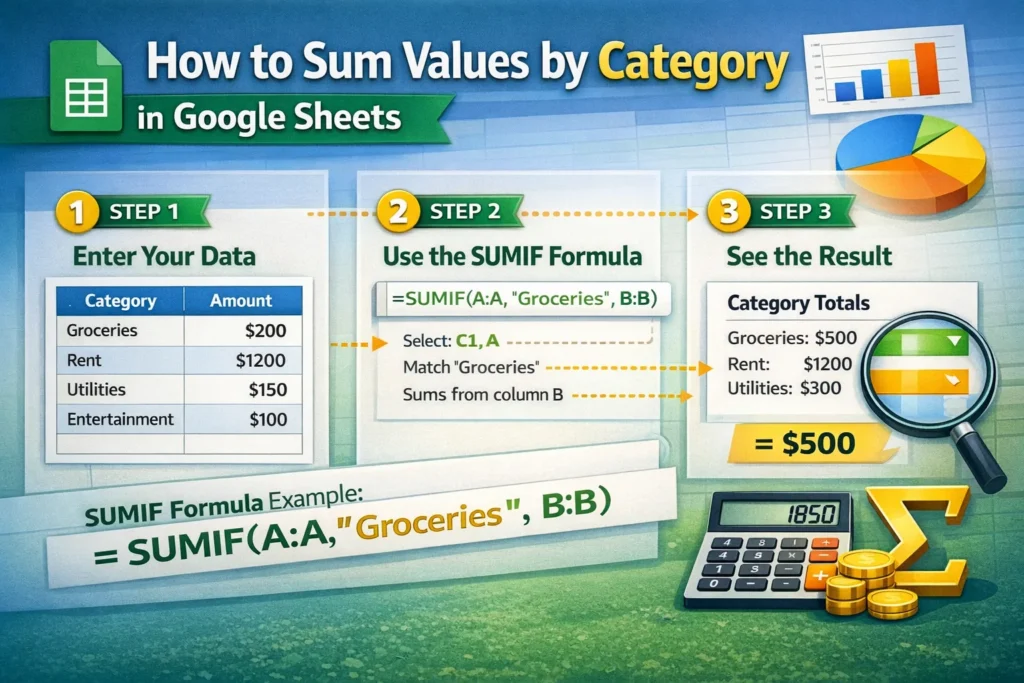
If column A contains categories and column B contains amounts, and you want to sum all values labeled “Food”:=SUMIF(A:A, "Food", B:B)
This formula scans column A for the word “Food” and adds up the matching values from column B. It’s simple, readable, and works well for most personal finance or basic business tracking sheets.
When should you use SUMIFS instead of SUMIF?
SUMIFS is used when you need to sum by category and apply additional conditions at the same time. For example, you might want to total “Food” expenses only for January, or sum sales for one category within a specific region.
SUMIFS Formula Examples
Basic structure:=SUMIFS(sum_range, criteria_range1, criterion1, criteria_range2, criterion2)
Example:
Sum “Food” expenses in January, assuming categories are in A, dates in B, and amounts in C:=SUMIFS(C:C, A:A, "Food", B:B, ">=1/1/2026", B:B, "<=1/31/2026")
A common mistake is trying to use SUMIF for multiple conditions. SUMIF only supports one criterion. If you need more than one, SUMIFS is the correct tool.
Can QUERY be used to sum by category?
Yes, QUERY is one of the most powerful ways to sum by category, especially when you want grouped totals or more control over formatting. It works similarly to SQL and is great for summaries and reports.
QUERY Formula Examples
Basic structure:=QUERY(data, "select category, sum(amount) group by category", 1)
Example:
If categories are in column A and amounts in column B:=QUERY(A:B, "select A, sum(B) group by A", 1)
This returns a clean table showing each category and its total. QUERY is especially useful when you want a dynamic summary table without manually listing categories. It’s slightly more advanced, but once learned, it can replace many separate formulas.
How do Pivot Tables compare for summing by category?
Pivot Tables are a no-formula option for summing by category. They’re ideal for exploratory analysis or when sharing sheets with less technical users. You simply insert a pivot table, place your category field in “Rows,” and your numeric field in “Values” set to SUM. The downside is that Pivot Tables are less flexible inside custom layouts and dashboards compared to formulas like QUERY or SUMIF.
What are common mistakes when summing by category?
One common issue is mismatched category names. Extra spaces, inconsistent capitalization, or hidden characters can cause formulas to miss values. Another frequent mistake is including text or blank cells in the sum range, which can lead to incorrect totals. It’s also important to lock ranges properly if you plan to copy formulas down a column. Using absolute references like A:A and B:B can help keep formulas consistent.
How do you choose the right method for your sheet?
If you need a quick total for one category, use SUMIF. If you need multiple conditions, use SUMIFS. If you want a clean summary table grouped by category, QUERY is often the best choice. Pivot Tables work well for one-off analysis or presentations but are less ideal for embedded calculations. The right method depends on how dynamic your sheet needs to be and how comfortable you are with formulas.
Why summing by category matters for real-world spreadsheets
Summing by category is a foundational skill for budgets, expense trackers, sales reports, and dashboards. Once set up correctly, it saves time, reduces errors, and makes your data far more useful. On Sheetrix, many templates rely on these exact techniques to automatically calculate totals behind the scenes, so learning how they work gives you more control and confidence when customizing your own sheets.
By mastering SUMIF, SUMIFS, QUERY, and Pivot Tables, you’ll be able to handle almost any “sum by category” scenario in Google Sheets without manual work or complicated setups.