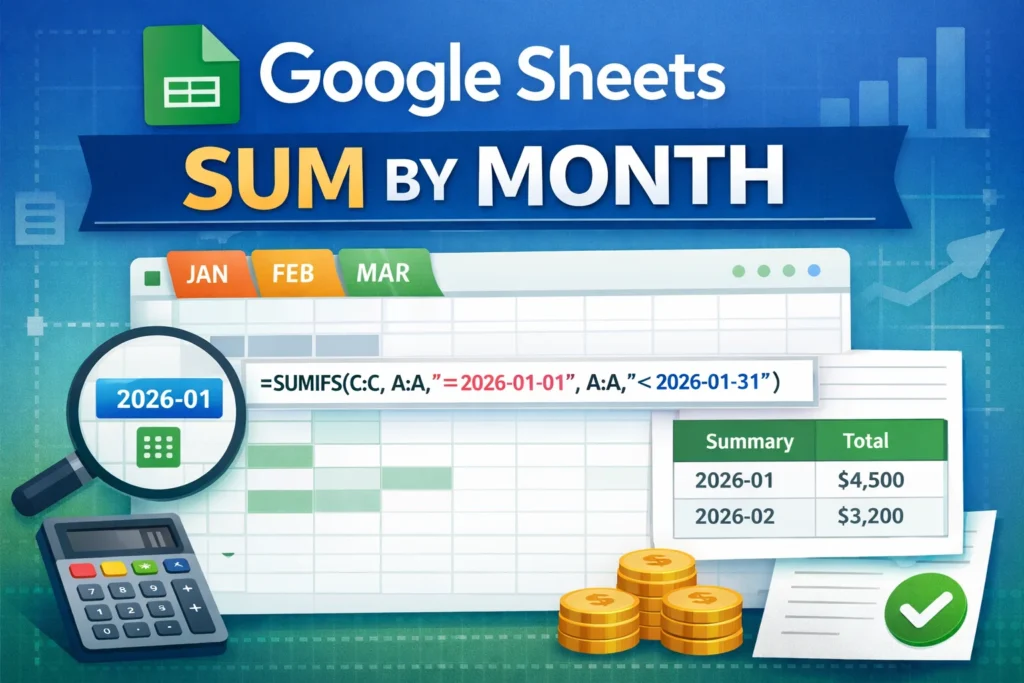
If you’ve ever tried to sum values by month in Google Sheets, you already know it’s not as simple as adding up numbers. Dates don’t behave like categories, and small setup mistakes can lead to totals that look right—but aren’t. In this guide, you’ll learn the most reliable ways to calculate Google Sheets sum by month, when to use each approach, and how to avoid the most common pitfalls.
This article focuses on real-world use cases like expense tracking, sales reports, invoices, and habit logs—the kinds of spreadsheets people actually use.
What does “sum by month” mean in Google Sheets?
Summing by month means adding together all numeric values that fall within the same calendar month based on a date column. For example:
- Total expenses per month
- Monthly sales revenue
- Hours worked per month
- Subscriptions billed per month
The key detail is that Google Sheets does not automatically understand months as grouping categories. It sees dates as individual values, so you must tell Sheets how to group them.
What is the simplest way to sum by month in Google Sheets?
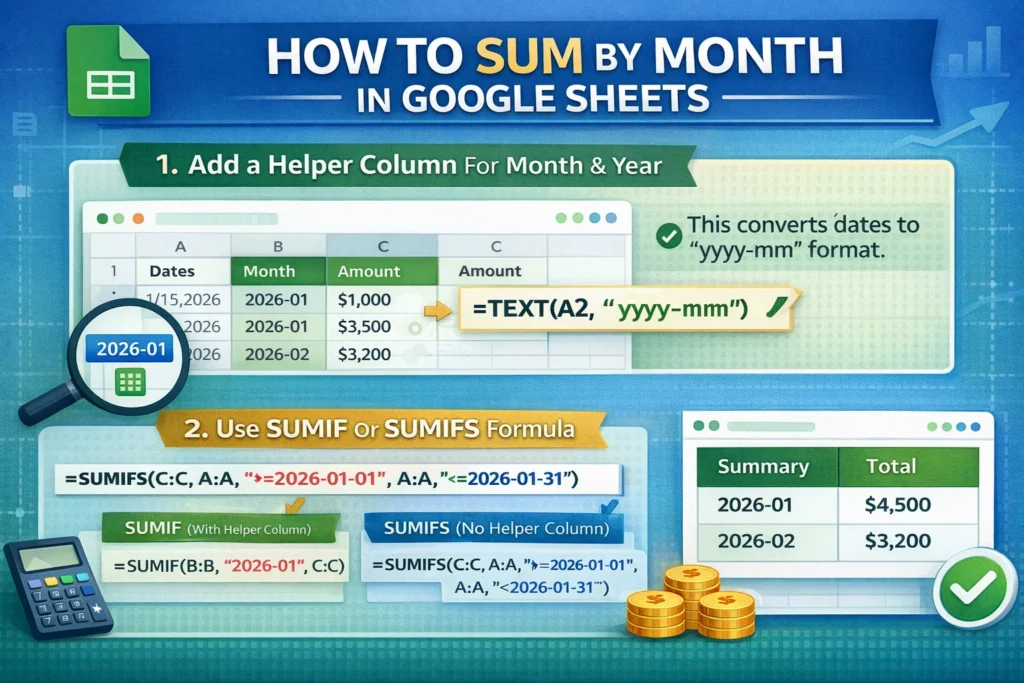
The simplest method uses a helper column that extracts the month (and year) from a date, then applies a conditional sum.
This approach is beginner-friendly, flexible, and easy to audit—especially useful if your spreadsheet will be shared or edited later.
Step 1: Create a month column from your dates
Use this formula next to your date column to extract the month and year:
=TEXT(A2,"yyyy-mm")This converts a date like 2026-01-15 into 2026-01, which prevents January 2025 and January 2026 from being grouped together.
SUMIF formula example (monthly totals)
Once you have a helper month column, you can use SUMIF.
SUMIF Formula Example
=SUMIF(B:B,"2026-01",C:C)How it works:
- Column B contains the extracted month (
yyyy-mm) "2026-01"is the month you want to total- Column C contains the values to sum
This method is ideal for dashboards where the month is selected manually or via a dropdown.
How do you sum by month without a helper column?
If you want to avoid extra columns, you can sum by month using date ranges inside SUMIFS. This method is more advanced but keeps your sheet cleaner.
SUMIFS Formula Example (no helper column)
=SUMIFS(C:C,A:A,">="&DATE(2026,1,1),A:A,"<"&EOMONTH(DATE(2026,1,1),0)+1)Explanation:
A:Ais the date columnC:Cis the values column- The formula sums all values where the date falls within January 2026
This is more precise and works well for automated reports.
When should you use QUERY to sum by month?
The QUERY function is best when you want a dynamic monthly summary table that updates automatically as data grows.
QUERY Formula Example
=QUERY(A:C,"select TEXT(A,'yyyy-mm'), sum(C) where A is not null group by TEXT(A,'yyyy-mm') label sum(C) 'Total'")Why QUERY is powerful:
- Automatically groups by month
- Generates a clean summary table
- Scales well with large datasets
Limitations:
- Harder for beginners to modify
- Formatting can be less intuitive
- Requires consistent date values
What’s the difference between SUMIF, SUMIFS, and QUERY for monthly totals?
- SUMIF: Best when using a helper month column
- SUMIFS: Best when you want precision without extra columns
- QUERY: Best for automated reports and dashboards
If your spreadsheet will be reused or downloaded (like many Sheetrix templates), clarity often matters more than clever formulas.
What are common mistakes when summing by month?
Many incorrect monthly totals come from these issues:
- Grouping by month name only (e.g., “January”) without the year
- Using text-formatted dates instead of real date values
- Forgetting that
SUMIFonly supports one condition - Mixing time-stamped dates with plain dates
- Using inconsistent date formats across rows
A quick test: if sorting by date doesn’t work correctly, your dates are likely stored as text.
Should you use Pivot Tables to sum by month?
Pivot Tables are another valid option, especially for non-formula users.
Pros:
- No formulas required
- Easy grouping by month and year
- Great for exploratory analysis
Cons:
- Not ideal for embedded dashboards
- Less flexible for custom calculations
- Requires manual refresh in some workflows
For reusable templates, formulas are usually the better choice.
How do you choose the best method for your spreadsheet?
Ask yourself:
- Will this sheet be reused monthly?
- Does it need to update automatically?
- Will beginners edit it?
- Do you need the results inside other formulas?
For most real-world cases, SUMIFS with date ranges or QUERY offers the best balance of accuracy and automation.
Final thoughts on Google Sheets sum by month
Learning how to calculate Google Sheets sum by month correctly is one of the most important skills for financial tracking, reporting, and dashboards. Once you understand how Sheets treats dates, the logic becomes straightforward—and your totals become reliable.
If you regularly track expenses, income, or subscriptions, consider using a pre-built Sheetrix template designed with proper monthly summaries, clean formulas, and beginner-friendly structure. It’ll save time and prevent errors before they happen.