
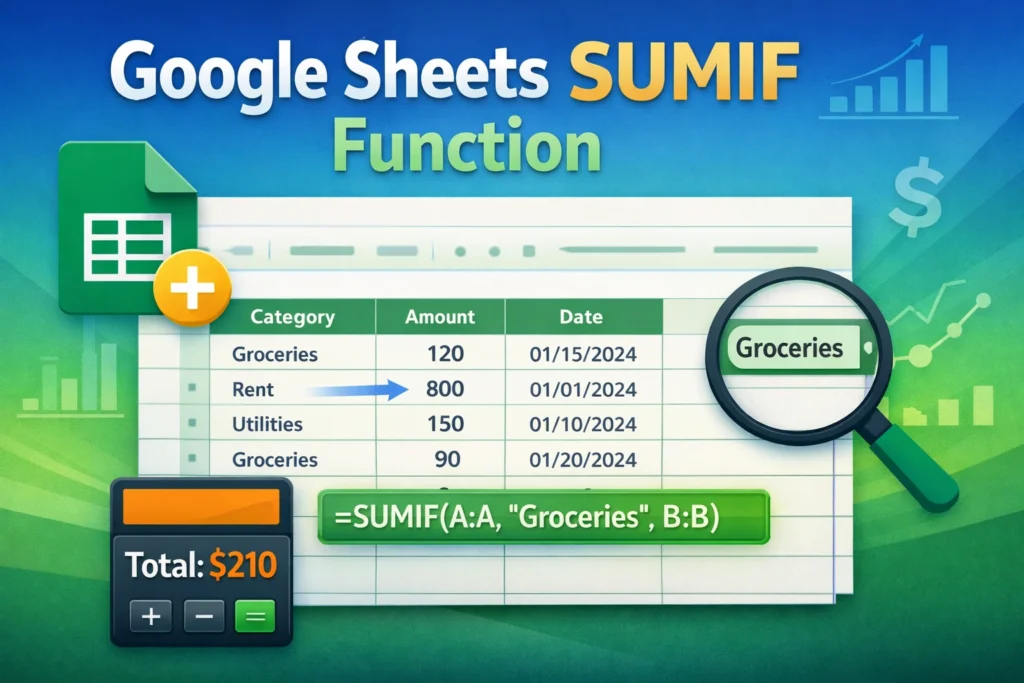
The Google Sheets SUMIF function is used to add numbers that meet a specific condition. Instead of summing an entire column, SUMIF lets you total only the values that match a rule, such as a category, a name, a date, or a threshold like “greater than 100.” This makes it one of the most practical functions for budgeting, tracking sales, analyzing expenses, and summarizing spreadsheet data without manually filtering rows.
At its core, SUMIF answers a simple question: “What is the total of these values, but only when this condition is true?” If you’ve ever needed to total groceries only, calculate sales for one product, or sum expenses from a specific month, SUMIF is the right tool.
How Does the SUMIF Function Work in Google Sheets?
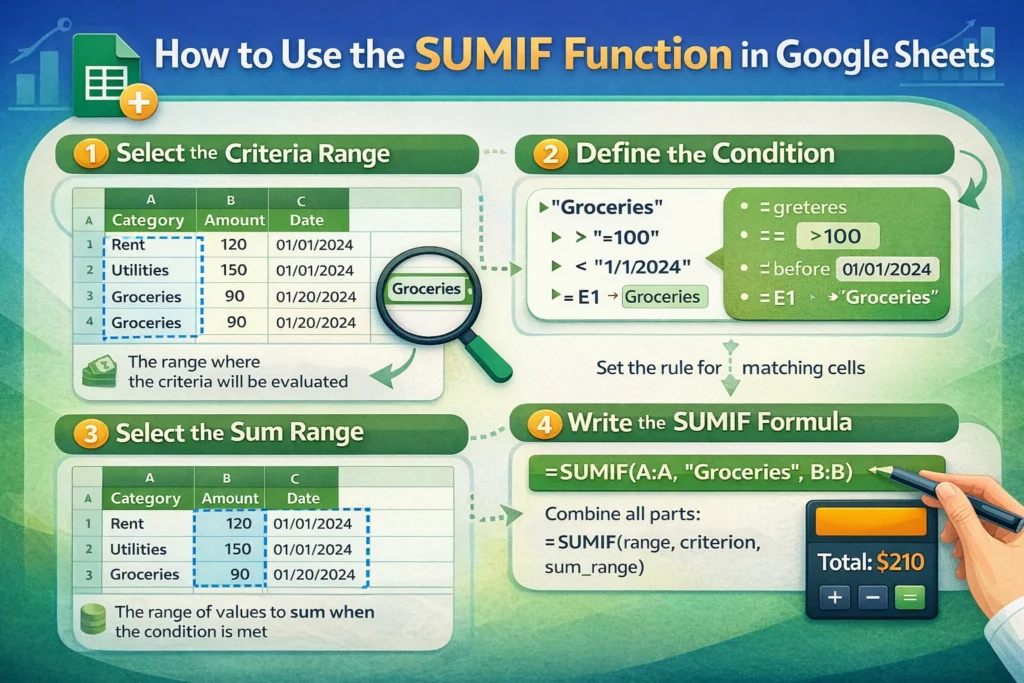
SUMIF works by evaluating one range of cells against a condition and summing values from another range (or the same range). The function checks each row individually, applies the condition, and includes only matching rows in the final total.
The basic structure looks like this:
SUMIF(range, criterion, [sum_range])
The range is where the condition is checked. The criterion defines the rule that must be met. The optional sum_range is where the values to be added live. If sum_range is omitted, Google Sheets sums the cells in the range itself.
Understanding this separation is important. Many beginners assume the condition and the values must come from the same column. While that can be true, SUMIF becomes far more powerful when you evaluate one column and sum another.
When Should You Use SUMIF Instead of Other Functions?
SUMIF is best when you have a single condition. If you only need to check one rule—such as category equals “Rent” or date is after January 1—SUMIF is simpler and cleaner than more advanced options.
If you need multiple conditions at once, such as summing sales for one product in one region, SUMIF will not be sufficient. That’s where SUMIFS comes in. For counting instead of summing, COUNTIF and COUNTIFS are better options. Choosing the correct function keeps formulas readable and reduces errors later.
What Are Common Real-World Use Cases for SUMIF?
SUMIF is commonly used in personal finance spreadsheets to total expenses by category, such as food, utilities, or subscriptions. In business tracking, it’s often used to sum revenue by client, product, or salesperson. Project managers use it to total hours worked by task type, while content creators use it to track earnings by platform.
Because SUMIF works dynamically, totals update automatically when new rows are added. This makes it ideal for dashboards and summary sections in Google Sheets templates.
SUMIF Formula Examples
Basic SUMIF Example
This example sums amounts in column B only when column A equals “Groceries.”
SUMIF(A:A, “Groceries”, B:B)
Column A contains categories, and column B contains amounts. Only rows labeled “Groceries” are included in the total.
SUMIF With Numbers and Comparison Operators
You can sum values based on numeric conditions using operators like >, <, or >=.
SUMIF(B:B, “>100”)
This adds all values in column B that are greater than 100. Notice that the comparison is wrapped in quotes.
SUMIF Using Cell References as Criteria
Instead of typing a value directly, you can reference a cell.
SUMIF(A:A, E1, B:B)
If cell E1 contains “Rent,” the formula sums all rent-related amounts. This approach is especially useful for dropdown-driven dashboards.
SUMIF With Dates
Dates work the same way as numbers, but formatting matters.
SUMIF(A:A, “>=1/1/2025”, B:B)
This sums all values in column B where the date in column A is on or after January 1, 2025. Using date functions like DATE() can make formulas more reliable across locales.
What Are the Most Common SUMIF Mistakes?
One frequent mistake is mismatched ranges. The range and sum_range must be the same size. If one starts at row 2 and the other starts at row 1, Google Sheets may return incorrect results.
Another common issue is forgetting quotation marks around text criteria or comparison operators. Writing >100 without quotes will cause errors. Finally, many users try to apply multiple conditions with SUMIF. When more than one rule is required, SUMIFS is the correct function.
How Does SUMIF Compare to SUMIFS in Google Sheets?
SUMIF supports only one condition, while SUMIFS allows multiple conditions across different ranges. SUMIFS also reverses the argument order, placing the sum_range first.
If your formula starts to feel complicated or requires logical “AND” conditions, switching to SUMIFS improves clarity and scalability. For single-condition summaries, SUMIF remains easier to read and faster to write.
Are There Any Limitations to SUMIF You Should Know About?
SUMIF does not support wildcards combined with comparison operators. It also cannot evaluate multiple conditions or OR logic on its own. Additionally, text comparisons are case-insensitive, which may matter in certain datasets.
Performance can slow down if SUMIF is applied to entire columns across very large spreadsheets. In those cases, limiting ranges or using helper columns can improve speed.
How Can SUMIF Be Used in Templates and Dashboards?
SUMIF is often used behind the scenes in Sheetrix-style templates to power summary totals, category breakdowns, and monthly reports. By pairing SUMIF with dropdowns, users can instantly change what data is being summarized without editing formulas.
For example, a budget template might use a dropdown for category selection and a SUMIF formula to display the total spent in that category. This keeps spreadsheets interactive and beginner-friendly while maintaining accuracy.
What Should You Learn After Mastering SUMIF?
Once you’re comfortable with SUMIF, the next step is learning SUMIFS for multi-condition totals and QUERY for more advanced analysis. Combining SUMIF with functions like FILTER, IF, and ARRAYFORMULA can unlock even more flexibility.
SUMIF is often the first function that helps spreadsheet users move from static tables to dynamic analysis. Mastering it builds a strong foundation for more advanced Google Sheets workflows.
Why SUMIF Is an Essential Google Sheets Skill
The Google Sheets SUMIF function is simple, powerful, and incredibly practical. It allows you to summarize data intelligently without complex formulas or manual filtering. Whether you’re managing a personal budget, running a small business, or building reusable spreadsheet templates, SUMIF saves time and reduces errors.
If you’re looking to apply SUMIF in real-world scenarios, downloadable templates and dashboards can help you see how the function works in context. With the right structure, SUMIF becomes one of the most valuable tools in your Google Sheets toolkit.





