
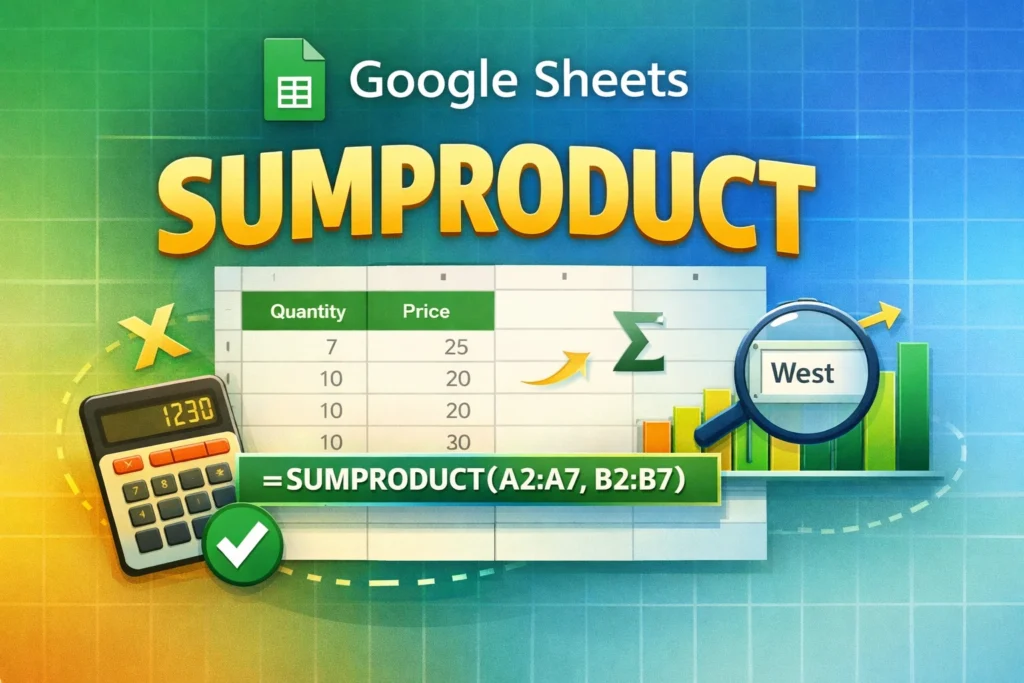
The Google Sheets SUMPRODUCT function is a powerful tool that allows you to multiply corresponding values from one or more ranges and then add those results together in a single calculation. While that definition sounds technical, the real value of SUMPRODUCT comes from how flexible it is in real-world spreadsheets. It lets you perform weighted calculations, conditional math, and multi-criteria analysis without building complex helper columns.
Many users first encounter SUMPRODUCT when they need to total values that depend on more than one factor. For example, calculating total revenue based on quantity and price, analyzing weighted averages, or summing values that meet multiple conditions. Unlike simpler functions such as SUM or COUNTIF, SUMPRODUCT works directly with arrays, which makes it especially useful for compact, efficient spreadsheets.
How Does SUMPRODUCT Work in Google Sheets?
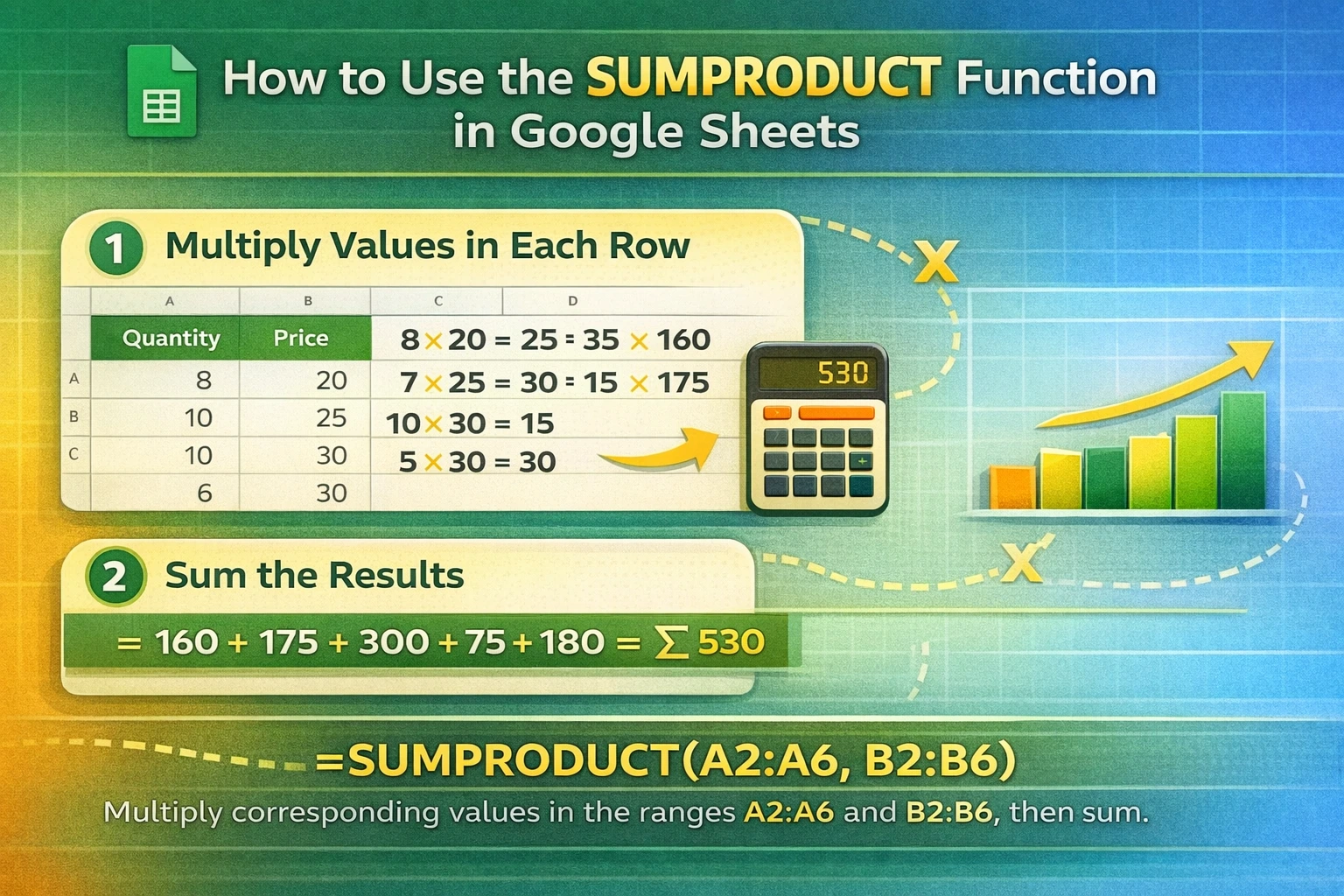
At its core, SUMPRODUCT follows a simple process. It takes one or more ranges, multiplies the values in the same positions across those ranges, and then sums the results. All ranges must be the same size, or the function will return an error.
What makes SUMPRODUCT especially useful in Google Sheets is that it can evaluate logical conditions inside the function. When conditions are used, TRUE and FALSE values are automatically converted into 1s and 0s. This allows SUMPRODUCT to act as a conditional summing tool, even though it is not technically a conditional function.
Because Google Sheets handles arrays natively, SUMPRODUCT feels more intuitive here than in some other spreadsheet platforms. You can often achieve results that would otherwise require multiple helper columns or more advanced formulas.
When Should You Use SUMPRODUCT Instead of SUM, SUMIF, or COUNTIFS?
SUMPRODUCT is most valuable when you need to apply math and logic at the same time. If you simply want to add numbers in a range, SUM is faster and clearer. If you need to add values based on one condition, SUMIF or SUMIFS is usually the better choice.
However, SUMPRODUCT becomes the better option when calculations depend on multiple arrays or when conditions need to interact with arithmetic. For example, if total sales depend on both quantity and unit price, SUMIFS alone cannot handle that multiplication. SUMPRODUCT can.
It is also useful when you want to apply conditions that are difficult or impossible to express with SUMIFS, such as partial matches combined with numeric calculations or custom logic across several columns.
SUMPRODUCT Formula Examples
Below are the most practical SUMPRODUCT examples you are likely to use in Google Sheets. Each formula is grouped by purpose so you can quickly find what you need and adapt it to your own spreadsheet.
Basic SUMPRODUCT Formula
This example shows how to calculate total revenue by multiplying quantity and price for each row, then summing the results.
=SUMPRODUCT(A2:A10, B2:B10)If column A contains quantities and column B contains prices, this formula returns the total revenue without needing a separate revenue column.
SUMPRODUCT With Conditions
You can apply conditions by using logical expressions inside the function. This allows you to sum calculated values only when certain criteria are met.
=SUMPRODUCT((A2:A10="Completed")*(B2:B10)*(C2:C10))In this example, revenue is calculated only for rows where the status in column A is “Completed.” Rows that do not meet the condition evaluate to zero and do not affect the total.
Weighted Average Using SUMPRODUCT
SUMPRODUCT is commonly used to calculate weighted averages, which are difficult to do cleanly with other functions.
=SUMPRODUCT(A2:A10, B2:B10) / SUM(B2:B10)Here, column A contains values and column B contains weights. The result is a true weighted average that adjusts for differing importance across entries.
SUMPRODUCT With Multiple Criteria
You can combine multiple conditions by multiplying them together.
=SUMPRODUCT((A2:A10="West")*(B2:B10="Q1")*(C2:C10))This formula sums values in column C only when the region is “West” and the quarter is “Q1.” Each condition must be true for a row to be included.
What Are Common Mistakes When Using SUMPRODUCT?
One of the most common errors is using ranges of different sizes. All arrays passed into SUMPRODUCT must have the same number of rows and columns. If they do not, the formula will fail.
Another frequent issue is forgetting to wrap logical conditions in parentheses. Without parentheses, Google Sheets may misinterpret the calculation order, leading to incorrect results.
Users also sometimes overuse SUMPRODUCT when simpler functions would be clearer. While SUMPRODUCT is powerful, it can reduce readability if used where SUMIFS or COUNTIFS would do the job more transparently.
Are There Any Limitations or Performance Concerns?
SUMPRODUCT recalculates across entire ranges, which can affect performance in very large spreadsheets. When working with thousands of rows, it is best to limit ranges to only the necessary cells rather than entire columns.
Another limitation is readability. Complex SUMPRODUCT formulas can be difficult for others to understand or maintain. In shared spreadsheets, adding notes or using helper columns may improve long-term usability.
How Does SUMPRODUCT Compare Between Google Sheets and Excel?
The SUMPRODUCT function works similarly in both platforms, but Google Sheets handles arrays more naturally. In Sheets, you typically do not need to use special key combinations or array-enter formulas. Logical expressions inside SUMPRODUCT are also more intuitive and forgiving.
That said, Excel users transitioning to Google Sheets should double-check formulas, especially when using entire column references, as performance and behavior may differ slightly.
How Can SUMPRODUCT Be Used in Real-World Spreadsheets?
SUMPRODUCT is especially useful in budgeting, sales tracking, inventory management, and performance dashboards. For example, it can calculate total cost based on quantities and unit prices, analyze weighted KPIs, or summarize sales data across multiple criteria without restructuring your spreadsheet.
At Sheetrix, many templates rely on SUMPRODUCT behind the scenes to keep calculations clean and automated. Understanding how it works makes it easier to customize templates or build your own systems from scratch.
Is SUMPRODUCT Worth Learning for Google Sheets Users?
If you regularly work with spreadsheets that go beyond simple totals, SUMPRODUCT is absolutely worth learning. It bridges the gap between basic functions and more advanced array formulas, giving you flexibility without unnecessary complexity.
Once you understand how it evaluates arrays and conditions, SUMPRODUCT becomes a reliable tool you can apply across many use cases. Whether you are managing finances, tracking performance, or building reusable templates, mastering this function will make your Google Sheets work more efficient and more powerful.





