
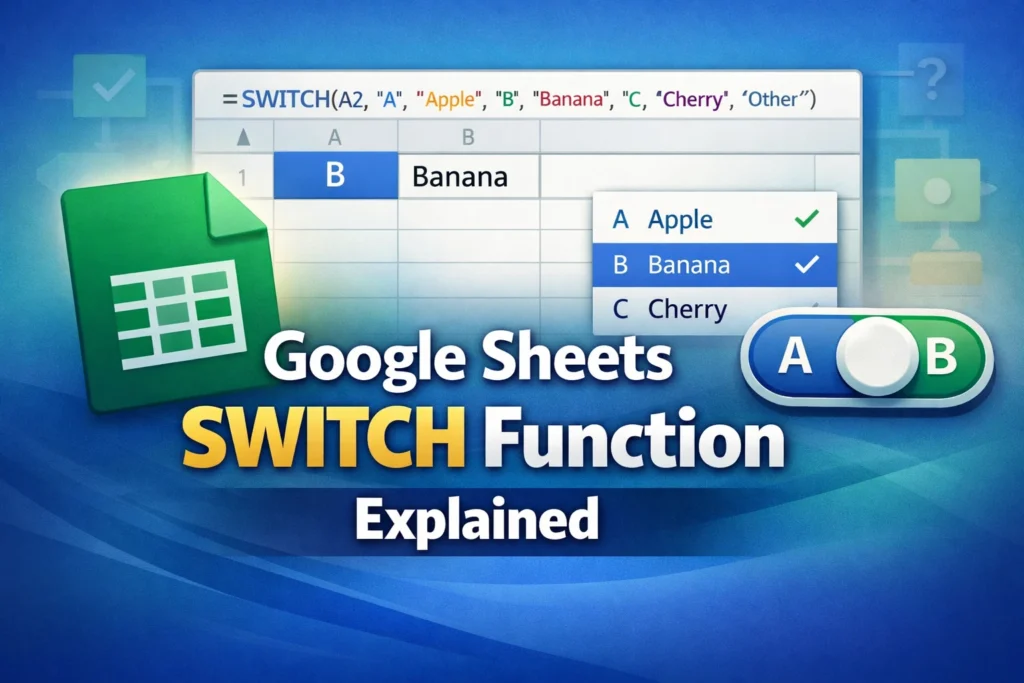
The Google Sheets SWITCH function is a conditional formula designed to simplify complex decision-making logic. Instead of nesting multiple IF statements to compare one value against many possible outcomes, SWITCH lets you evaluate a single expression and return a corresponding result when a match is found. This makes formulas easier to read, easier to maintain, and less error-prone—especially in large spreadsheets.
At a high level, SWITCH checks one value, compares it against a list of possible cases, and returns the result tied to the first matching case. If no match is found, it can optionally return a default value. This structure makes SWITCH ideal for status labels, category mappings, grading systems, pricing tiers, or any situation where one input should map cleanly to one output.
While SWITCH is not as flexible as some advanced conditional logic, it shines when clarity and simplicity matter more than complex conditions.
How Does the SWITCH Function Work in Google Sheets?
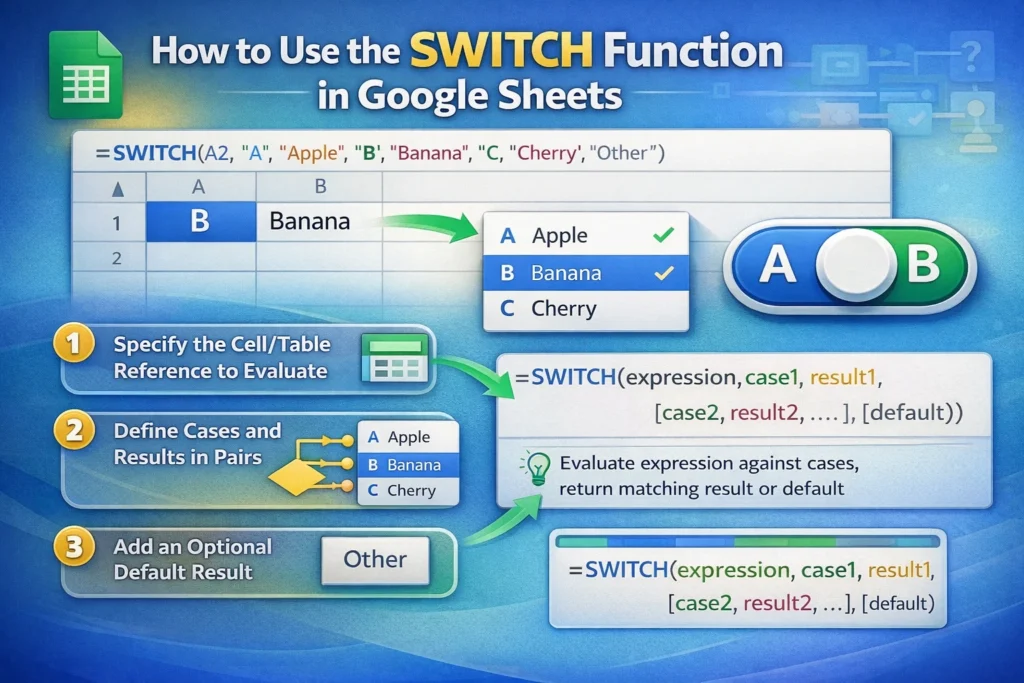
The SWITCH function follows a predictable structure: you give it an expression to evaluate, then pairs of “case” values and results. Google Sheets checks each case in order and stops as soon as it finds a match.
Unlike IF, SWITCH only compares for equality. It does not evaluate ranges, inequalities, or logical tests. This limitation is intentional—it keeps the function fast, readable, and easy to audit.
One important detail many users overlook is that SWITCH uses exact matching. Text comparisons are case-sensitive, and numbers must match exactly. If your data isn’t standardized, SWITCH may fail silently and fall through to the default result.
SWITCH Function Syntax Explained Simply
SWITCH Function Syntax
SWITCH(expression, case1, result1, [case2, result2, …], [default])expression is the value you want to evaluate.
case1, case2, … are the possible values to compare against.
result1, result2, … are the values returned when a case matches.
default is optional and returned when no cases match.
The cases and results must always come in pairs. If you forget a result or mismatch the order, Google Sheets will throw an error.
Google Sheets SWITCH Formula Examples
Basic SWITCH Example
=SWITCH(A2, "Paid", "✔ Complete", "Pending", "⏳ Waiting", "Overdue", "⚠ Action Needed", "Unknown")This example converts a status value into a more user-friendly label. If A2 contains “Paid,” “Pending,” or “Overdue,” a matching message is returned. If none match, “Unknown” is displayed.
SWITCH With Numbers
=SWITCH(B2, 1, "Low", 2, "Medium", 3, "High", "Not Rated")This works well for priority levels, ratings, or category codes.
SWITCH Inside Larger Formulas
=TEXTJOIN(" - ", TRUE, C2, SWITCH(D2, "M", "Monthly", "Y", "Yearly", "Custom"))Here, SWITCH is used as a component of a larger formula, showing how it can improve clarity without taking over the entire calculation.
When Is SWITCH Better Than IF or IFS?
SWITCH is best when you are checking one value against many exact matches. Compared to nested IF statements, it is cleaner and significantly easier to read. Compared to IFS, it is more structured and reduces repetition because the expression only appears once.
However, SWITCH is not a universal replacement. If your logic involves ranges (greater than, less than), partial matches, or multiple conditions at once, IF or IFS is still the better choice. A good rule of thumb is: if your conditions read like a lookup table, SWITCH is probably the right tool.
What Are the Limitations of the SWITCH Function?
One major limitation is that SWITCH only supports equality checks. You cannot directly test conditions like “greater than 50” or “between two dates.” Another limitation is that SWITCH does not work natively with arrays in the same way some other functions do; it evaluates each cell individually unless wrapped in ARRAYFORMULA, which can become messy.
Another subtle limitation is performance in very large sheets. While SWITCH itself is efficient, using it thousands of times with long case lists can slow recalculation. In those situations, a lookup table with VLOOKUP or XLOOKUP-style logic is often more scalable.
Common Mistakes to Avoid With SWITCH
A frequent mistake is forgetting the default value. Without it, unmatched cases return an error, which can break dashboards or downstream formulas. Another common issue is inconsistent data formatting—extra spaces, mismatched capitalization, or numbers stored as text will cause SWITCH to fail to match.
Users also sometimes try to force complex logic into SWITCH when IF or IFS would be clearer. SWITCH is not meant for multi-condition logic; using it that way usually results in confusing formulas.
Advanced Tip: Using SWITCH as a Lightweight Mapping Tool
One lesser-known use of SWITCH is as a quick alternative to helper tables for small mappings. If you only have five to ten fixed categories, SWITCH can replace an entire lookup sheet and keep your logic in one place. This is especially useful in templates where portability matters and you don’t want users to accidentally delete reference tables.
Another advanced pattern is pairing SWITCH with data validation dropdowns. By controlling the allowed input values, you eliminate matching errors and make SWITCH-based logic extremely reliable.
How Does SWITCH Compare Across Platforms?
Google Sheets supports SWITCH similarly to Excel, but older Excel versions may not include it. If you plan to export your sheet, test compatibility carefully. Also note that Google Sheets evaluates text comparisons case-sensitively, while some spreadsheet users expect case-insensitive behavior. Normalizing inputs with functions like UPPER or TRIM before SWITCH can prevent subtle bugs.
When Should You Avoid Using SWITCH?
Avoid SWITCH when your logic depends on ranges, calculations, or multiple variables. In those cases, IFS, nested IF, or lookup functions are more appropriate. Also avoid it when your list of cases is likely to grow over time; maintaining a long SWITCH statement can become harder than maintaining a reference table.
Final Thoughts on Using SWITCH in Google Sheets
The Google Sheets SWITCH function is a powerful tool when used in the right context. It simplifies complex-looking logic, improves readability, and reduces errors caused by deeply nested IF statements. While it has clear limitations, understanding when and how to use SWITCH can make your spreadsheets more professional, easier to maintain, and more beginner-friendly.
For dashboards, trackers, and templates where clean logic matters, SWITCH is often the missing piece that turns a confusing formula into something anyone can understand.





