
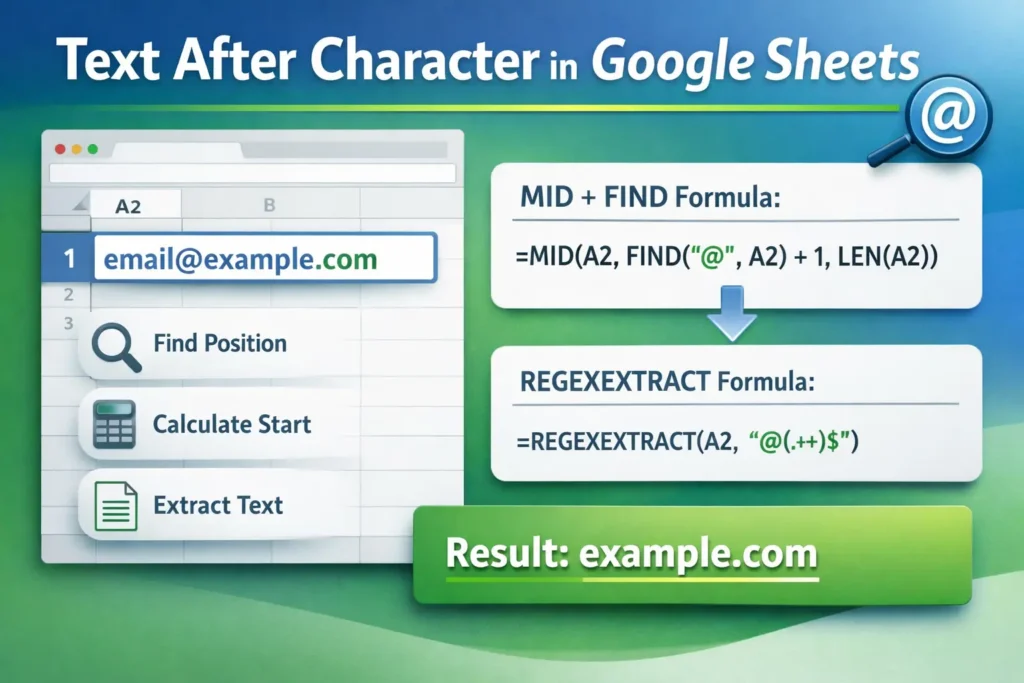
Working with text data in Google Sheets often means cleaning, splitting, or extracting parts of a cell. One of the most common real-world needs is pulling text that appears after a specific character, such as everything after a dash, slash, colon, or symbol like @. If you’ve searched for google sheets text after character, you’re likely dealing with filenames, IDs, email addresses, URLs, or imported data that isn’t perfectly formatted.
This guide explains the core concepts behind extracting text after a character in Google Sheets, walks through the most reliable formulas, and helps you choose the right approach depending on your data. Whether you’re a beginner or an intermediate user, you’ll walk away knowing exactly how to handle this task cleanly and efficiently.
How do you extract text after a character in Google Sheets?
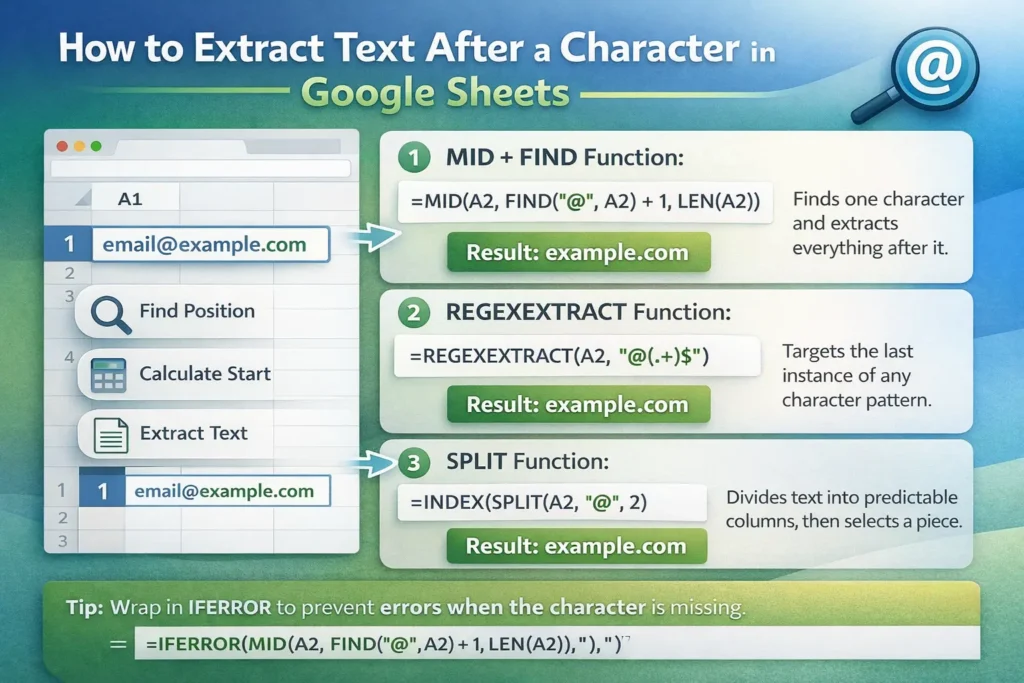
At a high level, extracting text after a character means finding where that character appears in a cell and returning everything that comes after it. Google Sheets doesn’t have a single “TEXTAFTER” function like Excel, so instead you combine a few core text functions to get the result you want.
Most solutions rely on three ideas:
- Finding the position of a character within text
- Calculating where the extracted text should begin
- Returning the remaining characters
Once you understand these concepts, the formulas become much easier to read and customize.
Which functions are used to get text after a character?
Several Google Sheets functions are commonly used for this task, each suited to different scenarios:
- FIND or SEARCH locate the position of a character
- MID extracts text starting from a specific position
- RIGHT pulls text from the end of a string
- LEN counts total characters
- SPLIT separates text based on a delimiter
- REGEXEXTRACT handles more advanced pattern matching
You don’t need all of these at once. The key is knowing which combination best fits your data.
MID + FIND: the most flexible approach
For most use cases, combining MID and FIND is the most reliable and widely applicable solution. This method works well when the character appears only once and you want everything after it.
MID + FIND formula example
Formula:
=MID(A2, FIND("-", A2) + 1, LEN(A2))How it works:
FIND("-", A2)locates the position of the dash+ 1moves the starting point to the character after the dashMIDreturns all remaining text from that point forward
Example:
If cell A2 contains INV-45892, the result will be 45892.
This approach is ideal for IDs, product codes, and structured labels where the delimiter is consistent.
When should you use SEARCH instead of FIND?
FIND is case-sensitive, while SEARCH is not. If you’re extracting text after a letter or word and capitalization may vary, SEARCH is the safer choice.
MID + SEARCH formula example
Formula:
=MID(A2, SEARCH("id:", A2) + 3, LEN(A2))Use this when your data may include variations like ID:, Id:, or id:.
How can you extract text after the last occurrence of a character?
Sometimes the character you care about appears more than once. For example:
- URLs with multiple slashes
- Filenames with several dashes
- Email addresses with subdomains
In these cases, extracting text after the last instance of a character requires a different approach.
REGEXEXTRACT formula example
Formula:
=REGEXEXTRACT(A2, "[^/]+$")How it works:
[^/]+matches any characters that are not slashes$anchors the match to the end of the text
Example:
If A2 contains https://site.com/folder/file, the result will be file.
This method is extremely powerful and handles complex patterns cleanly once you’re comfortable with basic regular expressions.
Is SPLIT a good option for extracting text after a character?
Yes, but only in simpler scenarios. SPLIT works best when you’re okay with breaking text into multiple columns and then selecting the part you need.
SPLIT formula example
Formula:
=INDEX(SPLIT(A2, "-"), 2)Example:
If A2 contains Order-Completed, this returns Completed.
Limitations to be aware of:
- It assumes the character appears a predictable number of times
- It may break if additional delimiters are added later
- It’s less flexible than MID or REGEXEXTRACT for messy data
Use SPLIT for quick cleanup tasks or when building helper columns.
How do you extract text after a character across an entire column?
In real spreadsheets, you rarely want to apply formulas one cell at a time. Google Sheets makes this easy with ARRAYFORMULA.
ARRAYFORMULA example
Formula:
=ARRAYFORMULA(IF(A2:A="", "", MID(A2:A, FIND("-", A2:A) + 1, LEN(A2:A))))This automatically applies the logic to every populated cell in the column while avoiding errors on blank rows. It’s especially useful for imported data, logs, and ongoing data entry.
What are common mistakes when extracting text after a character?
One frequent issue is errors when the character doesn’t exist in a cell. Functions like FIND will return an error if the delimiter is missing.
To prevent this, wrap your formula in IFERROR.
Error-safe example
Formula:
=IFERROR(MID(A2, FIND("-", A2) + 1, LEN(A2)), "")
This ensures your sheet stays clean and readable even when the data isn’t perfectly consistent.
Another common mistake is using RIGHT without accounting for variable text length. While RIGHT can work in very controlled cases, it’s usually less reliable than position-based methods.
Which method should you use for your spreadsheet?
Here’s a quick guideline:
- Use MID + FIND/SEARCH for most structured text
- Use REGEXEXTRACT when the character appears multiple times or patterns are complex
- Use SPLIT for simple, predictable formats
- Use ARRAYFORMULA when working with full columns
Choosing the right approach upfront saves time and prevents fragile formulas later.
How does this fit into real-world Google Sheets workflows?
Extracting text after a character is often part of a larger workflow, such as:
- Cleaning imported CSV files
- Parsing order numbers or transaction IDs
- Separating usernames from email addresses
- Preparing data for pivot tables or charts
On Sheetrix, this technique pairs well with templates for data cleanup, tracking sheets, and automation-ready spreadsheets. Once you master this concept, many other text-manipulation tasks become much easier.
Final thoughts on extracting text after a character in Google Sheets
Learning how to extract text after a character is one of those skills that pays off repeatedly in Google Sheets. While there isn’t a single built-in function for it, the combinations available are powerful, flexible, and surprisingly easy once you understand the logic behind them.
If you regularly work with messy or imported data, mastering these formulas will help you clean, organize, and analyze information faster. Bookmark this guide, experiment with the examples, and consider pairing these techniques with a ready-made Sheetrix template to streamline your workflow even further.





